How to make a PDF smaller
Go to tutoriolab.com/pdf/en, click Compress PDF, add the file, pick the level and click Compress. When it finishes it tells you what it weighed and what it weighs now. With a scan it comes down as much as 79 %; if the PDF is plain text it already weighs little and it gives you yours back untouched.
Making your PDF weigh less, so it fits in an email.
Go to tutoriolab.com/pdf/en
Go to tutoriolab.com slash pdf slash e n. You have it at the top left and first in the description. There are twenty tools for PDF here, and the one we want is this one: Compress PDF.
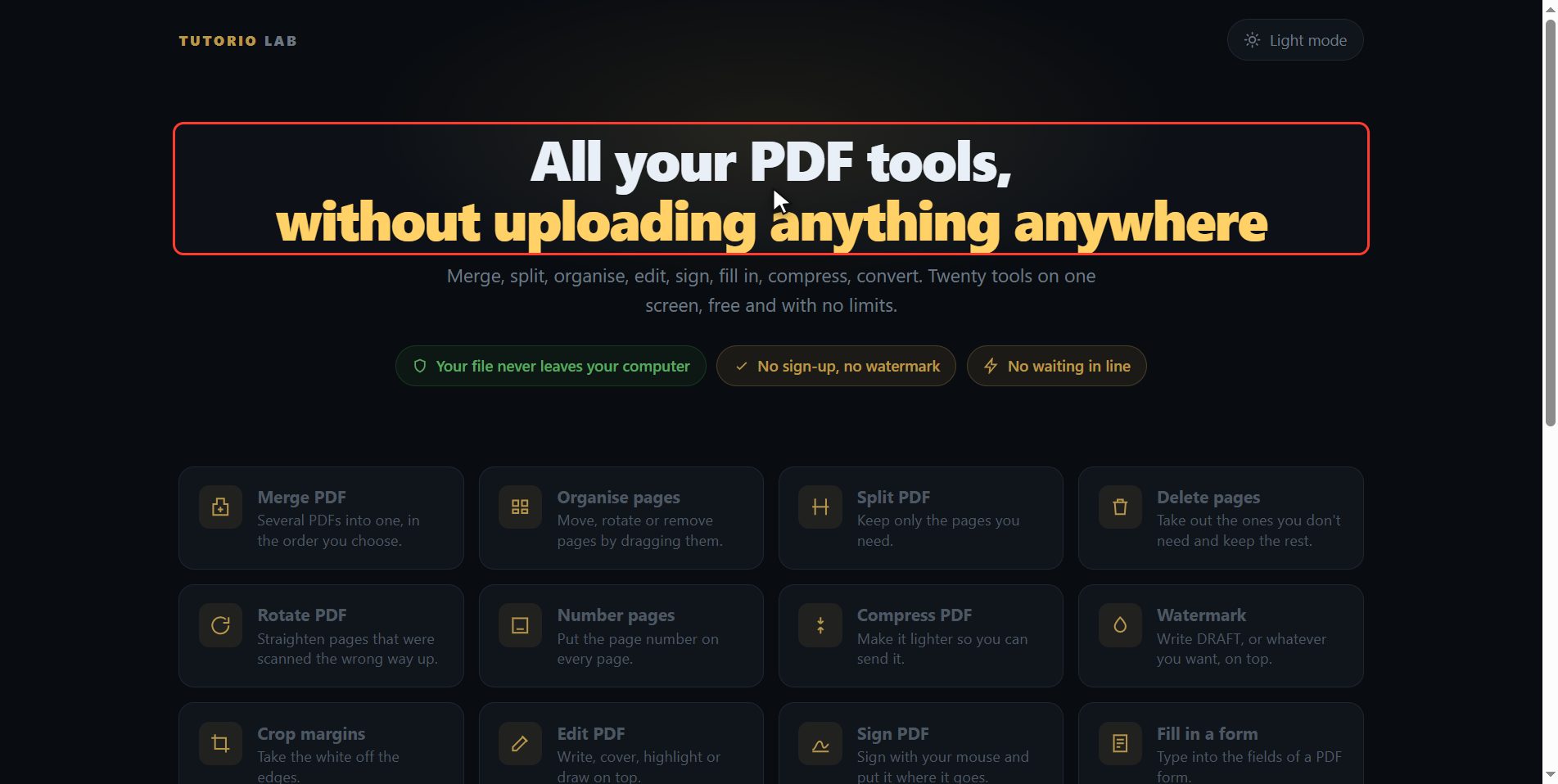
Click "Compress PDF"
Click it. And you are in. This is all it has: a button to pick the file and the box to drop it on.
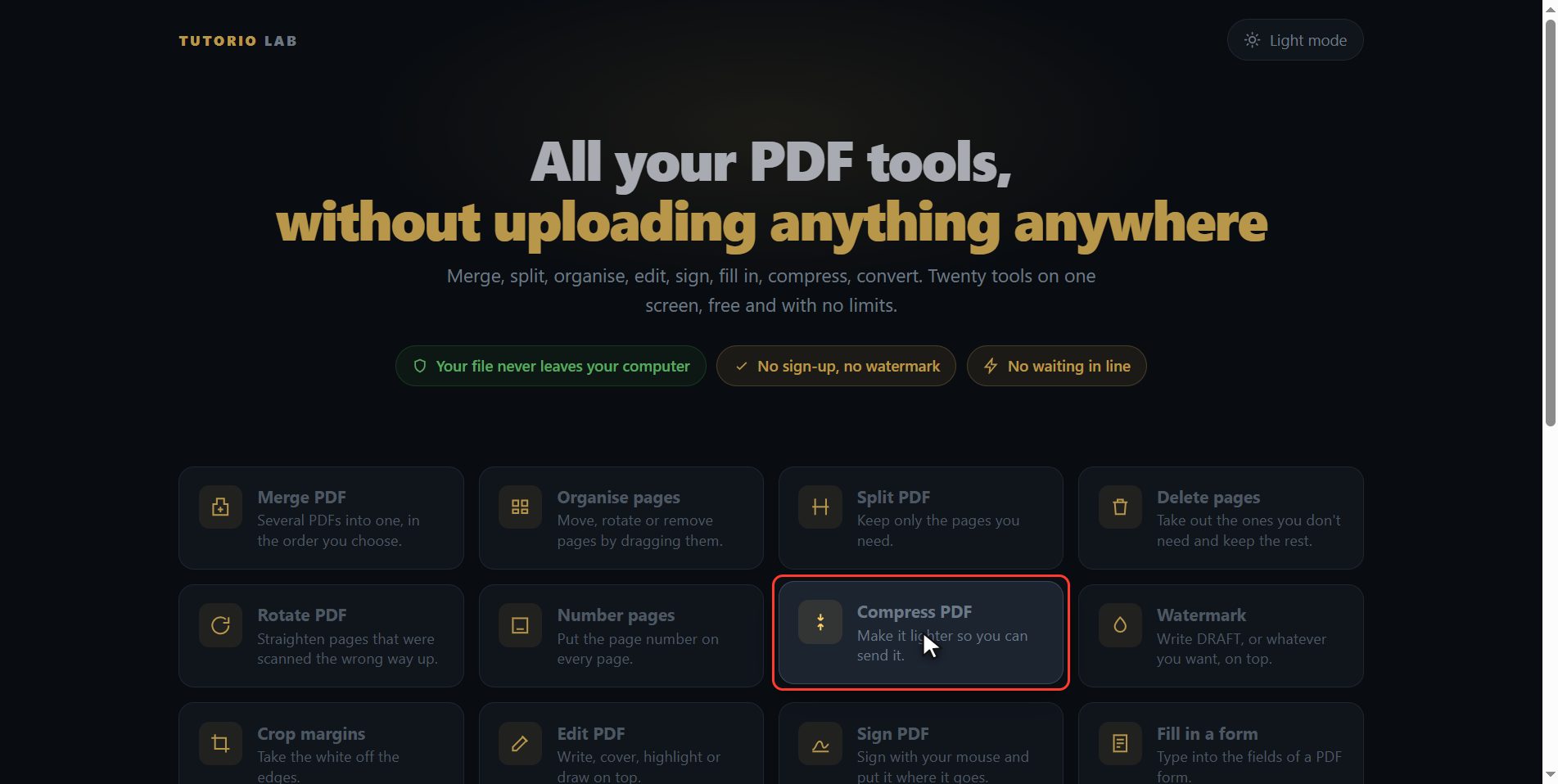
Add your PDF
Add the PDF that weighs too much. Click the select button and choose it, or drag it straight onto the box. The moment it goes in you will see its pages drawn out, one by one, so you can check it is the file you wanted and not another one. And in the panel on the right it tells you how many there are and what the file is called.
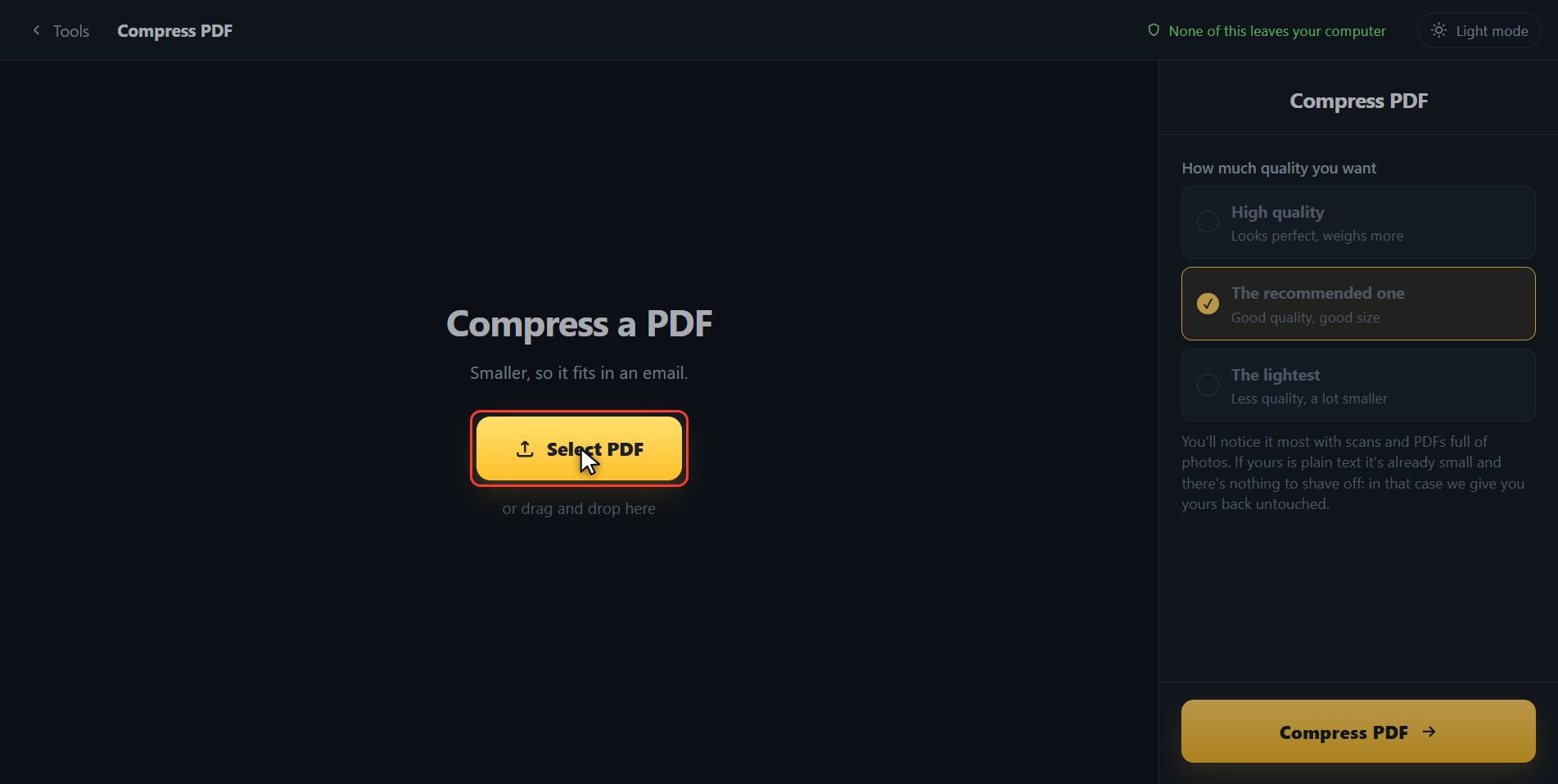
Pick how far down you want to go
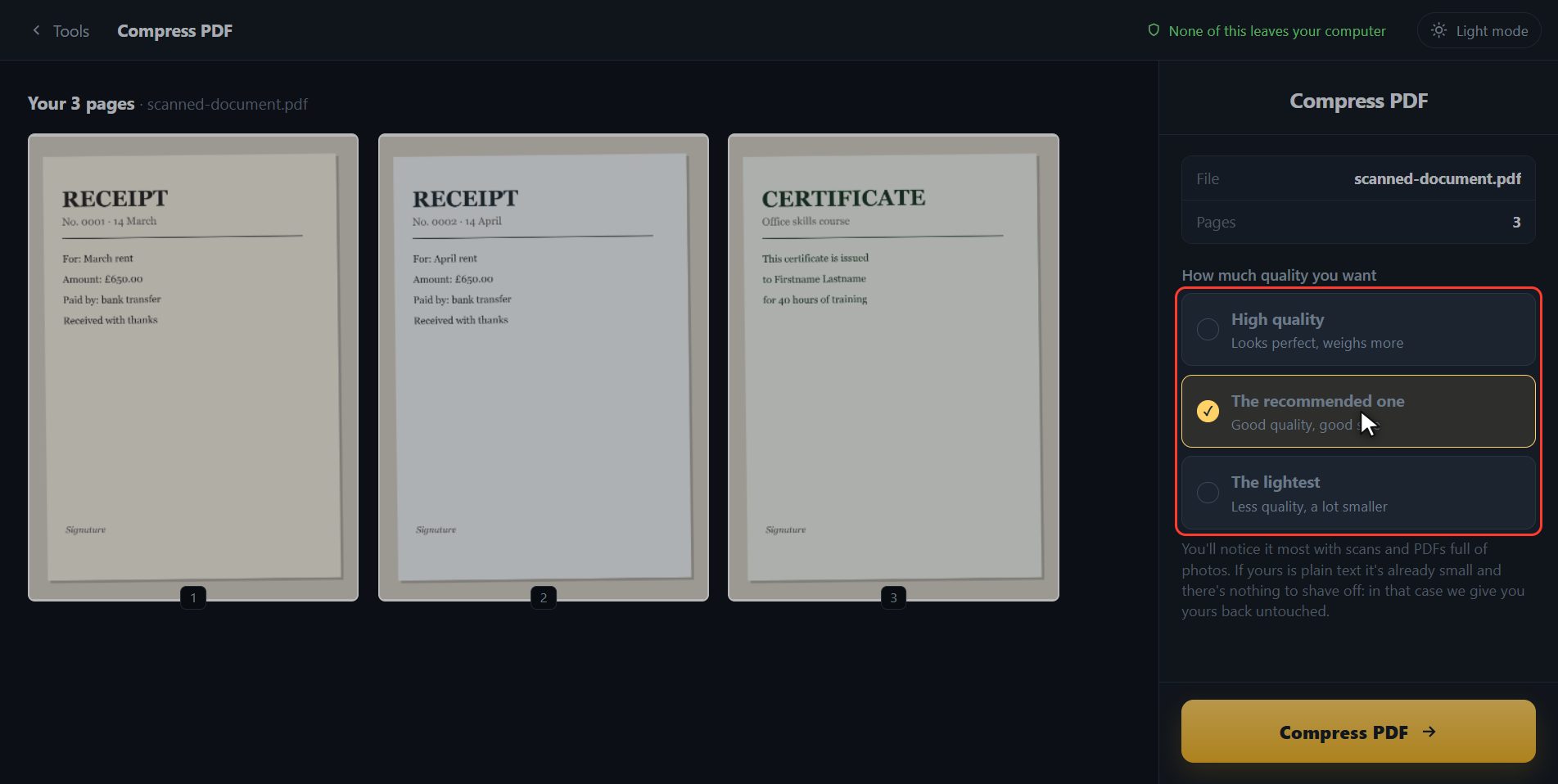
Now choose how far down you want to go, over here on the right. High quality takes off little but it looks perfect, for something you are going to print. The recommended one works for almost everything and leaves the file at about half. And the lightest one takes off far more, at the cost of the letters looking a little less crisp: that is the right one when what you need is for it to fit in an email and nothing else. I am going to use this one.
Compress it
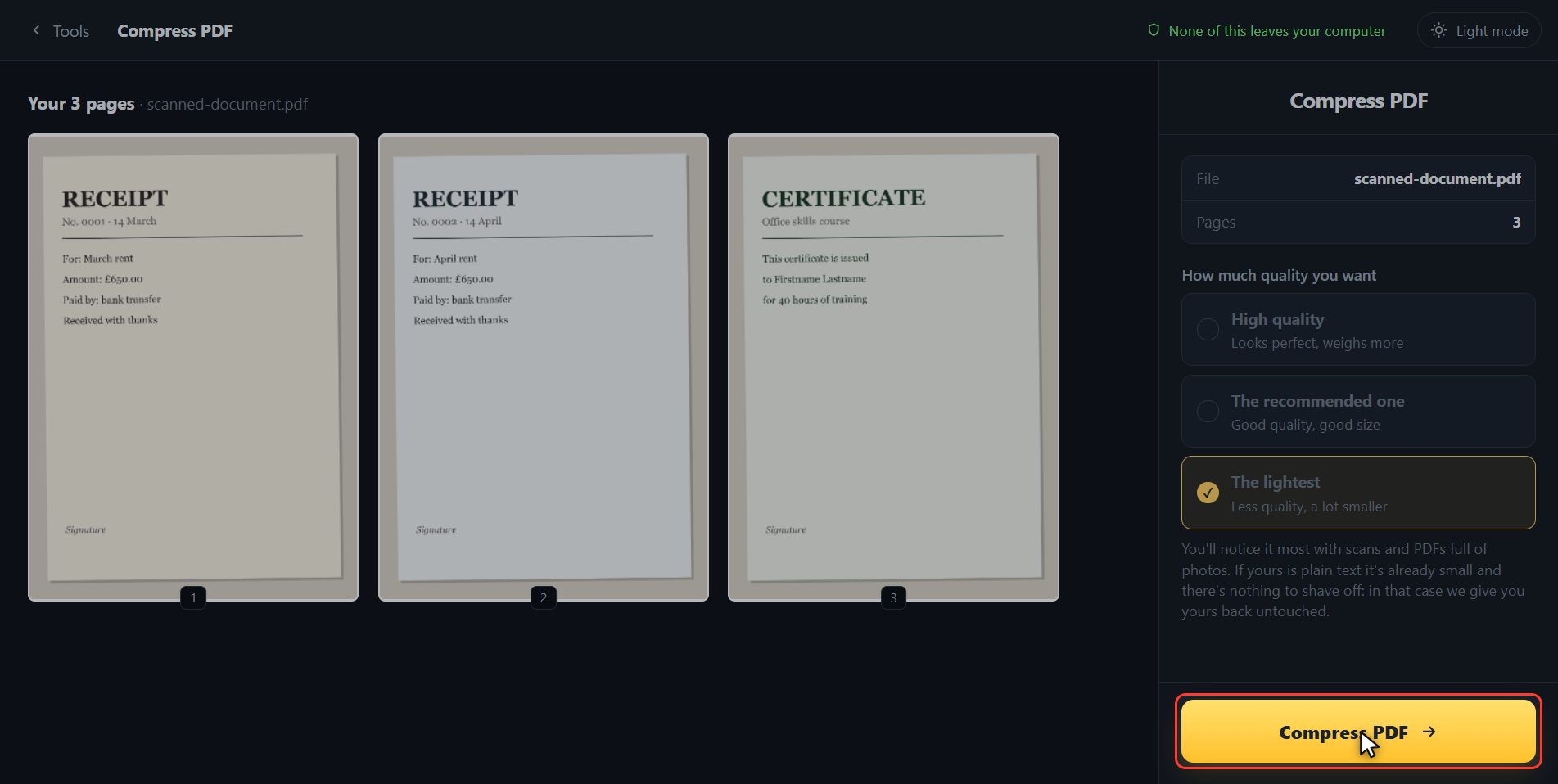
With the level picked, click Compress PDF. It takes a few seconds, because every page has to be redrawn.
Look at how much came off
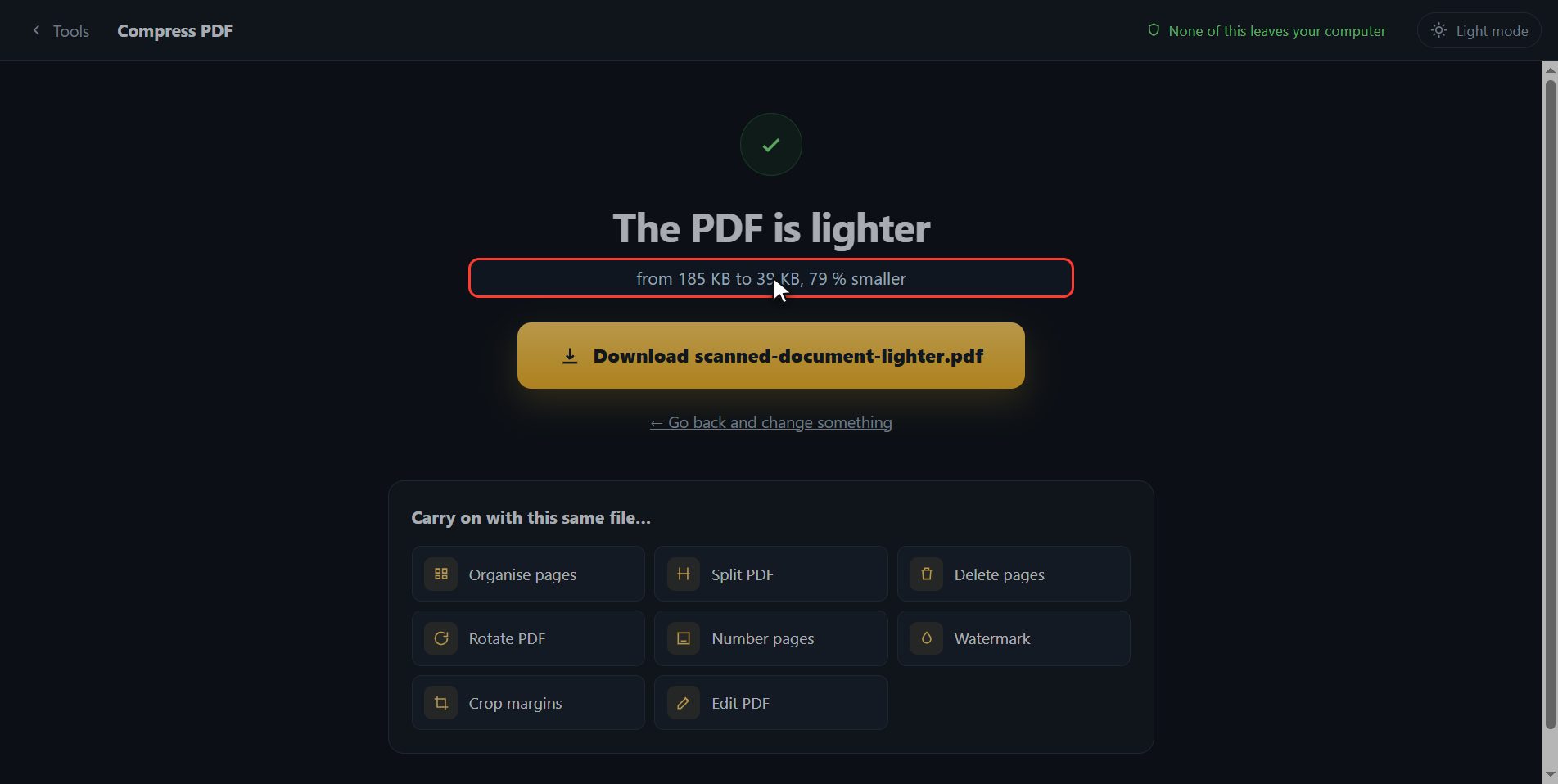
And look at the result: it weighed one hundred and eighty-five kilobytes and now it weighs thirty-nine. Seventy-nine per cent less, and here is where you download it. This really does come down with scans and with PDFs full of photos, which are the ones that weigh; if yours is plain text it already weighs little, there is nothing to take off, and it hands you back your file untouched. And if you want to carry on with another tool, you have them down here with the file already inside.
And that is all. If it helped you, subscribe and give it a like. The link is at the top and first in the description. See you in the next one.
Common questions
I compressed it and it says it will not come down. Why?
Because that PDF is plain text, and text already takes up almost nothing: there is nothing to take away. Compressing redraws the pages as images, and the image of a page of text weighs more than the text itself. When that happens the page tells you so and downloads your file untouched, so you are not left with one worse than the one you brought.
Which PDFs does it work best on?
The ones with photos or that have been scanned, which are exactly the ones that really weigh. Measured with a three-page scan: 18 % off on high quality, 55 % on the recommended one and 79 % on the lightest.
Do I lose quality?
Some, and you choose how much with the three levels. If the PDF is for reading on a screen or emailing, "the lightest" looks perfectly fine.