
How to make a photo smaller in size
Written and checked by the Tutorio Lab editors · Reviewed on · Who we are and how we are funded
In 30 seconds: go to iloveimg.com, choose Compress image, upload your photos and hit the red button. Free, no sign-up, and nothing to choose.
You try to upload a photo to a form and it tells you the file is too big. Or you want to email several and they will not fit. Photos from any modern phone take up several megabytes each, and you almost never need that much.
Bringing them down takes less than a minute, it is free and there is nothing to install. Here are the steps, and at the end the difference between compressing and resizing, which a lot of people mix up.
Go to iLoveIMG
Go to iloveimg.com.
Careful, it is IMG, for image: it is the sister site of iLovePDF, from the same people, but for photos instead of documents. If it comes up in another language, you change it in the top right corner, same as on the other one.
The tool you want is the first one in the grid, Compress image.
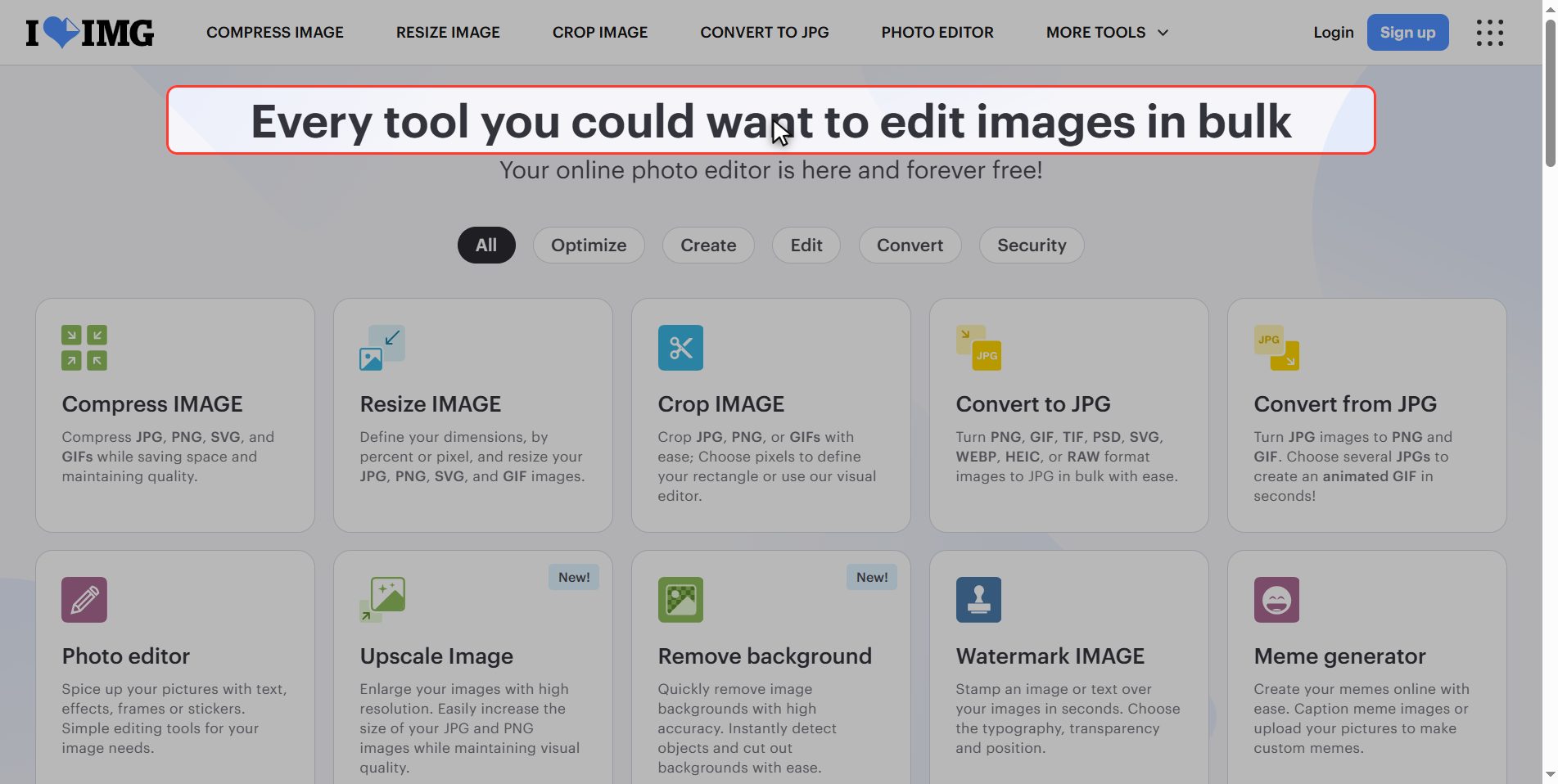
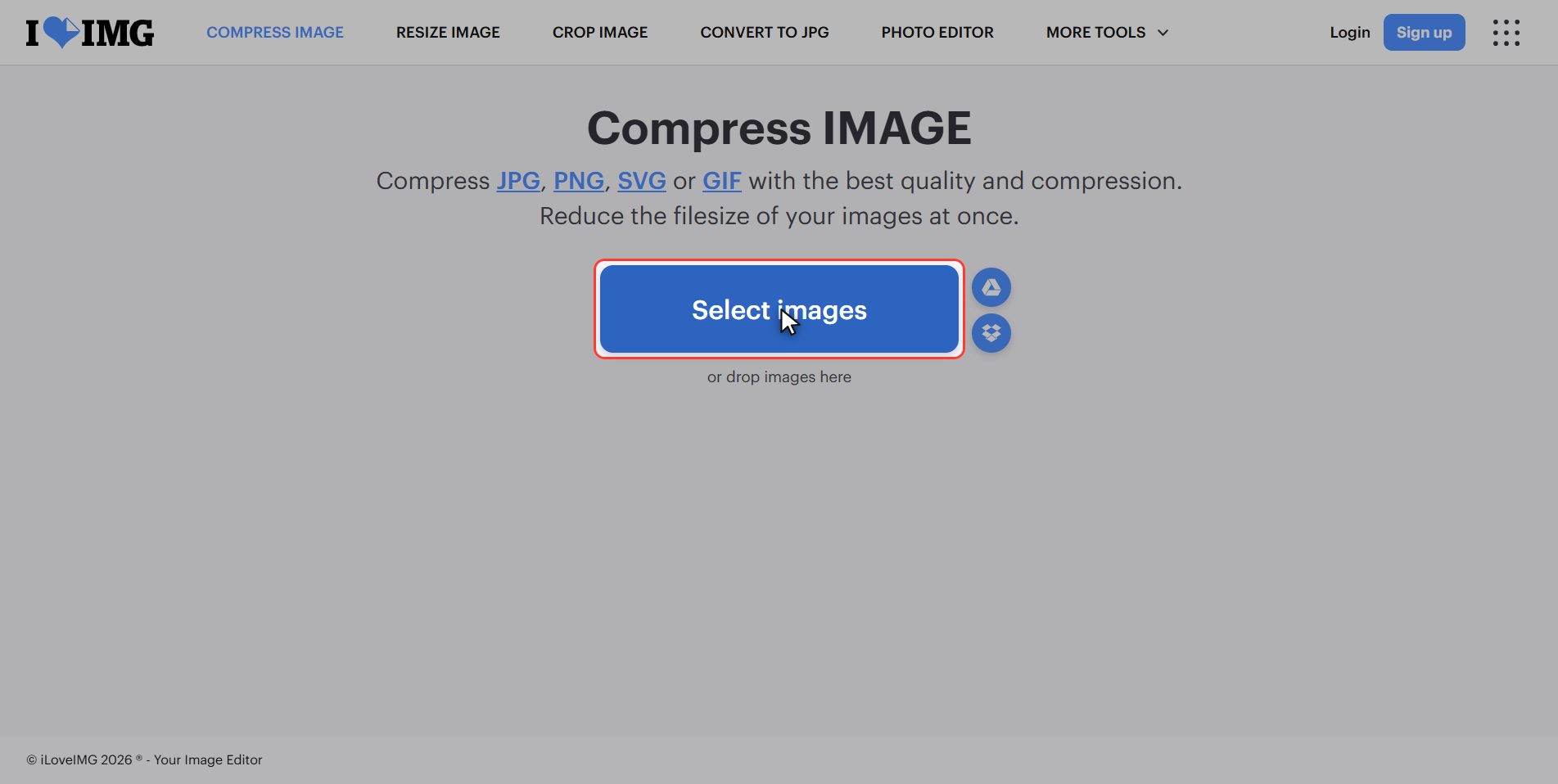
Upload your photos
Click the red Select images button.
It is plural: you can upload several at once and it compresses them all.
You can also drag them from your folder onto the red box. It takes JPG, PNG and the usual formats.
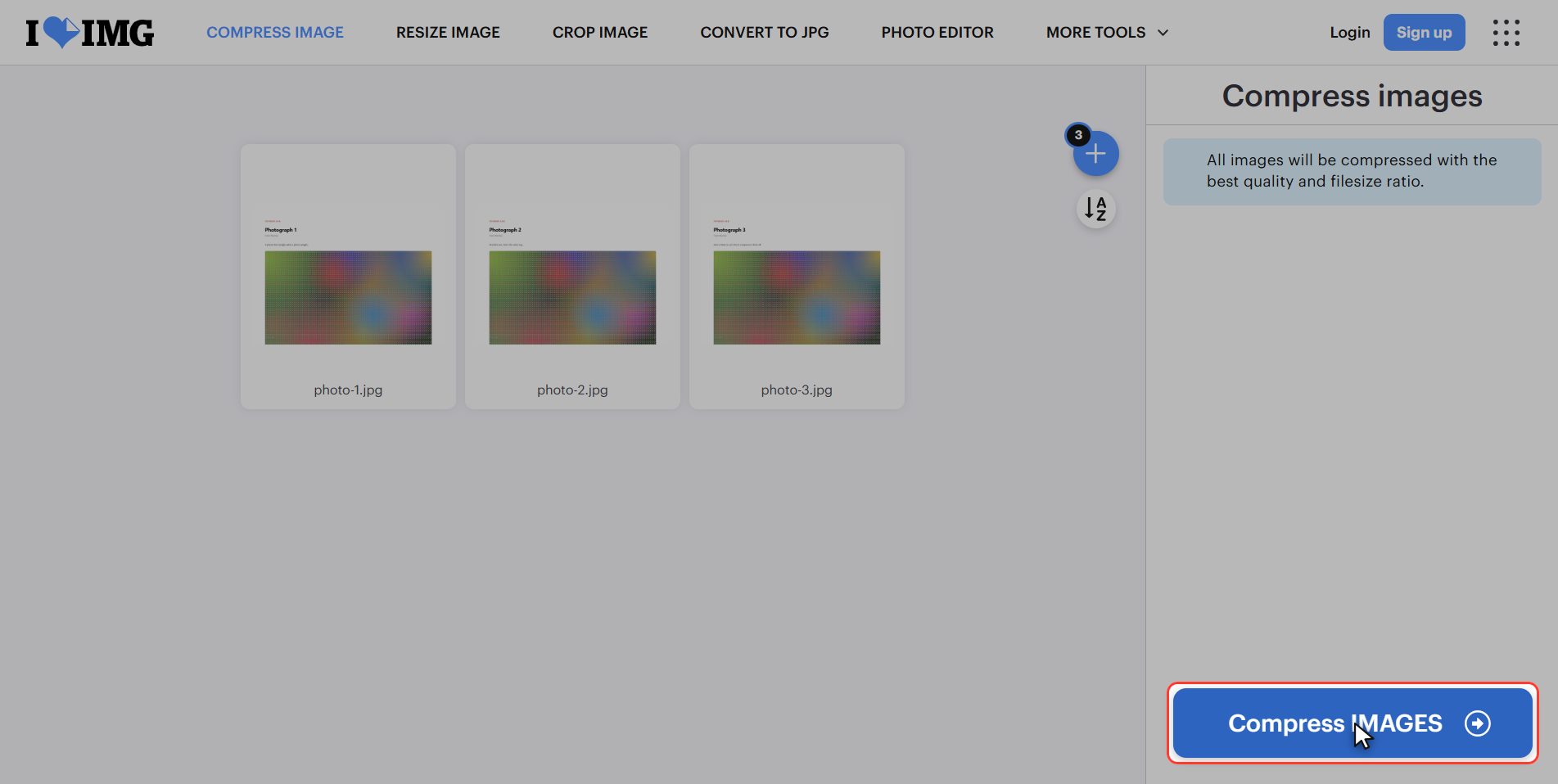
Click "Compress images"
Here comes the convenient part of this tool: there is nothing to choose.
Unlike compressing a PDF, which asks you for a level, this one applies the best balance between size and quality by itself.
Just click the red Compress images button, bottom right. It takes a few seconds.
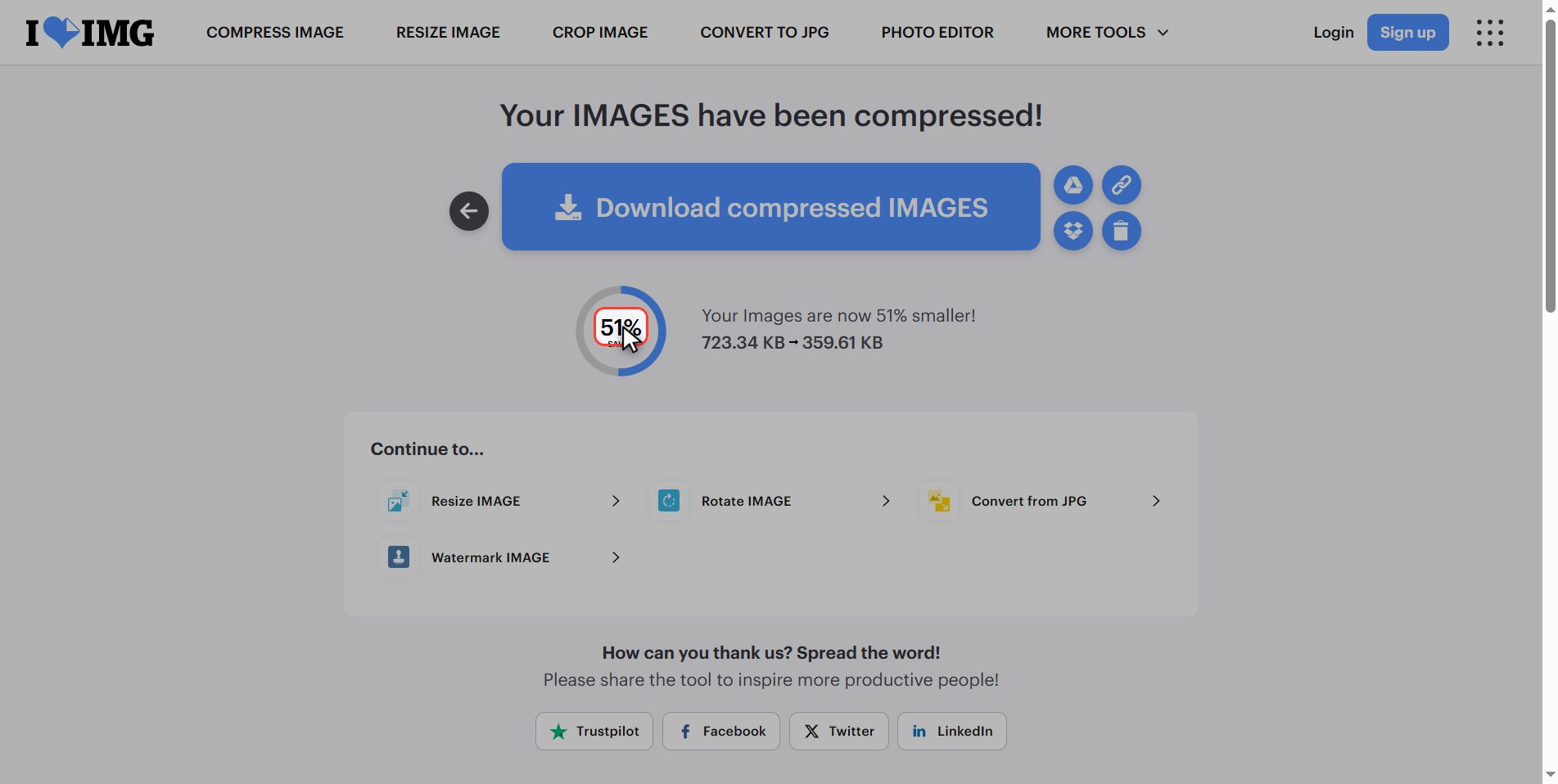
See how much they dropped
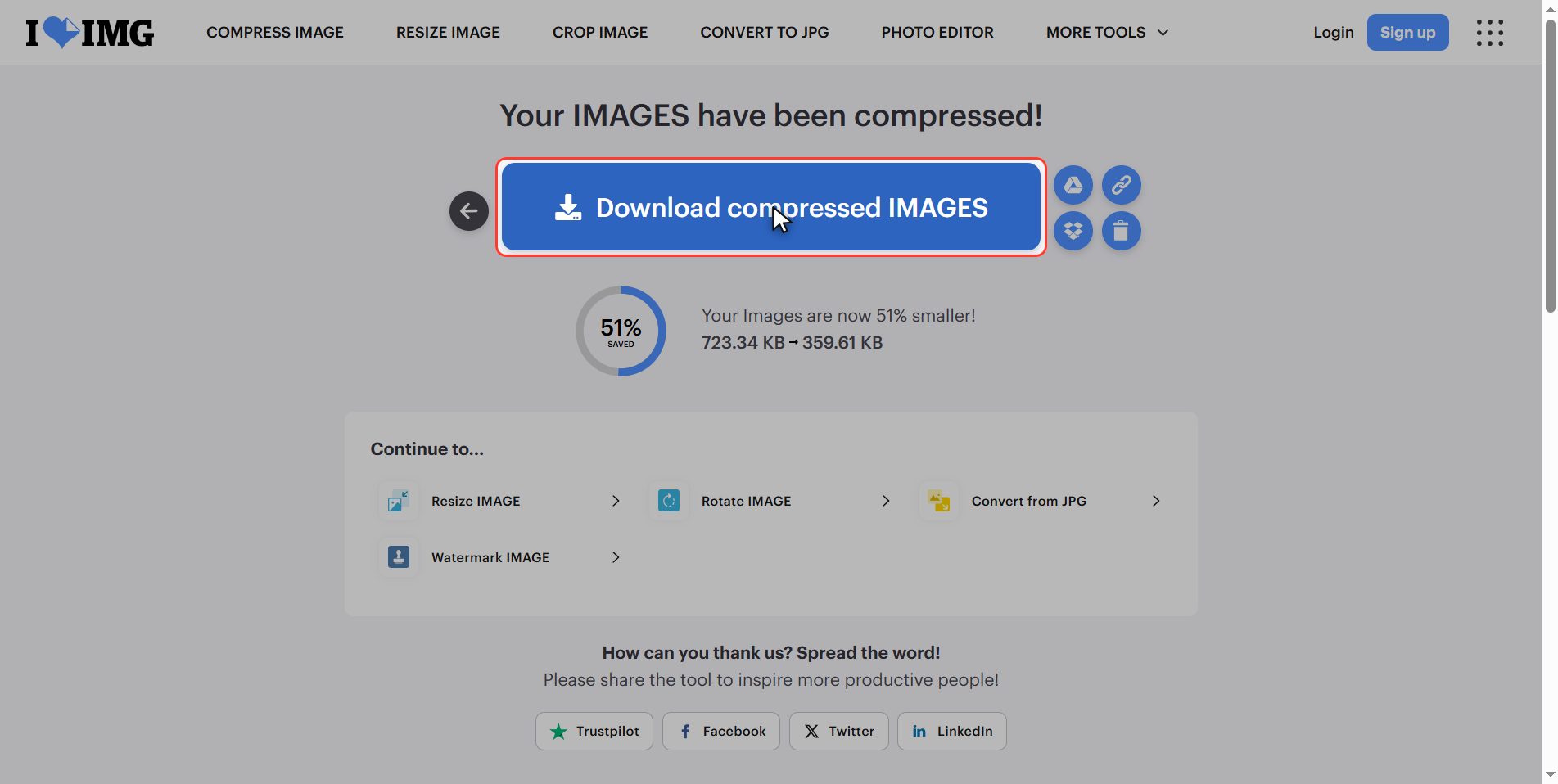
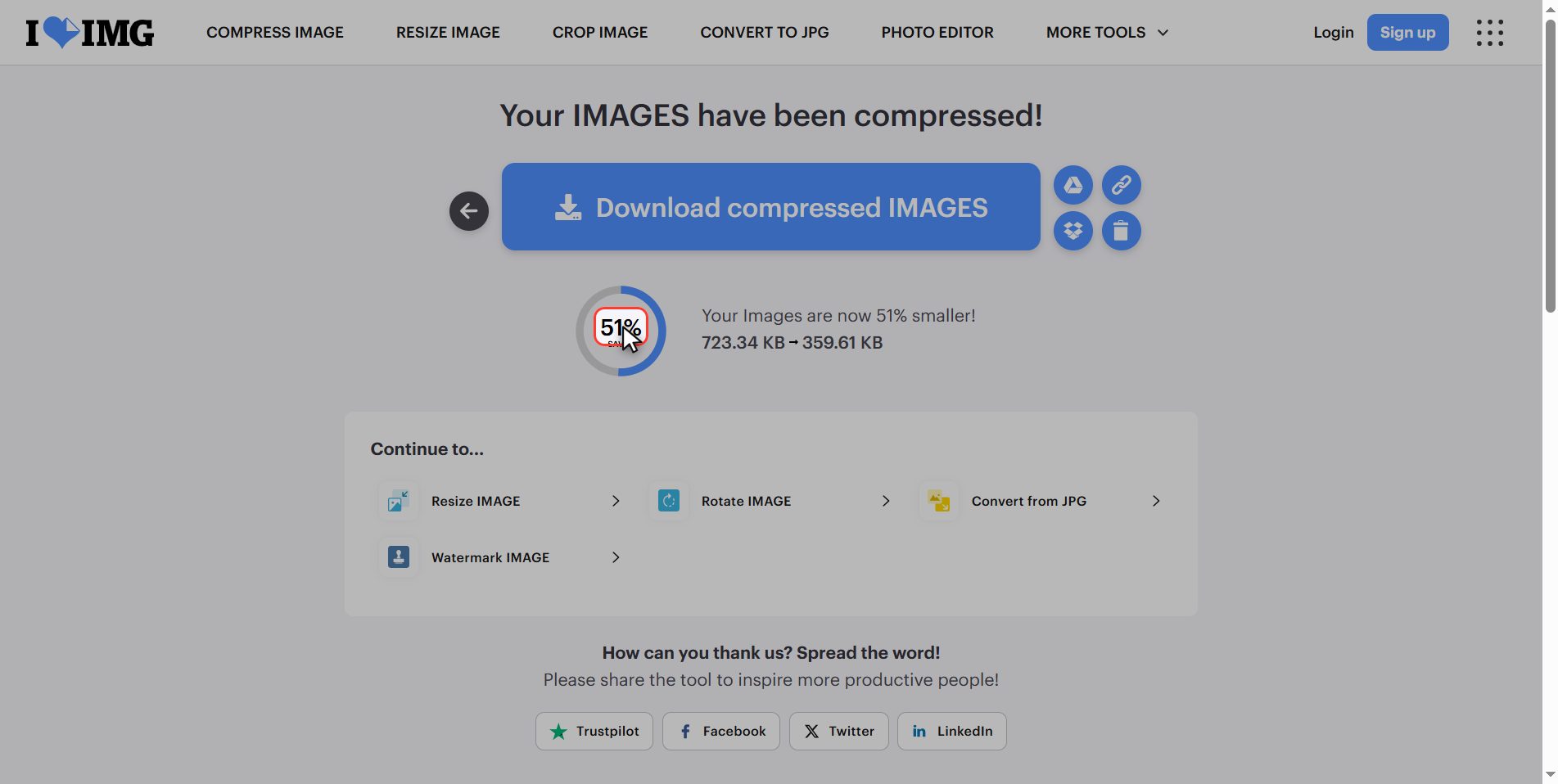
Look at the result, because this is the interesting part: it tells you how much they dropped in total.
Savings of 60, 70 or even 80% are normal. And if you open the compressed photo and the original side by side on screen, you will not spot the difference.
You would spot it if you zoom in a lot or if you are going to print it large. For sending it, uploading it to a website or storing it, the compressed one is more than enough.
Download them
Click Download compressed IMAGES and they are saved to your downloads folder.
If you uploaded several, they arrive together in a zip, which opens with a double click.
Compress or resize: not the same
This is the part that confuses a lot of people. Compressing and resizing are not the same thing:
- Compressing — What we just did. Keeps the size of the photo in pixels and lowers the quality in a way you do not notice.
- Resizing — Makes the photo genuinely smaller: from 4000 pixels wide down to 1000, for example.
Which to use:
- Too heavy? → Compress.
- Enormous for what you need it for, like a profile picture? → Resize, the tool right next door.
- Heavy and enormous? → Both: resize first, then compress.
What happens to your files
This applies to all of these tools.
Your photos are uploaded to an iLoveIMG server so they can be compressed. They are processed there and deleted by themselves after a few hours. The connection is encrypted.
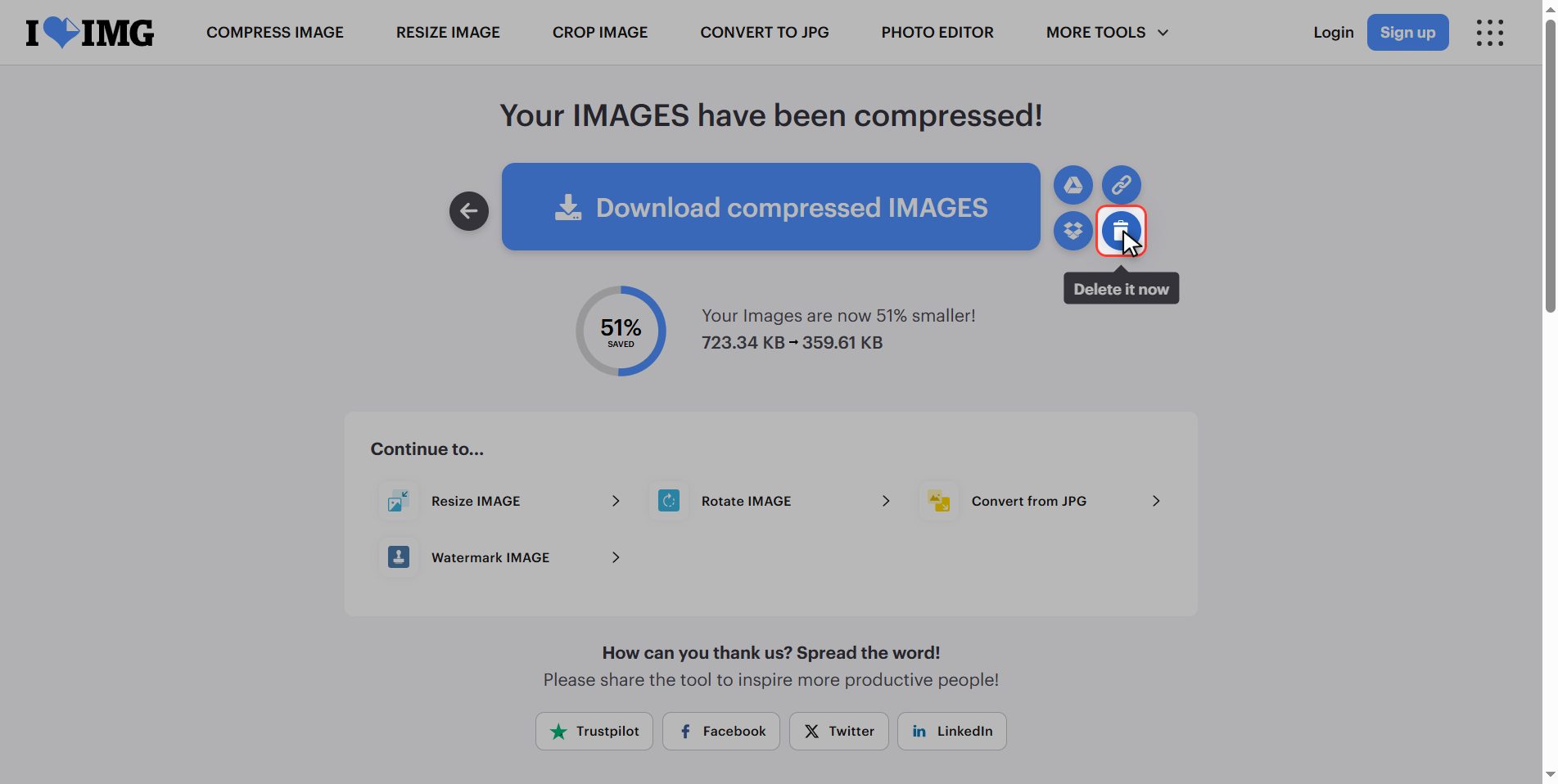
For holiday photos or product photos there is no problem at all. But if they are personal photos, or photos of other people, think about it: almost every phone and every photo program on a computer already has an option to reduce the size when sharing, without uploading anything. And if you upload them anyway, click the bin when you are done.
And that is it: much lighter photos in under a minute and for free.
Keep the difference in mind: compressing brings the file size down, resizing brings the dimensions down.
Common questions
Can you tell the quality has dropped?
On screen, practically not. If you open the original and the compressed one side by side on a computer or a phone, most people cannot tell which is which. You notice it in two cases: if you zoom in a lot, and if you are going to print it at a large size. For emailing, uploading to a website or keeping on your phone, the compressed one is more than enough.
What is the difference between compressing and resizing?
Compressing keeps the size in pixels and lowers the quality almost imperceptibly, so the photo still has the same width and height but takes up far less. Resizing changes the size for real: it makes the photo smaller in pixels. If the problem is the file size, compress. If the problem is that the image is enormous for what you need it for, resize. And if it is both, resize first and then compress.
Can I compress several photos at once?
Yes, and that is the normal way to use it. You can upload several at once and it compresses them all to the same standard. The result arrives as a zip that opens with a double click.
Can I choose how much to compress?
Not in this tool, and that is on purpose: it applies the best balance between size and quality by itself. If you need fine control over the quality, the alternative is to resize the image yourself to the pixels you want and compress it afterwards.
My photo is an iPhone HEIC and it will not take it. What do I do?
HEIC is the format the iPhone uses by default and many websites do not recognise it. You have to turn it into a JPG first, and the same site has a tool for that: convert to JPG. You can also change the iPhone setting so it takes photos directly as JPG, in Settings, Camera, Formats, "Most Compatible".
Is it safe to upload my photos?
For holiday photos, product photos or landscapes, yes: they travel encrypted and are deleted from the server after a few hours. For personal photos, or photos of other people, it is worth thinking about. Almost every phone and every photo program on a computer lets you reduce the size when sharing without uploading anything to the internet, and for a single photo that is quicker and never leaves your device.