How to turn photos into a PDF
Go to tutoriolab.com/pdf/en, click JPG to PDF, add your photos, check the PDF that will come out underneath, change the order if you need to and click Create the PDF. It downloads on its own.
Your photos in one PDF, free and in a minute.
Go to tutoriolab.com/pdf/en
Go to tutoriolab.com slash pdf slash e n. You have it at the top left the whole video and first in the description. There are twenty tools for PDF here, and the one we want now is this one: JPG to PDF.
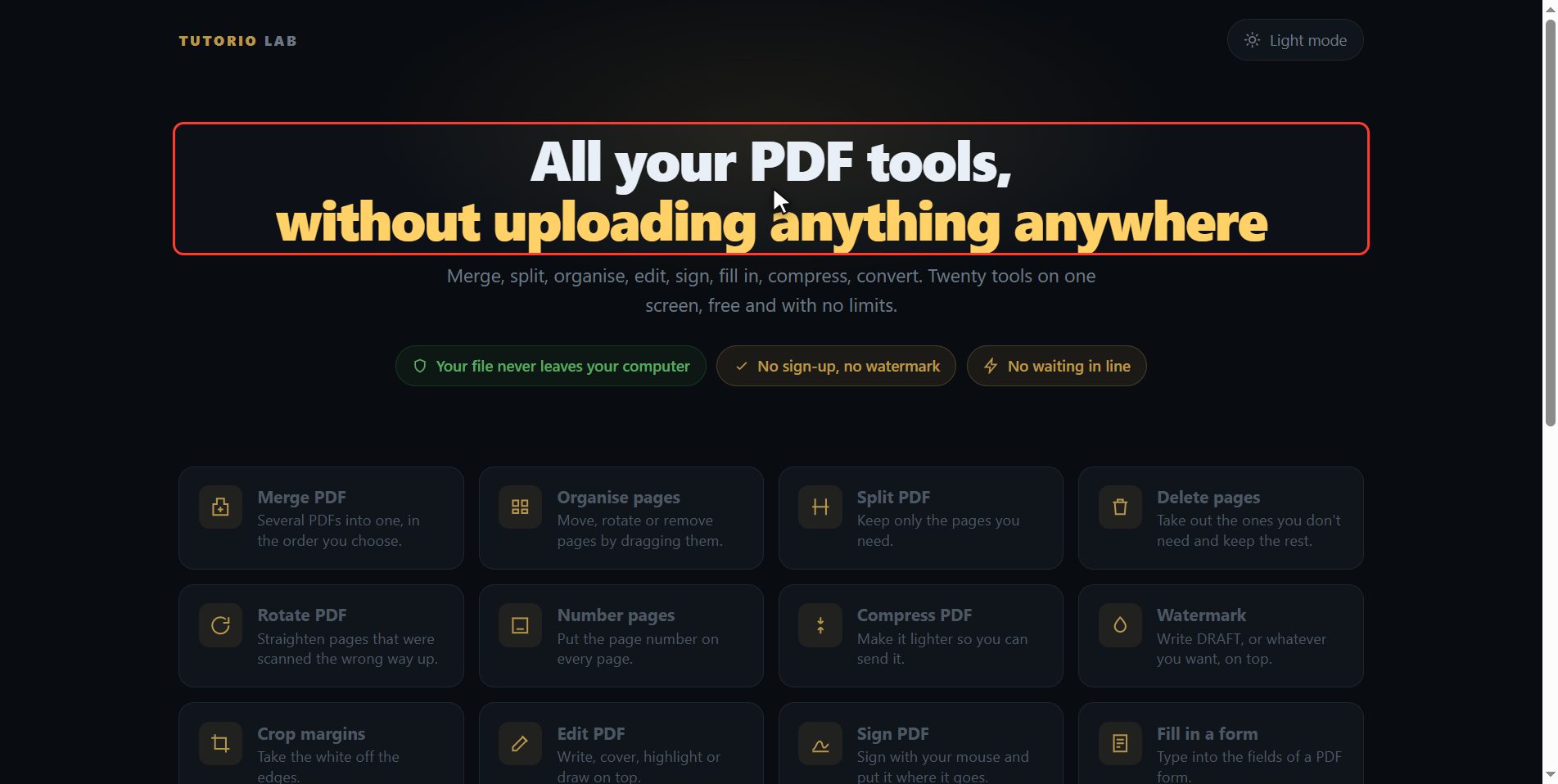
Click "JPG to PDF"
Click it. And you are in. This is all it has: a button to pick your photos and the box to drop them on.
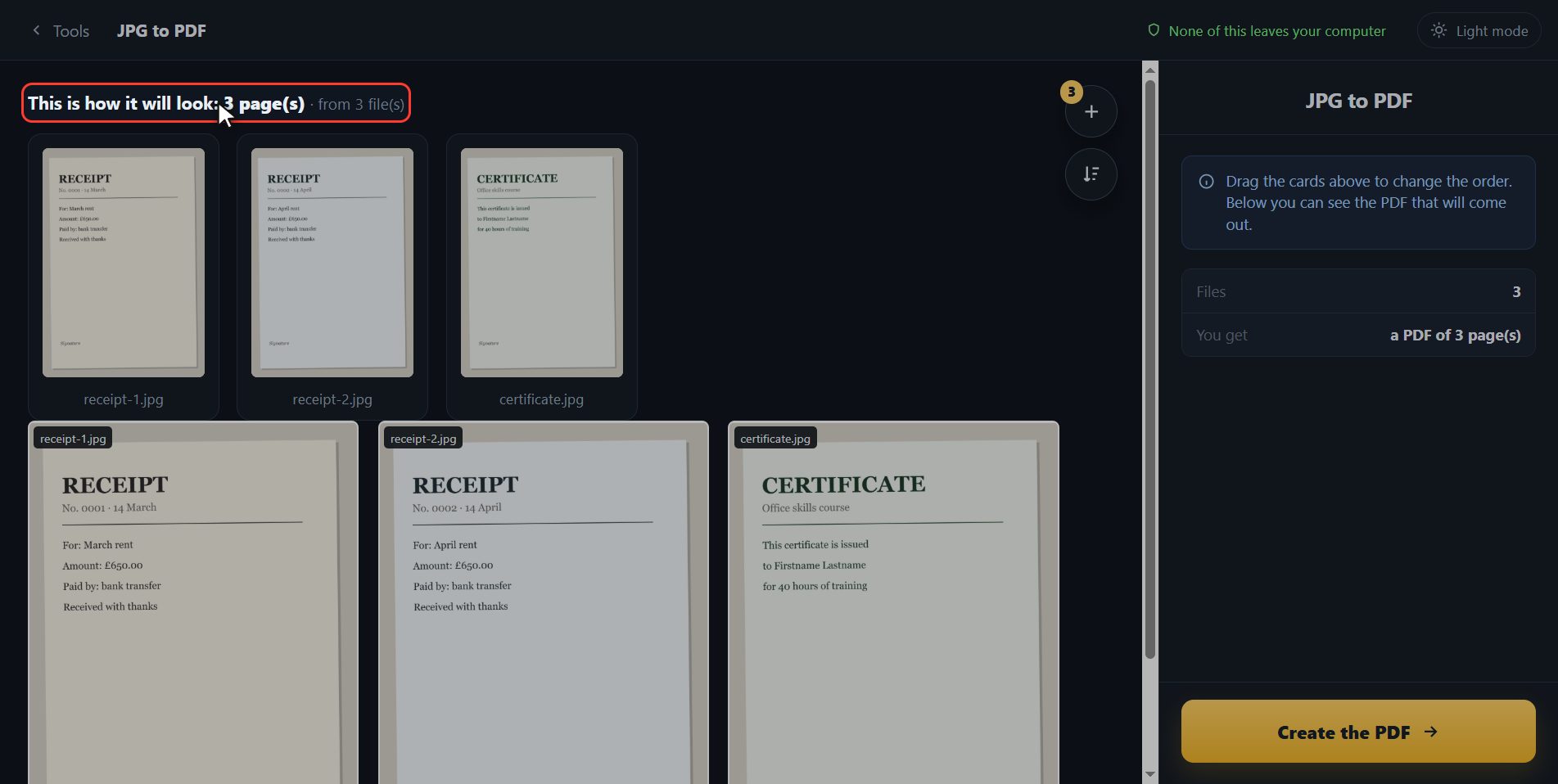
Add your photos
Now add your photos. Click the select button and pick them all in one go; you can mark several at once with the control key, or drag them straight onto the box, which is the quickest of all. And now notice something that helps a lot: each photo comes in with its own thumbnail.

See the PDF that will come out
Underneath you have the PDF that will come out, page by page. Each photo is one page, in the order you see them. If one is in the wrong place, drag its card up here and the document below rebuilds itself. The photos go in exactly as they are, without being recompressed, so you do not lose any quality along the way. And if one of them should not be there at all, you take it out from its own card up here and the document rebuilds itself again, without starting over.
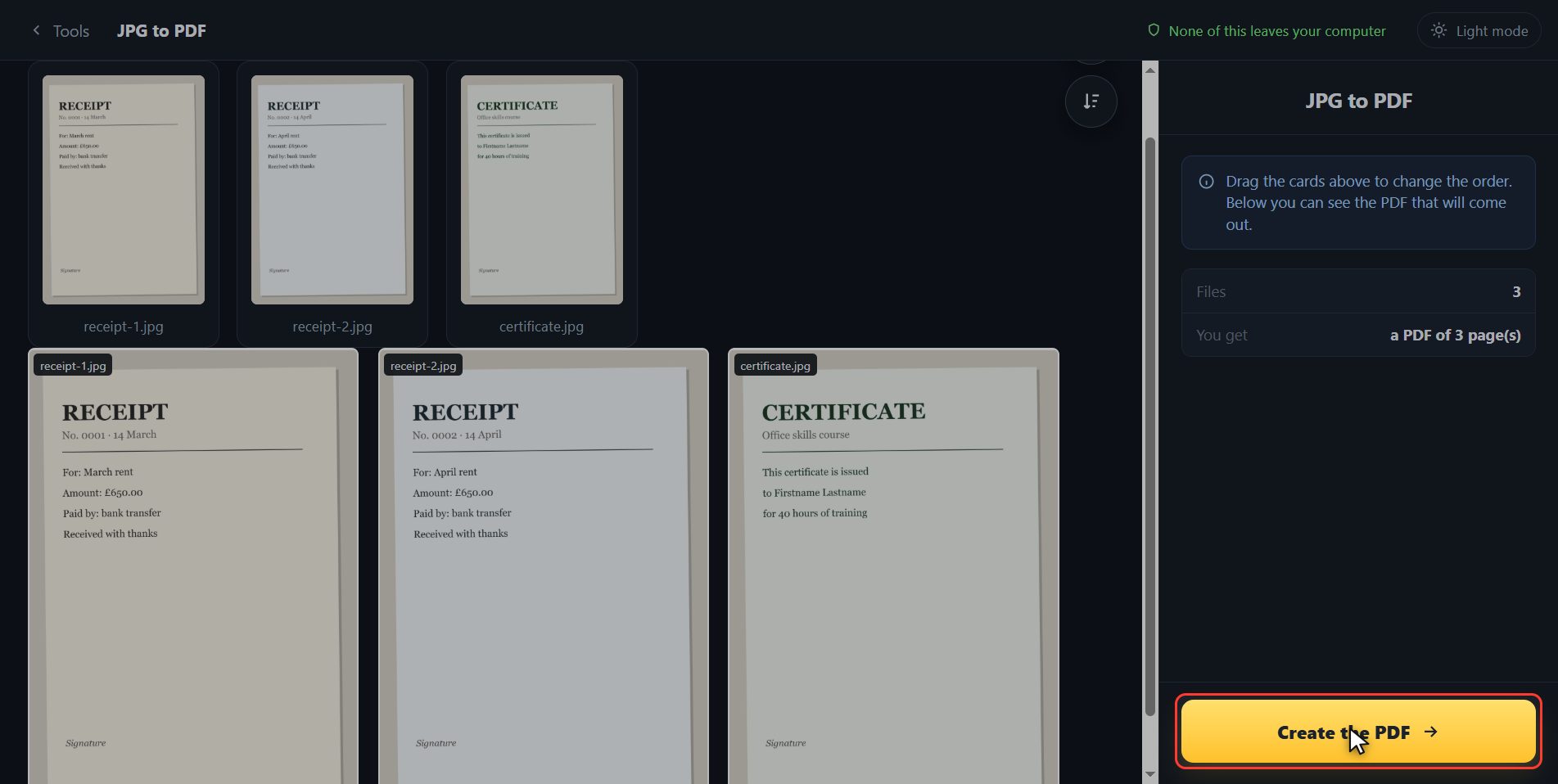
Click "Create the PDF"
When they are the way you want, click Create the PDF, down here on the right. It takes a few seconds.
Download it, and carry on
And that is it. It has downloaded on its own, and here is the button in case your browser blocked it. And if you now want to carry on with another tool — compress it, number it, add a watermark — you have them down here with the file already inside.

And that is all. If it helped you, subscribe and give it a like. The link is at the top and first in the description. See you in the next one.
Common questions
Do my photos lose quality when they go into a PDF?
No. The images go into the document exactly as they are, without being recompressed. The PDF weighs roughly what all the photos weigh together.
How many photos can I add?
As many as you like. There is no limit and no account. The only real limit is the memory of your own computer, because everything happens inside your browser.
Does it work on a phone?
Yes. The page is built to be used on a phone screen, and tapping the select button lets you pick straight from your gallery.