
How to reorder the pages of a PDF
Go to tutoriolab.com/pdf/en, click Organise pages and add the file. Drag the sheets wherever you want them; hovering over one brings up the buttons to rotate it or remove it. Click Save the PDF and it downloads in that order.
Moving the pages of a PDF somewhere else.
Go to tutoriolab.com/pdf/en
Go to tutoriolab.com slash pdf slash e n. You have it at the top left and first in the description. There are twenty tools for PDF here, and the one we want is this one: Organise pages.

Click "Organise pages"
Click it. And you are in. This is all it has: a button to pick the file and the box to drop it on.

Add your PDF
Add the PDF you want to reorder. Click the select button and choose it, or drag it straight onto the box. And the moment it goes in, the page draws it out for you: not a list of numbers, which tells you nothing, but the six sheets of the document.

Drag the sheets
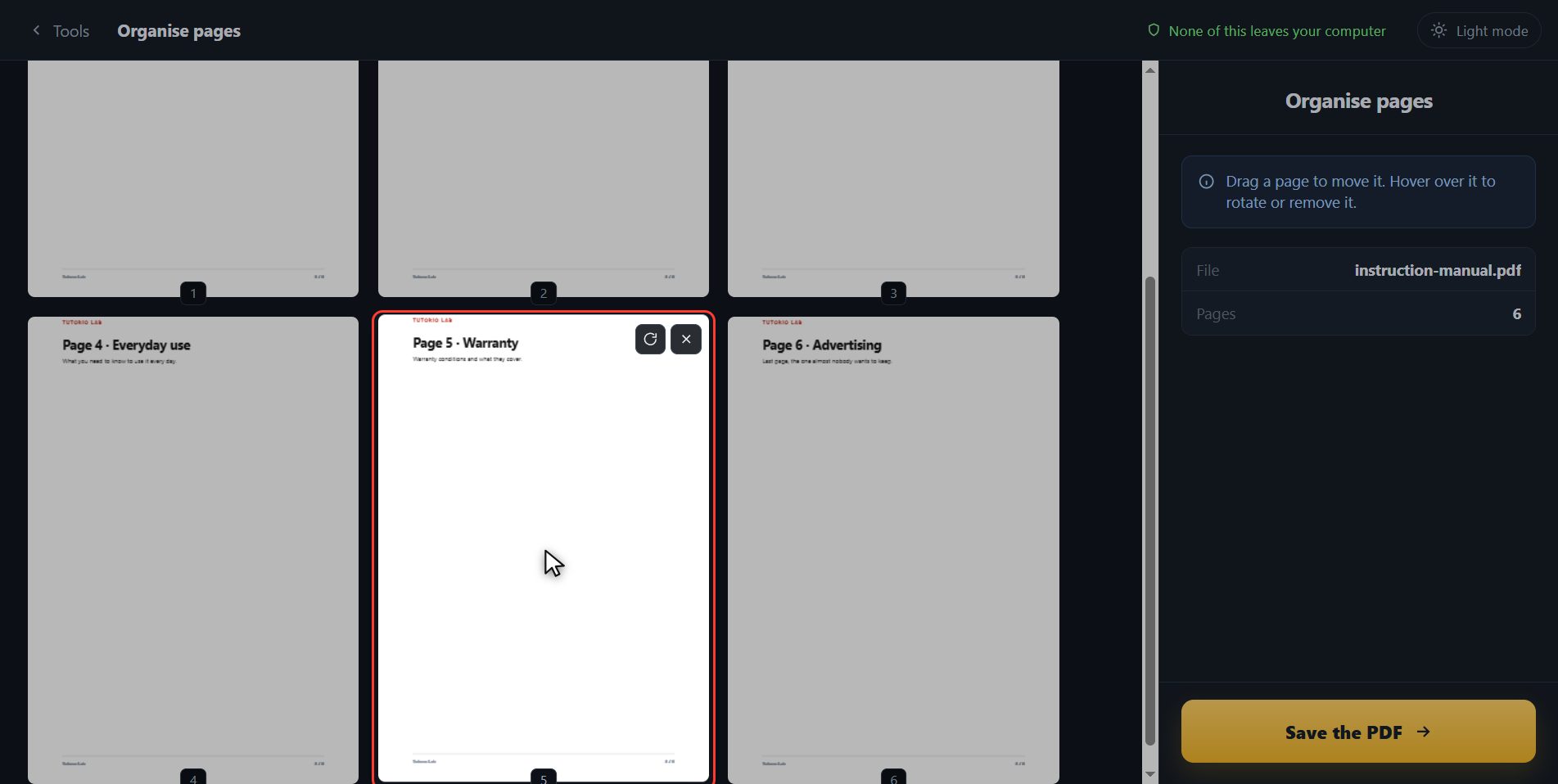
And you sort them by dragging, the way you would shuffle cards. In this manual the warranty is sheet number five, and I want it at the front, right behind the cover. So I pick it up and drop it there. Done: the warranty is number two now, and the ones that were in between have each moved down a place. The numbers have renumbered themselves, so what you are looking at is the final order, not a mental note you have to carry around.
Rotate or remove one
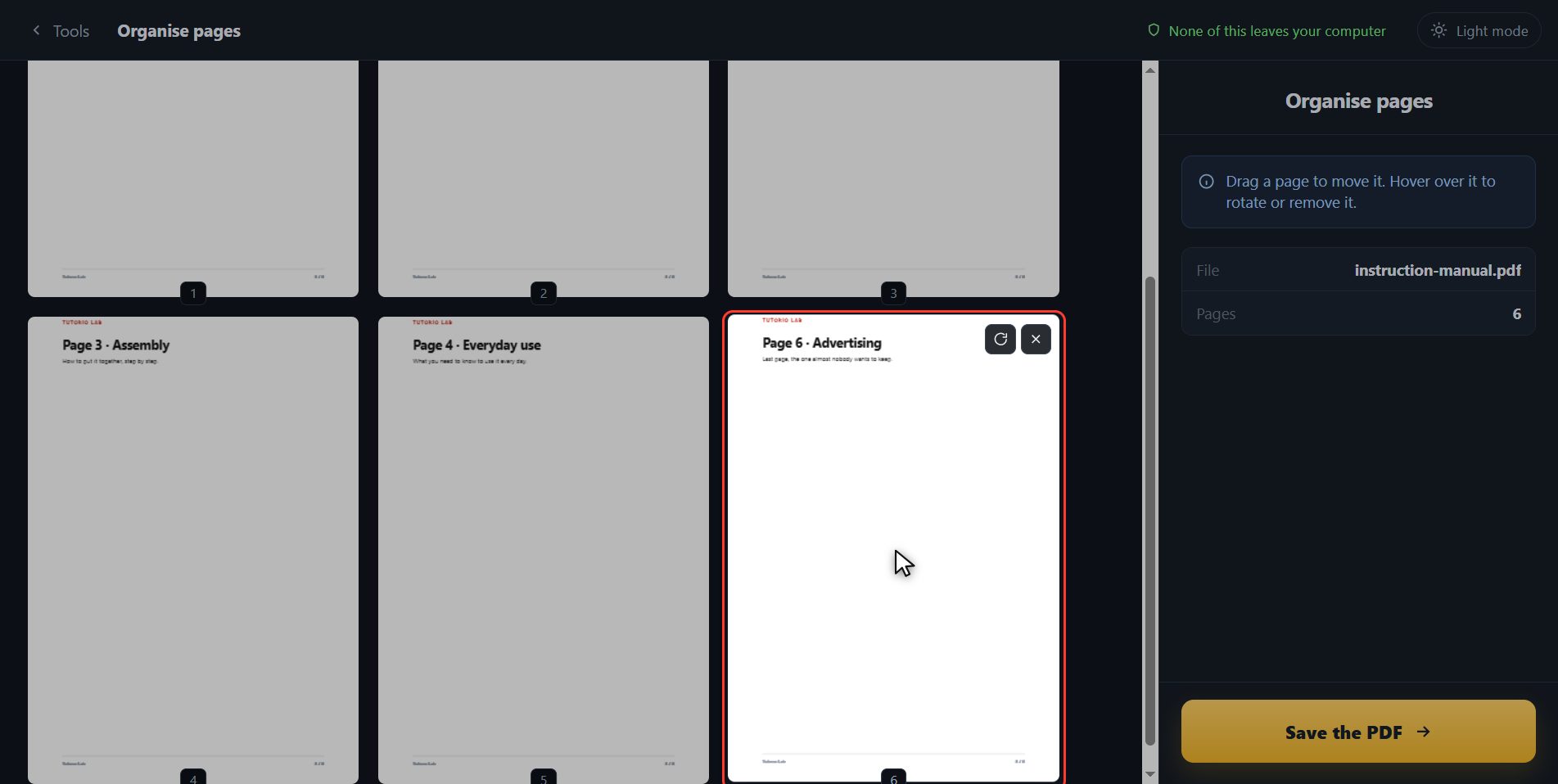
And there are two more things almost nobody finds. Hover over a sheet and two little buttons come up: one rotates that sheet on its own, and the other takes it out. The last one is an advert and I do not want it, so I take it out right here. Without changing tools and without starting over.
Save the PDF
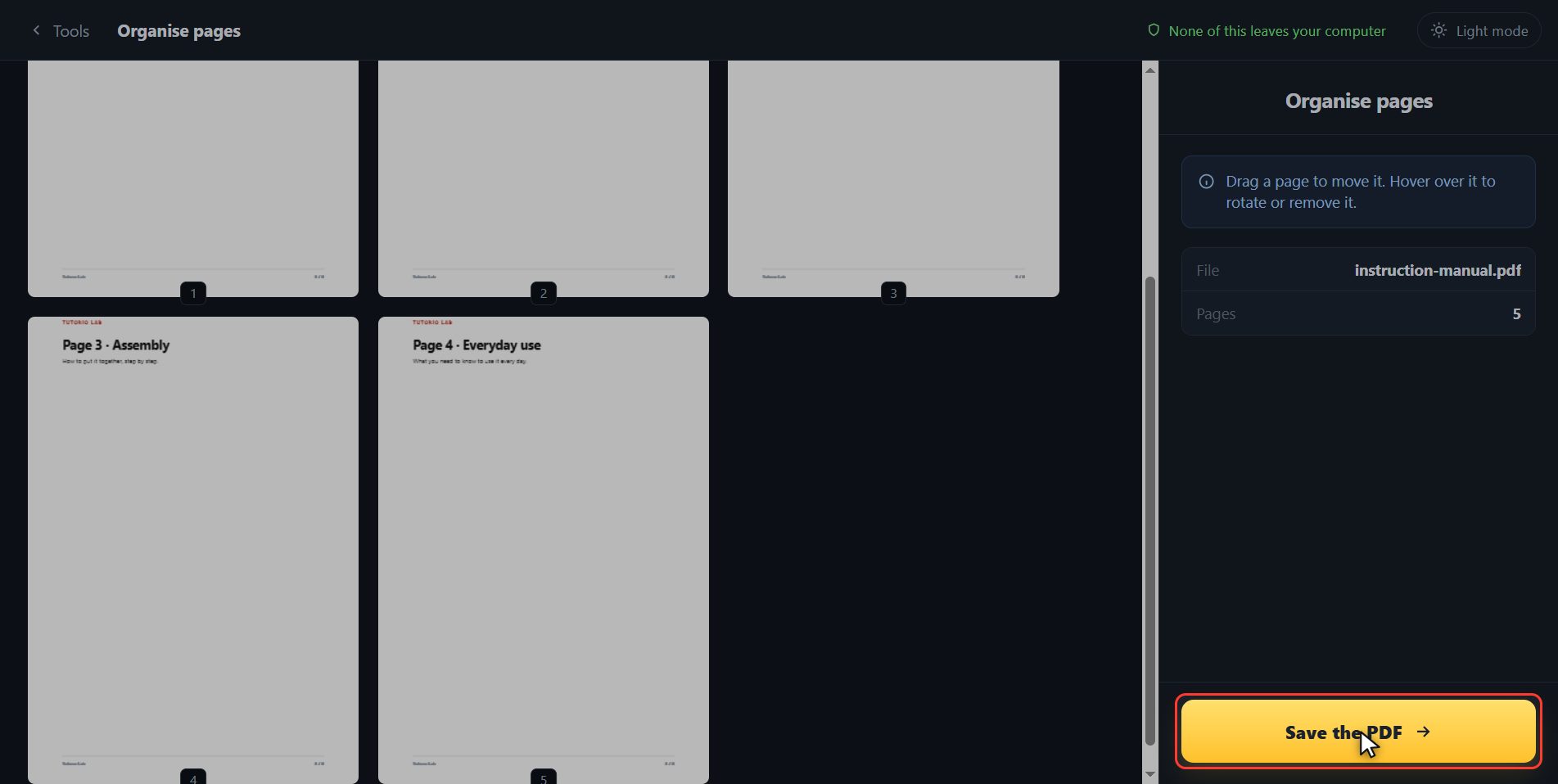
When it is how you want it, click Save the PDF.
There it is
And done. The document comes out in that order and it has downloaded on its own. Here is the button in case your browser blocked it, and if you want to carry on with another tool you have them down here with the file already inside.

And that is all. If it helped you, subscribe and give it a like. The link is at the top and first in the description. See you in the next one.
Common questions
Can I move several pages at once?
They move one at a time, but since you see the result straight away you do not have to keep count: you drag until the grid is how you want it and you save once.
What if I get it wrong?
You drag it back where it was. As long as you have not pressed Save, nothing has been written: your original file is still the same.
Can I rotate just one page?
Yes, with the rotate button that comes up when you hover over that sheet. If what you want is to rotate them all at once, the tool is "Rotate PDF".