How to split a PDF and keep only the pages you need
Go to tutoriolab.com/pdf/en, click Split PDF, add the file and click the pages you want to keep: they light up. Click Split PDF and a new file downloads with only those, in the same order. The original is not touched.
Pulling out of a PDF only the pages you need.
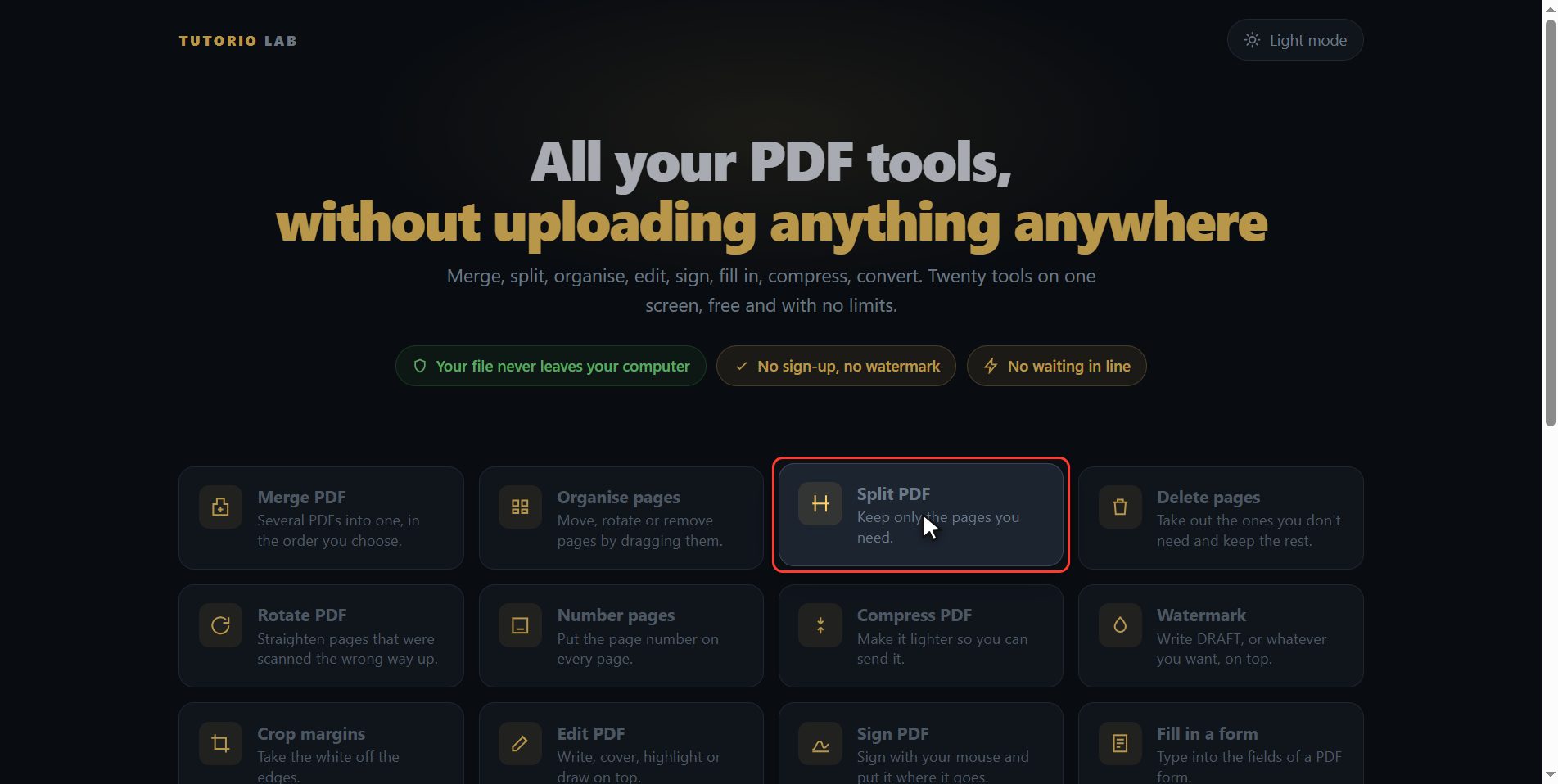
Go to tutoriolab.com/pdf/en
Go to tutoriolab.com slash pdf slash e n. You have it at the top left and first in the description. There are twenty tools for PDF here, and the one we want is this one: Split PDF.
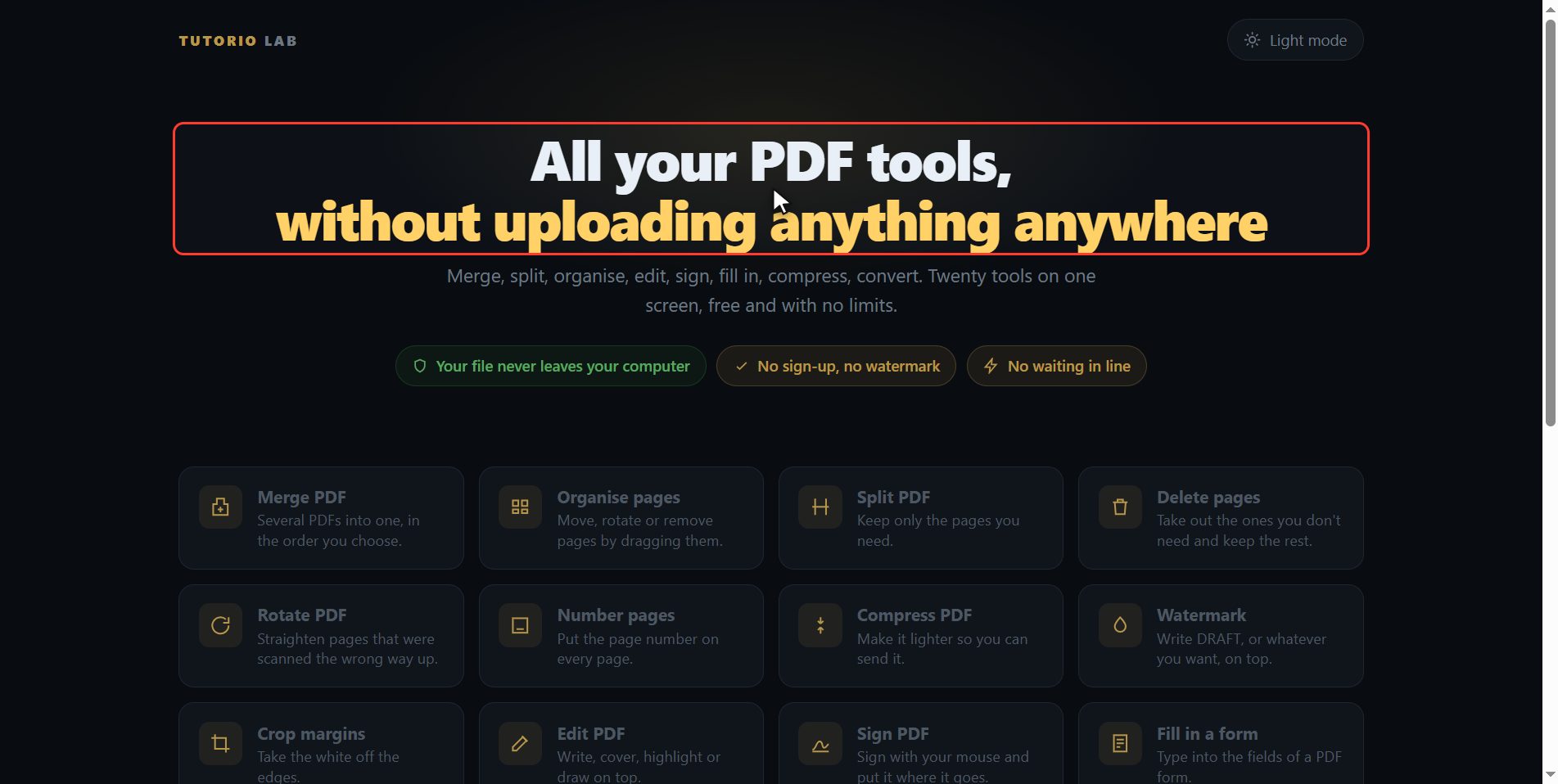
Click "Split PDF"
Click it. And you are in. This is all it has: a button to pick the file and the box to drop it on.
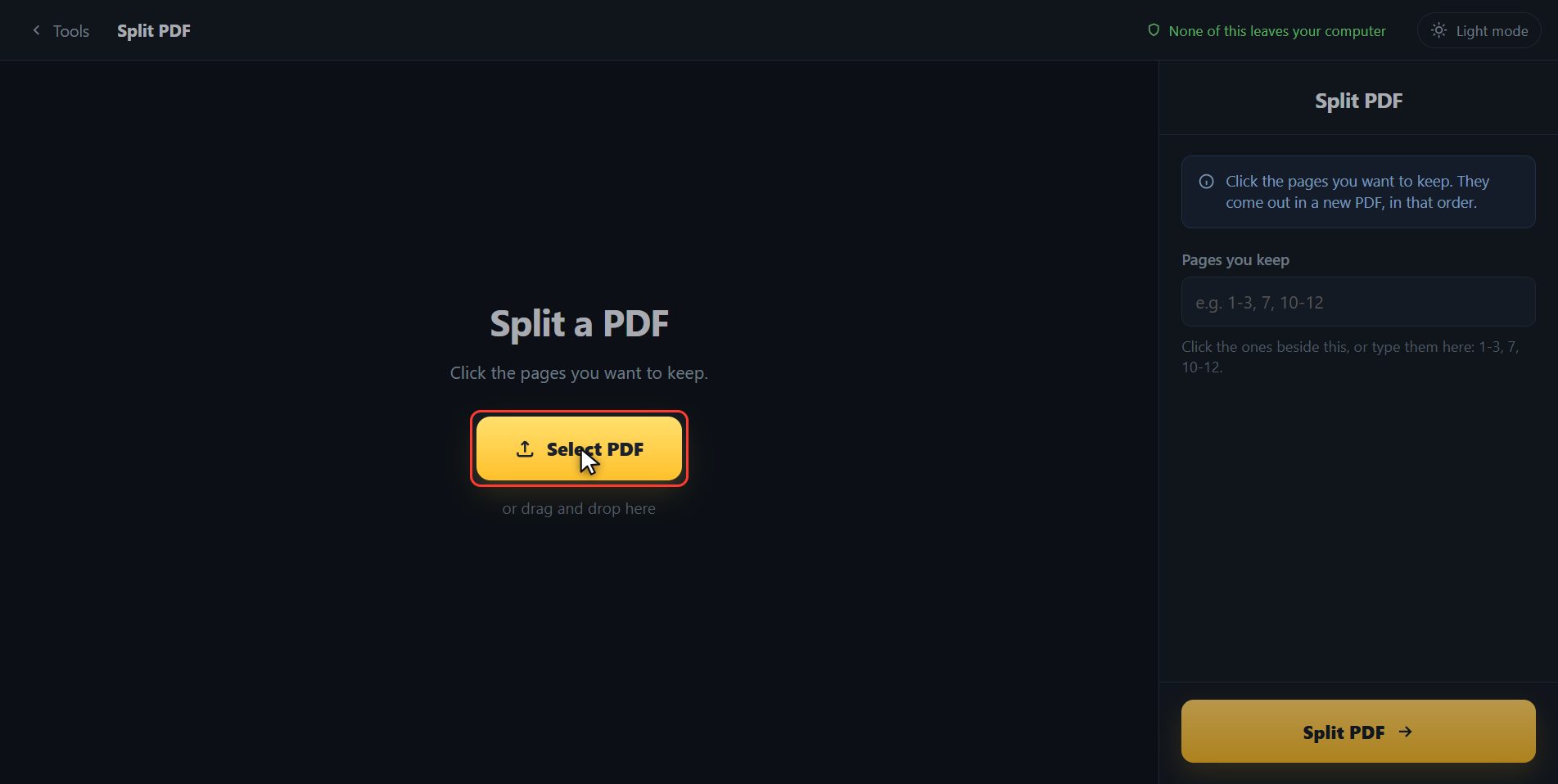
Add your PDF
Add the PDF you want to take the sheets out of. Click the select button and choose it, or drag it straight onto the box. And the moment it goes in, the page draws it out for you: not a list of numbers, which tells you nothing, but the six sheets of the document.
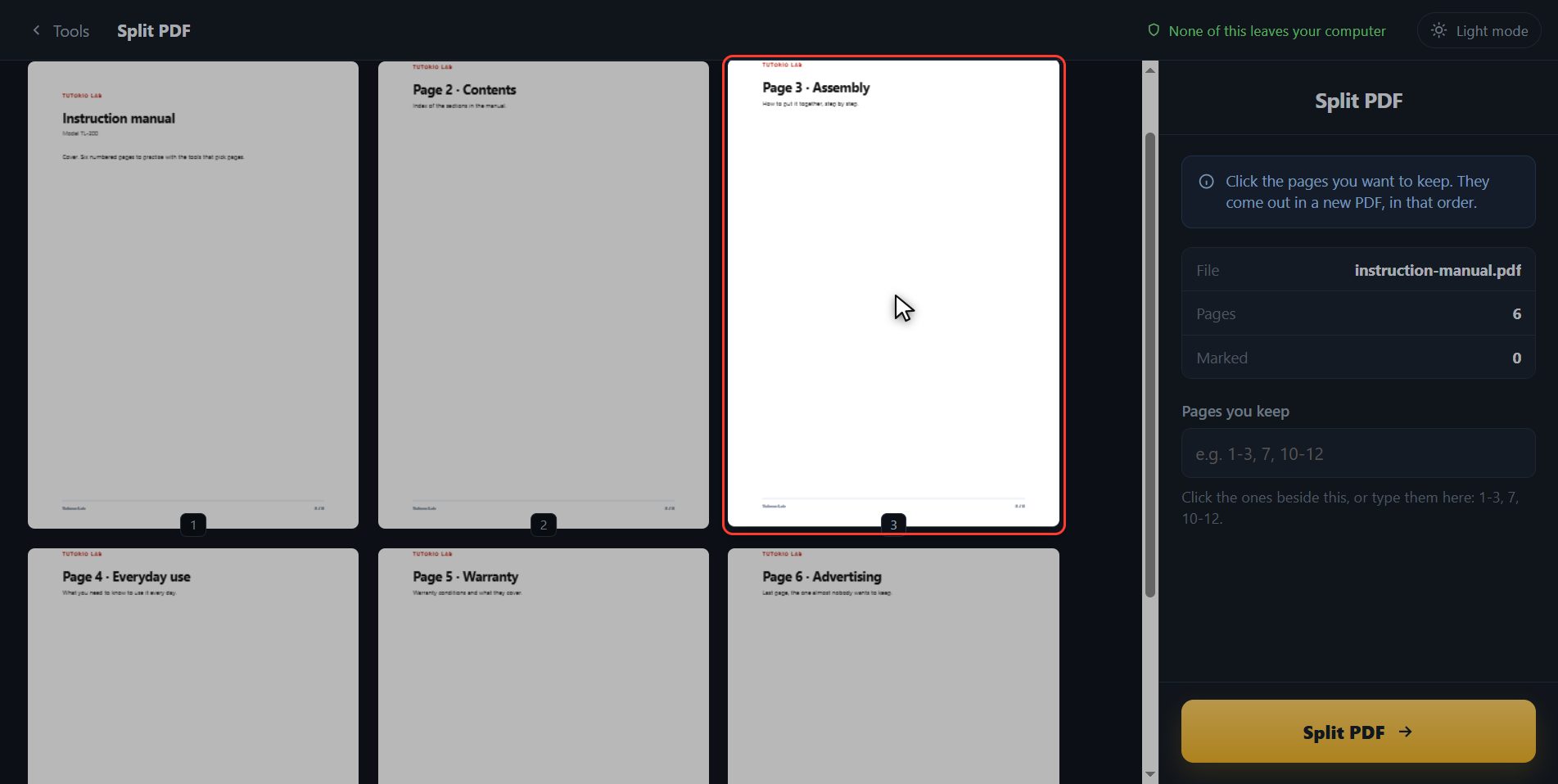
Click the ones you want
And now the other way round from the other tool: here you click the ones you WANT TO KEEP. I need the assembly one and the warranty one, so number three and number five. I click number three, and it lights up with its tick. I click number five. And look at the panel: out of six pages two are going to be saved, and they come out in that same order, in a single file. The rest are not deleted from anywhere: your original document stays exactly as it is.
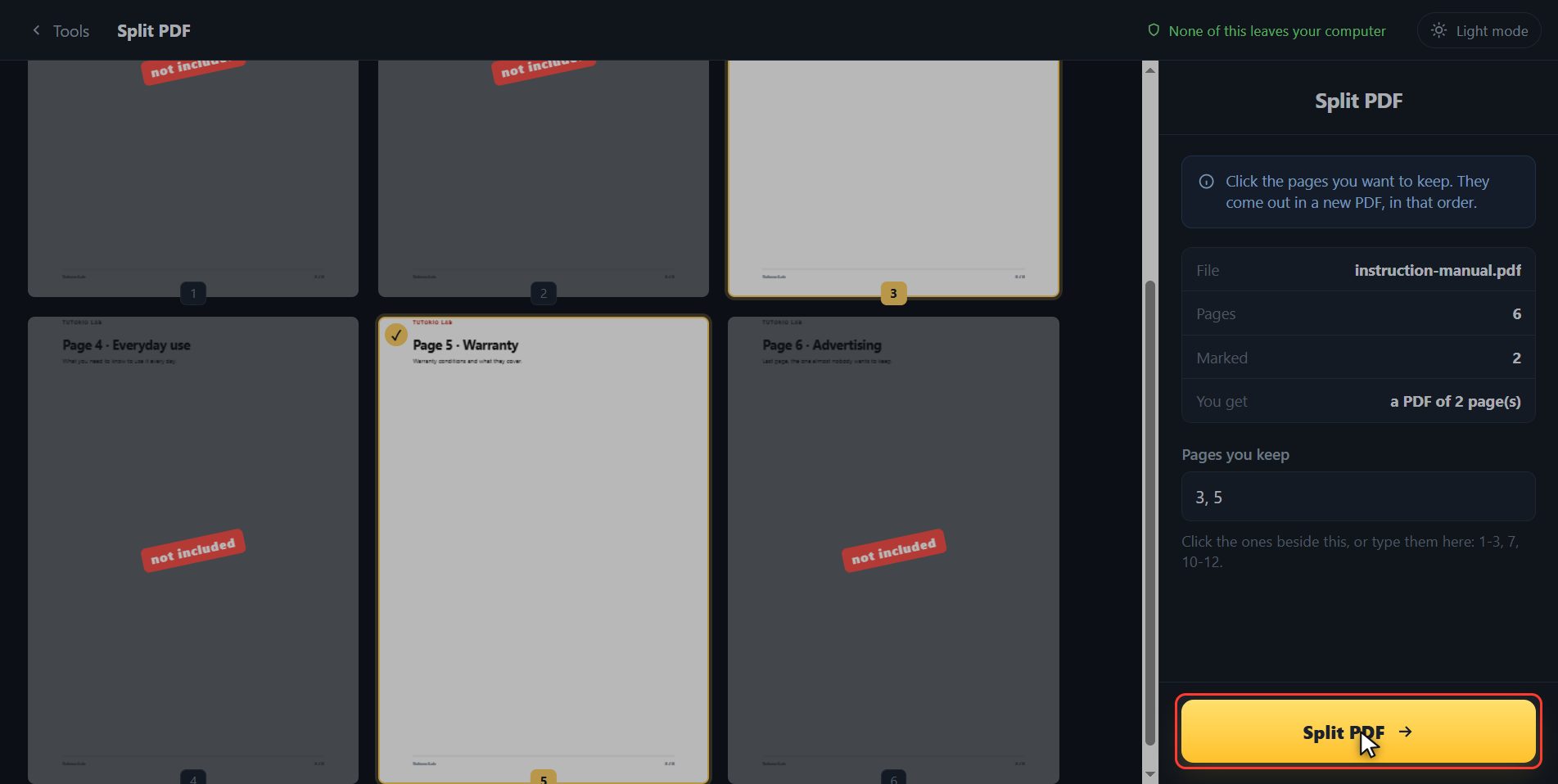
Save them
With the two of them marked, click Split PDF.
There it is
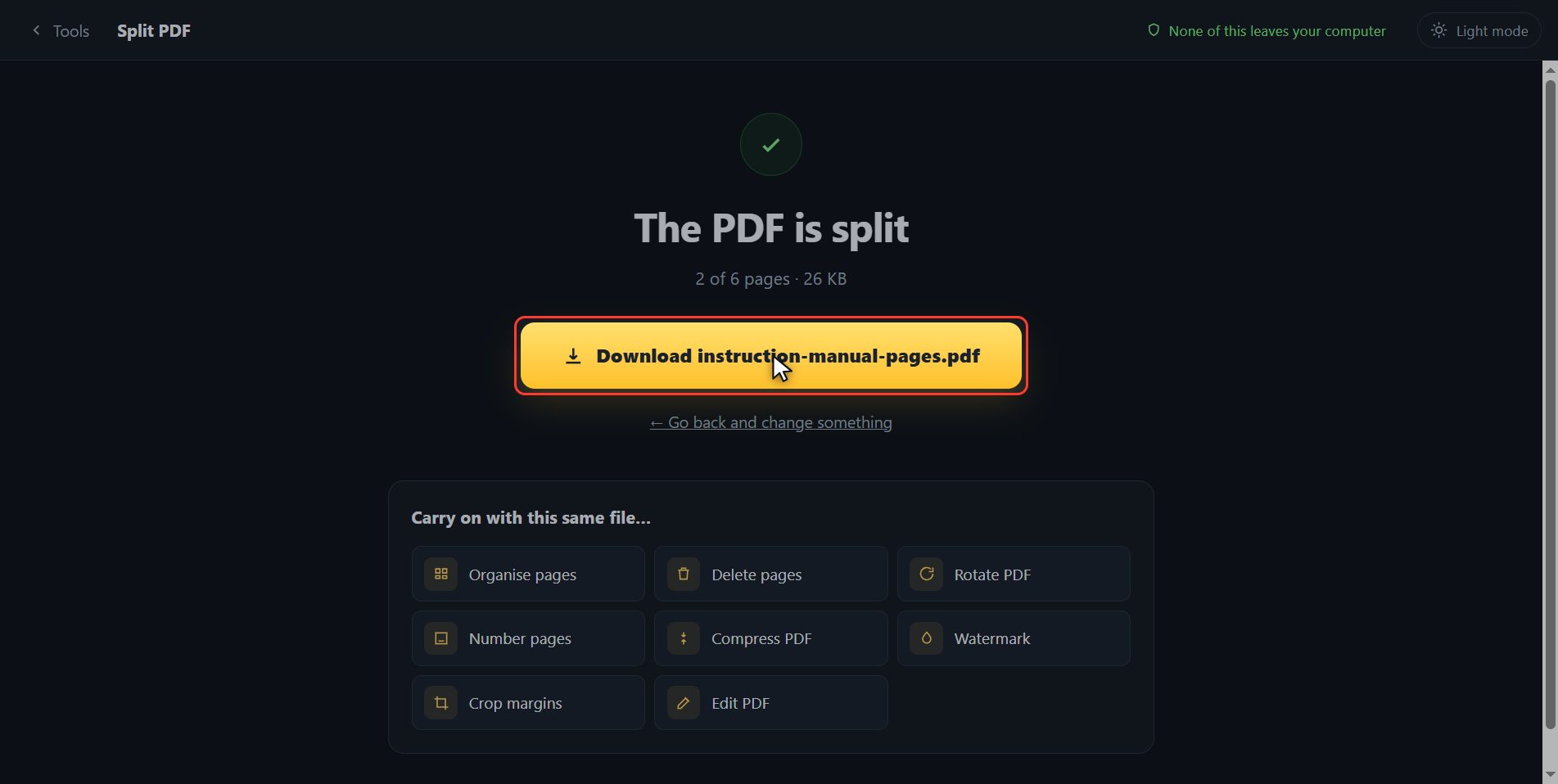
And done. The new PDF, with those two sheets, has downloaded on its own, and here is the button in case your browser blocked it. And if what you wanted was not this but to break up the whole document, one sheet per file, that one is called Split into files, back on the tools screen. And here you have the tools that carry on with this same file.
And that is all. If it helped you, subscribe and give it a like. The link is at the top and first in the description. See you in the next one.
Common questions
Does this cut the PDF into two halves?
It does something more useful: it lets you pick exactly which pages you want. If what you want is to cut it in half, click the first half and save, then come back and click the other. And if what you want is one sheet per file, that is "Split into files".
What order do the pages come out in?
The document order, not the order you click them in. If you need to change the order, the tool is "Organise pages", which moves them by dragging.
Does anything get deleted from my file?
Nothing. Your PDF does not even leave your computer: it all happens inside the browser, and what downloads is a new file.