How to write on a PDF
Written and checked by the Tutorio Lab editors · Reviewed on · Who we are and how we are funded
Go to tutoriolab.com/pdf/en, click Edit PDF, add the file, type what you want in the field on the right and click on the sheet to place it. You can also cover, highlight, add images and draw. At the end, Save the PDF.
Writing on top of a PDF, without printing it.
Go to tutoriolab.com/pdf/en
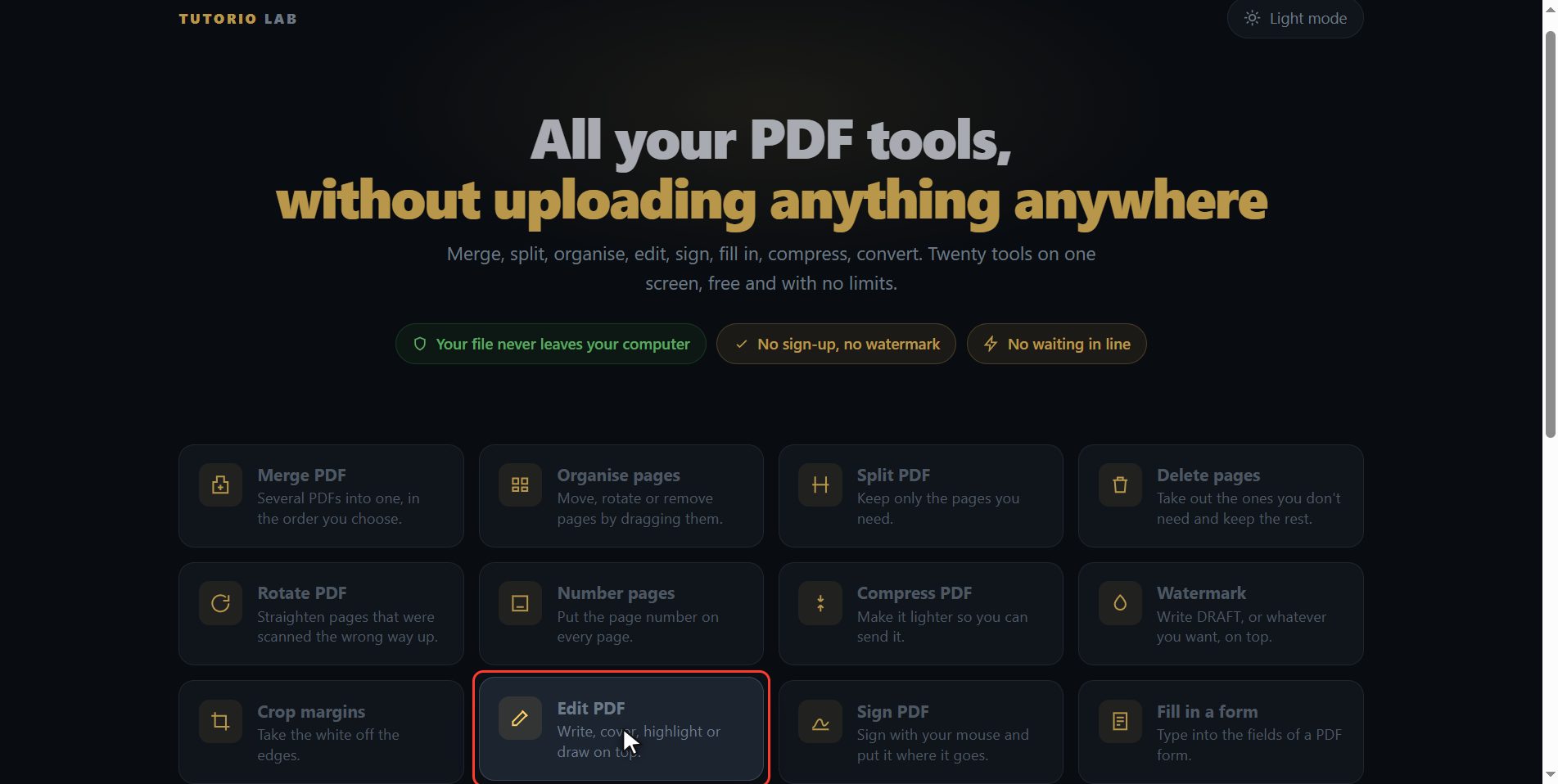
Go to tutoriolab.com/pdf/en. You have it at the top left and first in the description. There are twenty tools for PDF here, and the one we want is this one: Edit PDF.
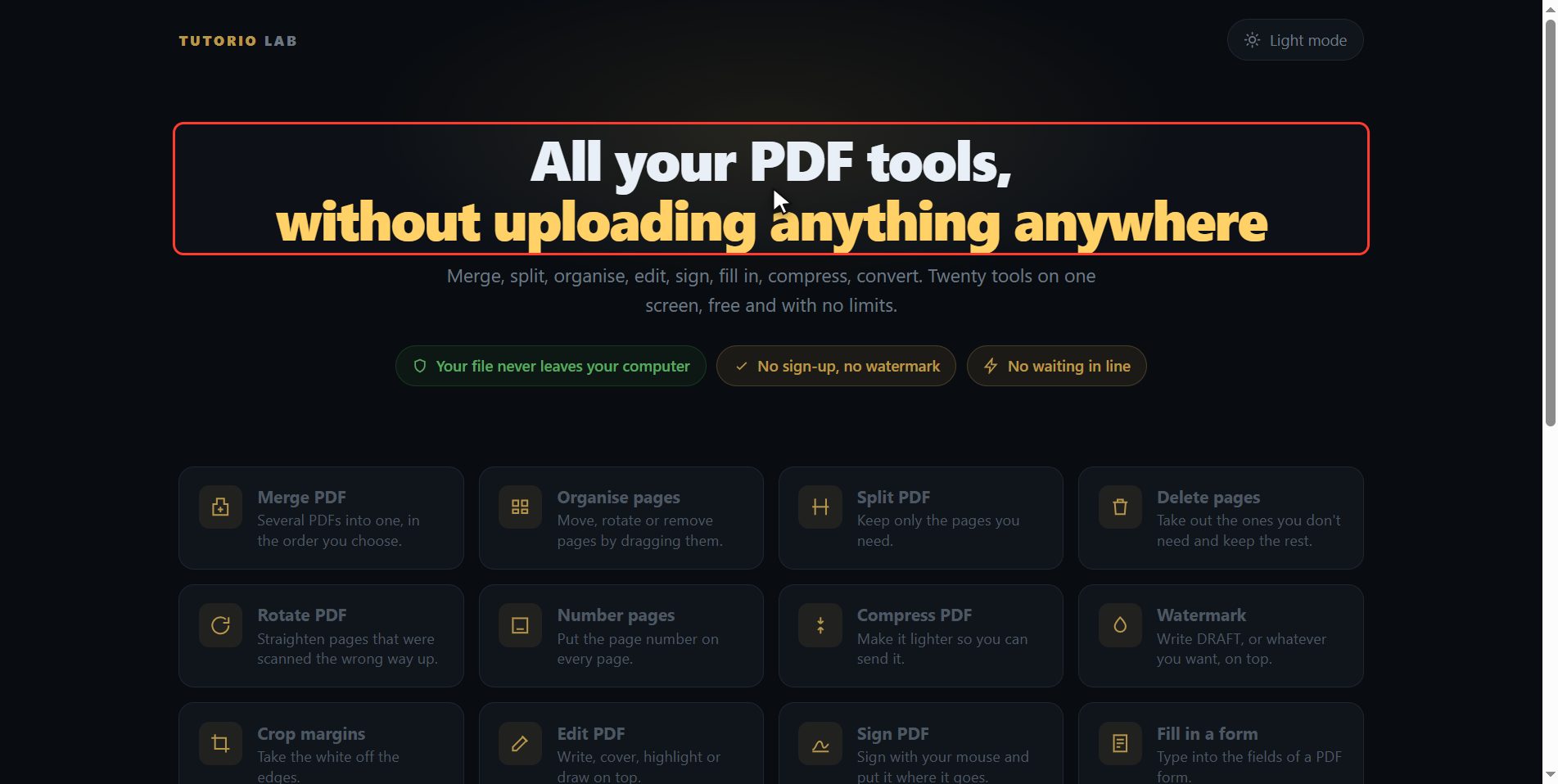
Click "Edit PDF"
Click it. And you are in. This is all it has: a button to pick the file and the box to drop it on.
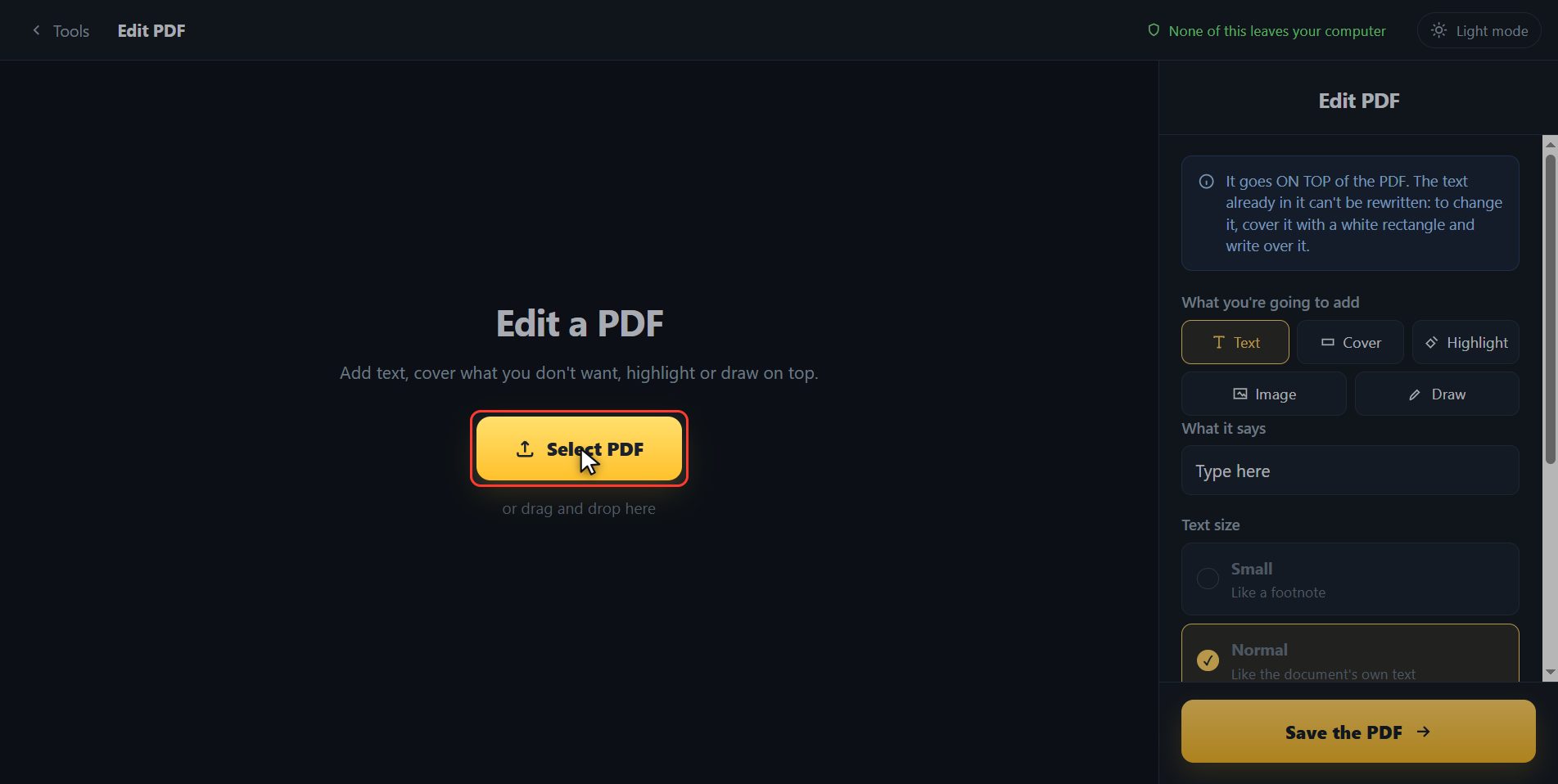
Add your PDF
Add your PDF. Click the select button and choose it, or drag it straight onto the box. And now the page changes: instead of small thumbnails it gives you the big sheet, so you can work on it comfortably and read the text at a size that is actually legible, and the pages of the document in a strip along the top.
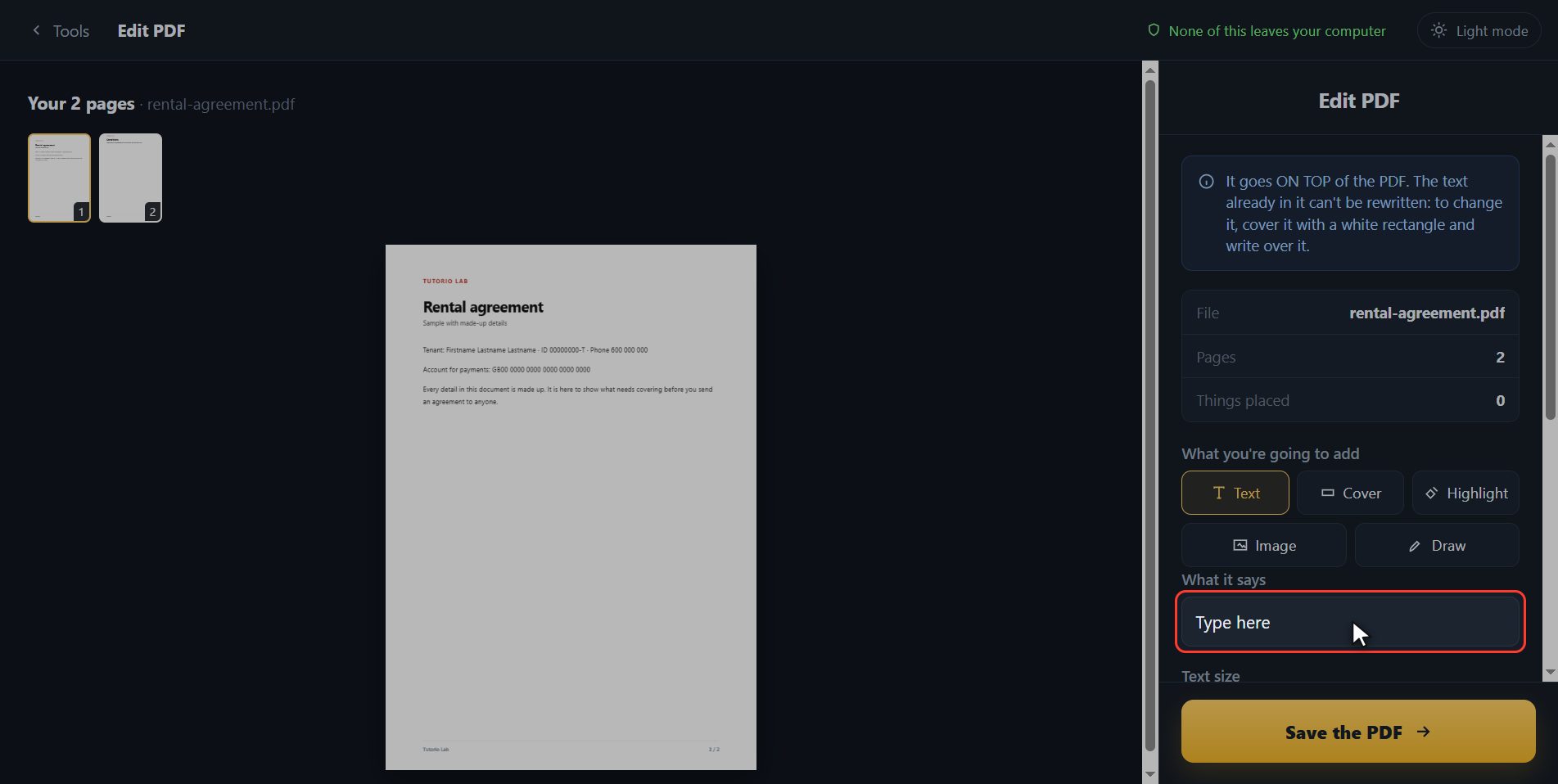
Write wherever you want
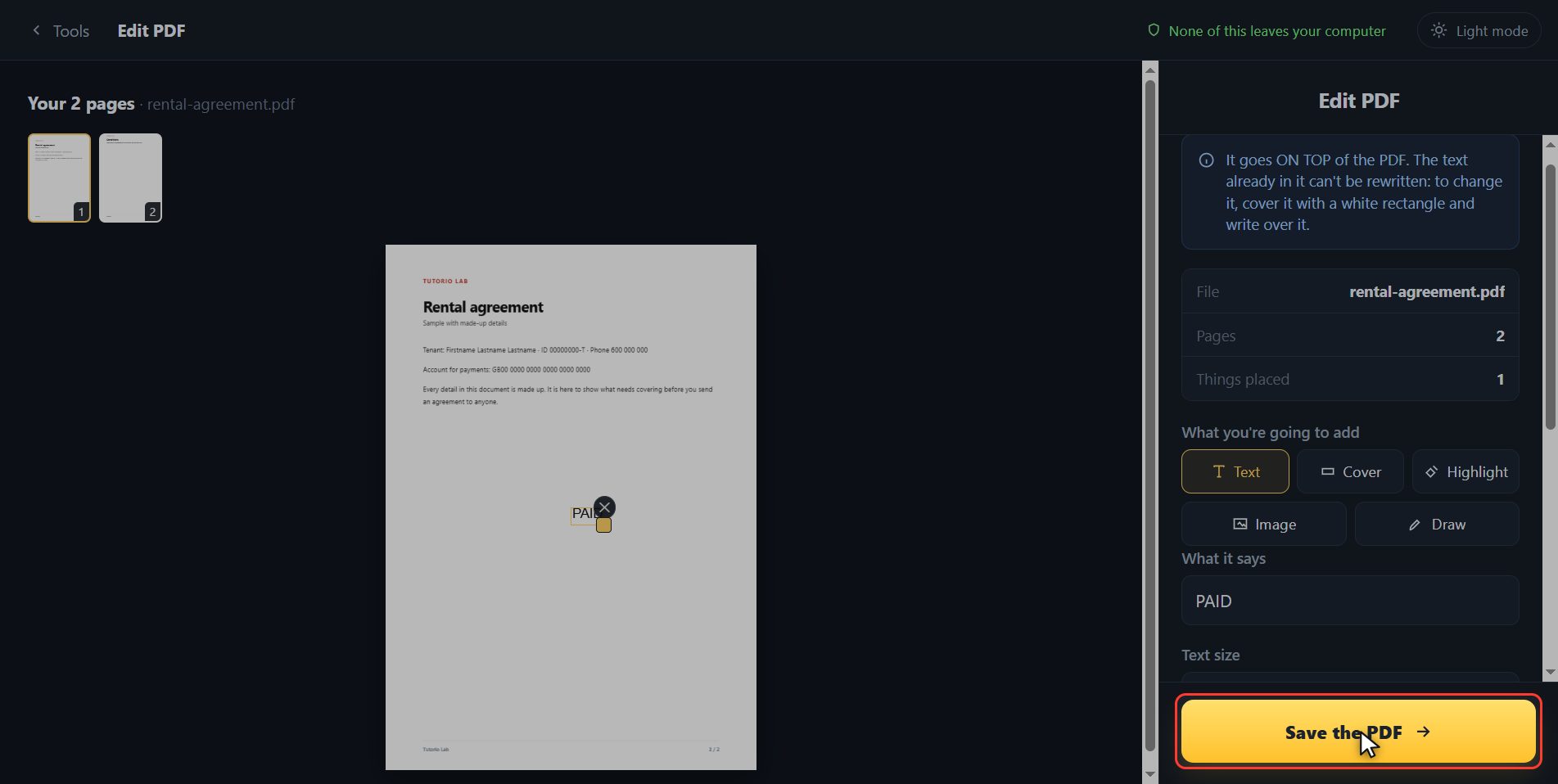
To write, first type here what you want to put. I am going to write the word PAID, nice and big, so it shows. And now click on the sheet, right where you want it. There it is, written on top of the document and with its box around it so you can see it is selected. If you do not like where it landed, you drag it with the mouse to the right spot, or you stretch it from the corner to make it bigger.
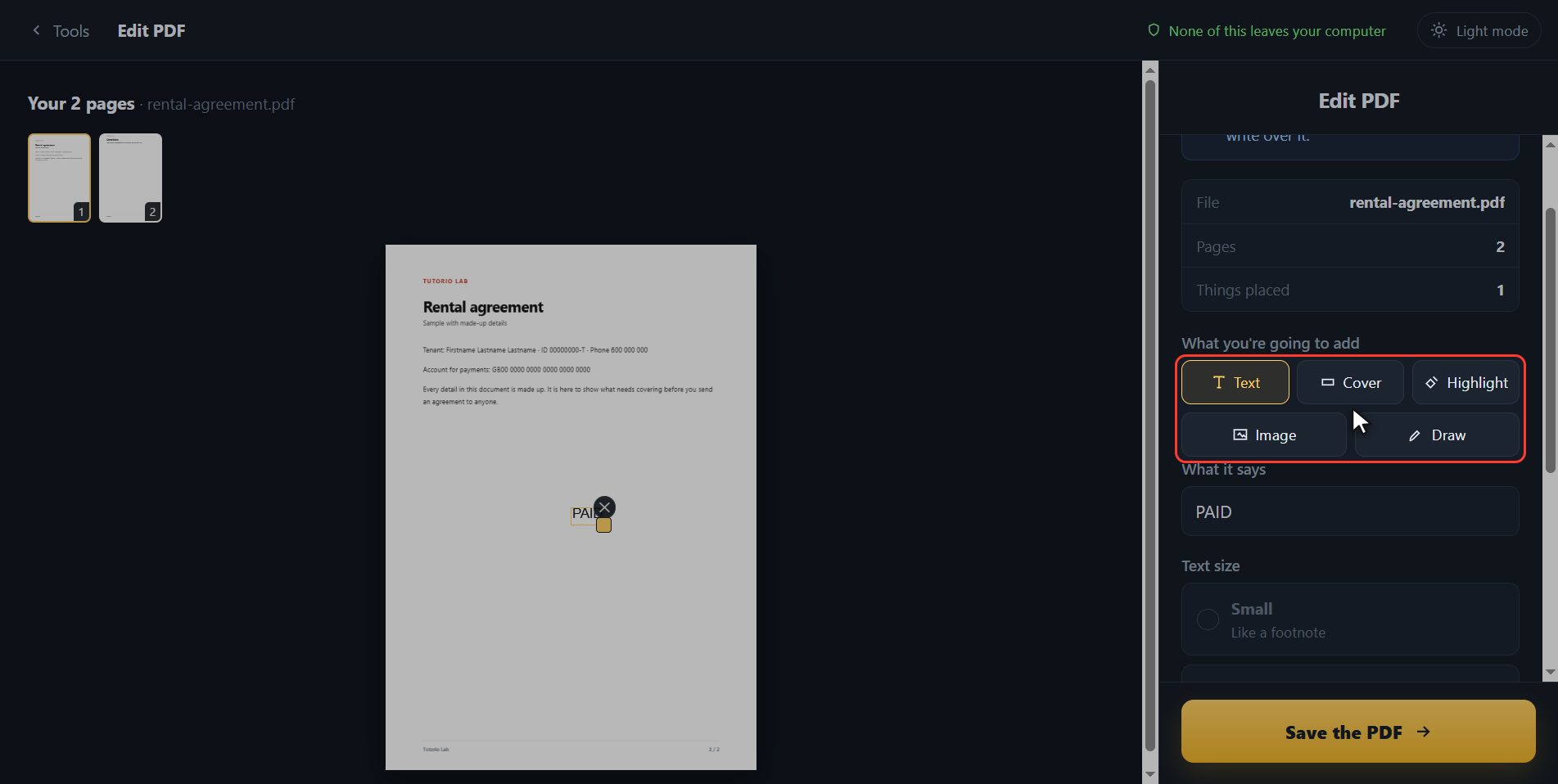
Cover, highlight and draw
And it is not just writing. With these buttons you cover what you do not want with a rectangle, highlight a line like with a marker pen, put in an image or draw freehand. One important thing so you do not waste your time: this writes ON TOP of the PDF. The text the document already has cannot be rewritten. If you want to change a line, you cover it with a white rectangle and write over it.
Save the PDF
When you have it, click Save the PDF. It takes a moment.
There it is
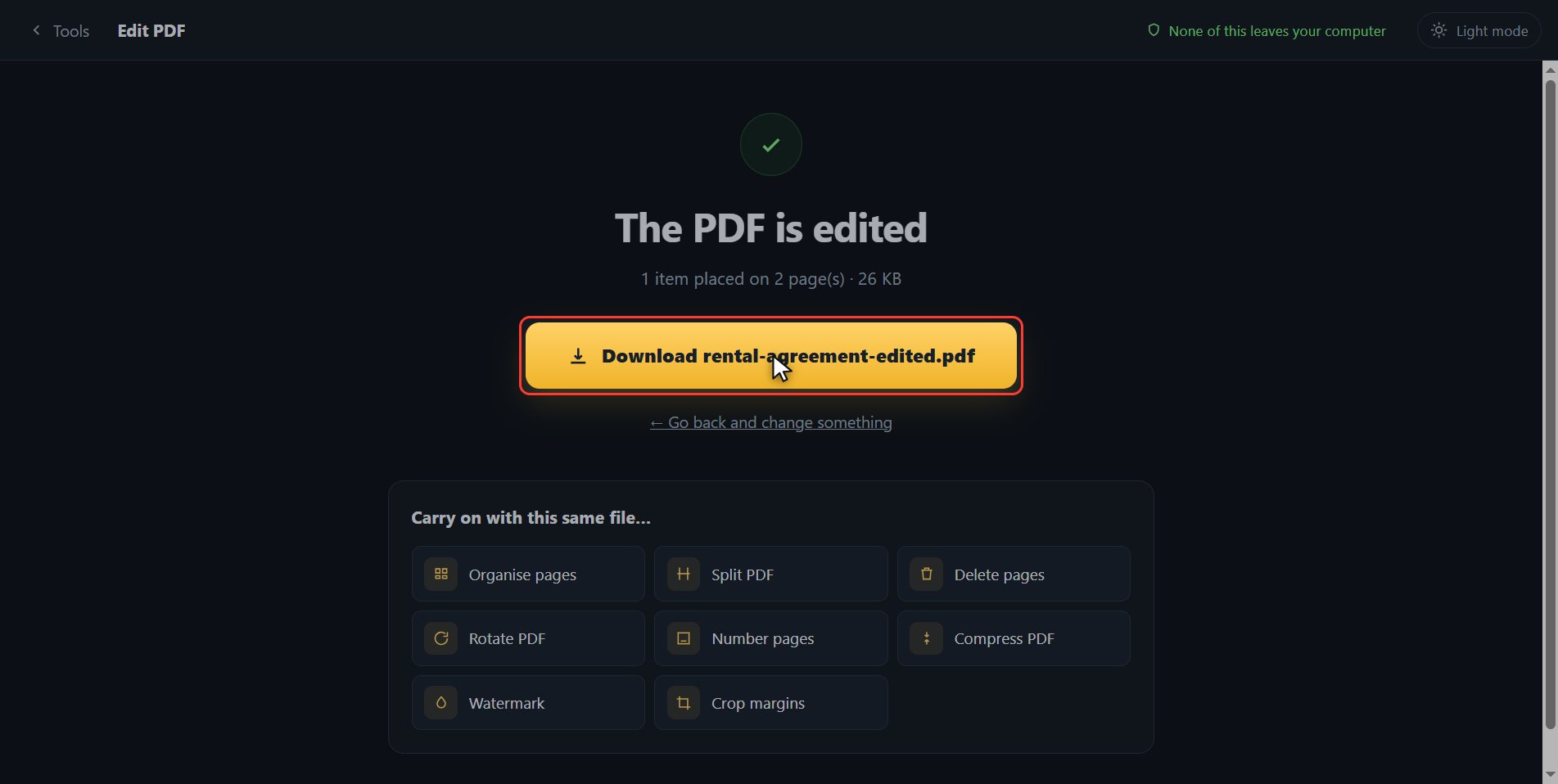
And that is it. It has downloaded on its own, and here is the button in case your browser blocked it. And if you now want to carry on with another tool, you have them down here with the file already inside.
And that is all.
Common questions
Can I change the text the PDF already has?
No, and it is worth knowing before you start: a PDF is not a Word document. What you do is write ON TOP. If you want to change a line, cover it with a white rectangle and write the new text over it. Every tool of this kind works that way, even if they do not always say so.
Can I move what I have written?
Yes. Drag it with the mouse wherever you want, and stretch it from the corner to change its size. If you get it wrong there is Undo, and Control plus Z as well.
Can I sign a document this way?
For signing, the "Sign PDF" tool is better: it lets you draw your signature with the mouse or your finger and place it where it goes. It is on the same page.