How to turn a PDF into images
Go to tutoriolab.com/pdf/en, click PDF to JPG, add the file, pick the quality and click Extract the images. Every page comes out as a JPG; if there are several they arrive together in a ZIP.
A PDF turned into images, in a moment.
Go to tutoriolab.com/pdf/en
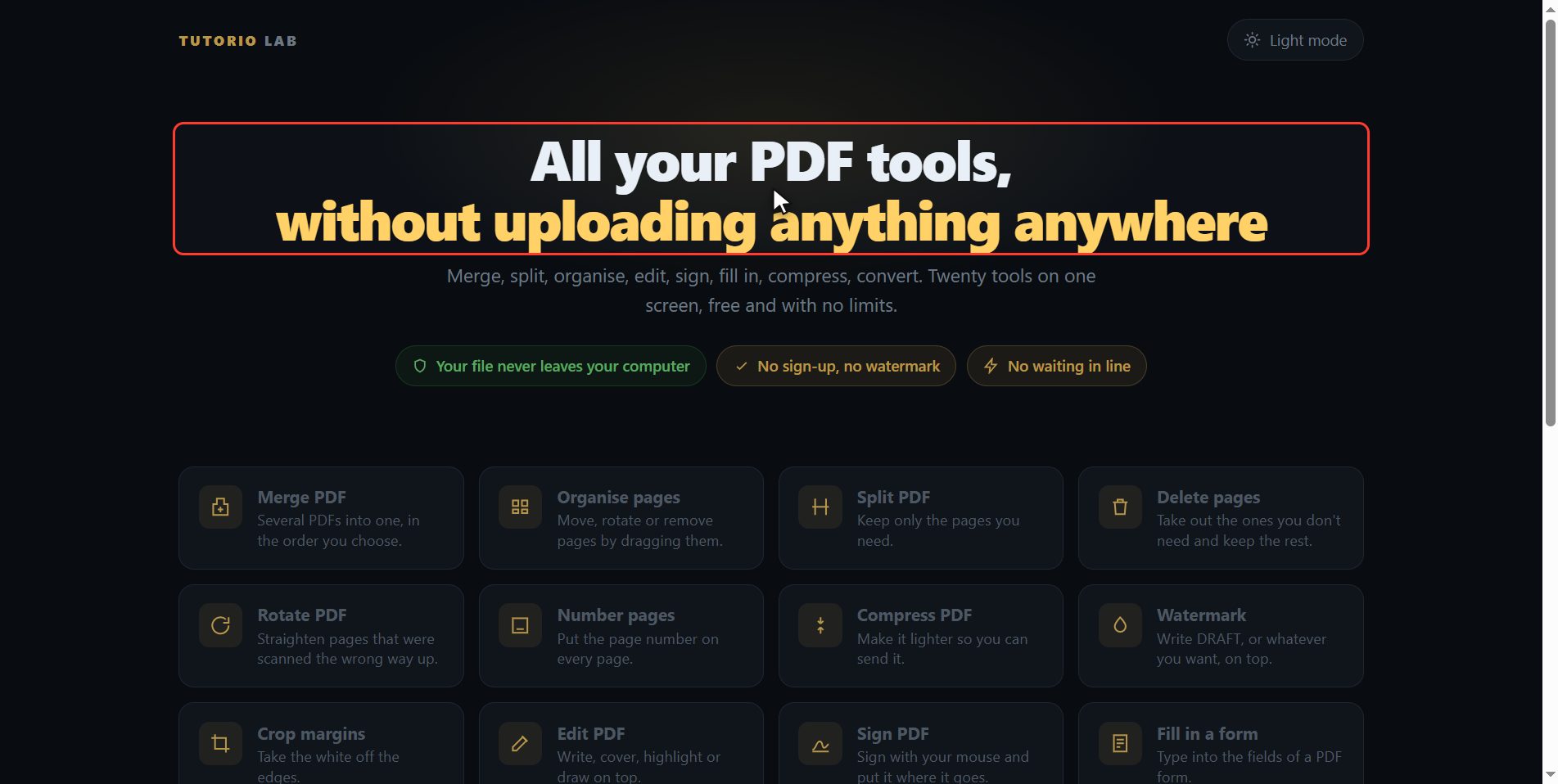
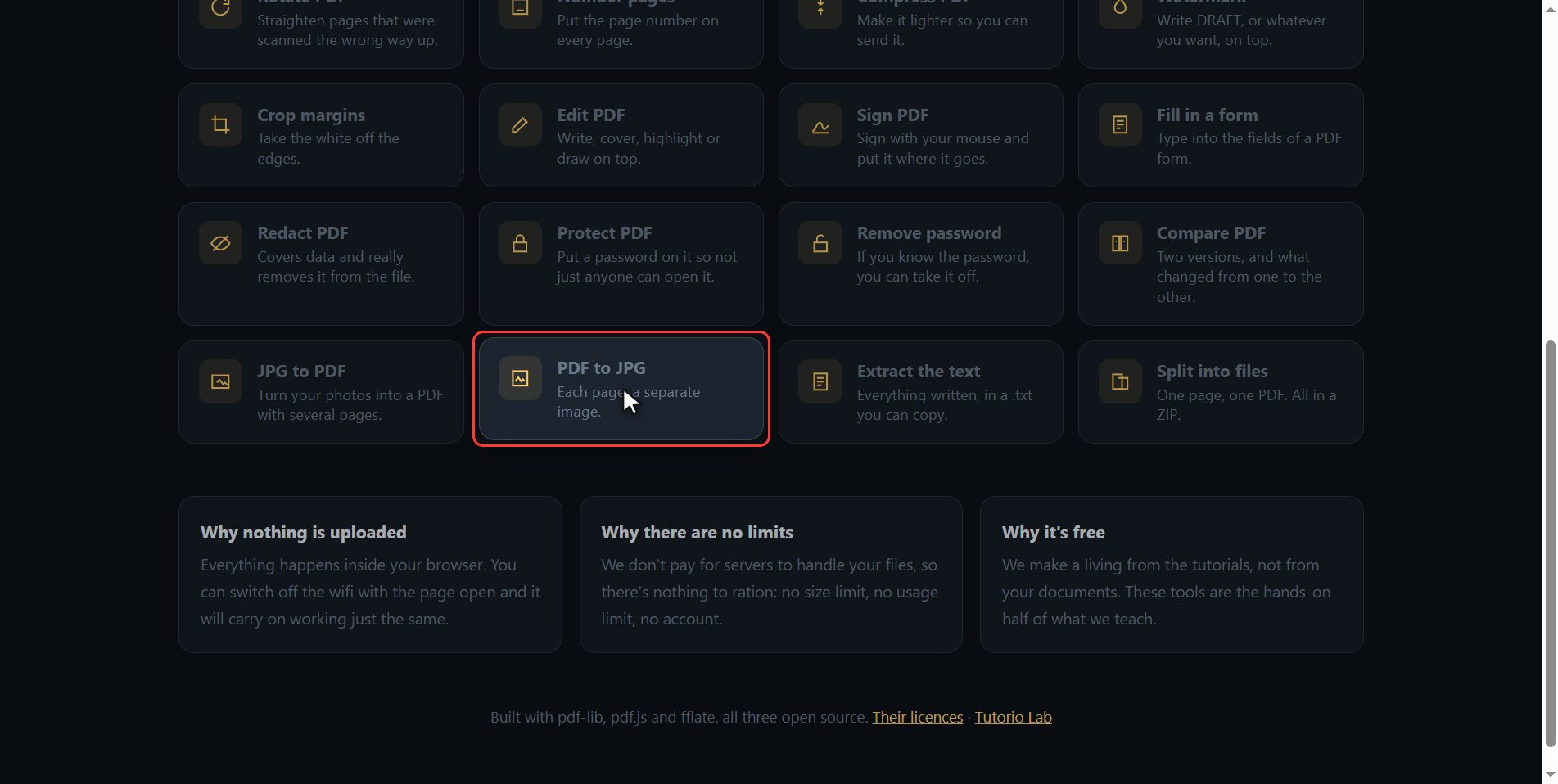
Go to tutoriolab.com slash pdf slash e n. You have it at the top left and first in the description. There are twenty tools for PDF here, and the one we want is this one: PDF to JPG.
Click "PDF to JPG"
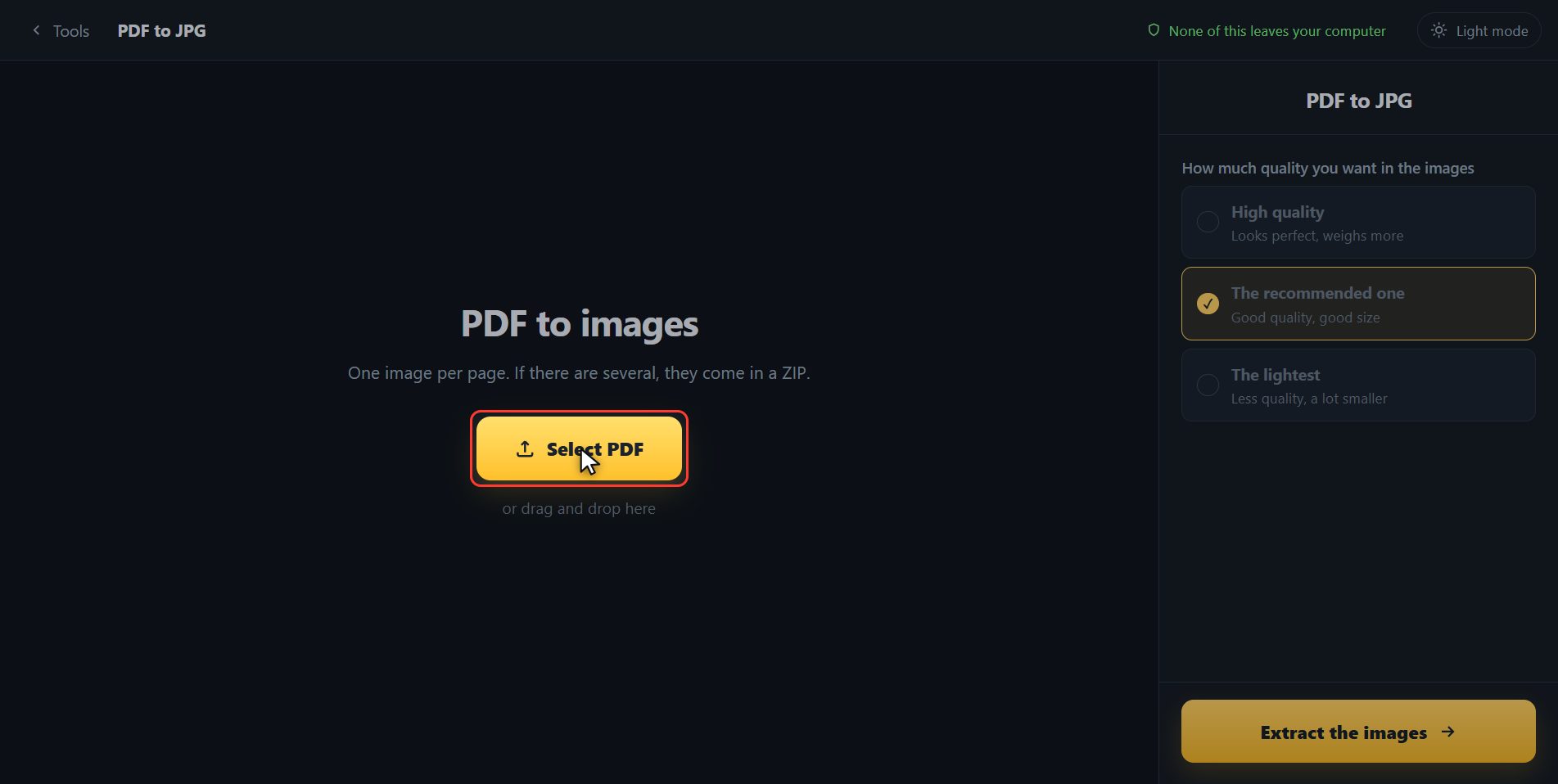
Click it. And you are in. This is all it has: a button to pick the file and the box to drop it on.
Add your PDF
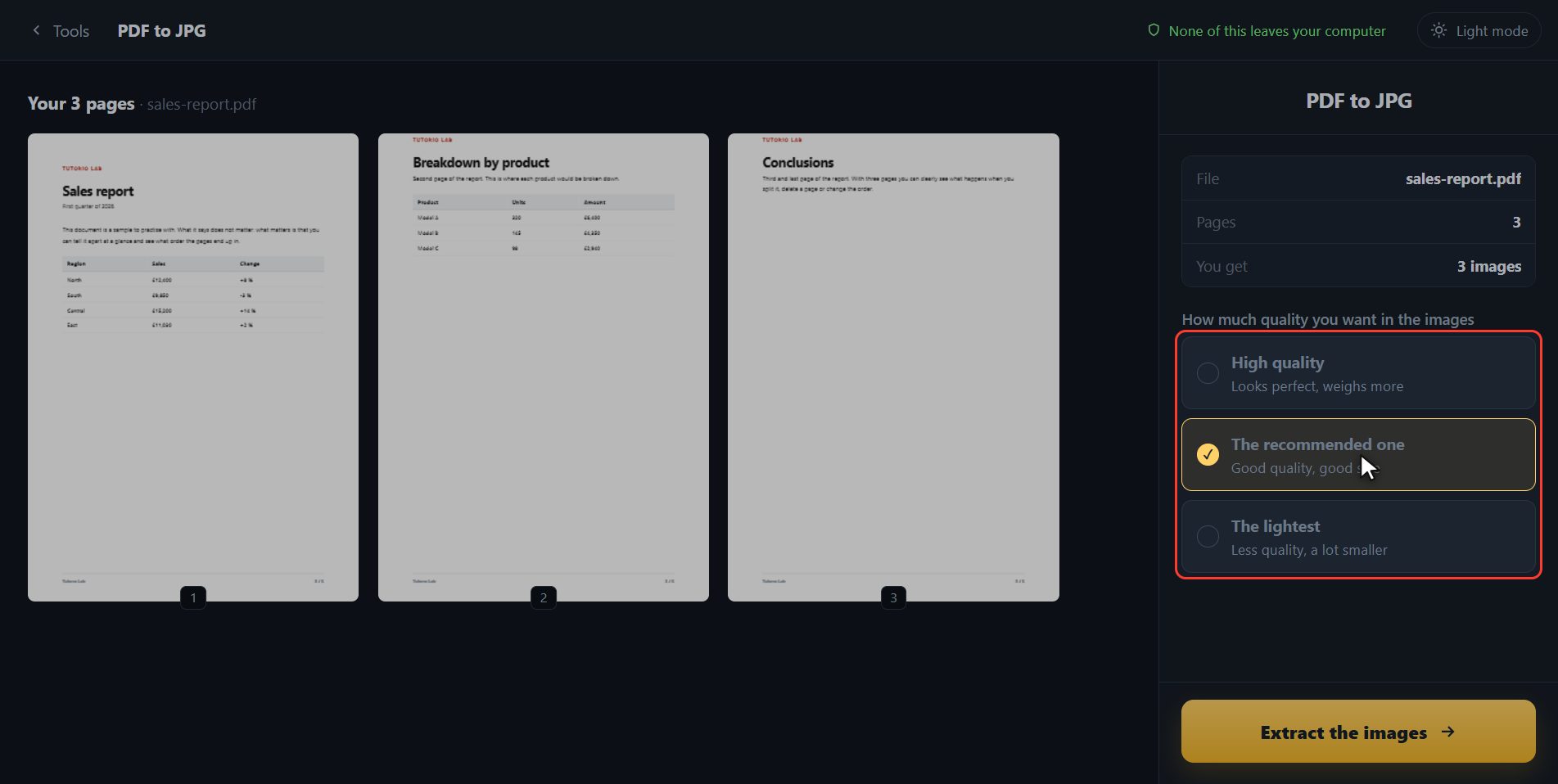
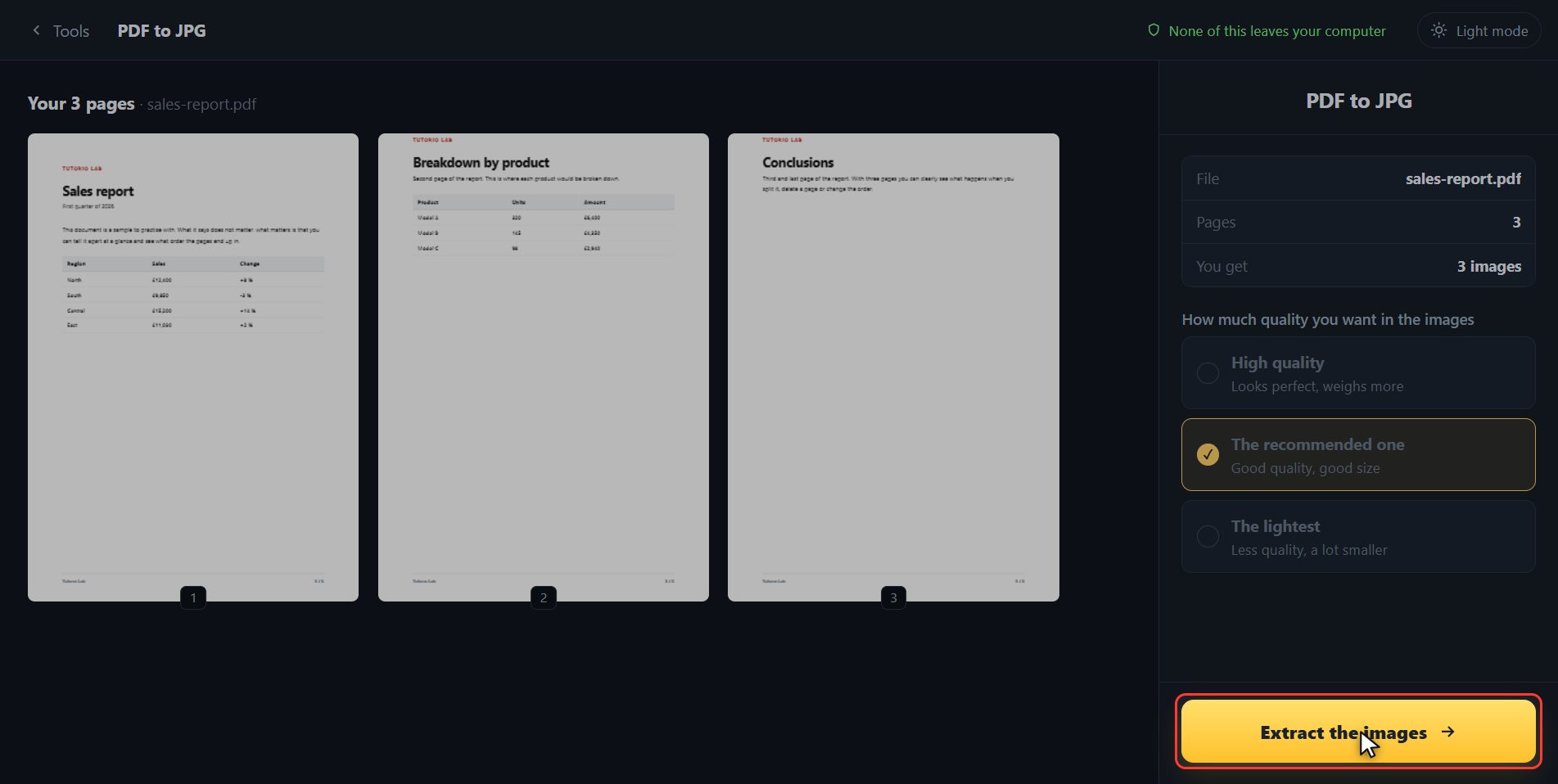
Add your PDF. Click the select button and choose it, or drag it straight onto the box, which is quicker still. Every page of the PDF is going to become one image, and so that you know which ones they are before pulling them out, here they are: you see its pages drawn out for real, one by one, so you can check it is the file you meant and not another one.
Pick the quality
Before pulling them out, pick the quality over here on the right. High quality gives you big, sharp images, for printing or cropping. The recommended one works for almost everything. And the lightest one gives you small files, for sending on chat without the wait. Whichever one you pick, your PDF is not touched: what comes out is a new set of images beside it.
Extract them and download
Now click Extract the images. It takes a few seconds, because every page has to be drawn out whole.
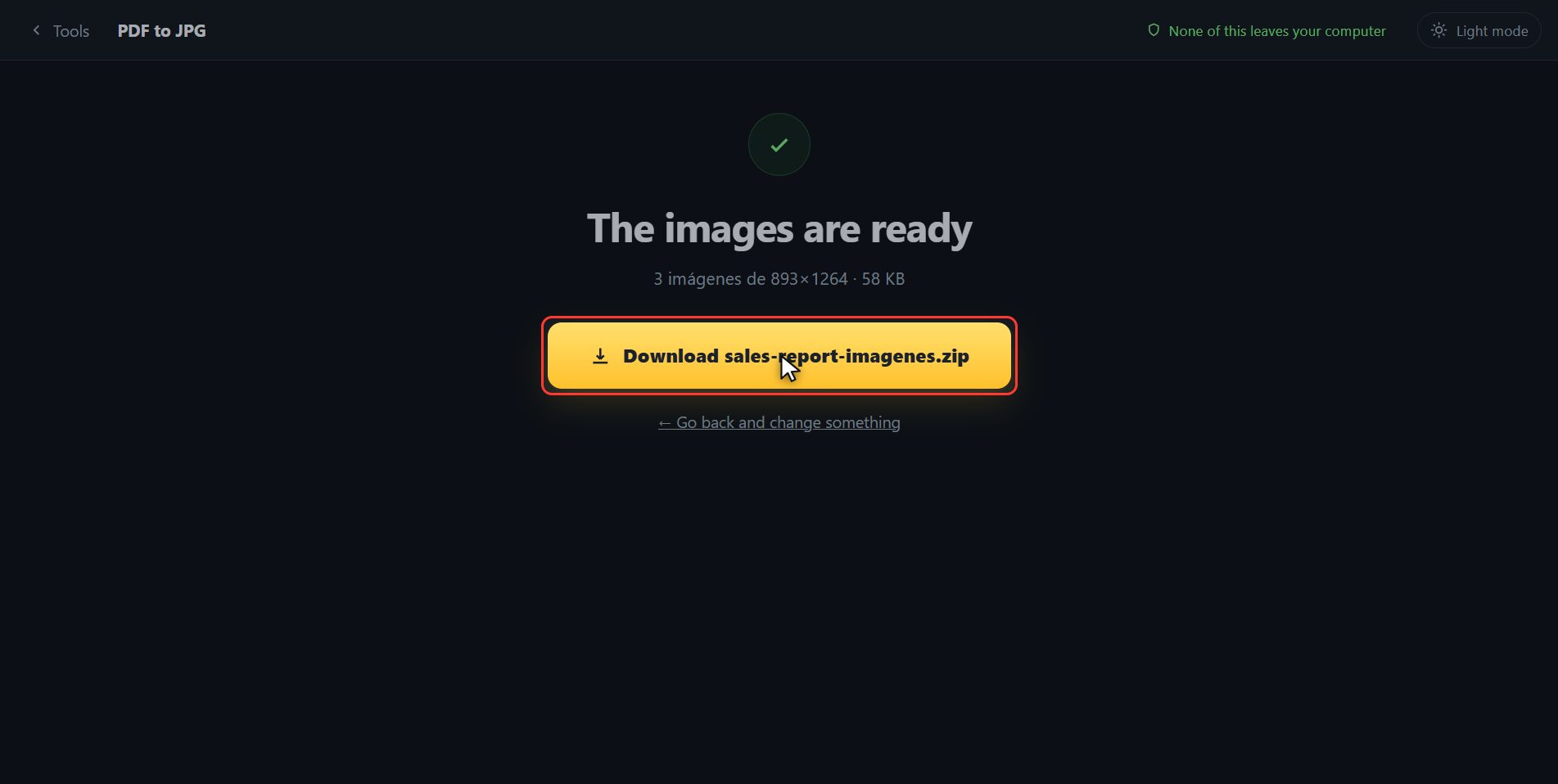
There they are
And that is it. They have downloaded on their own, and here is the button in case your browser blocked it. As the PDF had several pages, the images come down together in a ZIP file: you open it with a double click and inside is every page with its number. That number is what keeps them in order, even if you move them somewhere else later.
And that is all. If it helped you, subscribe and give it a like. The link is at the top and first in the description. See you in the next one.
Common questions
Why do I get a ZIP instead of loose images?
Because a browser can only hand you one file at a time. With a PDF of ten pages that would be ten separate downloads, and most browsers block them. In the ZIP they come in one go: right click on it and Extract all.
Which quality should I pick?
The recommended one works for almost everything. Go for high quality if you are going to print the image or crop part of it, and for the lightest one if you just need to send it on chat.
Can I extract just one page?
Use "Split PDF" first to keep only the page you want, and then, from the result screen, carry on with "PDF to images" using the file you have just made.