How to password protect a PDF
Go to tutoriolab.com/pdf/en, click Protect PDF, add the document and type the password twice. Choose what can be done with it — everything, no copying, or read only — and click Protect PDF. The file that downloads asks for the password when it is opened.
Putting a password on a PDF.
Go to tutoriolab.com/pdf/en
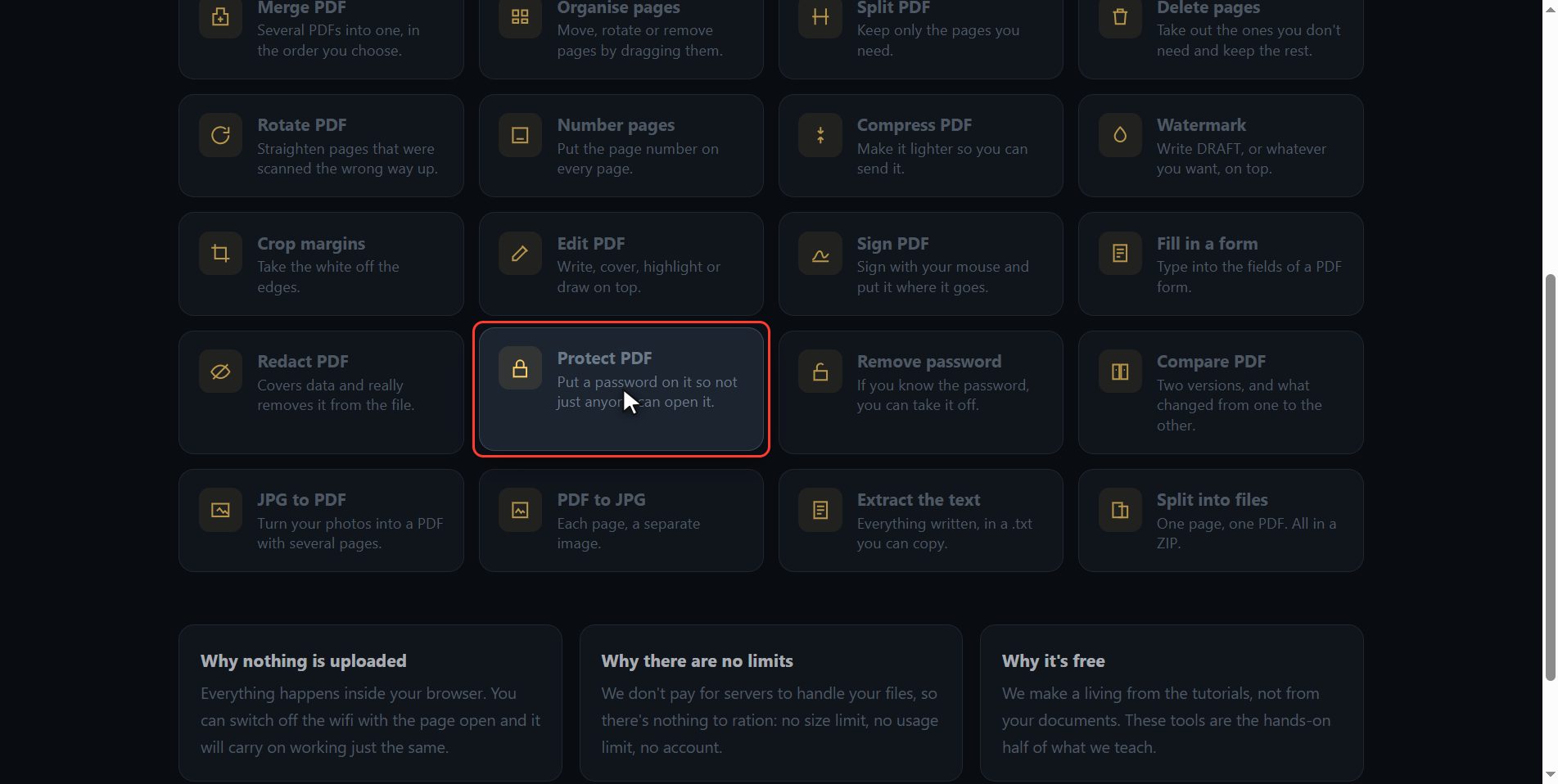
Go to tutoriolab.com slash pdf slash e n. You have it at the top left and first in the description. There are twenty tools for PDF here, and the one we want is this one: Protect PDF.
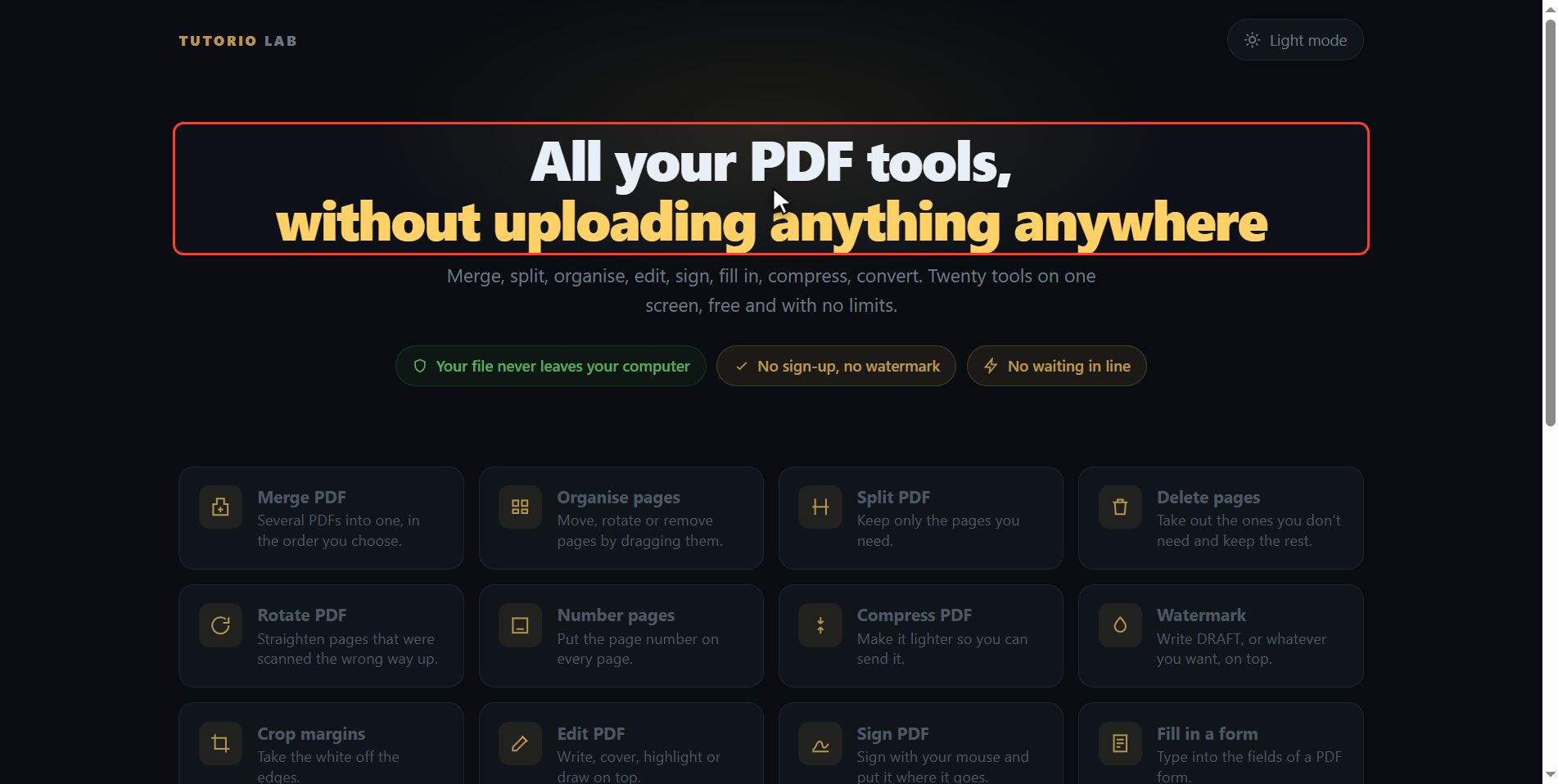
Click "Protect PDF"
Click it. And you are in. This is all it has: a button to pick the file and the box to drop it on.
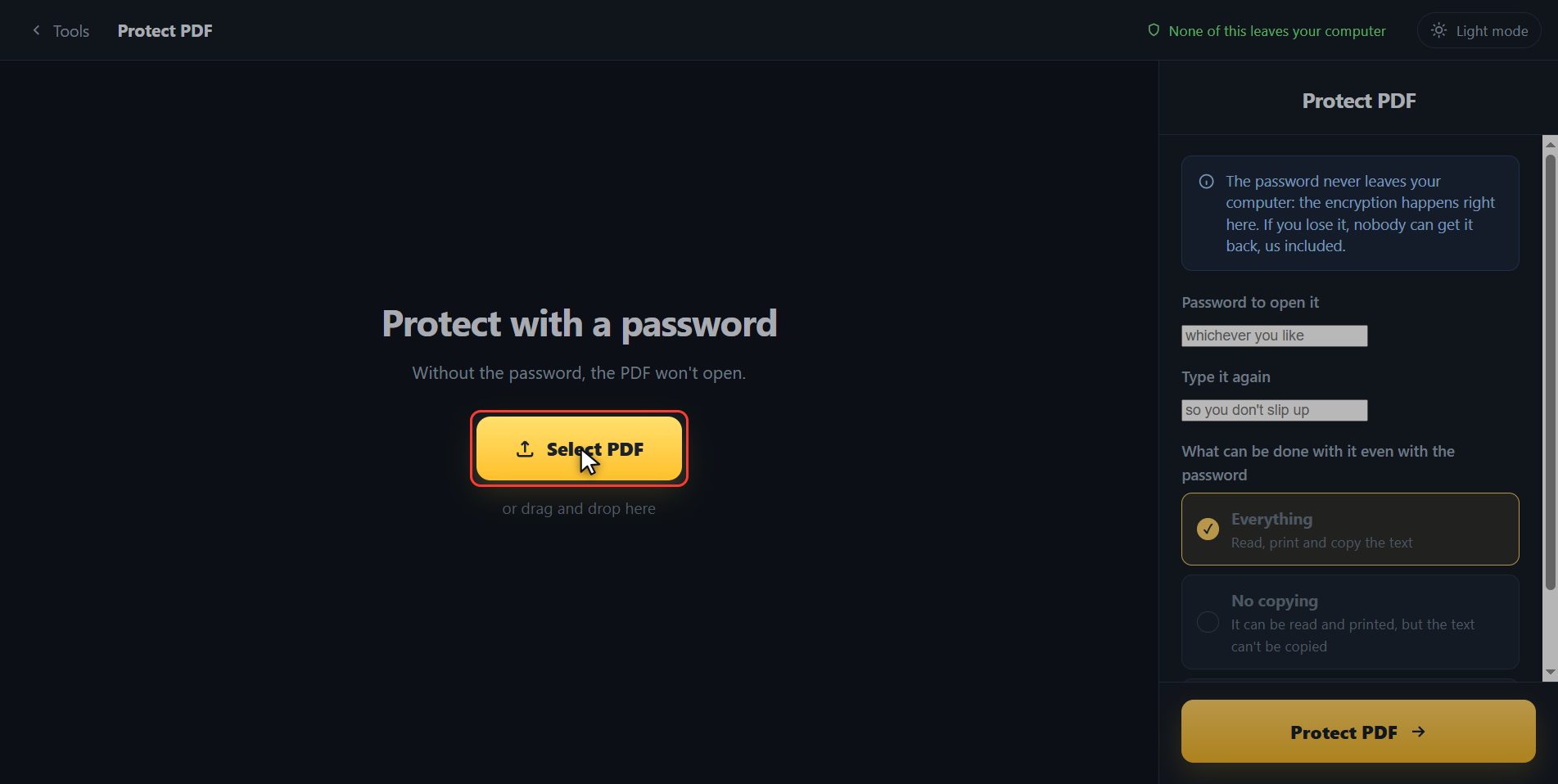
Add your PDF
Add the document you want to protect. Click the select button and choose it, or drag it straight onto the box. And the moment it goes in, the page draws it out for you: not a list of numbers, which tells you nothing, but the sheets of the document.
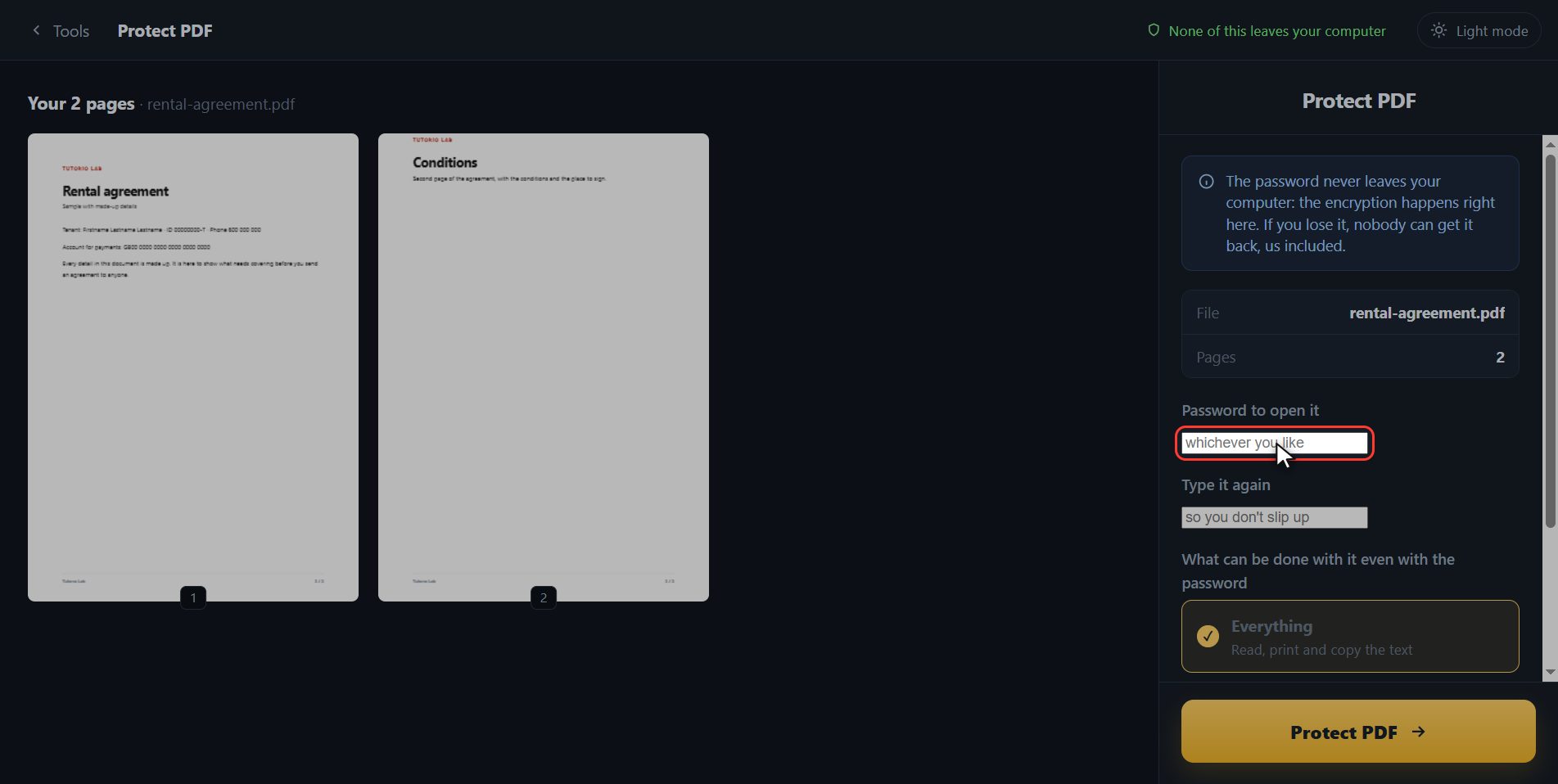
Type the password
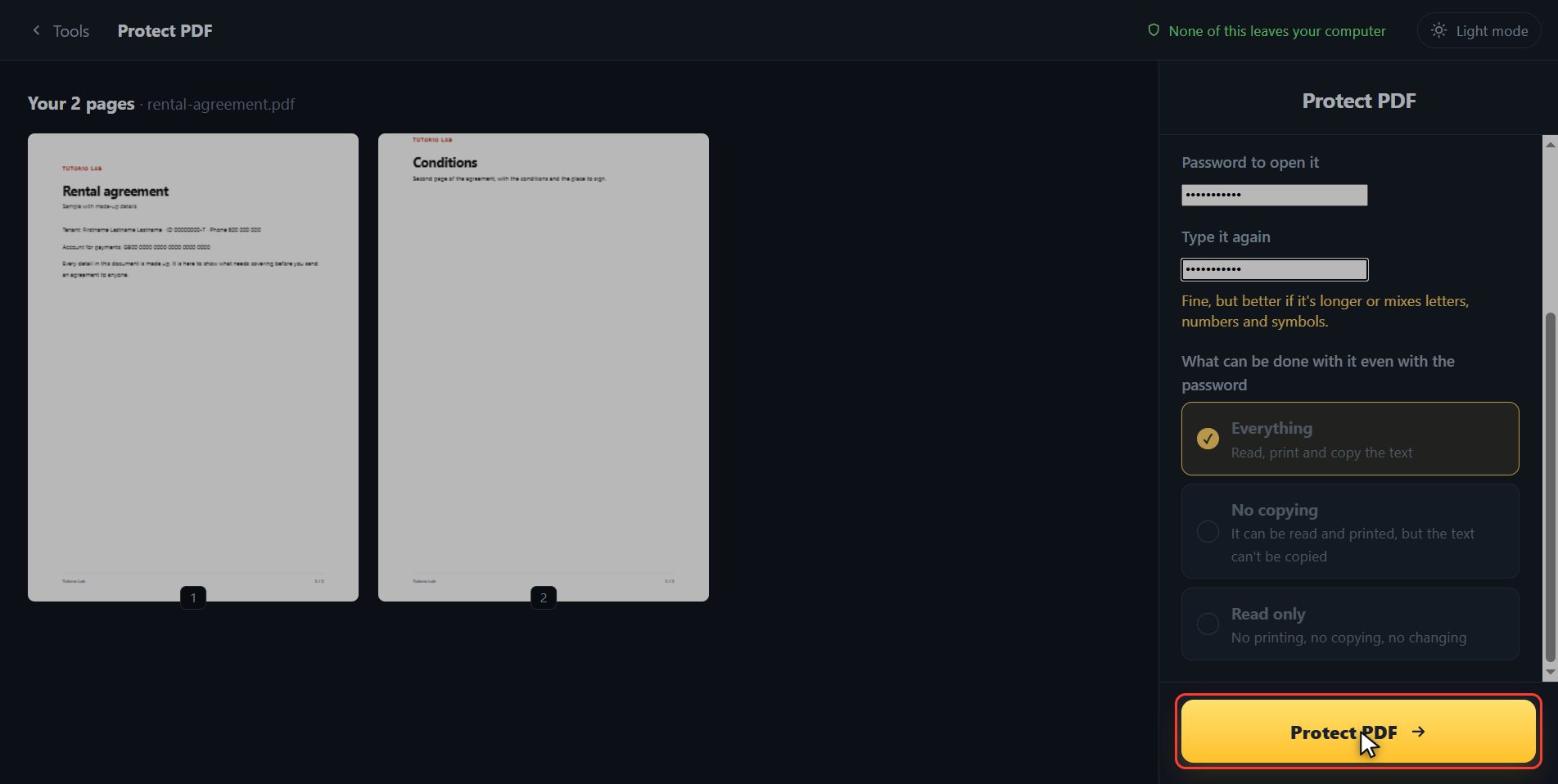
Now the password, over here on the right. This is the one the PDF is going to ask you for every time you open it. I am typing a sample one; you put in yours, and make it one you do not use for other things. And underneath you type it again, which is how you avoid locking yourself out of your own document over one wrong letter. Notice that it keeps telling you whether it is weak or strong as you type.
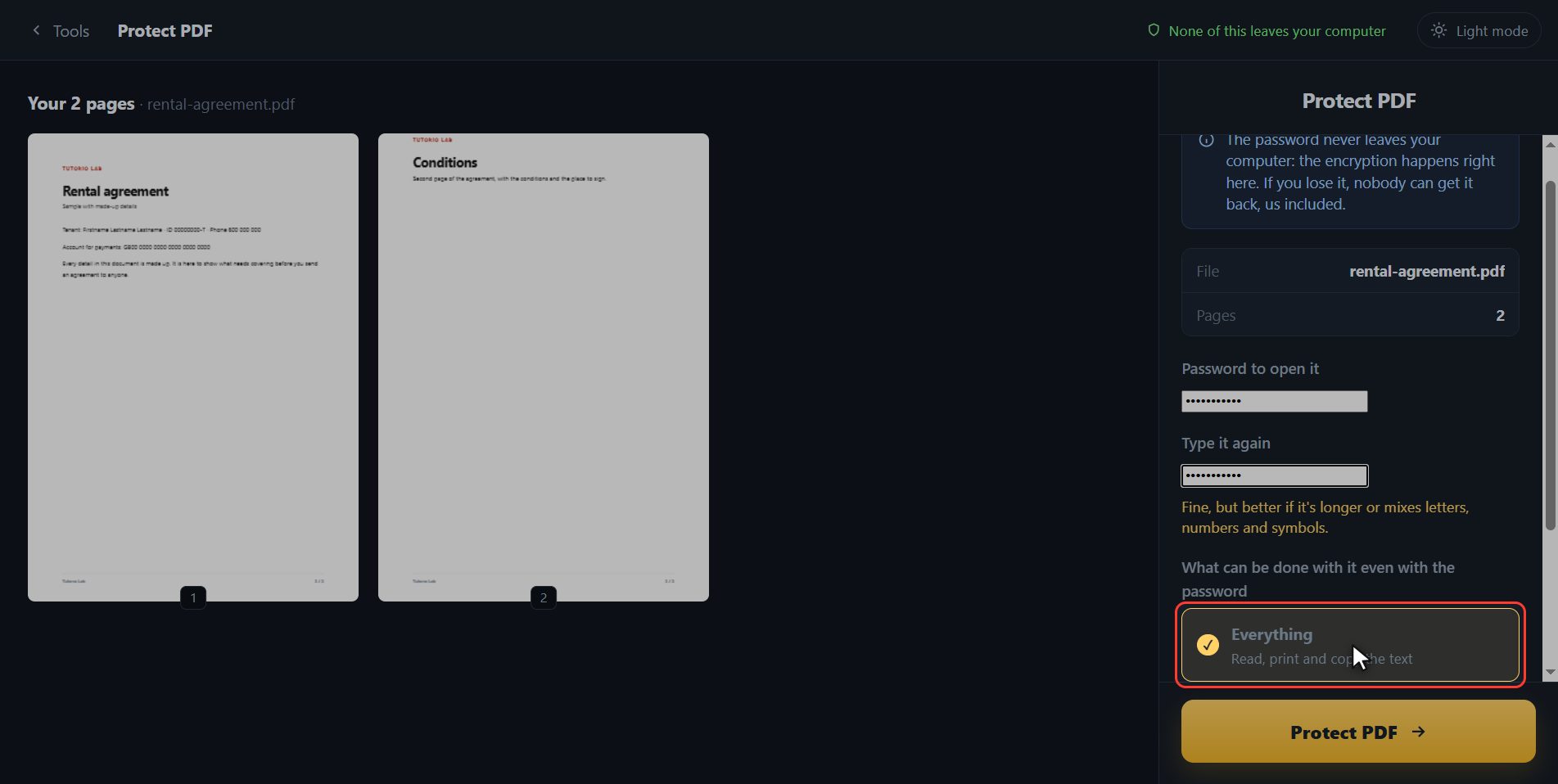
Choose what is allowed
And now the part almost nobody explains: what can be done with the document even by someone who has the password. Everything is the normal one: it can be read, printed and the text copied. No copying lets you read it and print it, but not select the text and take it somewhere else. And read only is the tightest: no printing, no copying, no changing. This is what people are after when they want to send a quote or an exam without it being reused.
Protect it
With the password in, click Protect PDF.
There it is
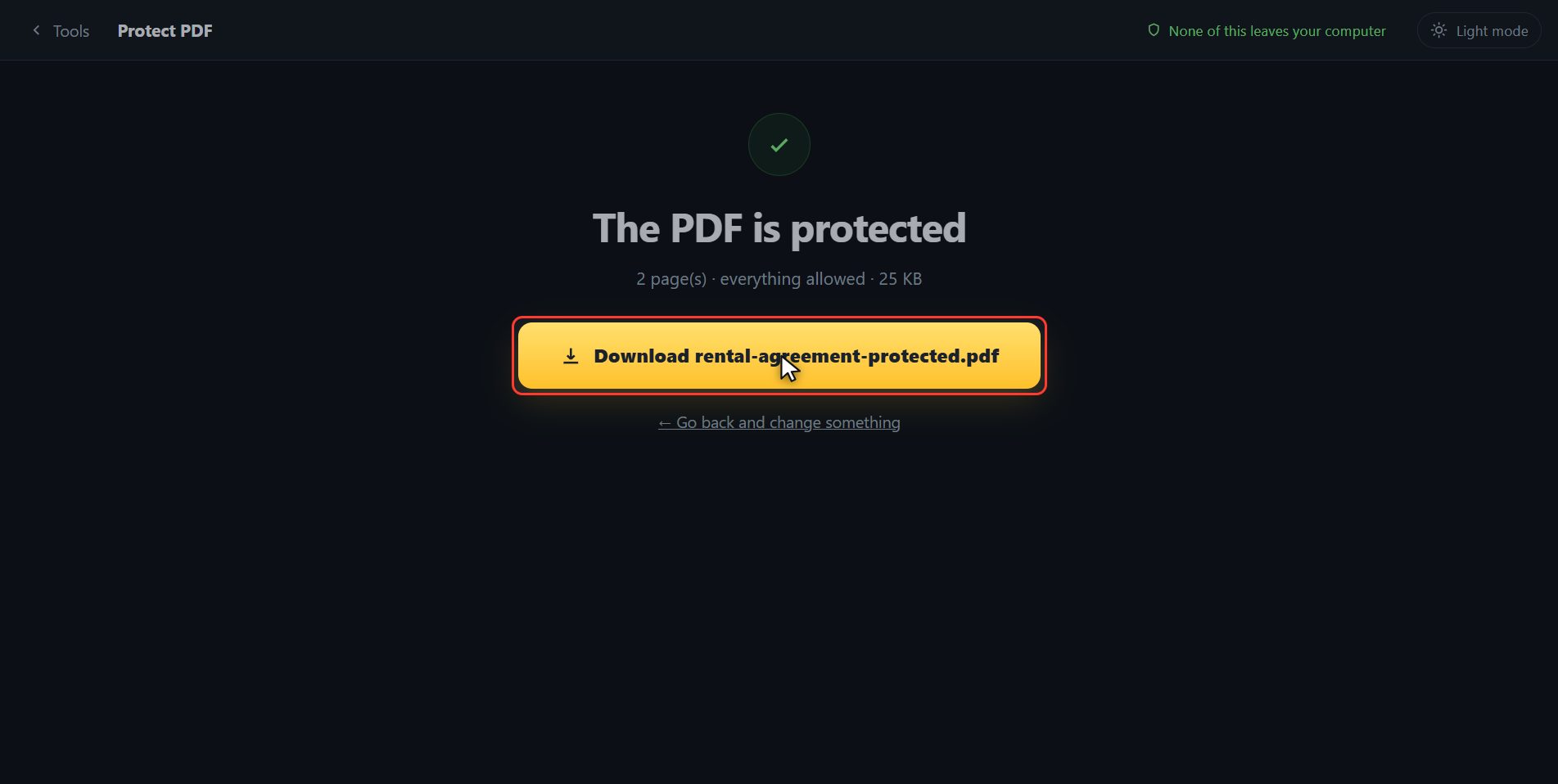
And done. The protected PDF has downloaded on its own, and here is the button in case your browser blocked it. From now on, that file asks for the password to open. Keep it somewhere safe: without it there is no way in, and that includes us.
And that is all. If it helped you, subscribe and give it a like. The link is at the top and first in the description. See you in the next one.
Common questions
I lost the password. Can you open it?
No, and nobody can. The PDF is encrypted with that password and the encrypting happens in your own browser: the file never goes through any server of ours. Save it somewhere safe before you send the document.
What is the difference between "no copying" and "read only"?
"No copying" lets you read and print, but not select the text to take it away. "Read only" is the tightest: no printing, no copying, no changing. Both of them still ask for the password to open.
What if I want to take the password off a PDF that already has one?
That is the "Remove the password" tool, on the same page. It asks you for the current password — you have to know it — and gives you the PDF back without it.