How to merge several PDFs into one
Go to tutoriolab.com/pdf/en, click Merge PDF, add your files, check the document that will come out underneath, change the order if you need to and click Merge PDF. It downloads on its own.
Several PDFs into one, free and in a minute.
Go to tutoriolab.com/pdf/en
Go to tutoriolab.com slash pdf slash e n. You have it at the top left the whole video and first in the description. This is what you get: twenty tools for PDF, free and without signing up. The one we want is the very first one, Merge PDF.
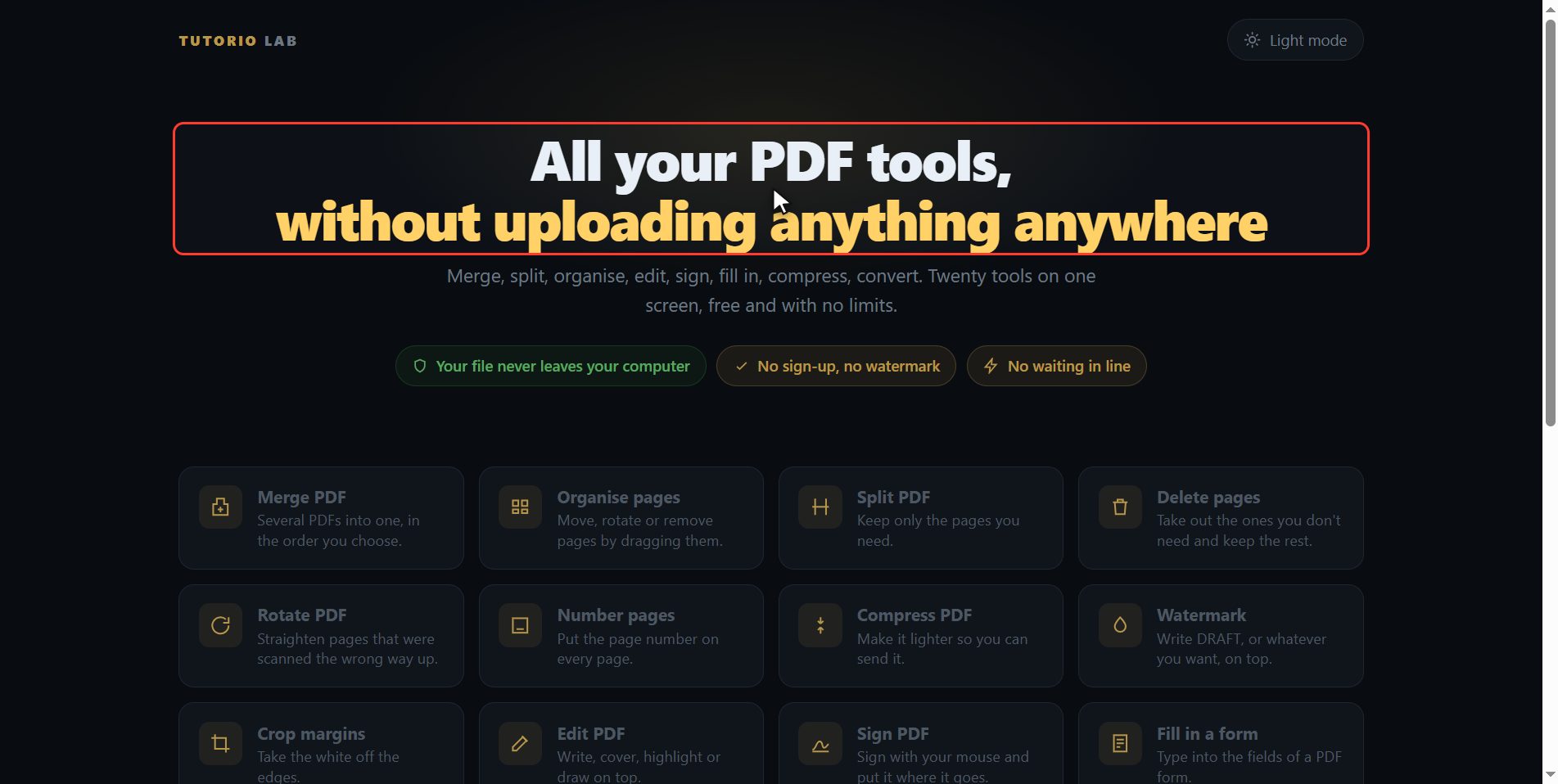
Click "Merge PDF"
Click it. And you are in: it just asks for your files.
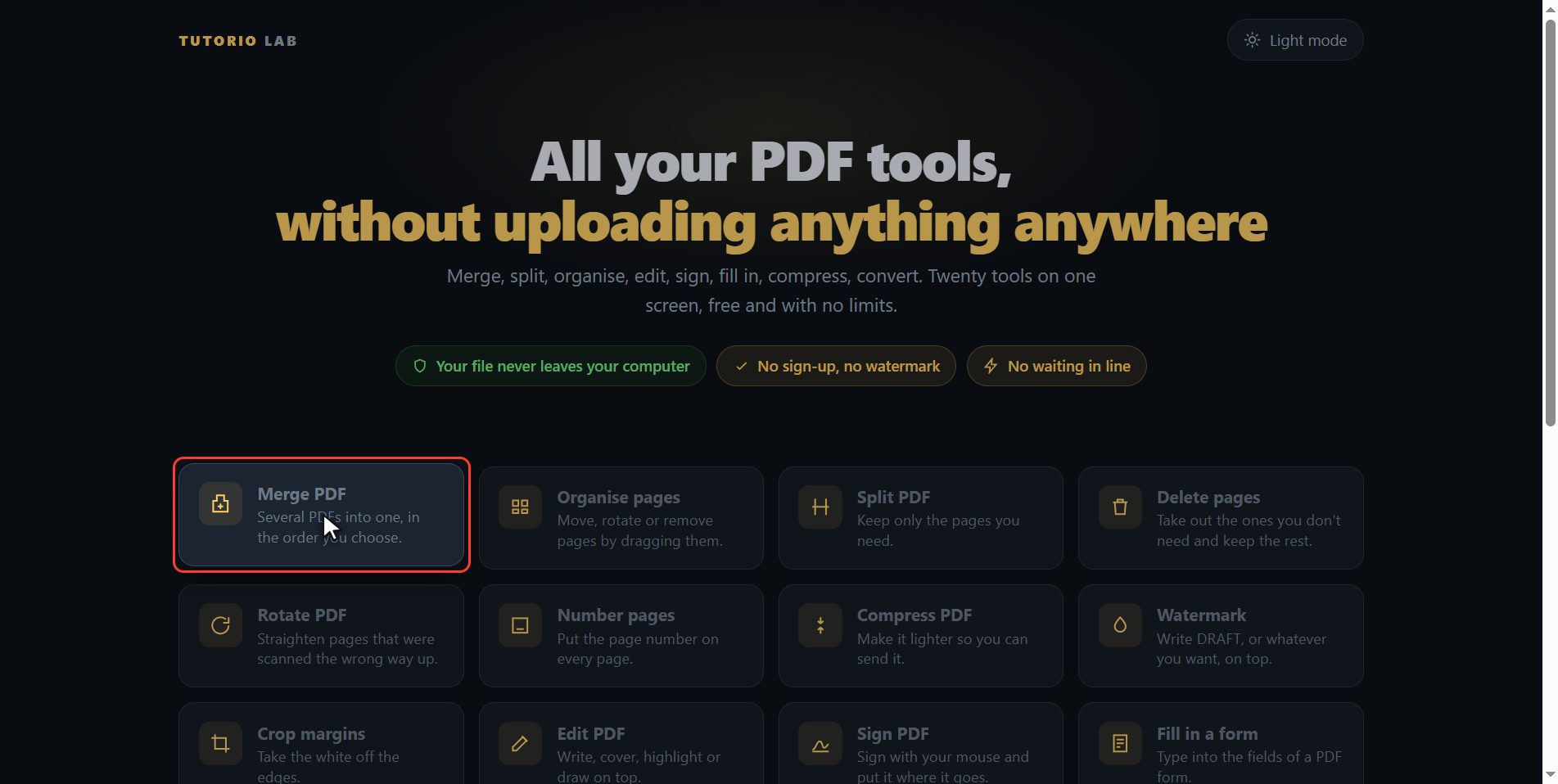
Add your files
Now add your PDFs. Click the select button and pick the ones you want to join; you can mark several at once holding the control key. Or drag them straight onto the box, which is the quickest way of all. And notice how they come in: not as a name in a list, but each file with its cover page.
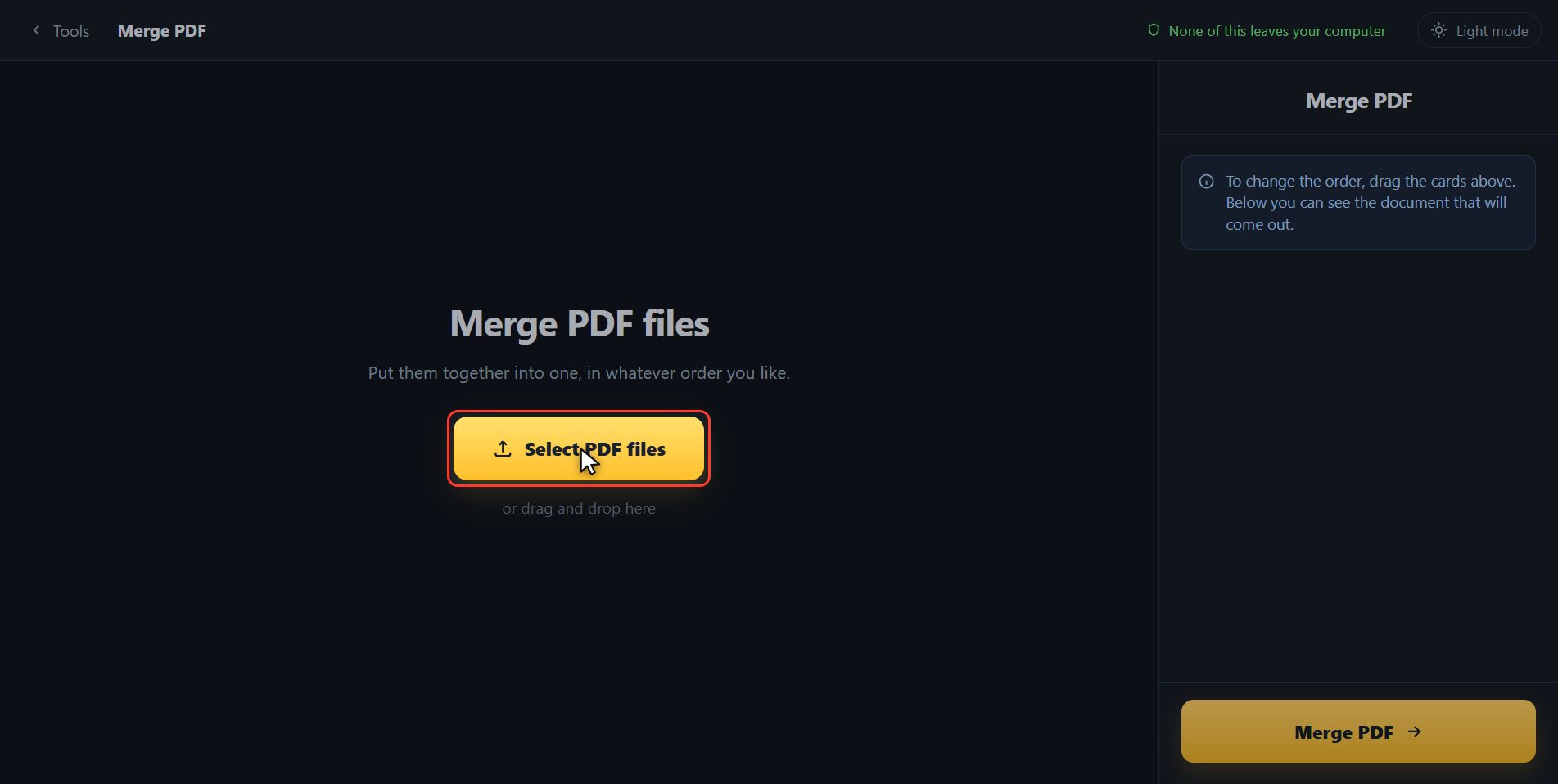
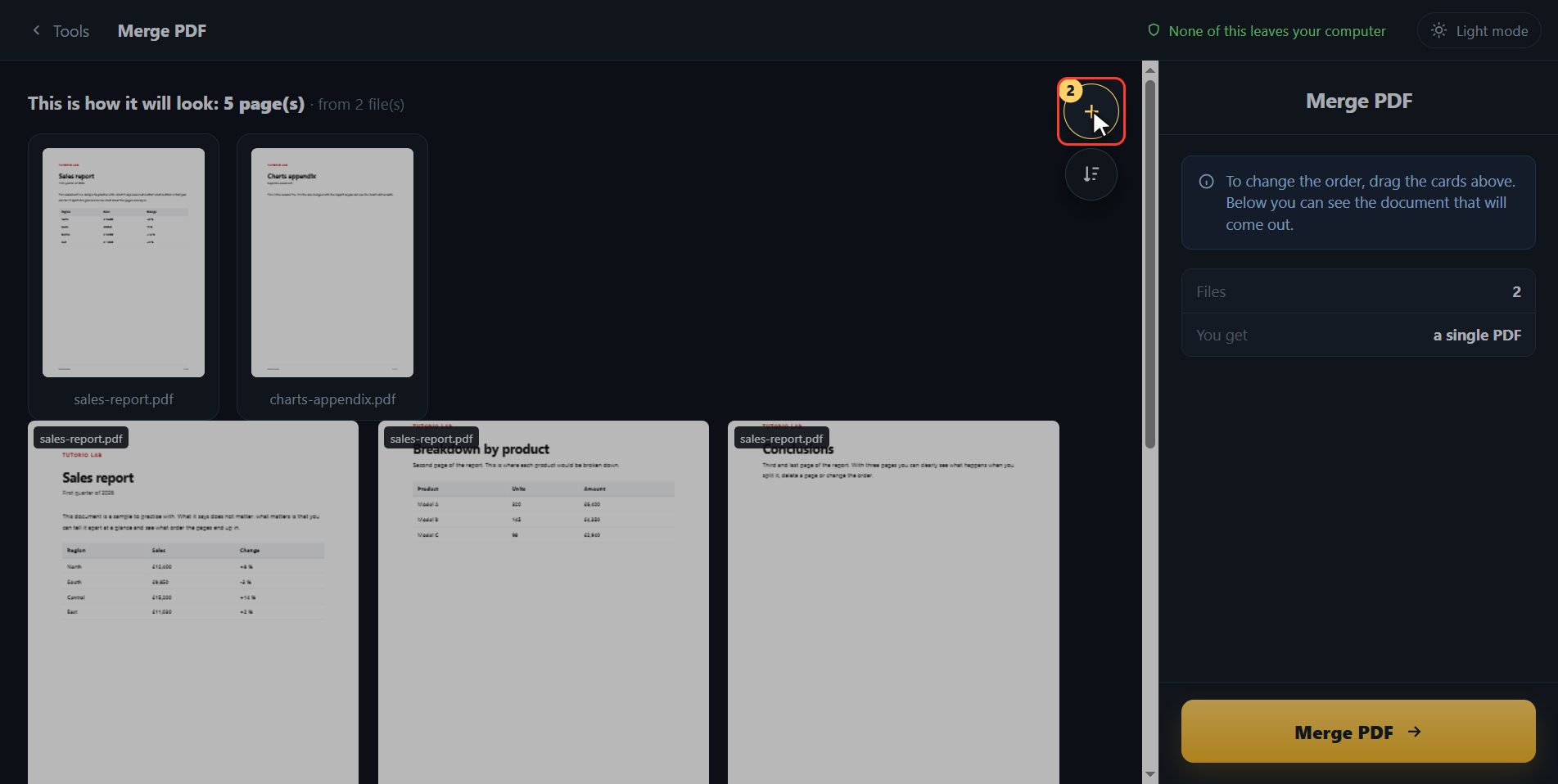
See how it will look
And here is what almost no other page does. Up here it tells you how many pages it will have altogether. And underneath you have the document that will come out, page by page and in its final order, with the name of the file each page came from. So you know exactly how it will look before saving anything.
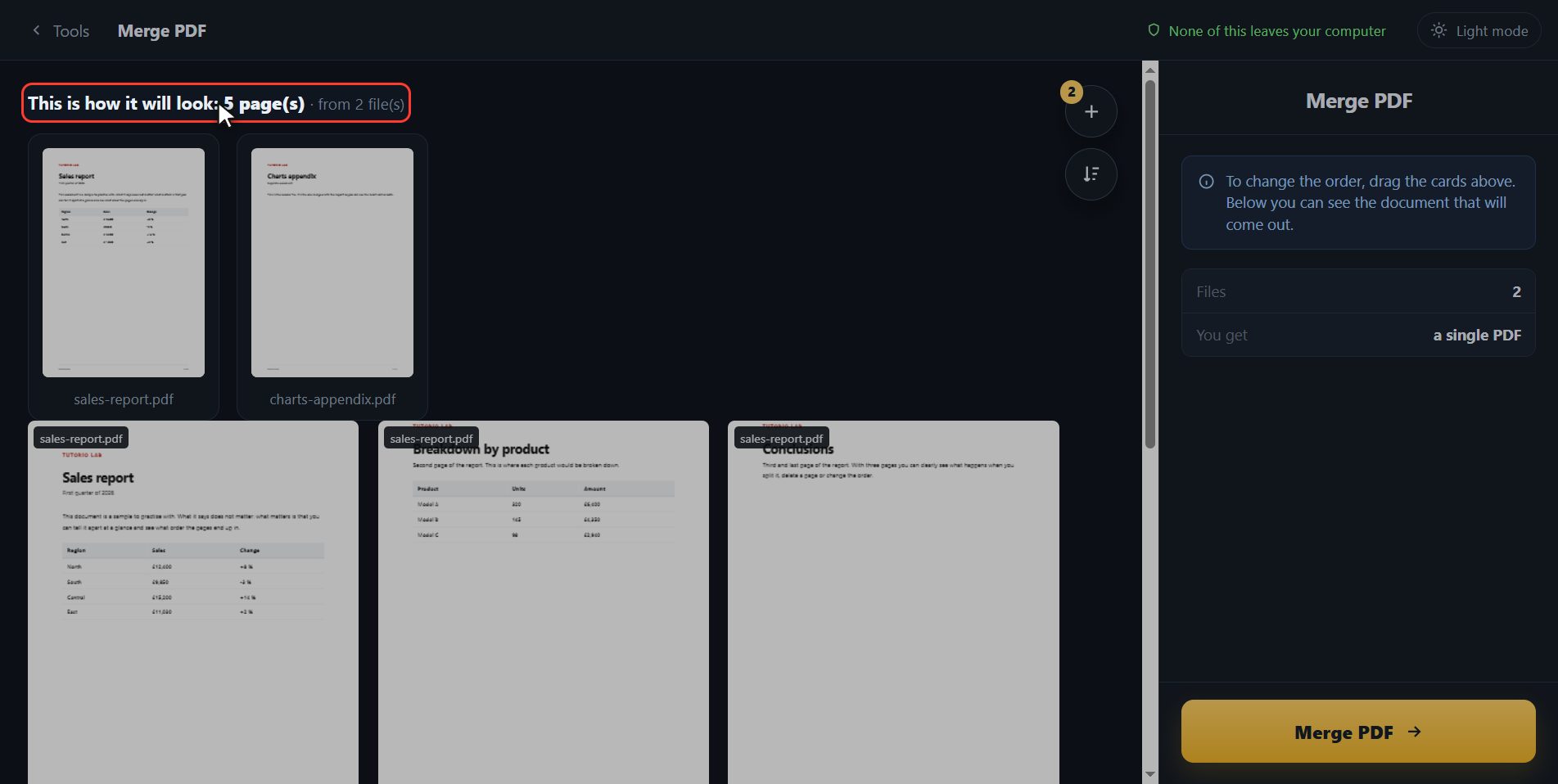
Change the order if you want
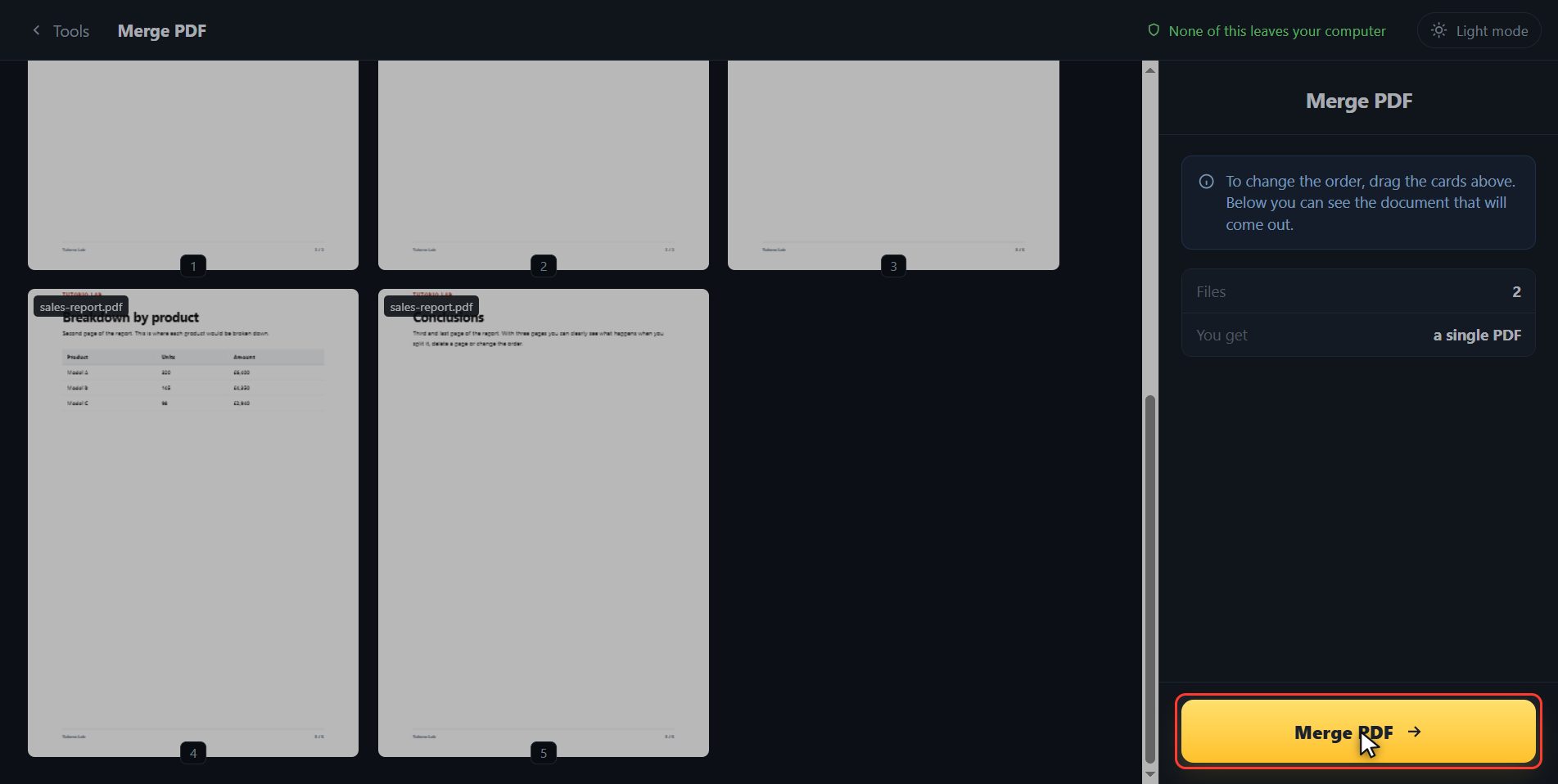
If the order is not the one you want, you change it up here. This round button adds more files without starting over, and the one next to it sorts them by name in one go. Watch what happens when I press it: the cards up top change and the whole document underneath is rebuilt in the new order. Both at once, and without having to start again. I will scroll down so you can see it whole, and if you would rather set your own order, the cards can be dragged with the mouse.
Click "Merge PDF"
When you have it the way you want, click Merge PDF, down here on the right. It takes as long as your computer takes: a few seconds.
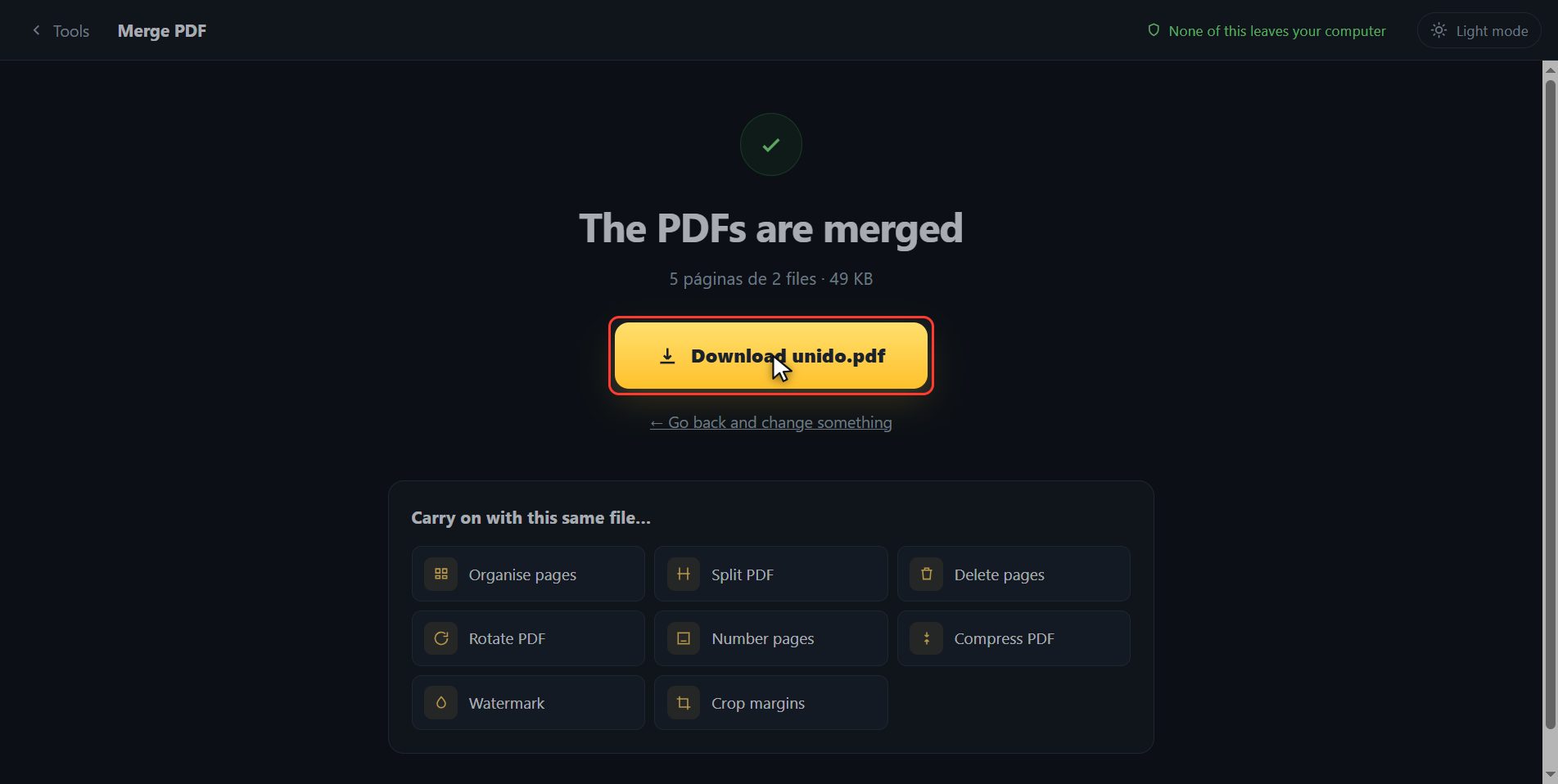
Download it, and carry on
And that is it. The file has downloaded on its own, and here is the button in case your browser blocked it. And if you now want to carry on with another tool — reorder the pages, number them, put a watermark on them — you have them down here with the file already inside.
And that is all. If it helped you, subscribe and give it a like, which is what keeps these tutorials coming. The link is at the top and also first in the description. See you in the next one.
Common questions
Are my files uploaded to a server?
No. Everything happens inside your browser, on your own computer. In fact, with the page already open you can switch off the wifi and the tool keeps working. That is why there is no size limit and no limit on how often you use it: it costs us nothing.
How many PDFs can I merge at once?
As many as you like. There is no limit, no account and no paid version. The only real limit is the memory of your own computer.
Can I change the page order inside one file?
That is what the "Organise pages" tool is for, on the same page. Merge first and then, from the result screen, click "Organise pages" to carry on with the file you have just created without adding it again.