How to password protect a PDF
Written and checked by the Tutorio Lab editors · Reviewed on · Who we are and how we are funded
In 30 seconds: go to ilovepdf.com, pick Protect PDF, upload your document, type the password twice and hit the red button. Free, no sign-up. Write it down before you close it: if you lose it, nobody recovers it.
You have to send a private document — a contract, a payslip, a medical report — and you want it so that if it ends up where it should not, not just anyone can open it.
Putting a password on a PDF takes a minute, it is free and there is nothing to install.
But a warning right away: the important part of this tutorial is not the clicks. It is what a password does not do, because that is where people go wrong and where documents genuinely get lost.
Go to iLovePDF
Go to ilovepdf.com. If the site comes up in another language, you change it at the top right.
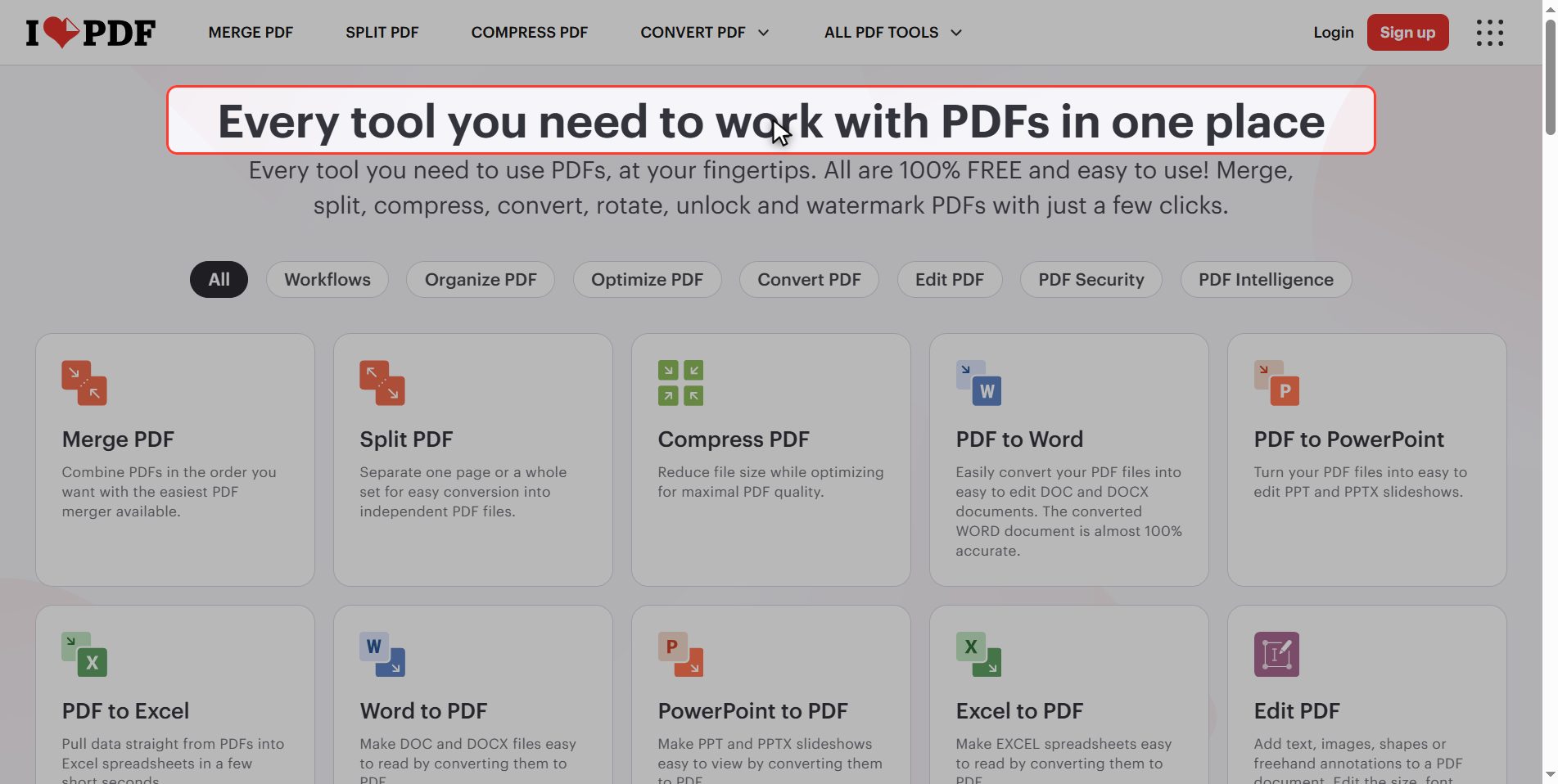
In the grid of tools, look for Protect PDF.
Notice the one next to it, Unlock PDF, which does the opposite. Remember it: it comes back at the end and clears a lot up.
Upload your document
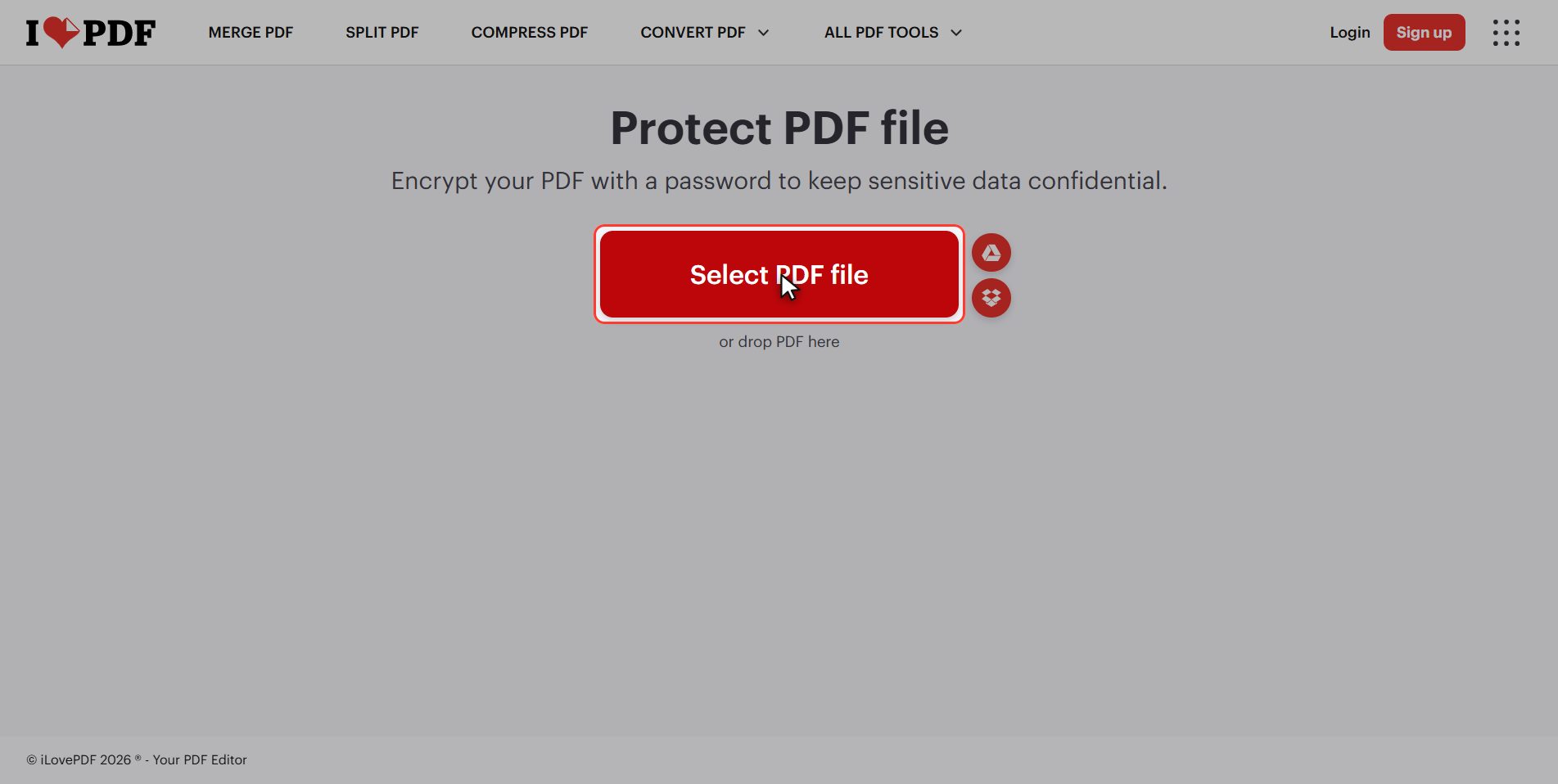
Click the red Select PDF file button and pick your document.
It is singular: this tool protects one document at a time.
Type the password twice
The panel is the simplest thing on the whole site: two fields.
- Enter a password
- Repeat password
Repeating it is not a whim: all you see while typing are dots, so if you got one letter wrong you would never notice, and you would end up with a document not even you can open.
Do not use your birthday or your dog's name. And the most important thing in this whole tutorial: write it down somewhere NOW, before you go on.
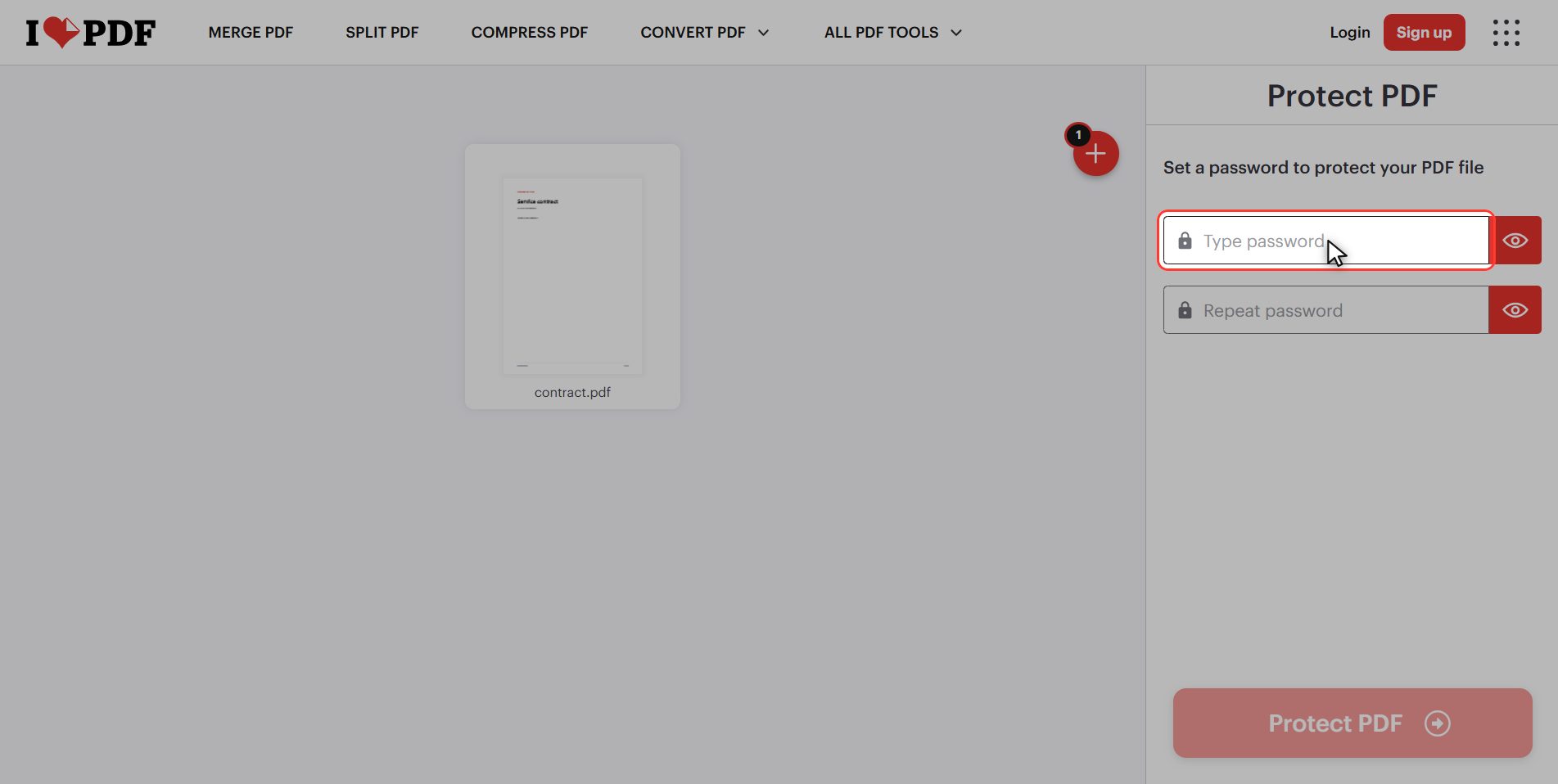
Click "Protect PDF"
With both the same, click the red button at the bottom right: Protect PDF.
What it does is not hide the document: it encrypts it. The content becomes unreadable, and the password is the only thing that puts it back in order.
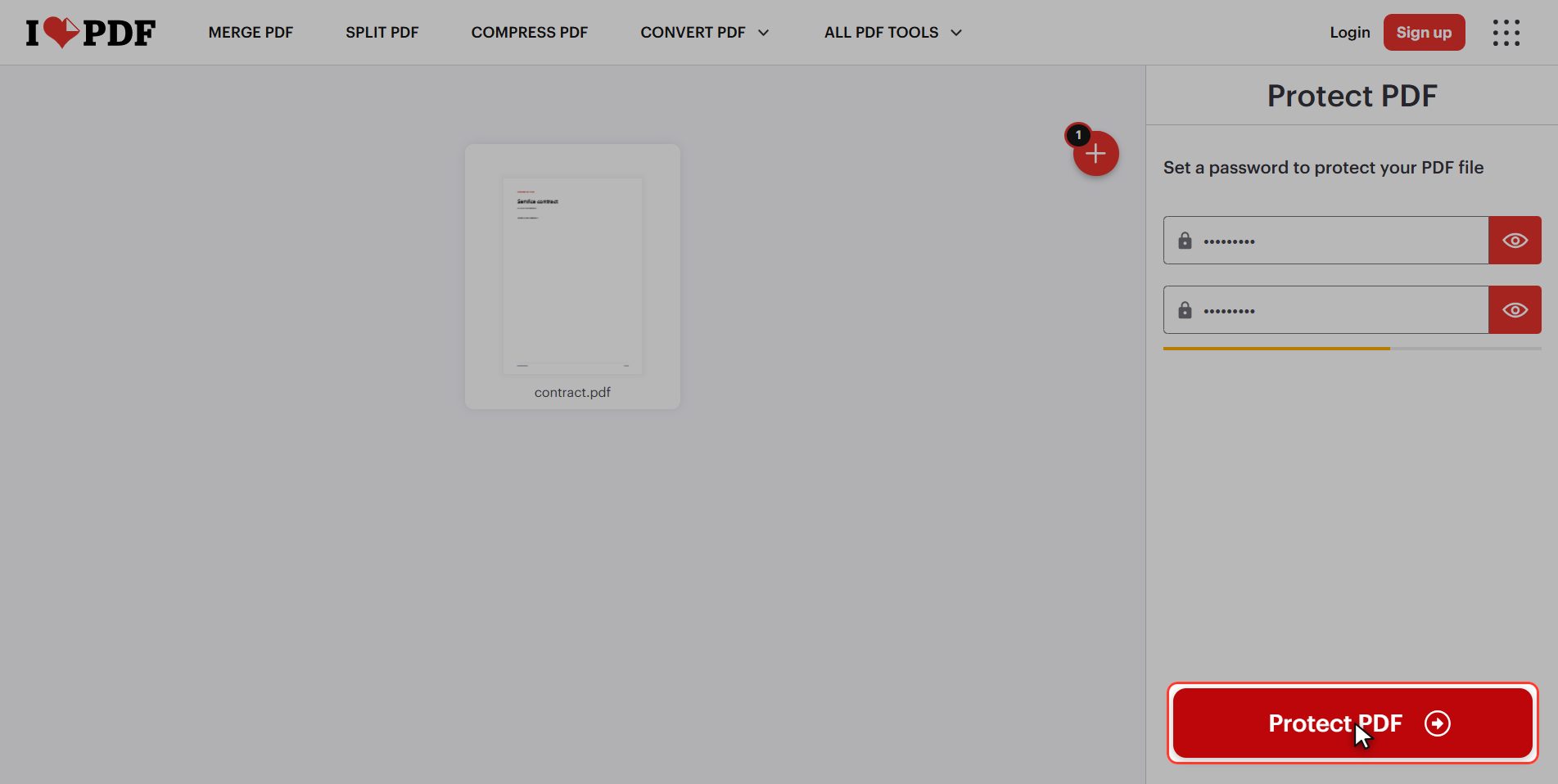
Download the protected PDF
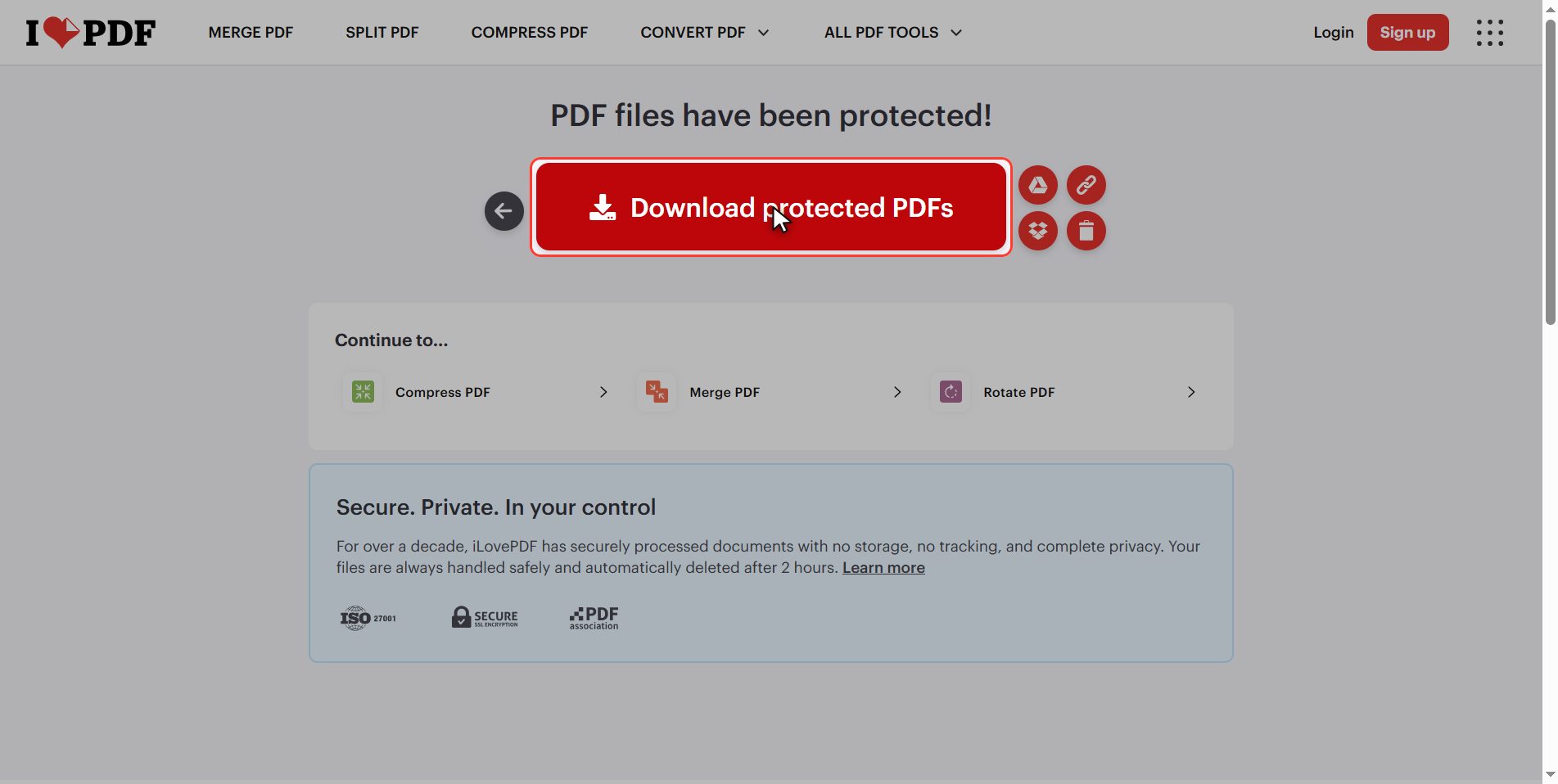
Download the file and your protected PDF is in your downloads folder.
Test it before sending it to anybody: open it, check that it asks for the password and that the one you wrote down works.
It sounds obvious, but it is the step everybody skips and the one that prevents the disaster.
What a password does NOT do
And now the important part. What a password does NOT do:
- It cannot be recovered. Lose it and nobody gets it back. No "forgot my password", no recovery email, and this site cannot return it either because it does not store it. The document stays shut forever.
- It protects nothing if it travels with the file. Sending the password in the same email as the PDF is leaving the key taped to the lock. Send it another way: a message, a phone call.
- It does not erase the past. It protects *that* file, not the copies that already left your hands. If you already sent it unprotected, adding a password now does not take it out of anybody's inbox.
And about Unlock PDF, the tool next door: somebody might think that makes this pointless. It does not, quite the opposite. That tool can remove a password you know, not guess one you do not.
Your document really is shut. What is not protected is the password if you leave it on a sticky note on your monitor.
The uncomfortable part
And the uncomfortable part, which no tutorial says.
To put this password on, you have uploaded to somebody else's server precisely the document you wanted to protect.
It deletes itself after a few hours and the connection is encrypted, and for most cases that is fine. But stop and think: if the document is sensitive enough to need a password, maybe it is not the one you want to upload to the internet.
For those cases:
- Word and Acrobat add passwords without the file leaving your computer.
- On the Mac you can do it from the print window itself, with "Save as PDF".
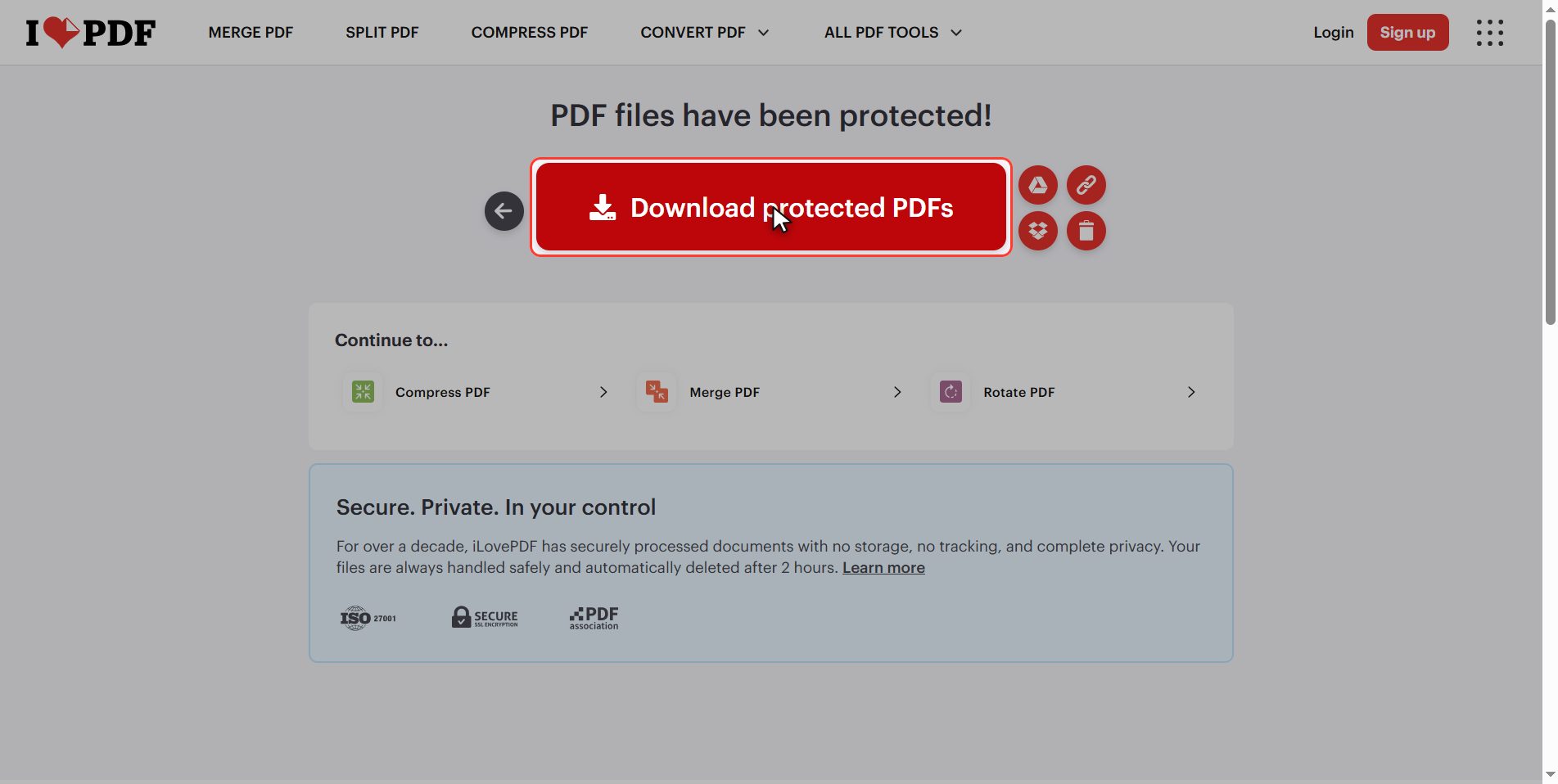
This site is convenient and free; you decide when it is worth it. And if you do upload it, hit the bin icon when you are done.
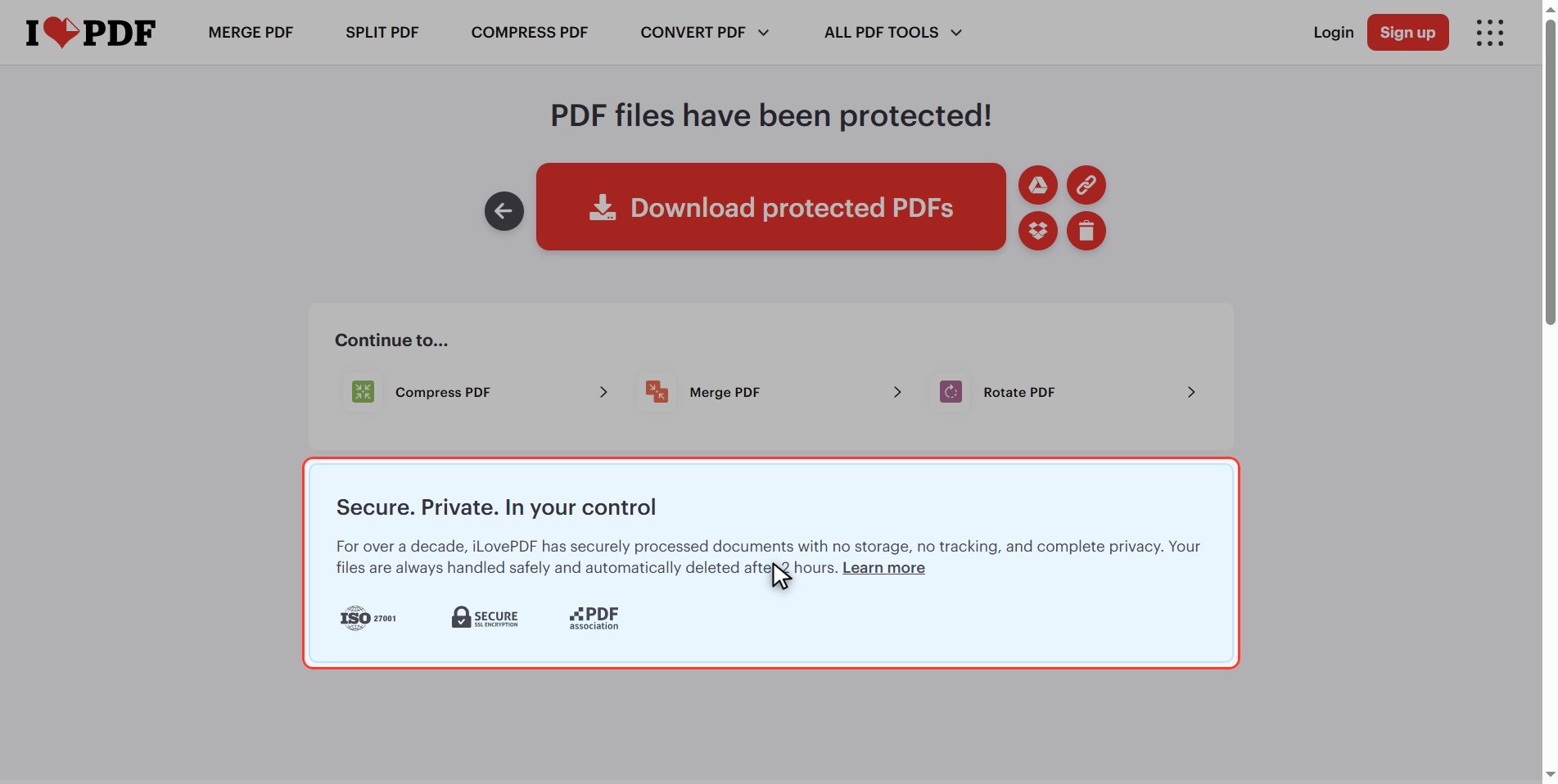
And that is it: a password protected PDF in under a minute and for free.
Keep the three rules, they are what prevents the misery: write it down before you close it, send it by a different route than the file, and do not lose it, because there is no way back.
Common questions
I lost the password to a PDF of mine. Can it be recovered?
No. And it is worth saying plainly because there is a lot of misleading noise about this: the password is not stored anywhere, neither in the file nor on the site that protected it. The document is encrypted and the password is the only way to decrypt it. Programs that claim to recover it are trying millions of combinations, and with a moderately long password that takes years. If the document mattered, the only way out is to go back to the unprotected original, if you kept it.
So what is the Unlock PDF tool for?
For removing the password from a document when you know it and it is in your way, which is a very common case: the bank sends your statement protected, you open it with your code and you want to save it without one so you do not have to type it every time. It does that. What it does not do is guess a password you do not know. They are two very different things and it is the most common confusion.
Can I protect several PDFs at once?
The button is singular and the tool works with one document at a time. If you have several there are two routes: repeat the process with each one, or merge them first into a single PDF with Merge PDF and protect the result. The second has an advantage: one password to remember instead of five.
Does the password stop printing or copying the text?
No: the password you set here is the one for opening. Until you have it you cannot do anything with the document, but the moment you open it you can print and copy the text normally. A PDF has another kind of restriction, permissions, which live in the "Advanced" tab of the panel. With a free account that tab does not open, so this tutorial is about the opening password, which is the one that genuinely shuts the document.
Can the password be removed afterwards?
Yes, if you know it. You open Unlock PDF, upload the document, type the password and out comes the same PDF without it. It is reversible, so do not be afraid to protect it: what is not reversible is forgetting the password.
Is it safe to upload the document I want to protect?
The connection is encrypted and the file is deleted from the server after a few hours, so for most documents it is fine. But there is a contradiction worth facing: you are uploading to somebody else's server precisely the file you consider sensitive. If the document is one you do not want leaving your machine, add the password from Word, from Acrobat or from the Mac print window, which do it without uploading anything.