
How to crop an image
Written and checked by the Tutorio Lab editors · Reviewed on · Who we are and how we are funded
In 30 seconds: go to iloveimg.com, pick Crop image, upload your photo and type the four numbers in the panel: width and height of the piece you want, and X and Y to place it. The same number in width and height gives you a perfect square for a profile picture. Free, no sign-up.
You need a square photo for a profile. Or to get rid of somebody who ended up in the corner. Or to crop exactly the same piece out of twenty product photos so they all match.
Cropping takes a minute and it is free, and almost everybody does it by dragging the frame by eye.
Here you are going to learn the other way, the one almost nobody uses: cropping by typing numbers. Faster, exact, and the only way to do some of those things at all.
Go to iLoveIMG
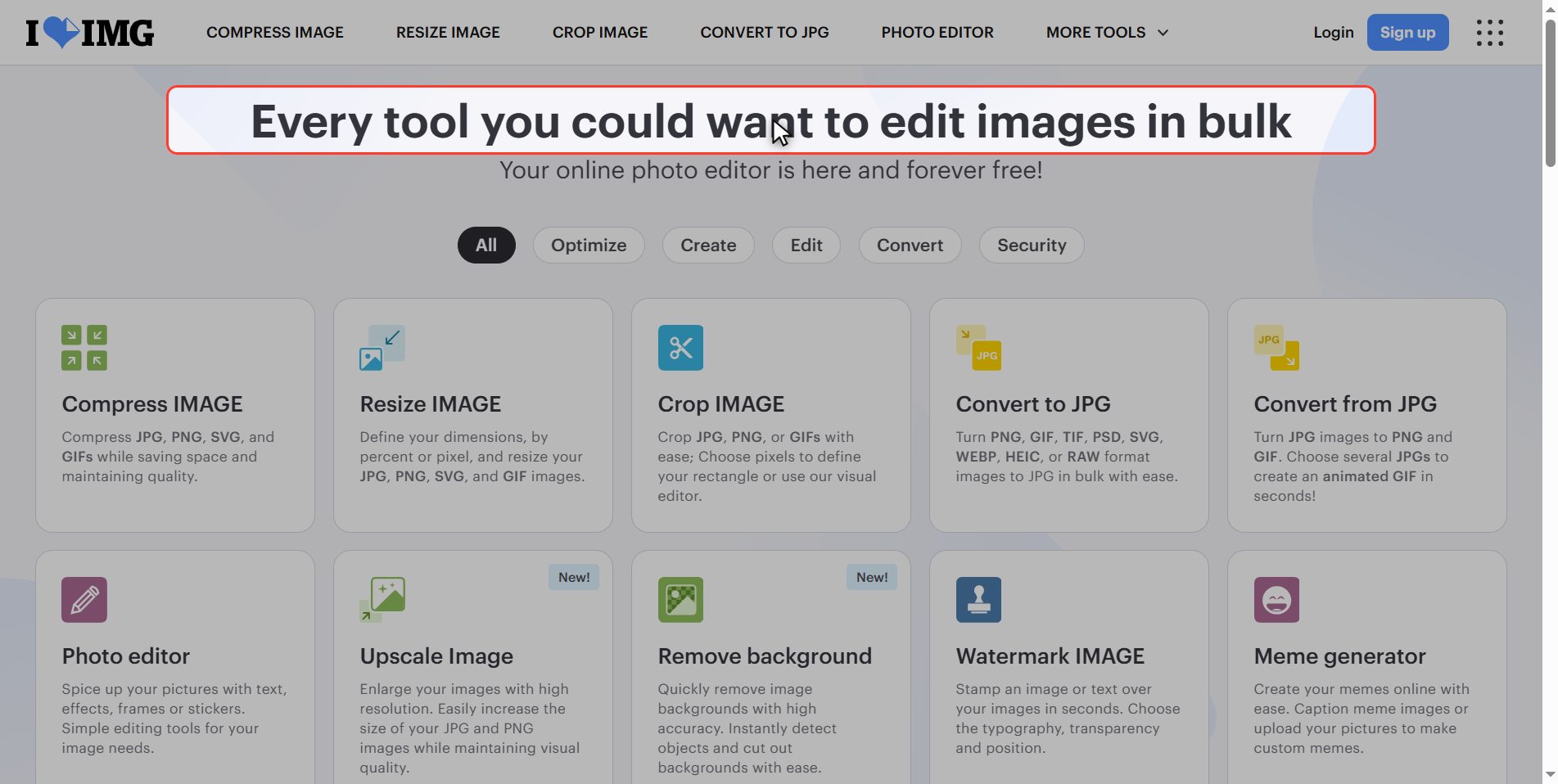
Go to iloveimg.com — with IMG, for image.
The tool is Crop image.
Notice the one next to it, Resize image: the difference is explained at the end, and it is the most common confusion with this.
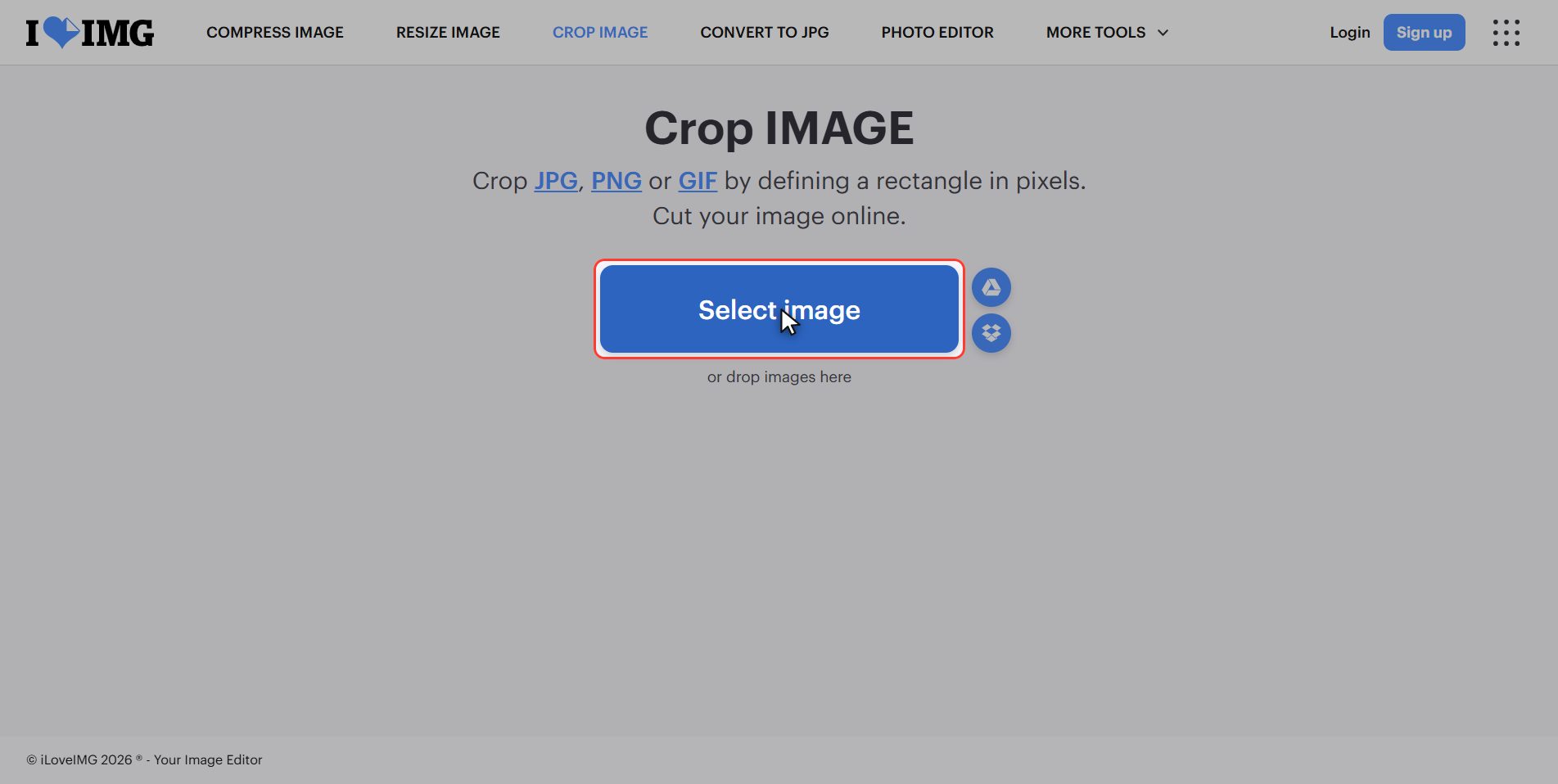
Upload your photo
Click the red Select image button and pick your photo.
Look at the detail: here it is singular. Compress and resize were plural and took several at once; this one works with one at a time.
It makes sense: the crop that suits one photo does not suit another, because what you want to keep sits in a different place in each one.
The four numbers of a crop
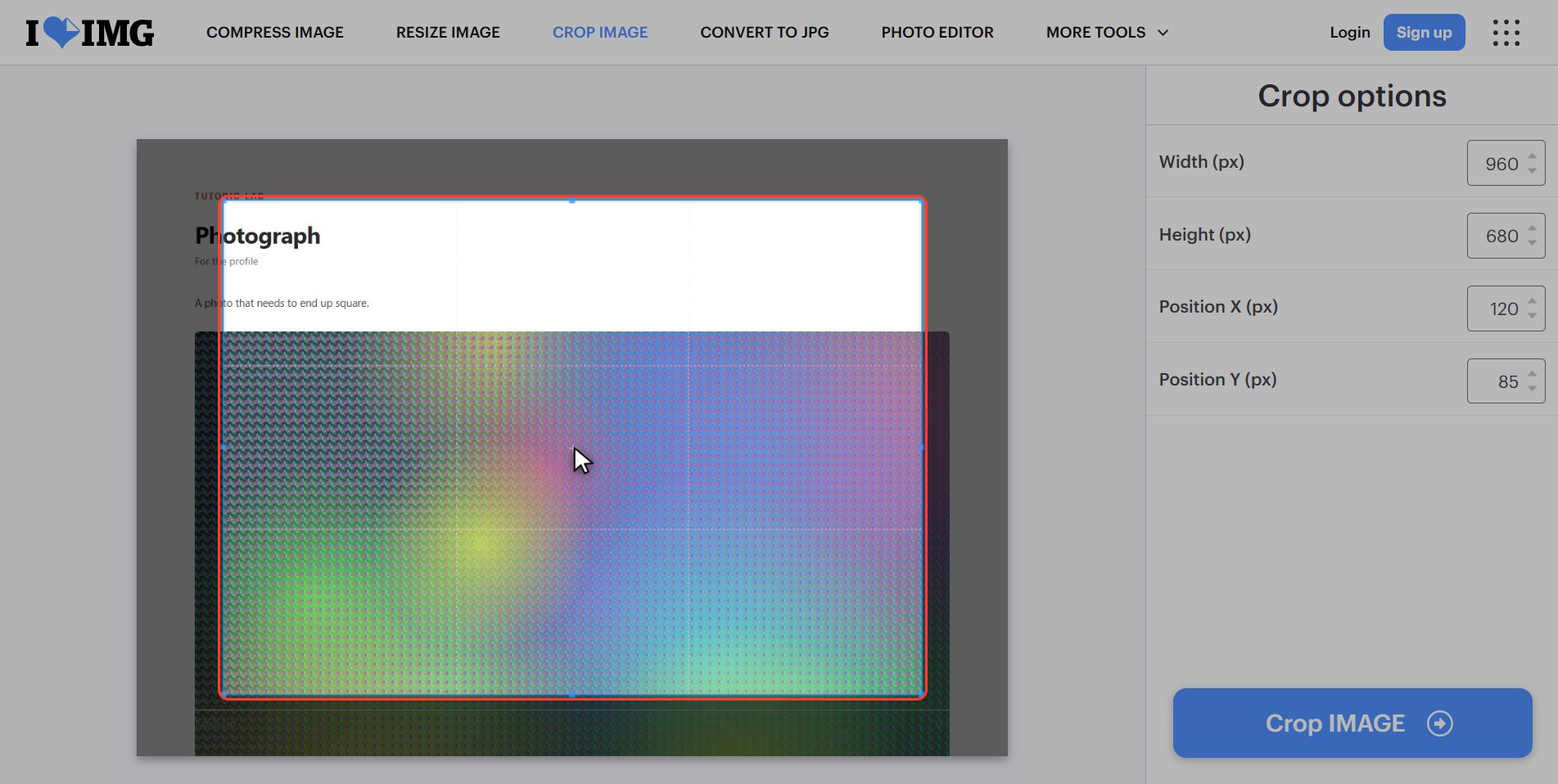
As soon as the photo uploads you will see the crop frame on top of it. You can grab it with the mouse and move it, and for a quick crop that is fine.
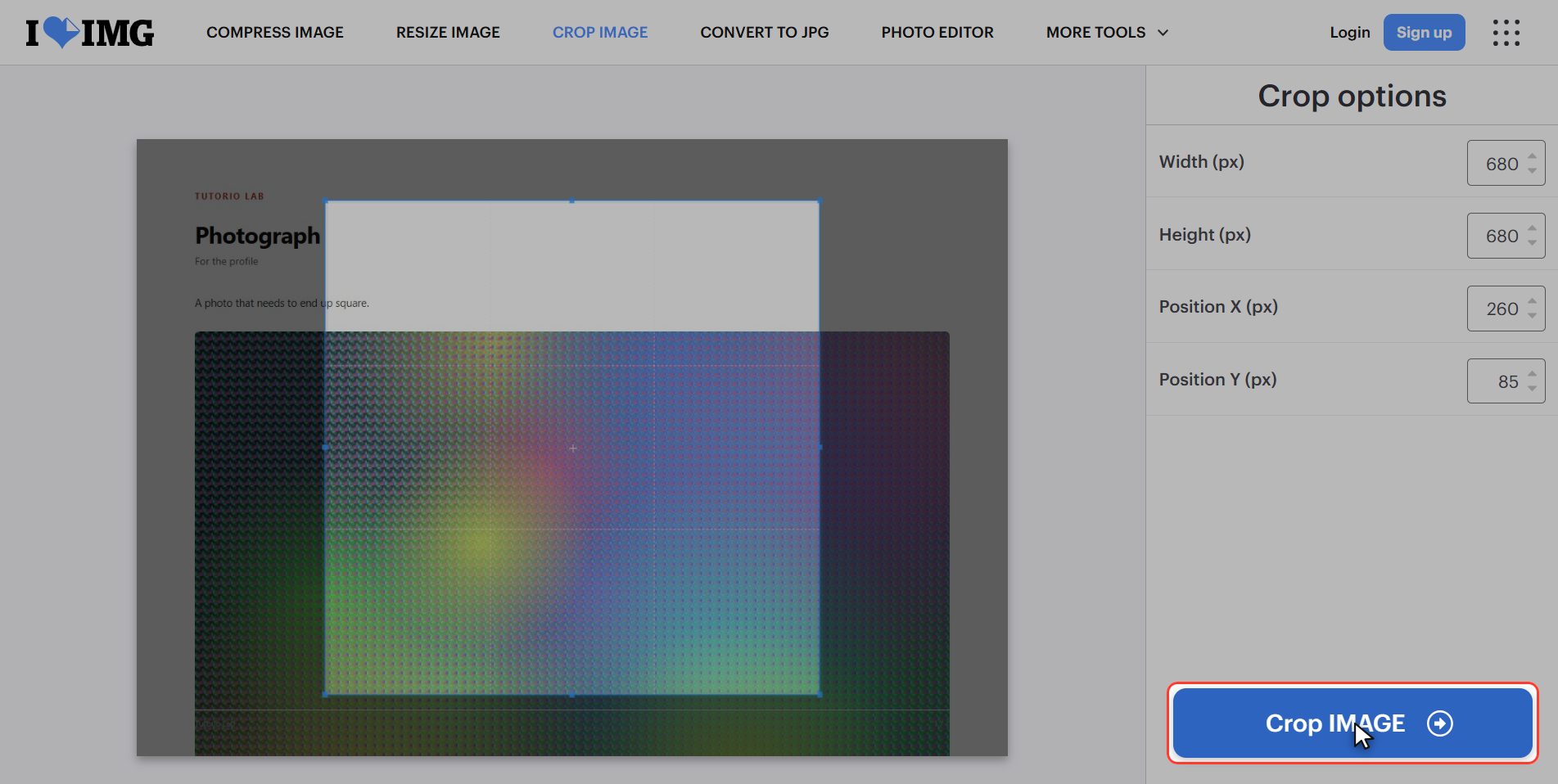
But the good part is in the panel on the right: four boxes.
- Width and Height — the size of the piece you are keeping
- X — how many pixels from the left edge to where the crop starts
- Y — how many from the top edge
Those four numbers describe the whole crop. And they come already filled in with whatever the frame is marking: drag the frame and the numbers change by themselves. It works both ways.
Make it square with numbers
And here is the trick that makes typing them worthwhile.
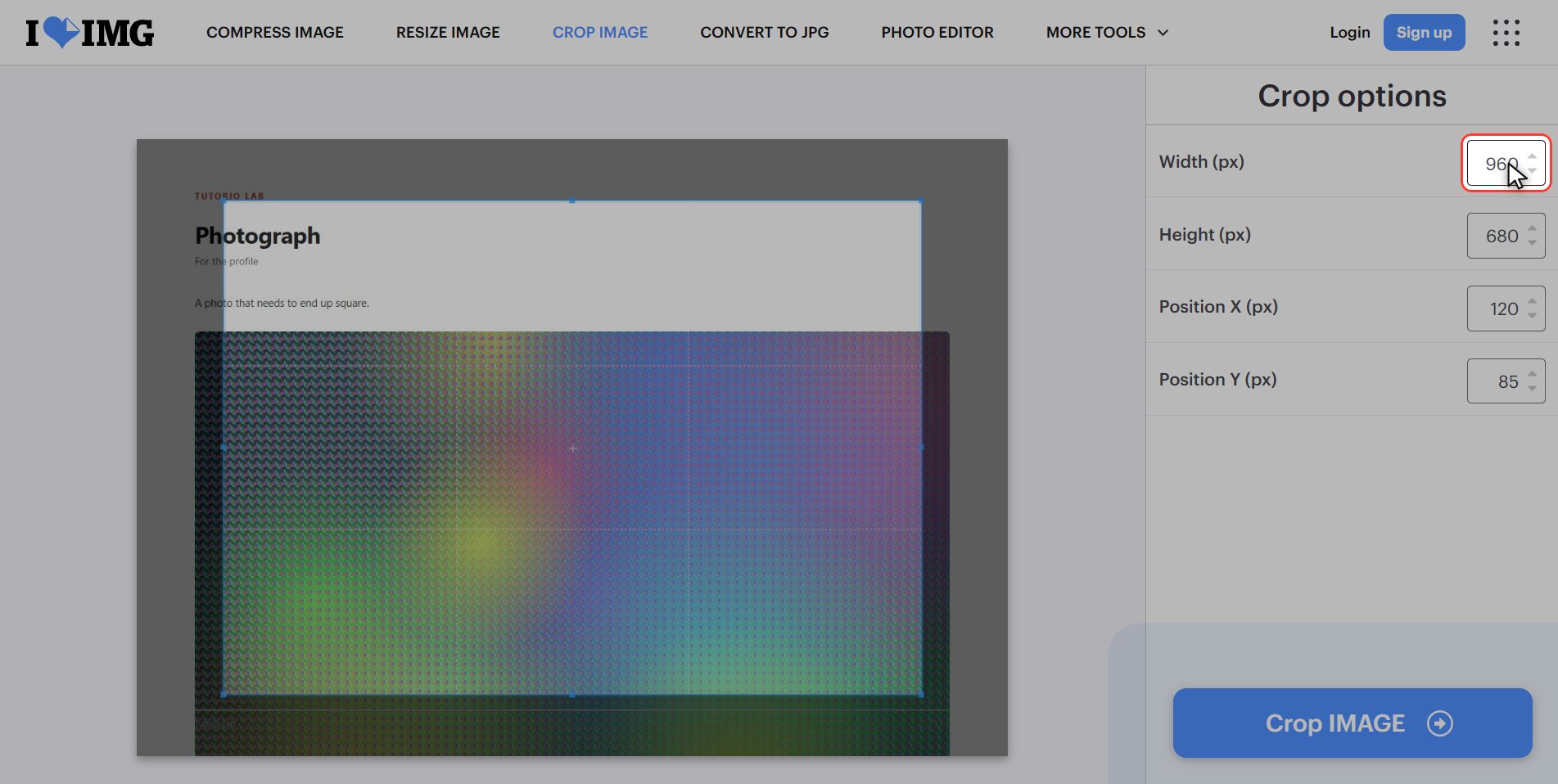
For a profile picture you need a square, and a square is simply the same number in width and in height. By eye you will never manage it: it always ends up slightly rectangular.
Type the same value in both and adjust X and Y to centre it. The frame moves and turns square while you type.
And this is the twenty product photos bit: write these four numbers down, put the same ones in every photo, and they all come out cropped exactly alike. By eye that is impossible.
Click "Crop image"
With the four numbers in, click the red button at the bottom right: Crop image.
Download it
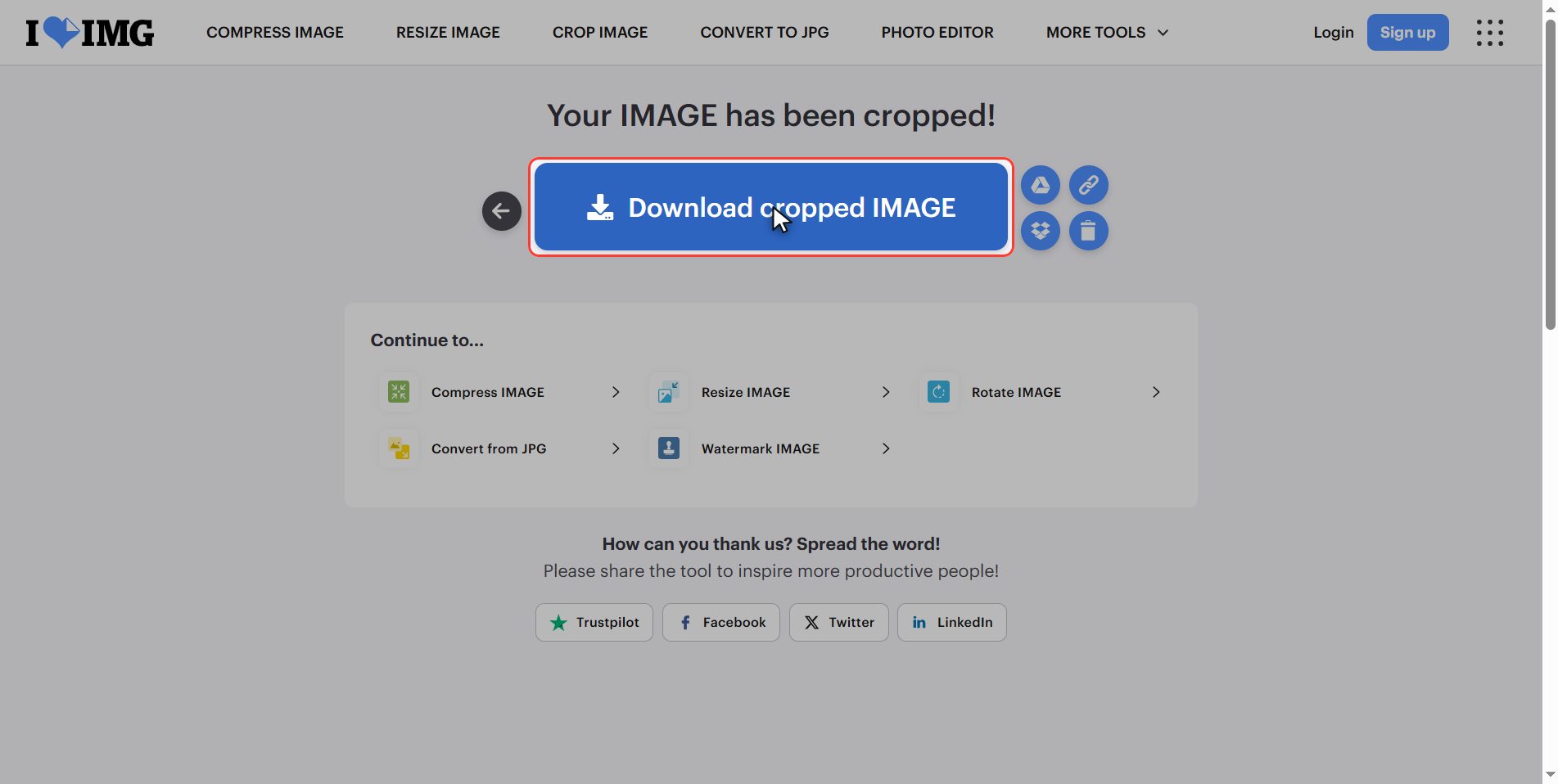
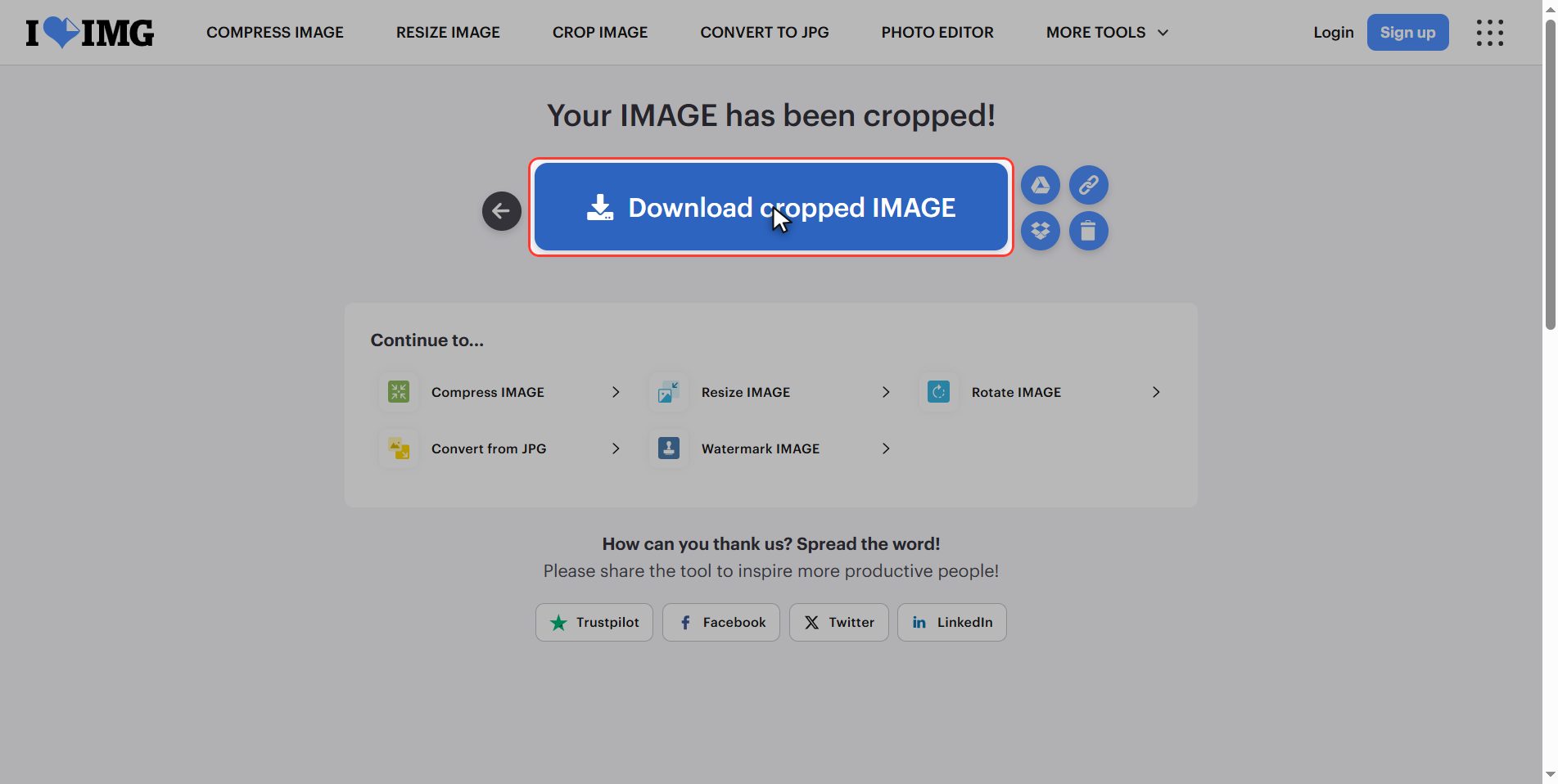
Hit Download cropped IMAGE and it is saved in your downloads folder.
And something important: the file you download is new. Your original photo has not been touched, it is still whole where it was.
That is what you want: always keep the original, because what you crop away cannot be brought back.
Cropping is not resizing
Cropping and resizing are not the same thing:
- Cropping changes WHAT you see: you throw away the part outside the frame, and those pixels are gone for good.
- Resizing changes HOW BIG it is: the whole photo is kept, you see the same thing, just smaller.
An example so you do not forget:
- Group photo and you want only your face → crop.
- That same photo is too heavy to upload → resize.
And watch out for something that happens a lot: when you crop, the photo also ends up lighter, because it has fewer pixels. That makes people think cropping is a way to reduce file size. It is, but in the most reckless way possible: you are throwing away half the photo.
If what you want is a lighter file, resize or compress. Save cropping for when you genuinely want to remove something.
What happens to your files
This applies to all of these tools.
Your photo is uploaded to an iLoveIMG server so it can be cropped. It is processed there and deleted by itself after a few hours.
For product photos or landscapes, no problem. If it is a personal photo — and especially if what you are cropping out is precisely somebody you want gone — think about it: the file you upload is the one that still has that person in it.
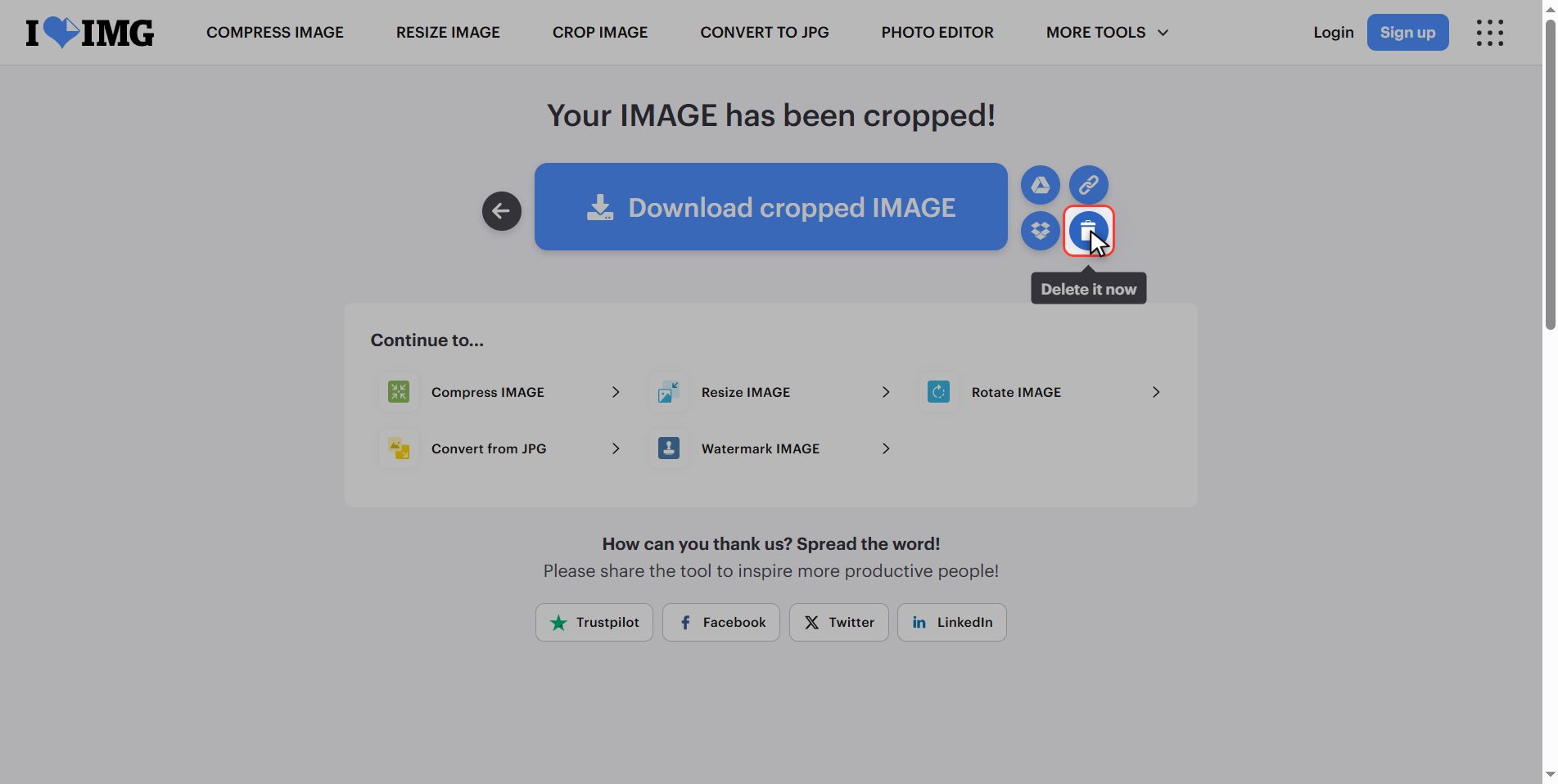
Almost every phone and every photo program on your computer crops without sending anything to the internet. And if you upload it anyway, hit the bin icon when you are done.
And that is it: a photo cropped to exact measurements in under a minute and for free.
Take away the part that matters: the four numbers are faster and more precise than dragging the frame, and cropping throws pixels away while resizing only makes them smaller.
Common questions
What exactly are X and Y?
The position of the top-left corner of the crop, counted in pixels from the edge of the photo. X is counted from the left edge going right, and Y from the top edge going down. If you put X at zero and Y at zero, the crop starts right at the top-left corner of the image. It is the same system every design program uses.
How do I centre the crop without trial and error?
With one subtraction and one division. The centred X is the width of the photo minus the width of the crop, divided by two. And Y the same but with the heights. For example, on a photo 1200 wide with an 800 crop, the centred X is 1200 minus 800, which is 400, divided by two: 200. It sounds like maths but it takes five seconds on your phone calculator, and it comes out perfect first time.
Can I crop several photos at once?
No: the button is singular and the tool works with one image at a time. What you can do, and it is the trick of this tutorial, is write the four numbers down and repeat them on each photo. If all the photos are the same size to begin with, the crop comes out identical on all of them, which is exactly what you need for a shop or a catalogue.
I cropped too much. Can I get the missing part back?
From the cropped photo, no: the pixels that fell outside the frame are not in the file any more. But your original is intact, because this tool downloads a new copy and does not touch what you uploaded. So just upload the original again and crop it with better numbers. That is why it is worth never deleting the original until you are sure about the result.
What size do I need for a profile picture?
Square, the same number of width and height. 1000 by 1000 works anywhere: the networks shrink it if they need to, and a profile picture is never shown large. What matters is not the exact number but that it is square, because if you send a rectangle the network crops it itself, and almost always where you did not want.
Does cropping lose quality?
The part that stays loses nothing: the surviving pixels are exactly the ones that were there, with the same sharpness. What you lose is surface area, not quality. That said, if you then enlarge that small crop to fill what the whole photo used to fill, it will look blurry — but not because of the crop: because of the enlarging.