
How to add a watermark to a PDF
Written and checked by the Tutorio Lab editors · Reviewed on · Who we are and how we are funded
In 30 seconds: go to ilovepdf.com, pick Watermark, upload your PDF, type the text, put it in the centre, and the important bit: transparency at 50% and rotation at 45 degrees. Those two settings are what make it look professional. Free, no sign-up.
You have to send a document and you want it to say "draft", "confidential" or your company name across it. That is a watermark, and it takes a minute and it is free.
But there is more than the clicks: a badly placed watermark ruins the document. Solid and upright, it covers the text and nothing can be read.
What makes it look professional is two specific settings, the same ones print shops and law firms use. And at the end, something uncomfortable about what it is actually for.
Go to iLovePDF
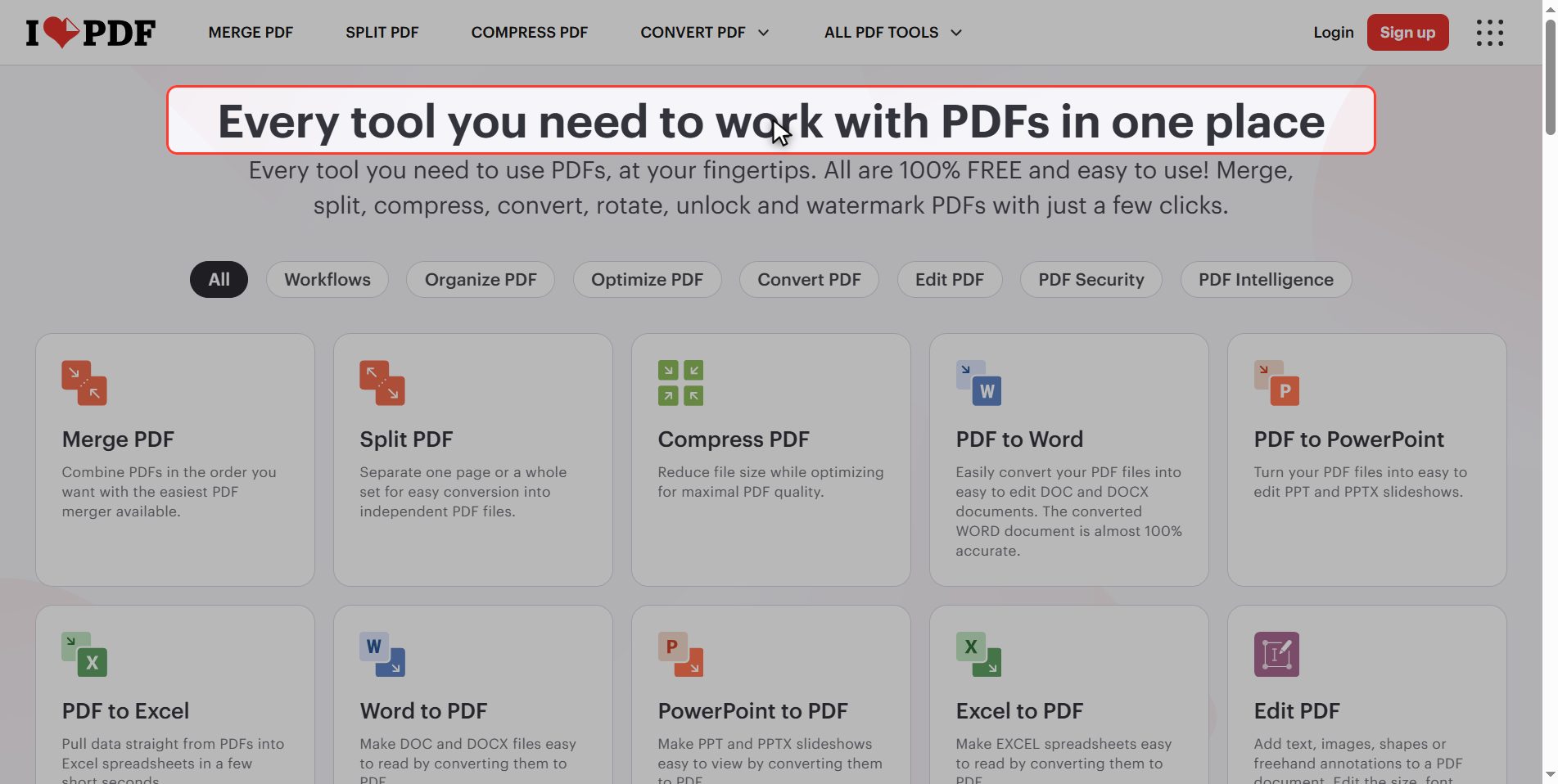
Go to ilovepdf.com. If the site comes up in another language, you change it at the top right.
In the grid of tools, look for Watermark.
Notice Protect PDF, which sits nearby: we are coming back to it at the end, because they are two things people confuse and they have nothing in common.
Upload your document
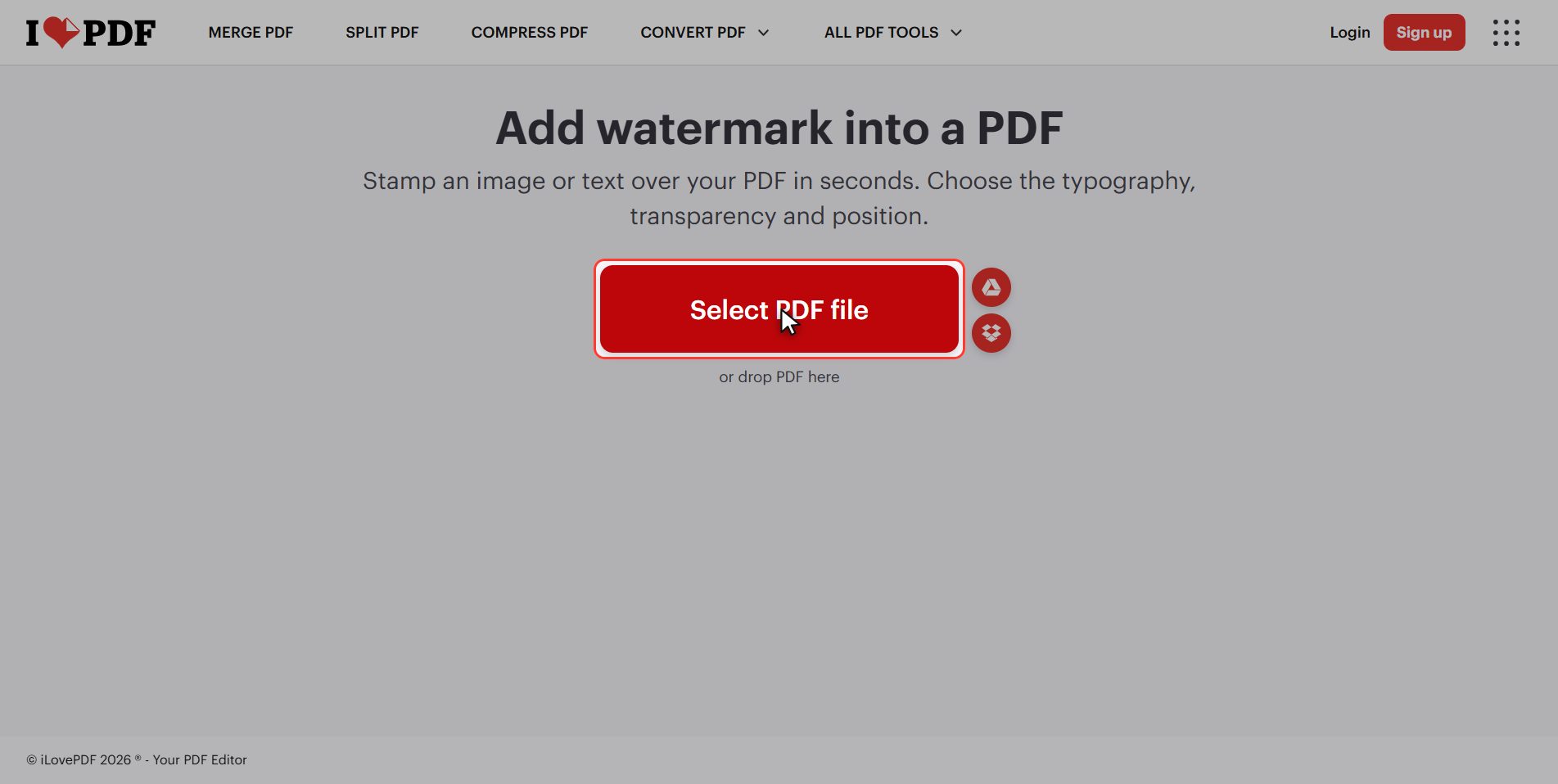
Click the red Select PDF file button and pick your document.
It is singular: one document at a time.
As soon as it uploads, the pages appear as thumbnails. It is a real live preview, and everything you touch shows up right there before you download anything.
Type the watermark text
First: what it says.
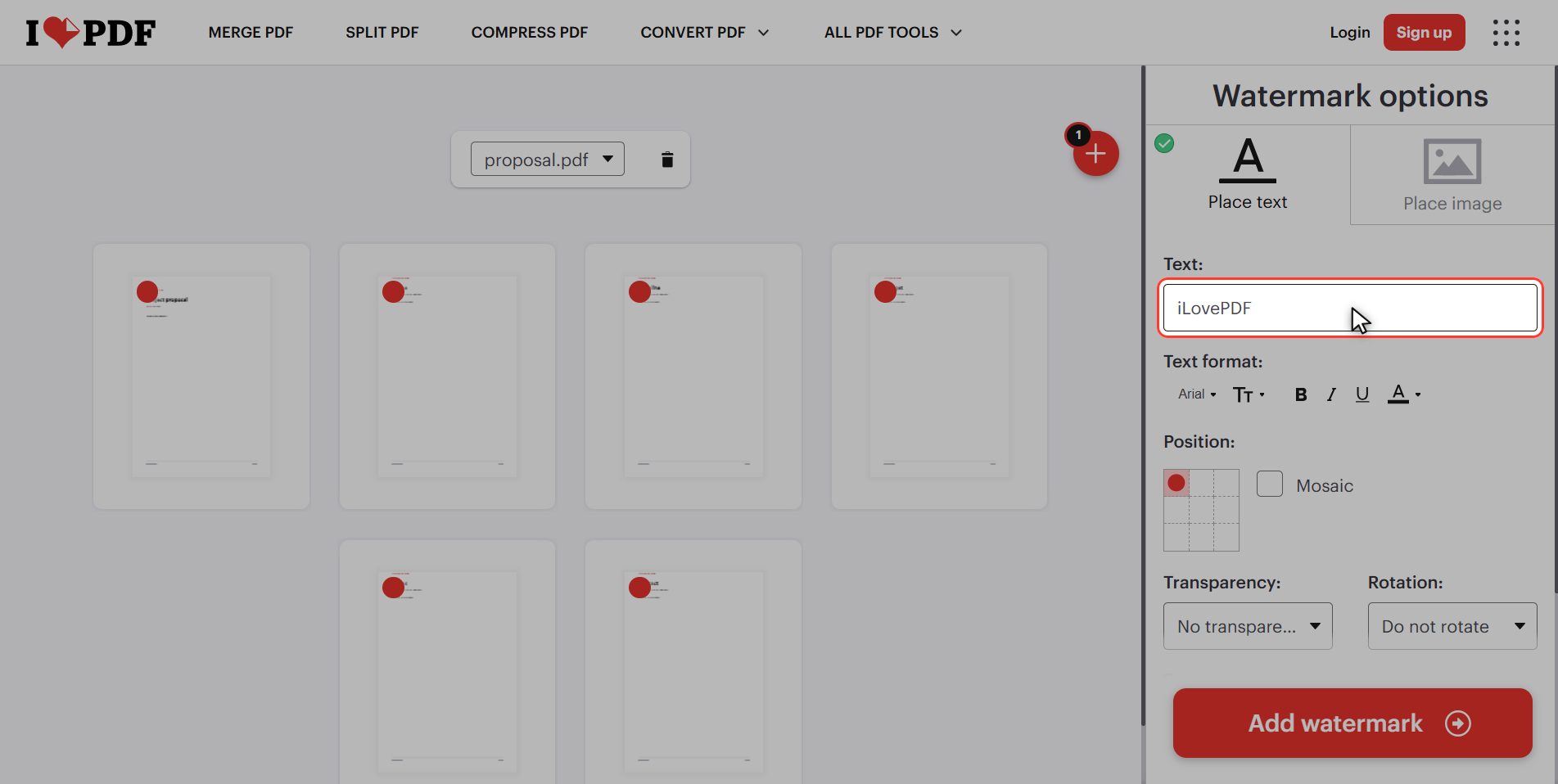
At the top of the panel, where it says Text, there is a box filled in with the word *iLovePDF*. That is just their example: delete it and type your own. CONFIDENTIAL in capitals is what people use.
While you type, it appears on every thumbnail at once.
And in case you need it: just above there are two tabs, Place text and Place image. If what you want to put on is not a word but your company logo, that second tab is yours and it works the same way.
Choose where it goes
Second: where it goes.
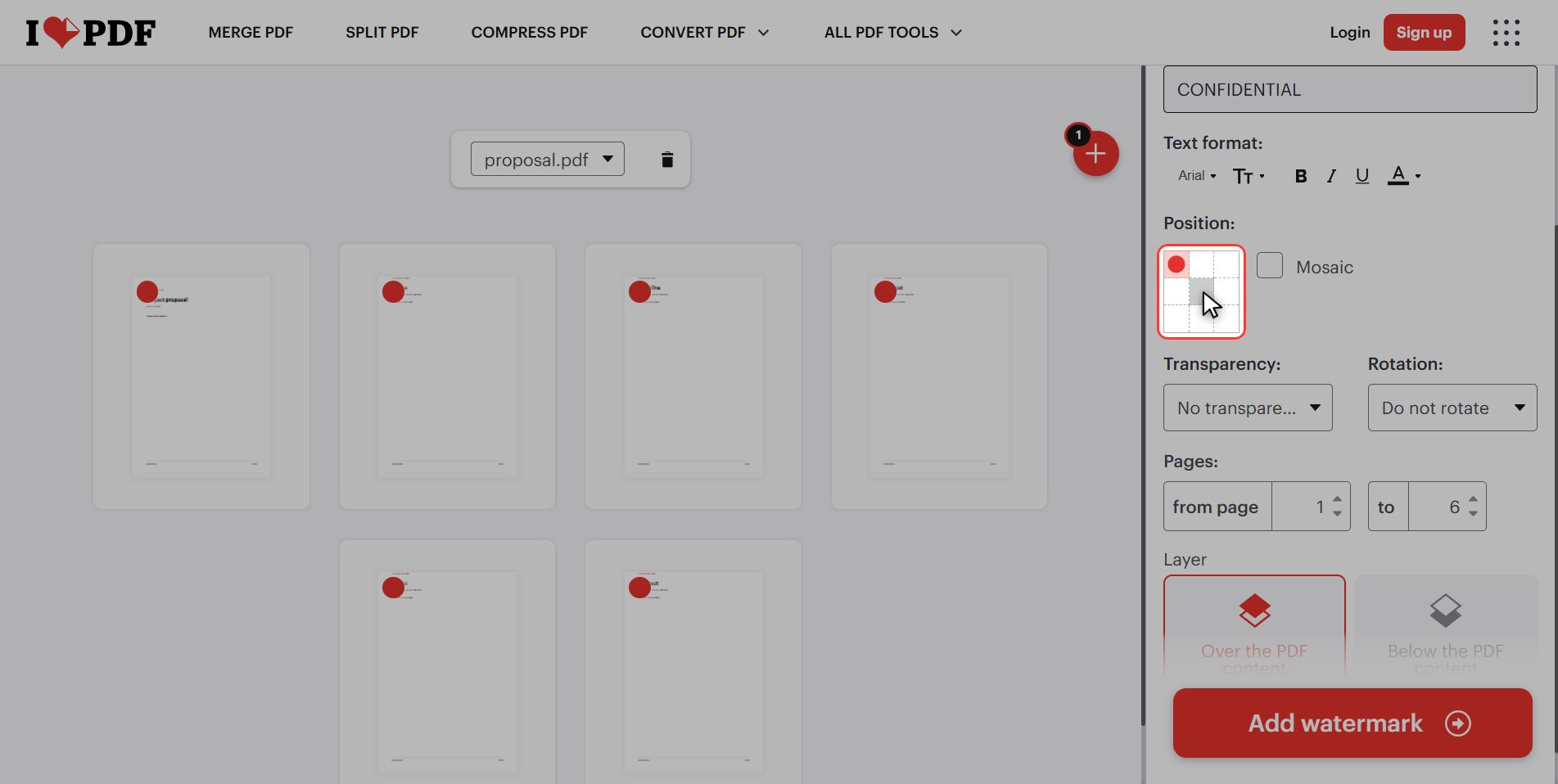
A little further down there is a grid of nine boxes representing the page. For a watermark that sits across the document, the one you want is the centre.
And next to it, two options almost nobody looks at and that matter:
- Over the content — the watermark is drawn on top of the text, covering it a little. For a *draft* you want to be impossible to ignore.
- Under the content — the text passes in front and the watermark sits behind. For a document that has to be read.
The trick: 50% and 45 degrees
And now the two settings that make all the difference.
Transparency. It comes set to *"no transparency"*, meaning solid, and like that the watermark is a block of black letters on top of your text: unreadable.
Drop it to 50% and look at the thumbnails: the watermark is perfectly visible and so is the text underneath. That is the point. 75% barely shows and 25% almost covers; 50% is the one that works.
Rotation. It comes set to *"do not rotate"*, upright, and upright competes with the lines of text and gets confused with them.
Put it at 45 degrees, diagonal, and suddenly it reads as what it is: something sitting *on top of* the document and not part of it.
> 50% and 45 degrees. Those two numbers separate a professional watermark from a botched one, and they are two clicks away.
Mosaic and which pages
Two quick settings more.
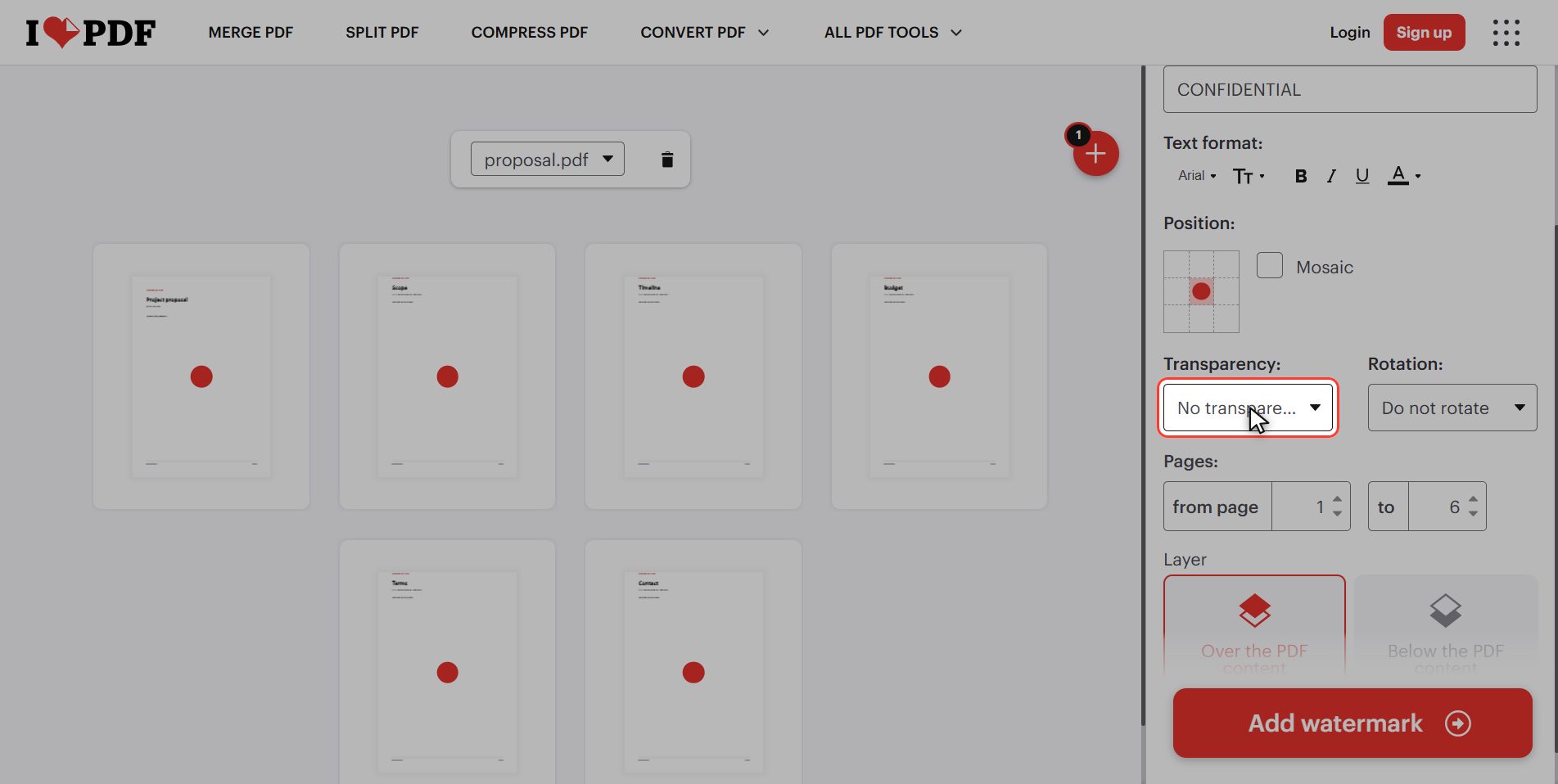
Mosaic — if you tick it, the watermark does not appear once in the centre but repeated all over the page, like wallpaper. Fine for an internal draft; cluttered for a document going to a client.
From page … to … — by default it takes the whole document. You can leave the cover page unmarked by putting a 2 in the first box, just like with page numbers.
Click "Add watermark"
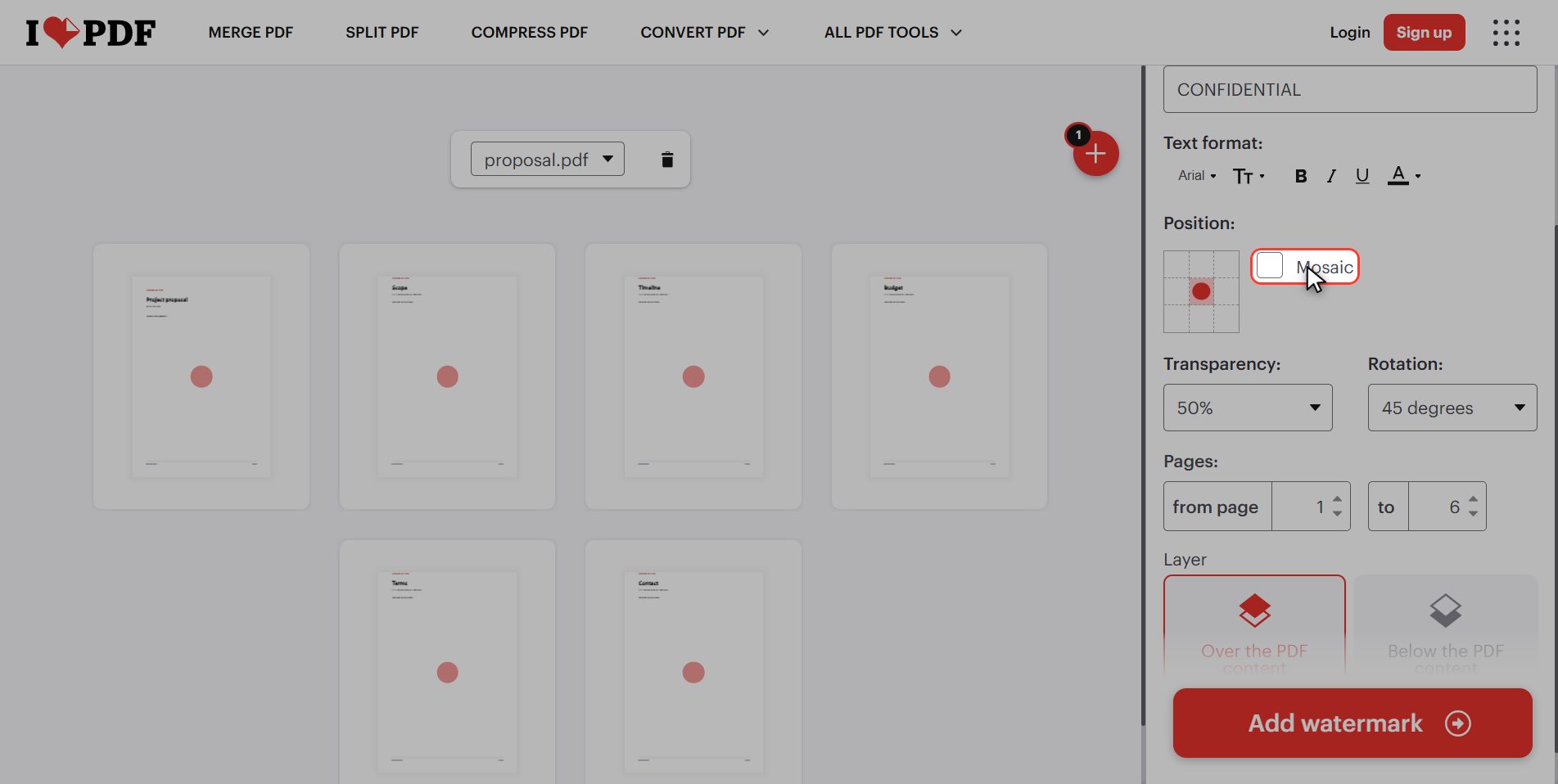
With everything chosen, click the red button at the bottom right: Add watermark.
Download it
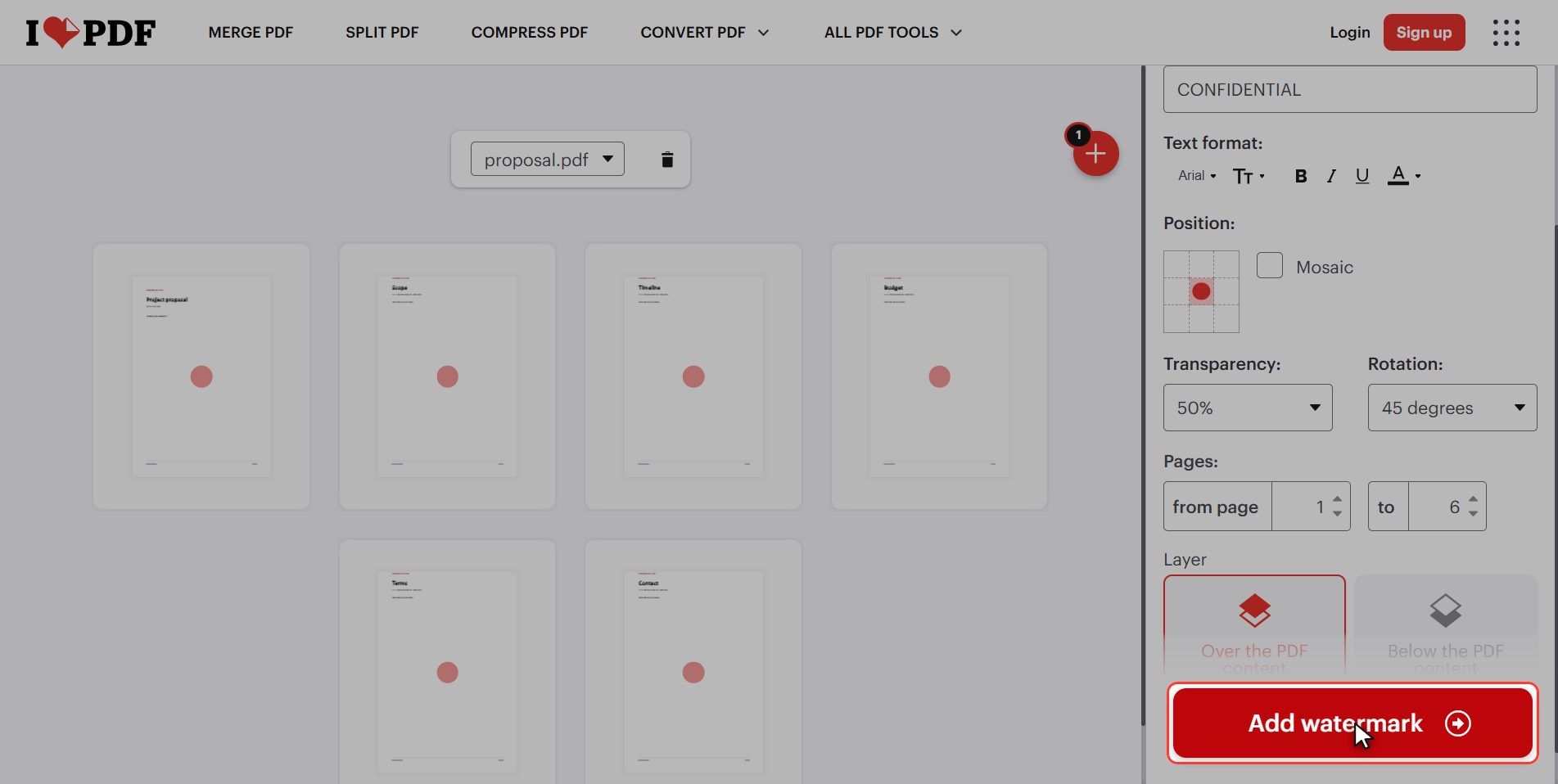
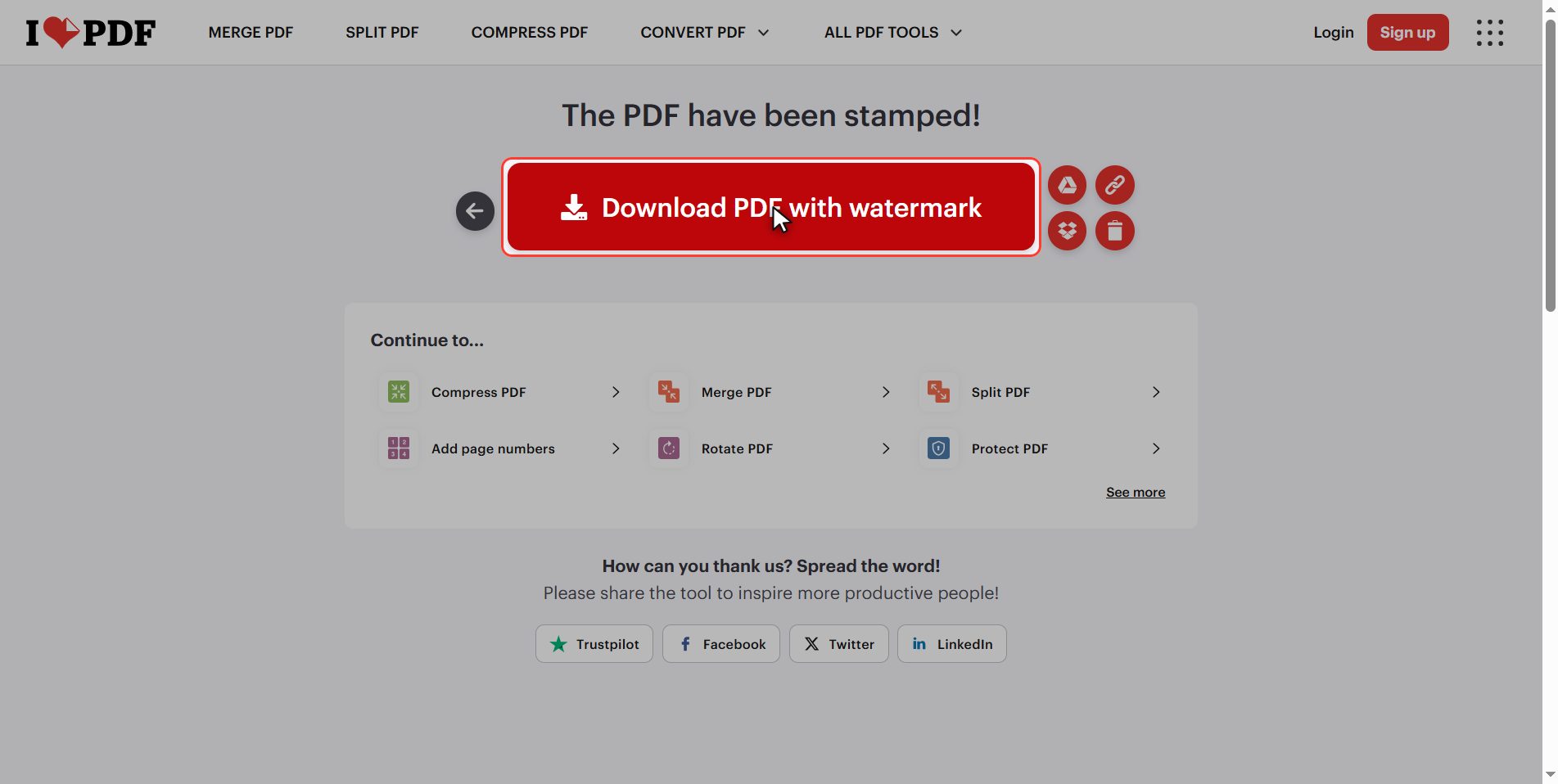
Download the file and you have your watermarked PDF.
Open it and check two things:
1. That the watermark shows on all the pages you wanted. 2. That the text underneath still reads without effort.
If it is hard to read, go back and drop the transparency further.
A watermark is NOT protection
And now the uncomfortable part, which almost no tutorial says.
A watermark is NOT protection. It is a notice and a signature.
What it does do, and very well:
- Lets whoever opens the document know it is a draft and not the final version
- Makes it clear whose a quote is
- Stops anyone mistaking a copy for the original
What it does not do: prevent anything. Anyone can copy the text, take a screenshot, or remove the watermark with a bit of patience. The watermark is a drawing on top of the document, not a lock.
If what you need is for the document not to be opened by just anyone, the tool is Protect PDF, the one that adds a password.
And if you need both, in this order: watermark first, password afterwards. The other way round does not work, because a password protected PDF will not let itself be modified.
What happens to your files
This applies to all of these tools.
Your document is uploaded to an iLovePDF server so the watermark can be added. It is processed there and deleted by itself after a few hours.
For a proposal or an ordinary draft, no problem. But think about one thing: if you are stamping "confidential" on it, it is because the document is confidential. Consider whether it is one you want to upload.
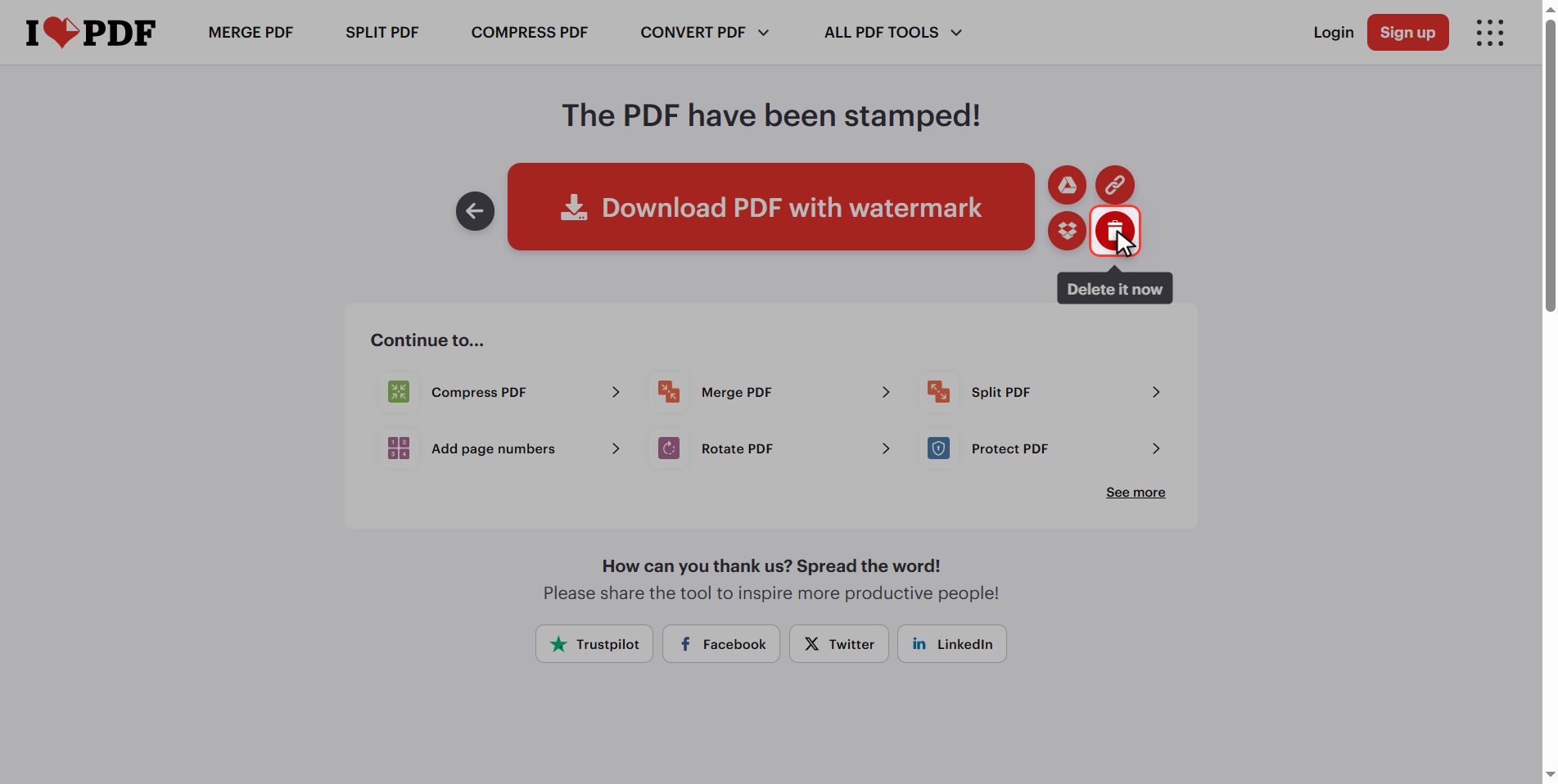
And if you do upload it, hit the bin icon when you are done.
And that is it: a PDF with its watermark, and properly placed, in under a minute and for free.
Keep the two numbers, they are what really matters: transparency at 50% and rotation at 45 degrees.
Common questions
Why does my watermark cover the text so it cannot be read?
Because it is set to no transparency, which is how it comes out of the box. Drop the transparency to 50% and the problem disappears: the watermark still shows and so does the text underneath. If it still bothers you, there is another setting that helps a lot: choose "under the content", so the text of the document passes in front of the watermark.
Can I use my logo instead of a word?
Yes. At the top of the panel there are two tabs, "Place text" and "Place image". With the second one you upload your logo and it is positioned exactly like the text, with the same position grid and the same transparency. The advice is the same: drop the transparency, because a solid logo in the middle of the page covers more than a word does.
Can a watermark be removed afterwards?
From your own document, not with this tool: the watermark is drawn inside the PDF as part of the page. What you do instead is keep the unmarked original and go back to it whenever you need the clean version. And that also answers whether a watermark protects anything: somebody with the right tools can strip it, so it is there to warn, not to prevent.
Can I leave the cover page without a watermark?
Yes, with the two boxes at the bottom of the panel, the ones that say "from page" and "to". Put a 2 in the first one and the cover stays clean while the rest carries the watermark. Useful when the cover already has the title and the logo and adding the watermark on top would look cluttered.
What exactly is mosaic?
It repeats the watermark all over the page instead of placing it once in the position you chose. It ends up looking like wallpaper. It makes sense for internal documents where you want it to be impossible to crop a piece of a page without the watermark coming along, and also for photos and drawings. For a document going to a client it usually looks cluttered.
Watermark or password? I do not know which I need.
It depends what you are trying to achieve. If you want whoever reads the document to know something — that it is a draft, whose it is, that it is not the final version — that is a watermark. If you want it not to be openable by just anyone, that is a password, with the Protect PDF tool. And if you need both, watermark first and password afterwards, because a PDF that is already protected will not let itself be modified.