
How to add page numbers to a PDF
Written and checked by the Tutorio Lab editors · Reviewed on · Who we are and how we are funded
In 30 seconds: go to ilovepdf.com, choose Add page numbers, upload your PDF, pick the position in the grid, set "from page" to 2 if you have a cover, and hit the red button. Free and no sign-up.
You have to hand in an assignment, a report or a contract as a PDF and they want the pages numbered.
If somebody else sent you the document, you scanned it, or you merged it from several files, you cannot go back to Word to add them: they have to go on the PDF itself.
It takes a minute and it is free. And this tool lets you decide three things almost nobody knows you can decide — the ones that separate a document that looks homemade from one that looks professional.
Go to iLovePDF
Go to ilovepdf.com. If the site comes up in another language, you change that in the top right corner.
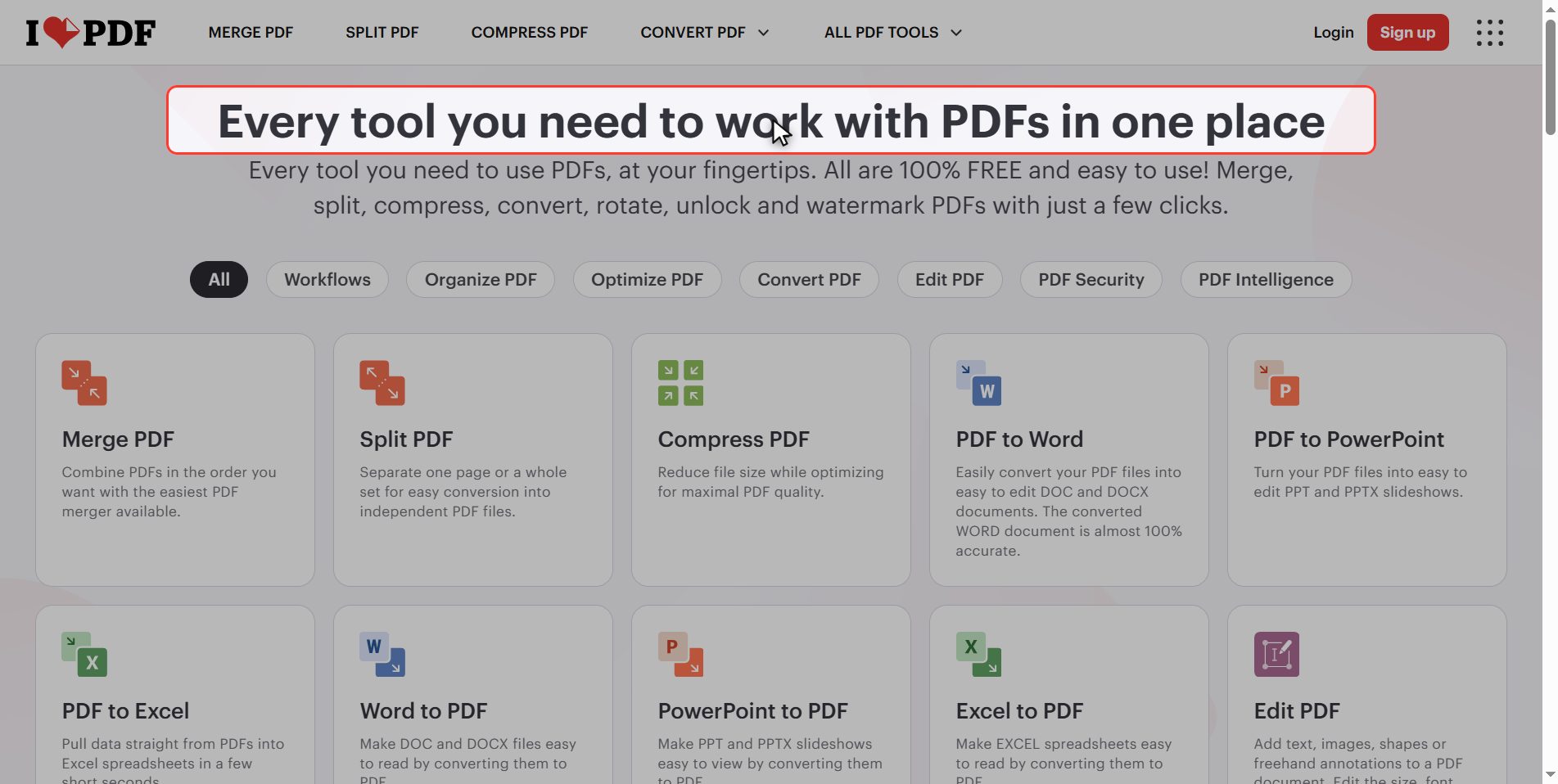
In the grid of tools, look for Add page numbers.
Upload your PDF
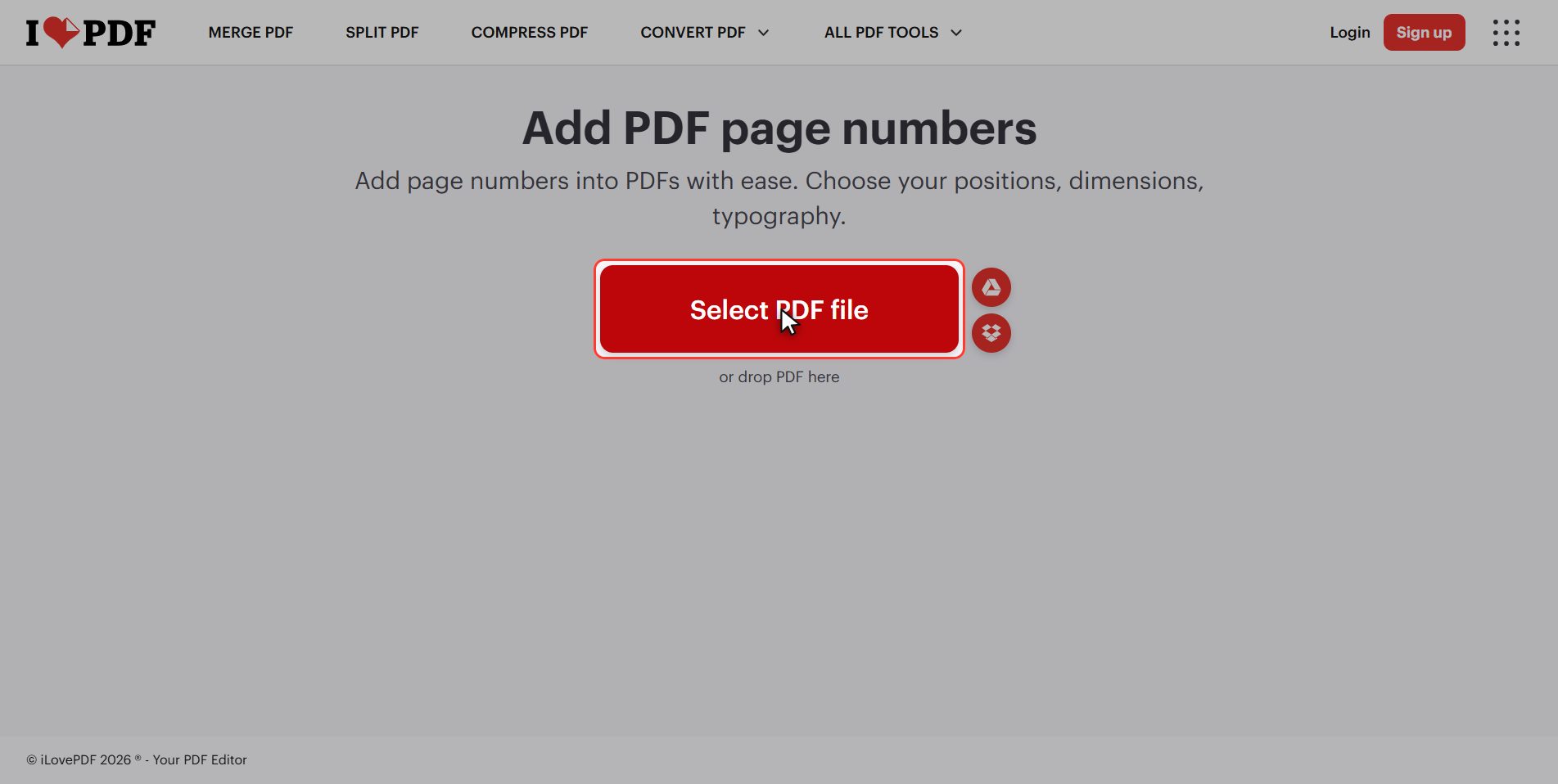
Click the red Select PDF file button and pick your document.
Notice it is singular here: this tool works on one document at a time.
As soon as it uploads, the pages appear as thumbnails. That is not decoration: it is a real preview, and everything you touch shows up right there before you download anything.
Choose where the number goes
First decision: where the number goes.
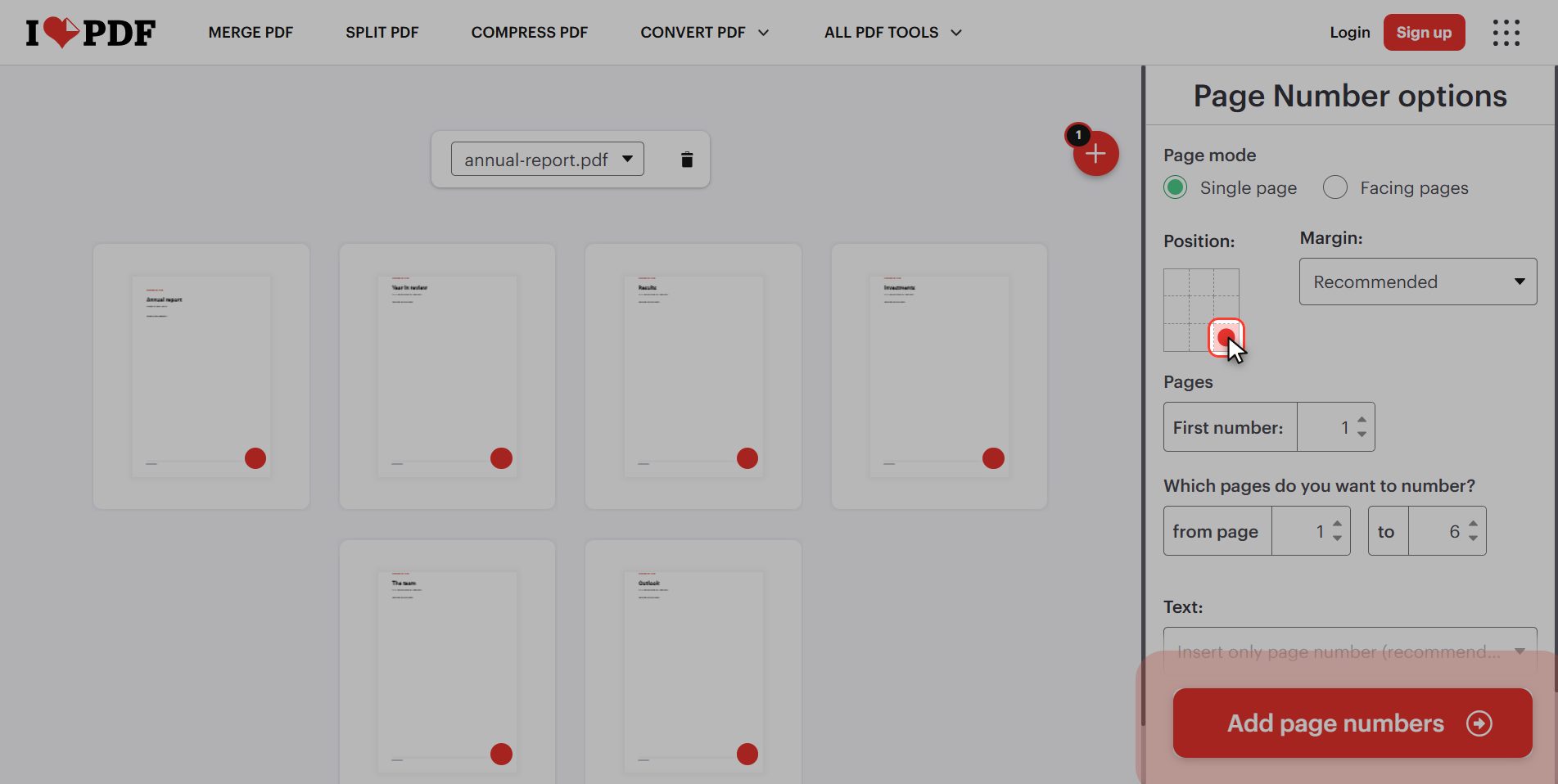
On the right there is a grid of nine boxes standing for the page: top, middle and bottom; left, centre and right.
Out of the box, bottom right is selected. The classic position for formal documents is bottom centre.
When you click it, the number moves on every thumbnail at once. You do not have to guess how it will look: you are watching it.
Leave the cover unnumbered
Second decision, and the one people notice most: leaving the cover unnumbered.
If your document opens with a cover page — the title, your name, the date — that page should not carry a number.
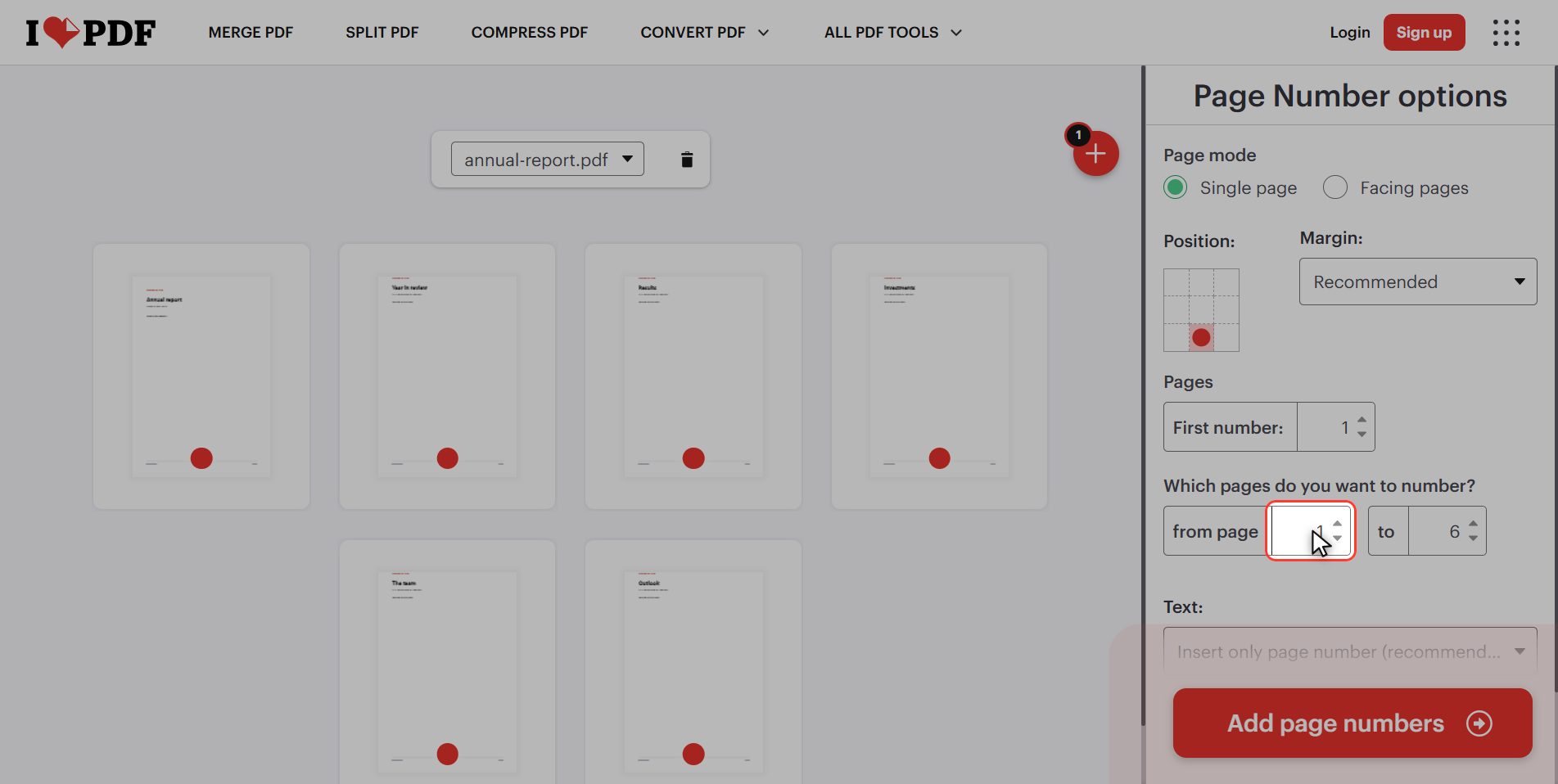
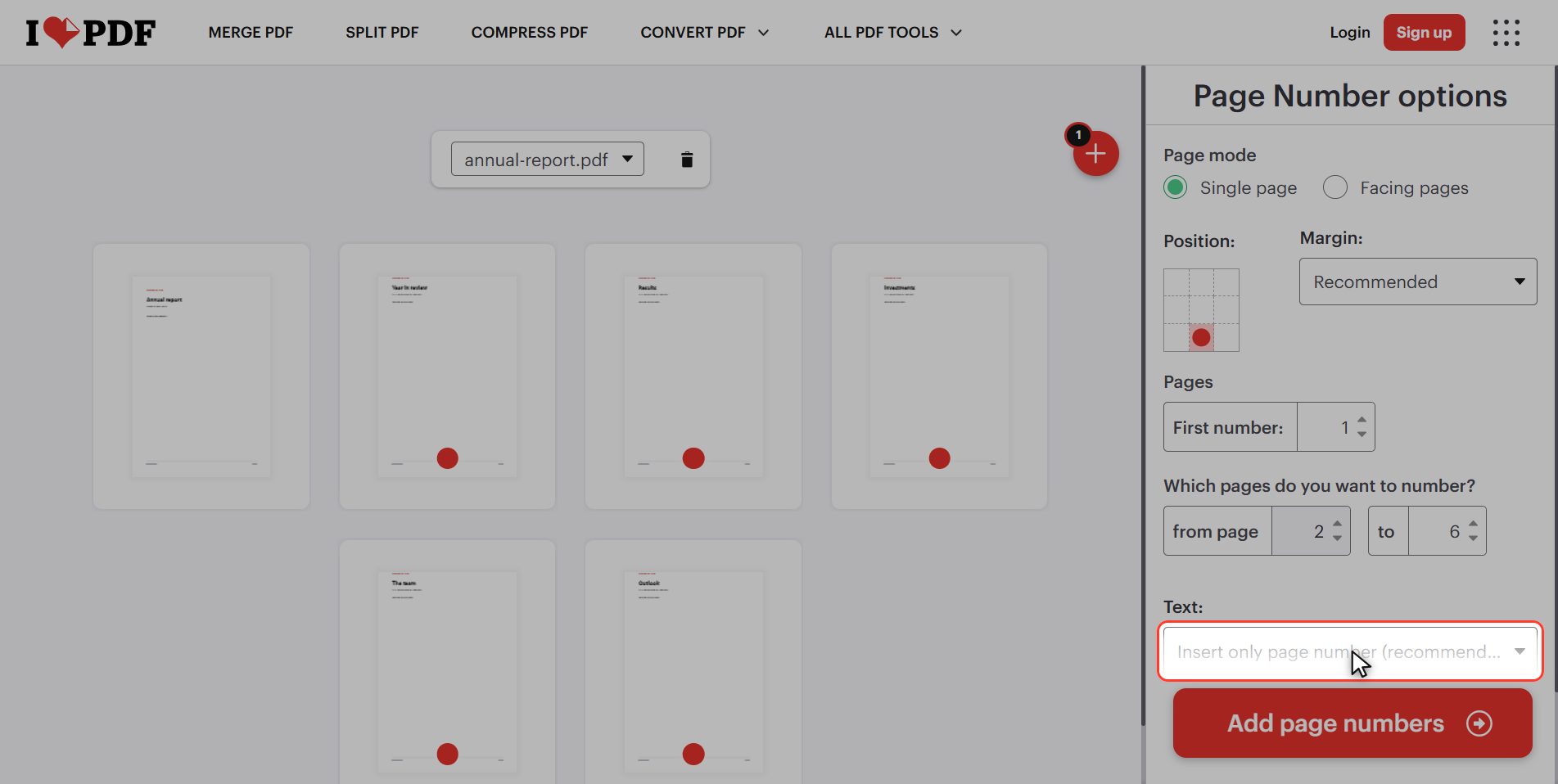
Scroll down the panel to "Which pages do you want to number?". There are two boxes: *from page* and *to*.
Change the 1 to a 2. The first thumbnail loses its number instantly while the rest keep theirs: the cover stays clean.
Just above you also have "First number", in case you want that second page to come out as 1 rather than 2.
This is the detail that separates a document that looks rushed from one that looks properly done.
Pick the format: "Page 1 of 6"
Third decision: what it actually says.
Further down there is a dropdown with the text format:
- Only the page number — `1`, `2`, `3`… (the default)
- Page {n} — "Page 1"
- Page {n} of {p} — "Page 1 of 6"
- Custom — whatever you type
For reports and assignments, "Page 1 of 6" is the best one: it tells whoever reads it how many pages the whole document has, and it is how you notice a missing sheet when printing.
You can also change the text size, which number to start from (handy if the document continues another one) and which pages to number.
Click "Add page numbers"
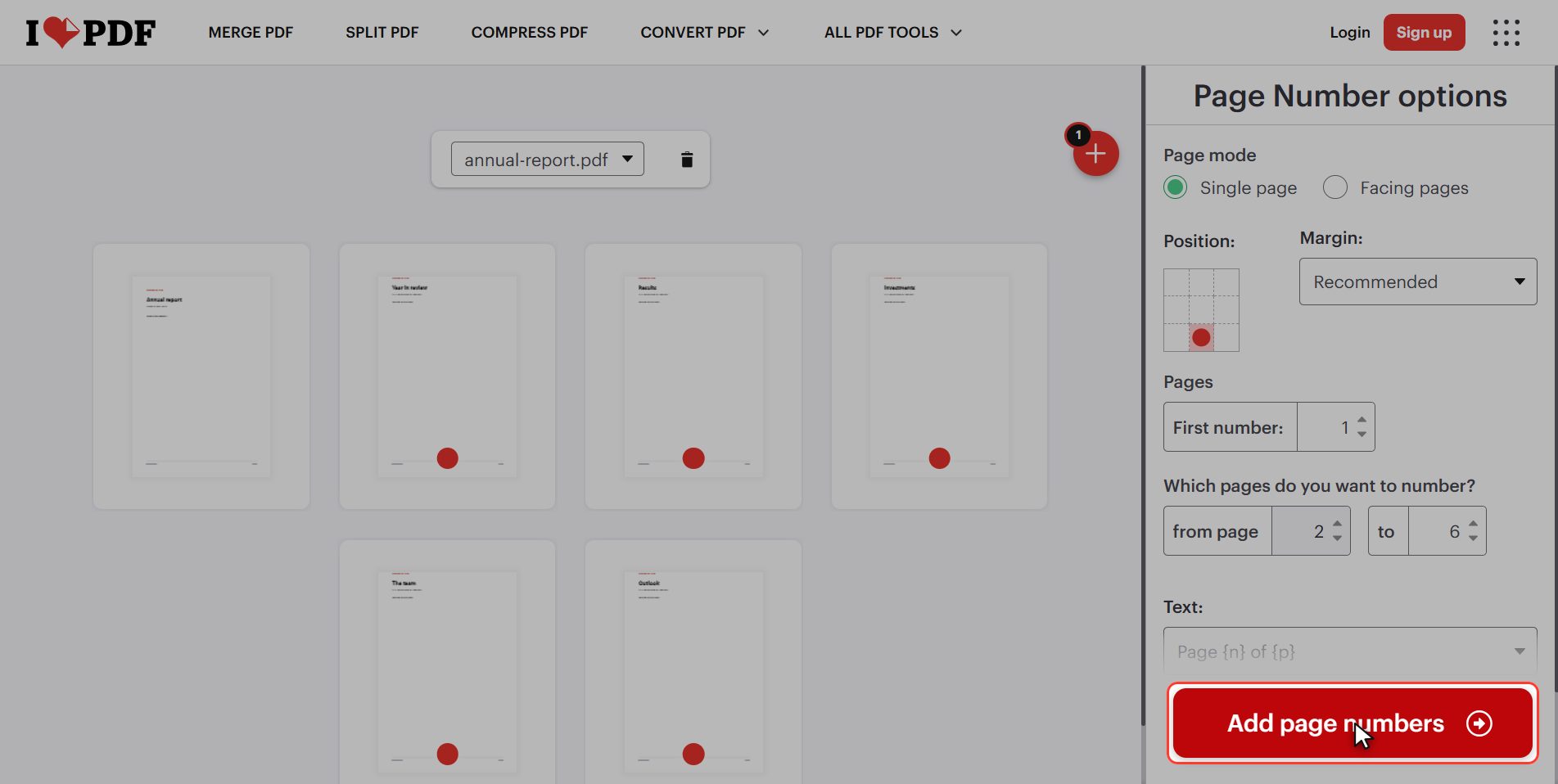
With everything chosen, click the red button in the bottom right: Add page numbers. It takes a few seconds.
Download your numbered PDF
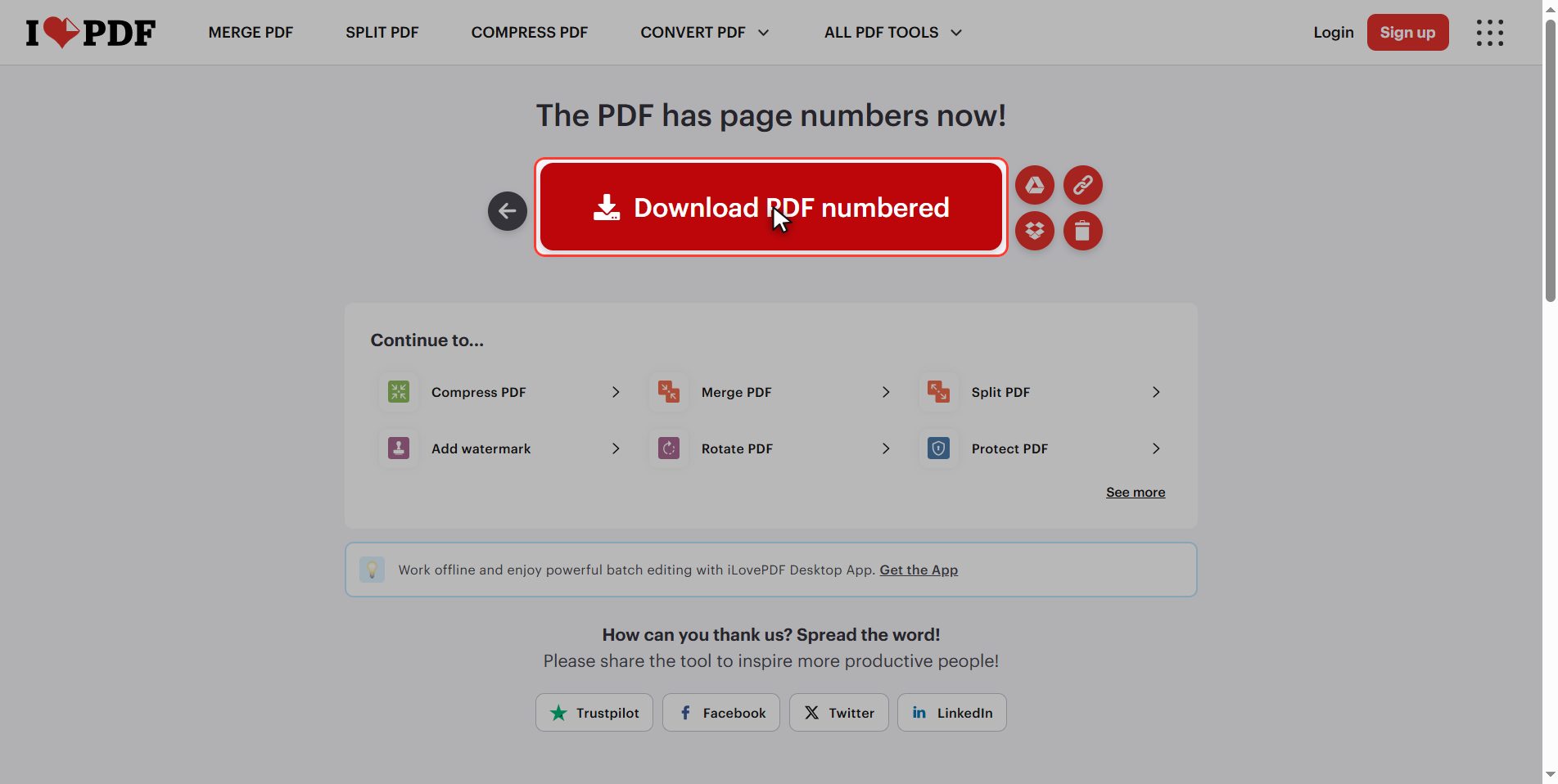
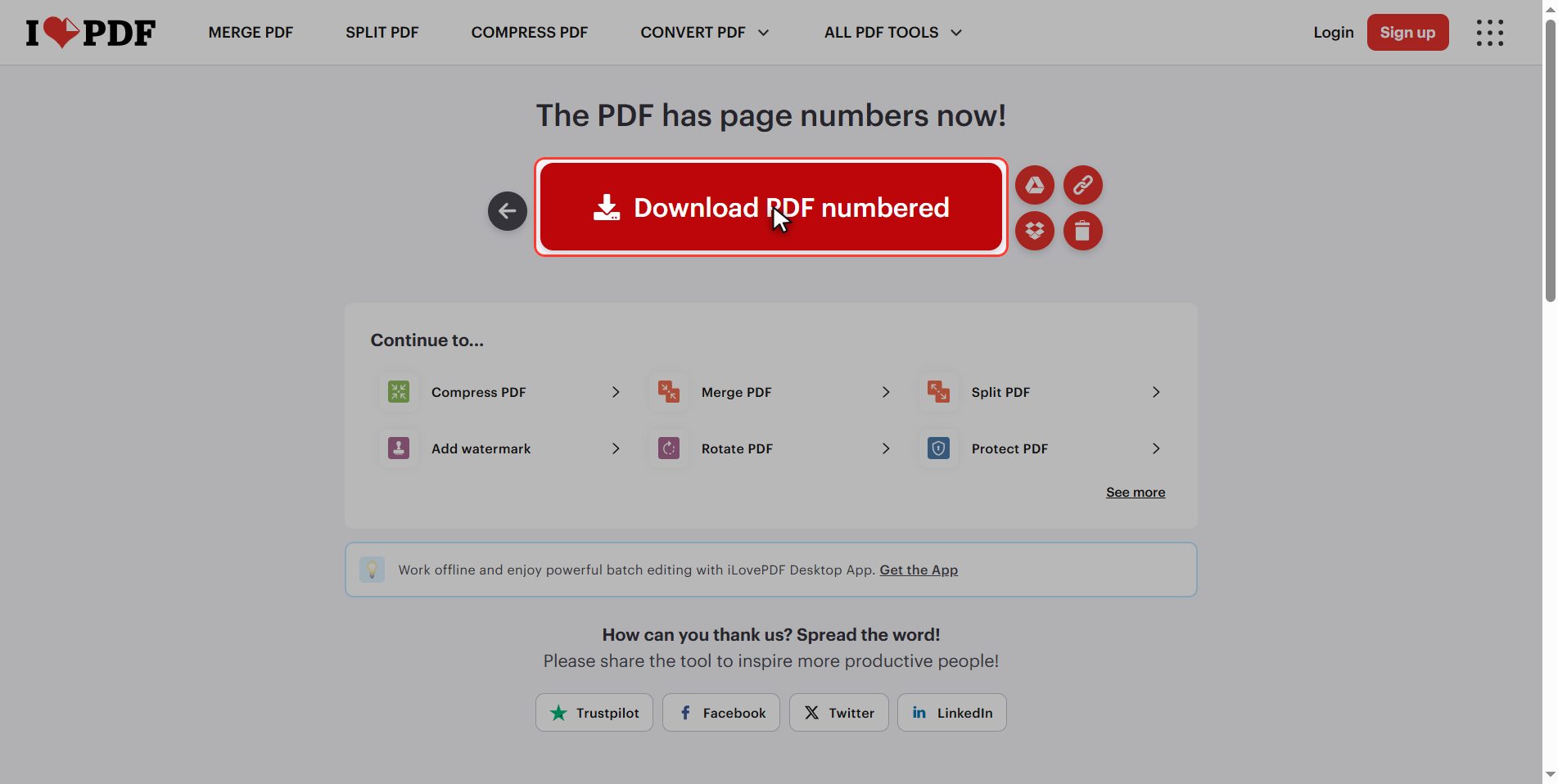
The download button appears and your numbered PDF is saved to your downloads folder.
Open it and check the numbers are where you put them. The rest of the document has not been touched: it is the same PDF, with the numbers on top.
When you do NOT need this site
And now, when you should NOT use this site.
If you wrote the document yourself in Word or Google Docs and you still have it there, add them there. Not because this tool is bad, but because over there the numbers are smart: add or remove a page tomorrow and they renumber themselves.
Not here. Here the numbers end up drawn on top of the PDF, and if the document changes you start again.
The rule: in Word while you are still writing; on the PDF once the document is closed or is not yours.
What happens to your files
This applies to all of these tools.
Your document is uploaded to an iLovePDF server so it can be processed. It is processed there and deleted by itself after a few hours.
For a class assignment or a report that is fine. If it is a contract with personal details, think twice.
And if you upload it anyway, click the bin when you are done.
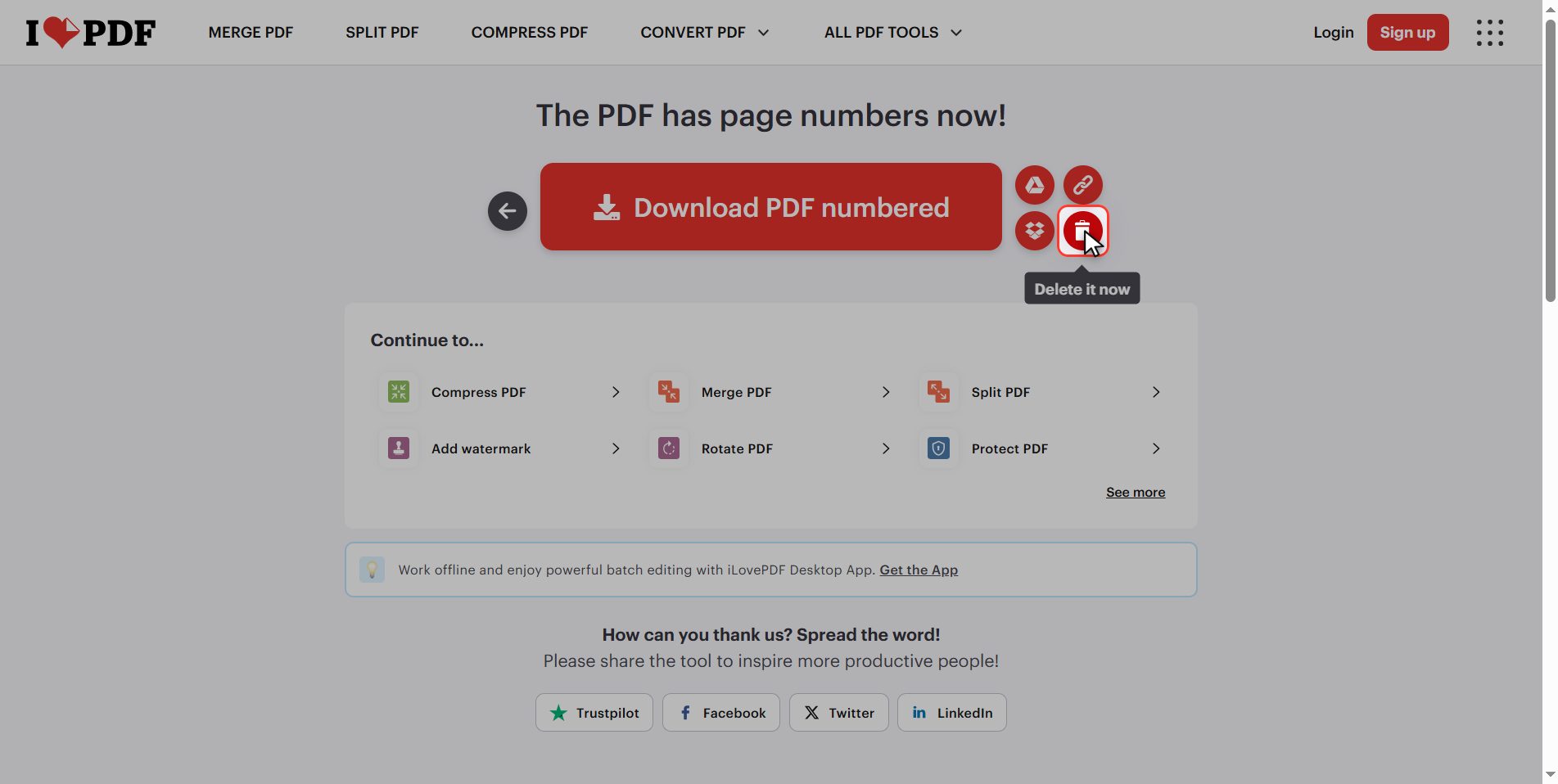
And that is it: a numbered PDF in under a minute, for free.
Keep the three decisions in mind, they are the ones that show: where the number goes, leaving the cover unnumbered, and using "Page 1 of 6".
Common questions
Can I start numbering from something other than 1?
Yes. There is a box in the panel called "First number". If your document continues another one and has to start at page 12, you put 12 there and the numbering starts from that point. It is what you use when a long piece of work is handed in split across several files.
Can I number only some of the pages?
Yes, and that is exactly what we use in the tutorial to keep the cover clean. Under "Which pages do you want to number?" there is a from box and a to box; by default they cover the whole document. Putting a 2 in the first one leaves the cover out. And lowering the to box lets you leave some appendices at the end unnumbered.
I have seen a checkbox about the first page being a cover, but it does not appear for me. Why?
Because it only shows up in "Facing pages" mode, at the top of the panel, meant for documents laid out like a book with pages facing each other. In the normal "Single page" mode that checkbox is hidden. Do not go looking for it: to leave the cover unnumbered in normal mode you use "Which pages do you want to number?" starting at 2, which does the same thing and always works.
I left the cover unnumbered and now the second page is 2. Can I make it 1?
Yes, by combining the two boxes. Leave "from page" at 2 so the cover stays out, and set "First number" to 1: the numbering starts counting from there, so the second page of the document comes out as 1. It is what you use for work where the cover does not count as a page.
Do the numbers cover up the text of the document?
They sit in the margin, so normally no. The risk comes up if your document already has something written in that corner, like a footer or a logo. That is why it is worth looking at the preview before downloading: if you see them overlapping, move the position in the grid to a free corner.
Can I take the numbers off afterwards?
Not easily. The numbers end up embedded in the PDF as part of the page, not as a layer you can switch off. That is why it is worth keeping the original unnumbered document before doing this: if you get the position or the format wrong, you start again from that one instead of dragging the old numbers along.
Why do the numbers renumber themselves in Word but not here?
Because in Word the number is a field the program recalculates every time you open the document, counting the pages there are at that moment. In a PDF there is no program calculating anything any more: the page is a finished image and the number is one more drawing on top of it. That is why it is worth numbering in Word while the document is still alive, and leaving this tool for PDFs that are already closed or are not yours.