
How to change the page order of a PDF
Written and checked by the Tutorio Lab editors · Reviewed on · Who we are and how we are funded
In 30 seconds: go to ilovepdf.com, pick Organize PDF, upload your document and drag the thumbnails until they are in the order you want. Hovering over a page also lets you rotate that one page or delete it. Free, no sign-up.
You have a PDF with the pages in the wrong order: the cover ended up last because the scanner took them upside down, you merged two documents and they came out interleaved, or you want to move the appendix to the front.
It is done by dragging, in a minute, free and with nothing to install.
And at the end there is a mistake almost everybody makes with this, one you do not see coming, that leaves the document contradicting itself.
Go to iLovePDF
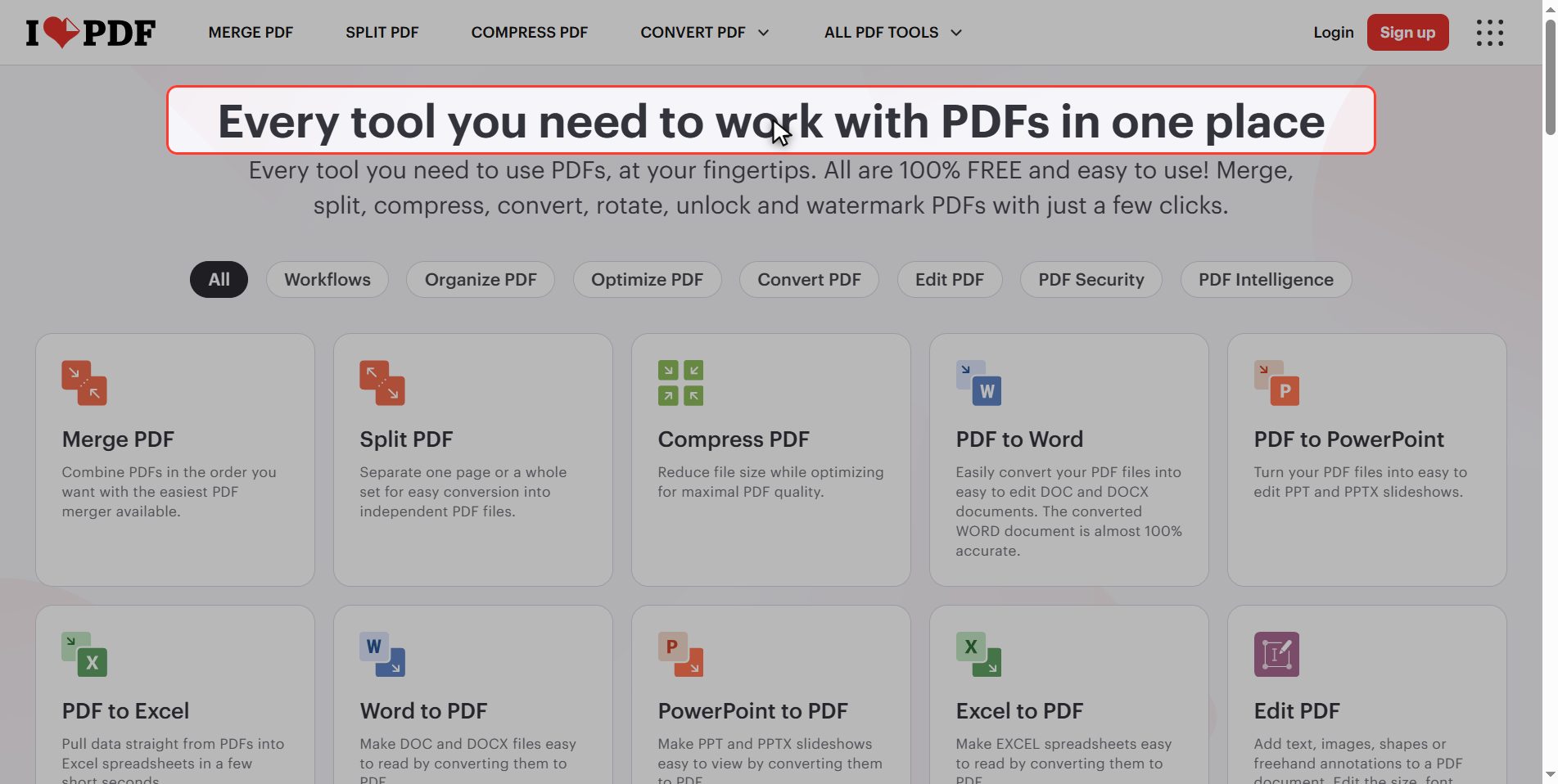
Go to ilovepdf.com. If the site comes up in another language, you change it at the top right.
In the grid of tools, look for Organize PDF.
Notice Page numbers, right next to it: it is the star of the advice at the end.
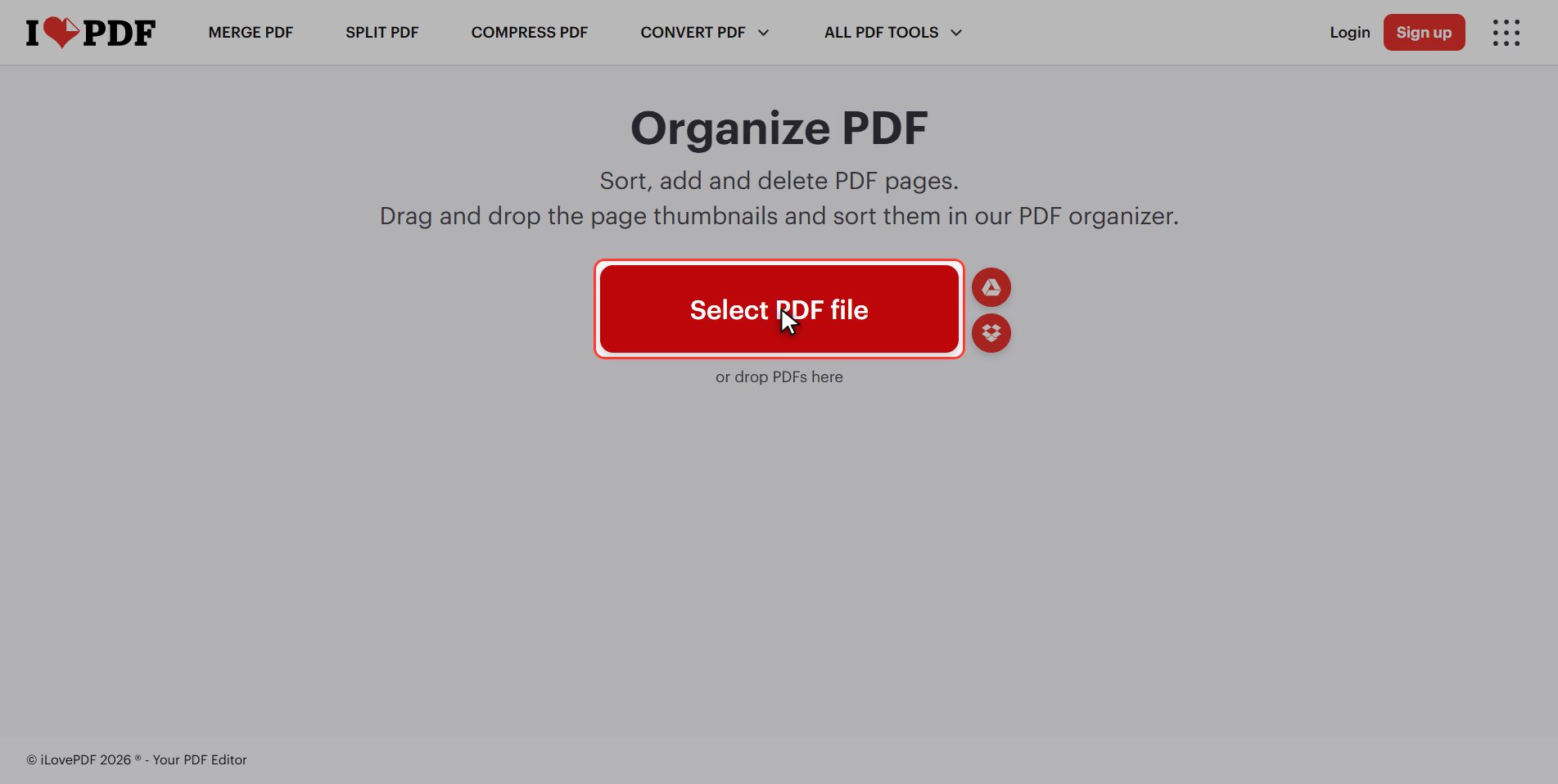
Upload your PDF
Click the red Select PDF file button and pick your document.
It is singular: one document at a time.
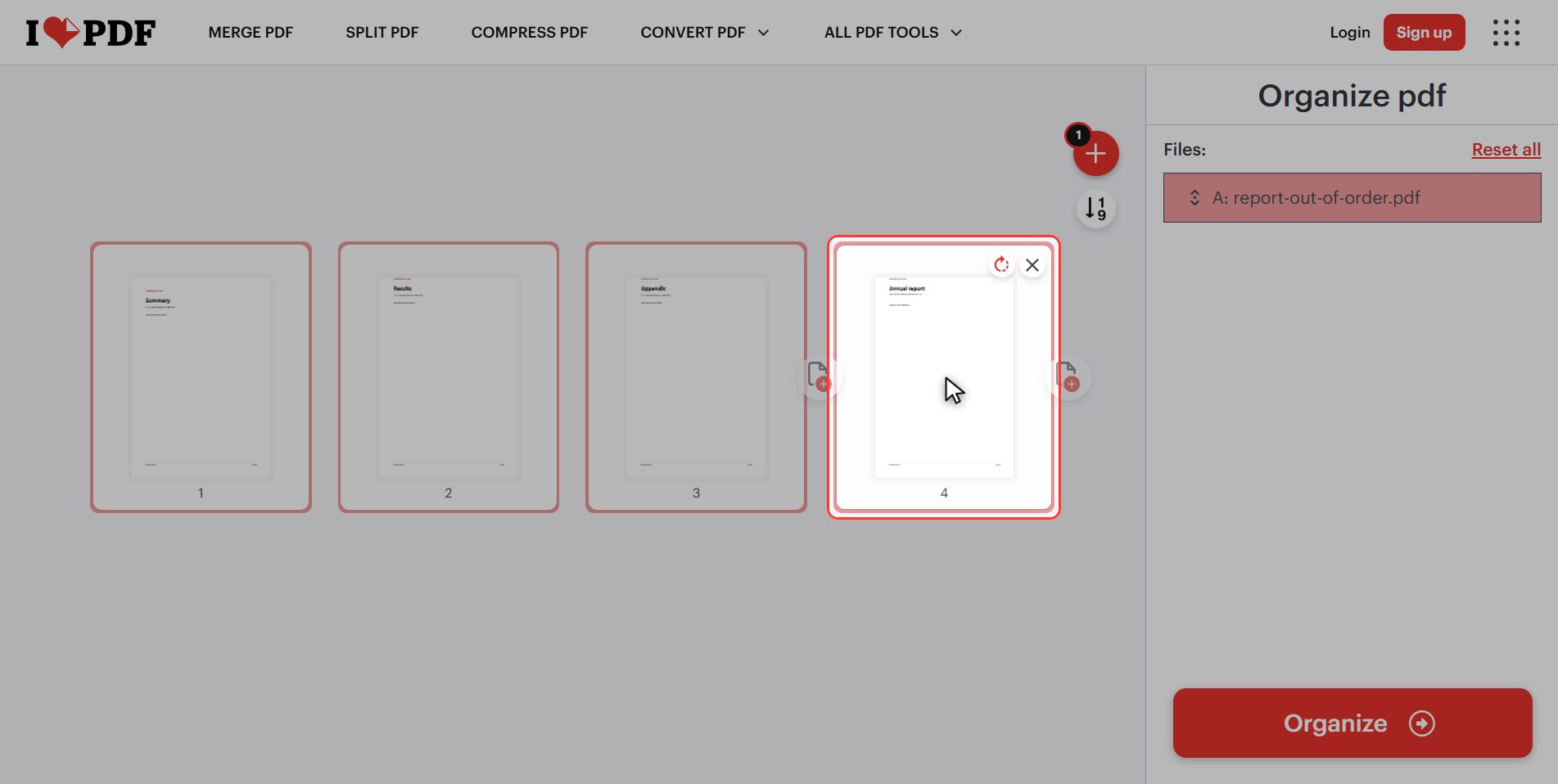
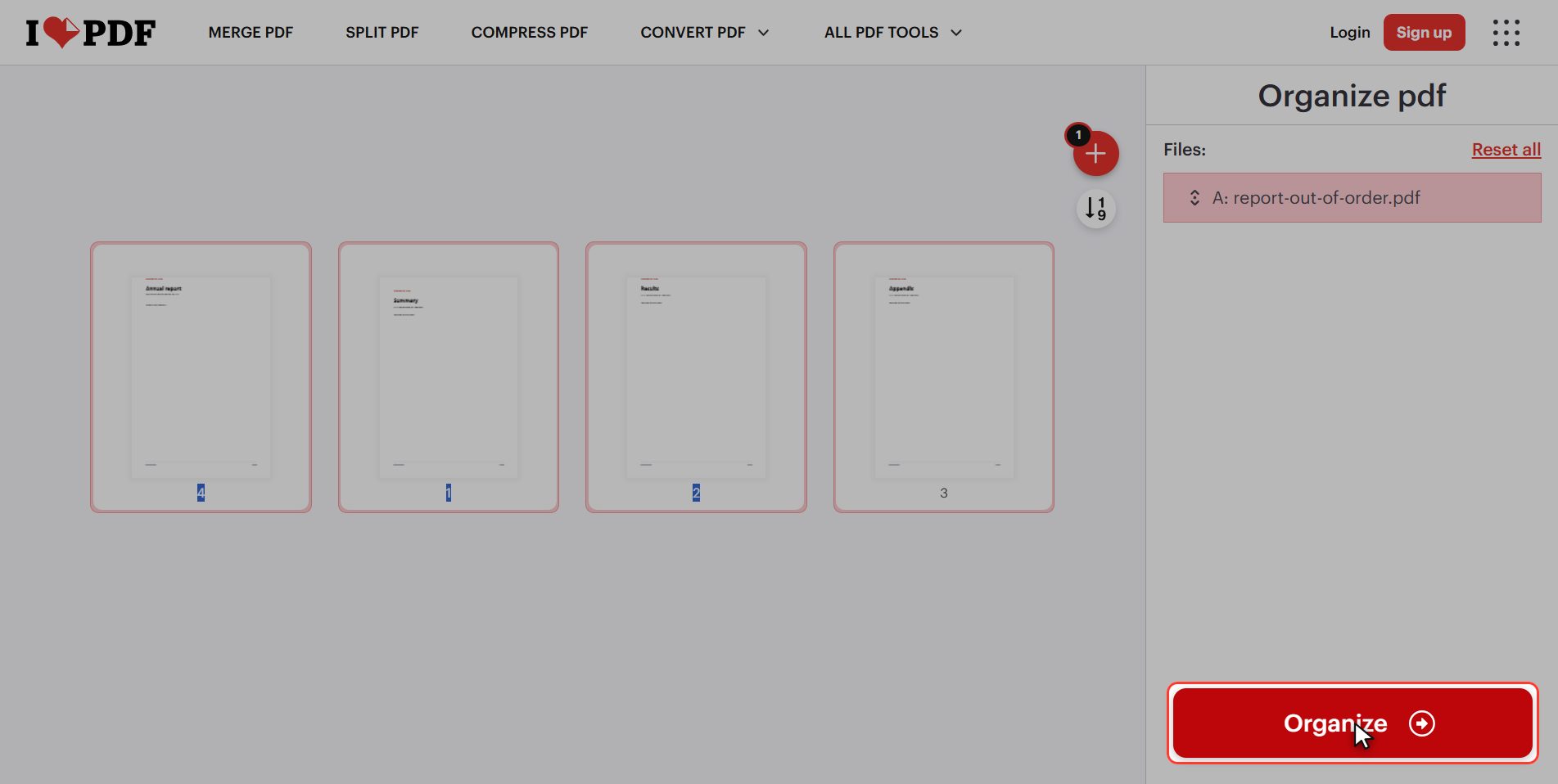
And look at what appears: the pages as numbered thumbnails, laid out in a row. This screen is the entire tutorial.
Drag the page into place
The gesture: grab the page you want to move with the mouse, hold it, and carry it to where it needs to go.
Watch two things while you do it:
1. As it passes over, the other pages step aside and open the gap, so you see exactly where it will land before you let go. 2. When you let go, they renumber themselves: what was 4 becomes 1.
And if you do not like it, grab it again. All of this happens in your browser: the file has not been touched yet.
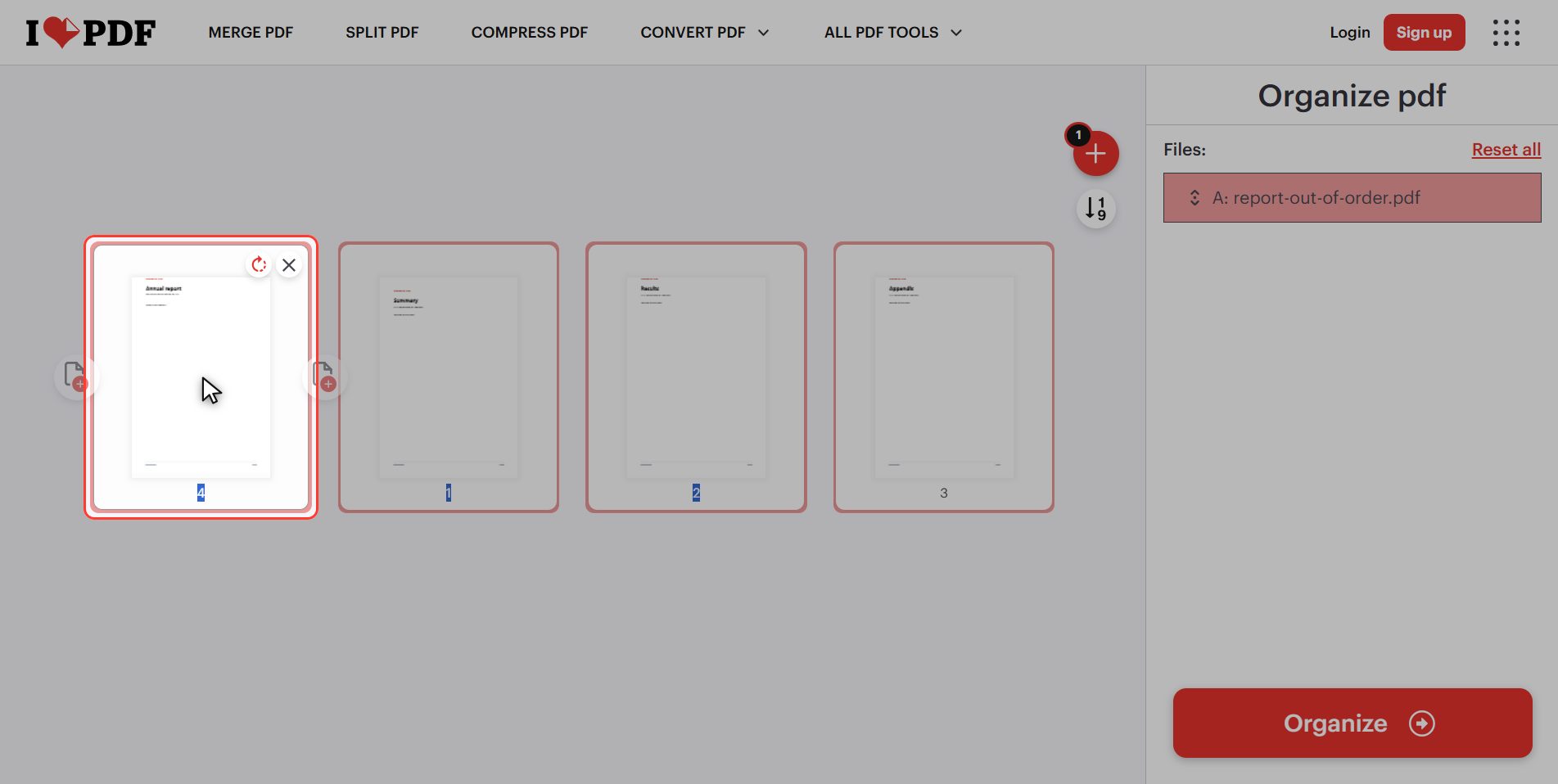
You can also rotate and delete here
And here is what almost nobody discovers, because you have to hover the mouse to see it: each page has its own buttons.
- Rotate — rotates ONLY that page. That is exactly what *Rotate PDF* cannot do, because that one rotates the whole document. If your scan has a single page on its side, this is the place, not that one.
- Delete — removes that page from the document.
Which means this screen is three tools in one: reorder, rotate one page, and delete pages.
And if you get in a tangle, there is a Reset in the panel that puts everything back the way it arrived.
Click "Organize"
When the pages are how you want them, click the red button at the bottom right: Organize.
Download it
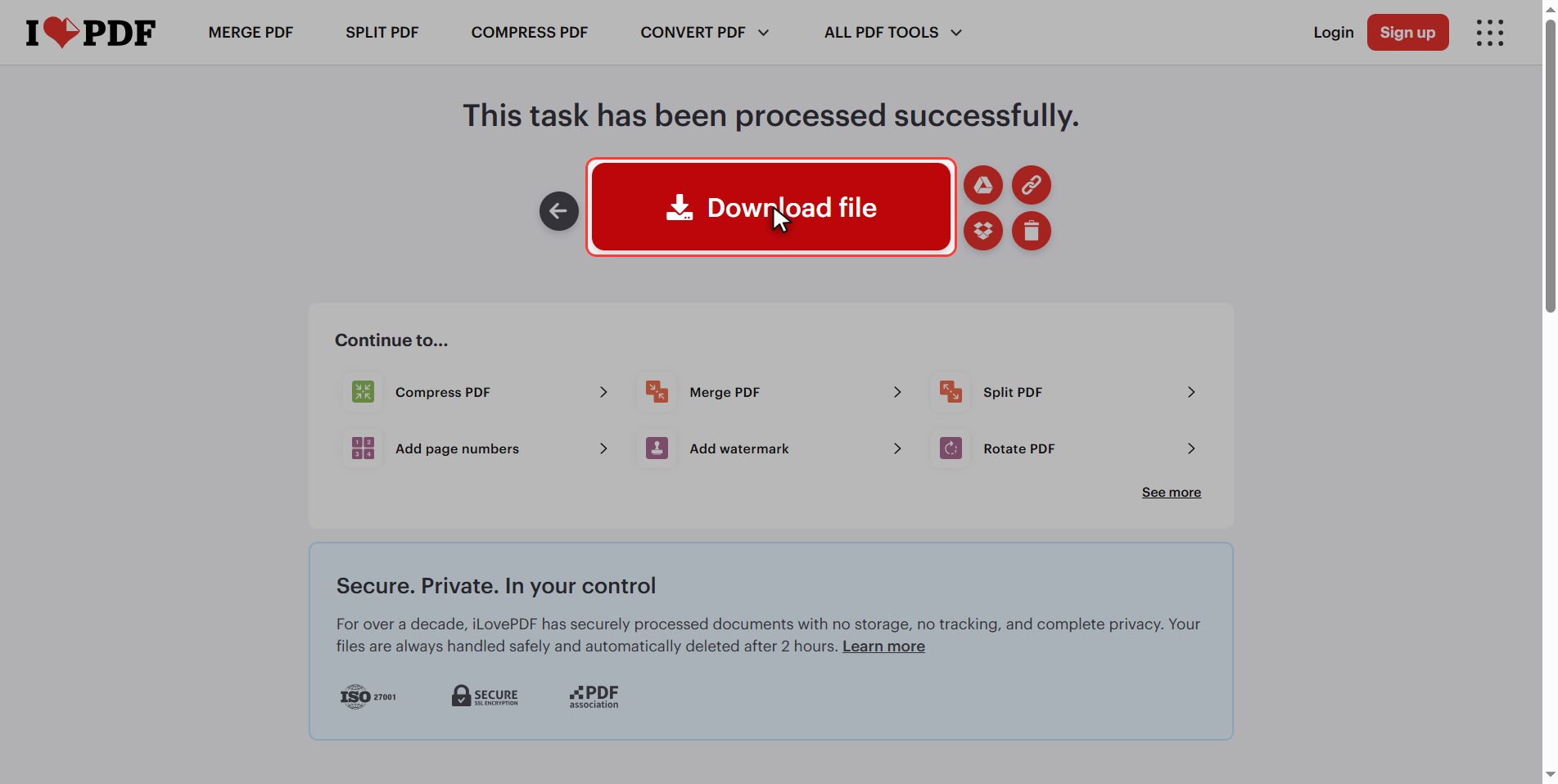
Download the file and your reordered PDF is saved in your downloads folder.
Open it and flick through the pages to check the order: it is quicker to look than to trust.
The page-number mistake
The mistake almost nobody sees coming: printed numbers do NOT move with the pages.
On the previous screen the thumbnails renumbered themselves as you dragged. But those numbers belong to the website: labels so you can find your way, not something inside the document.
If your PDF has numbers written on it — because it came from a Word file, or because you added them with *Page numbers* — those numbers are a drawing stuck to each page and they travel with it.
So the page that said 3 still says 3 even though it is now the first. You end up with a document that contradicts itself: page 3 is first, and the one that says 1 is in the middle.
And reordering does not fix it, because the problem is not the order.
> The rule: reorder first, number afterwards. In that order, always.
If your document already came numbered and you have reordered it, go back to *Page numbers* and put them on again, this time with the right order.
What happens to your files
This applies to all of these tools.
Your document is uploaded to an iLovePDF server so it can be reordered. It is processed there and deleted by itself after a few hours.
For a report or some lecture notes, no problem. If it is a contract or something with personal data, think twice.
And if you upload it anyway, hit the bin icon when you are done.
And that is it: a PDF with the pages where they belong in under a minute and for free.
Take away the two things: you can also rotate a single page here and delete pages, and reorder first, number afterwards.
Common questions
I reordered the pages and the numbers in the document are wrong. Why?
Because the numbers it had printed on it are part of the drawing of each page and they move with it: the one that said 3 still says 3 in its new place. The numbers you see renumbering themselves on the website screen are only labels belonging to the tool. The fix is to number it again: reorder first and number afterwards, with the Page numbers tool. And that is why it is worth always doing it in that order.
Can I move several pages at once?
They are dragged one at a time, but the result is the same and it goes quickly because there is nothing to confirm between moves. If you have to move a large block — say the last ten to the front — another route is usually more comfortable: split the document with Split PDF and put it back together with Merge PDF in the order you want.
Can I rotate a single page here?
Yes, and it is the reason this tool is worth knowing about. Hover the mouse over the thumbnail and a rotate icon appears that acts on that page alone. The Rotate PDF tool cannot: that one rotates the whole document. So for the classic scan with one page on its side, this is the place.
And deleting pages?
Also, with the other icon that appears on hover, the delete one. It is handy for getting rid of the blank sheet the scanner adds or a repeated page. And like everything else, it happens in your browser: the document is not touched until you press the red button, so you can experiment and use Reset if you get it wrong.
I got in a tangle dragging. How do I get back to the original order?
In the panel on the right there is a link that says Reset and puts every page back the way it arrived. It works as long as you have not processed yet. And if you have already downloaded the reordered file, your original is still intact in your folder: this tool downloads a new copy and never modifies what you uploaded.
Does reordering lose quality?
No. Reordering does not reprocess the content: what changes is the order in which the PDF says the pages should be shown. The text is still text and the images keep their pixels. Like rotating, it is one of the most harmless things you can do to a PDF.