How to turn a PDF into images with iLovePDF
Written and checked by the Tutorio Lab editors · Reviewed on · Who we are and how we are funded
In 30 seconds: go to ilovepdf.com, pick PDF to JPG, upload your document, stay on the Page to JPG tab, leave the quality as it comes and hit the red button. A zip comes down with one image per page. Free, no sign-up.
You have a PDF and you need its pages as images: to post on Instagram, which does not accept PDFs; to send on WhatsApp so they show up in the conversation; or to drop into a presentation.
It takes a minute, it is free and there is nothing to install.
But before you do it, something the other tutorials do not say: turning a PDF into images has a price. It is explained at the end, and it is what decides whether it is a good idea in your case or a mistake.
Go to iLovePDF
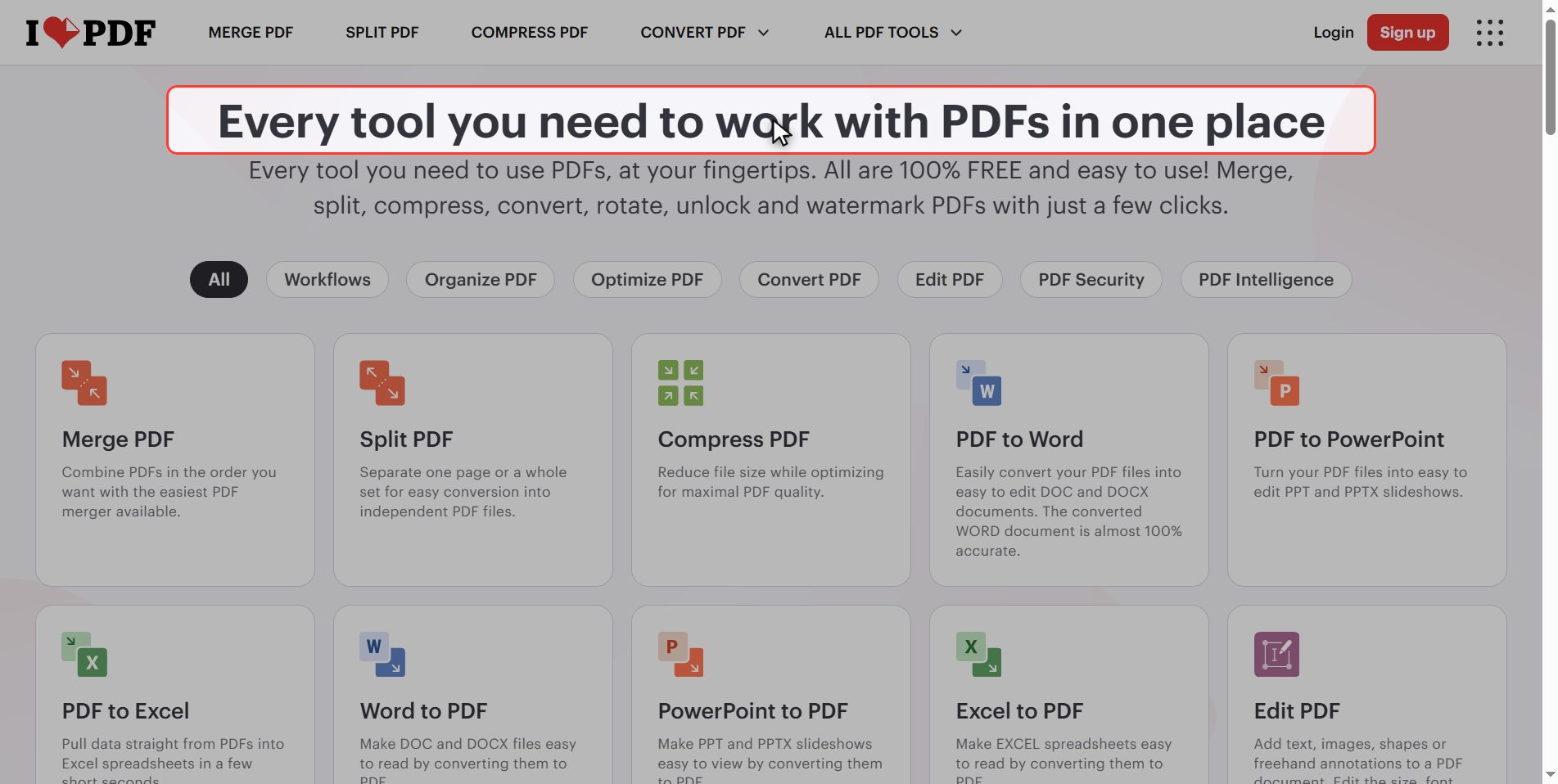
Go to ilovepdf.com. If the site comes up in another language, you change it at the top right.
In the grid of tools, look for PDF to JPG.
Watch out, because right next to it sits JPG to PDF, the opposite one, which confuses a lot of people: that takes images and builds a PDF out of them. Here we are going the other way.
Upload your PDF
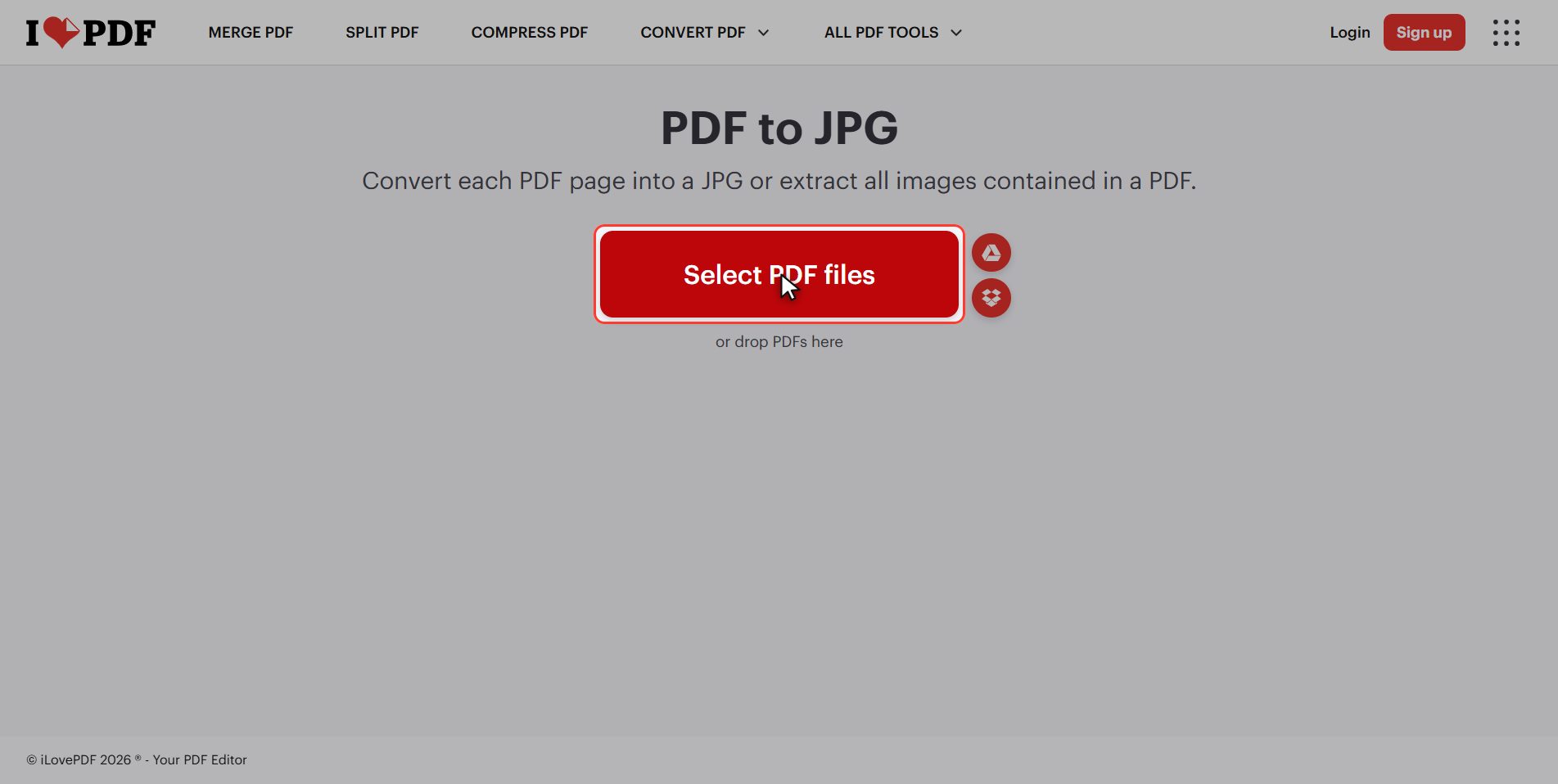
Click the red Select PDF files button and pick your document.
It is plural: it takes several documents at once.
The rule is simple: one page, one image. A four page document gives four JPGs.
The two tabs, and the quality
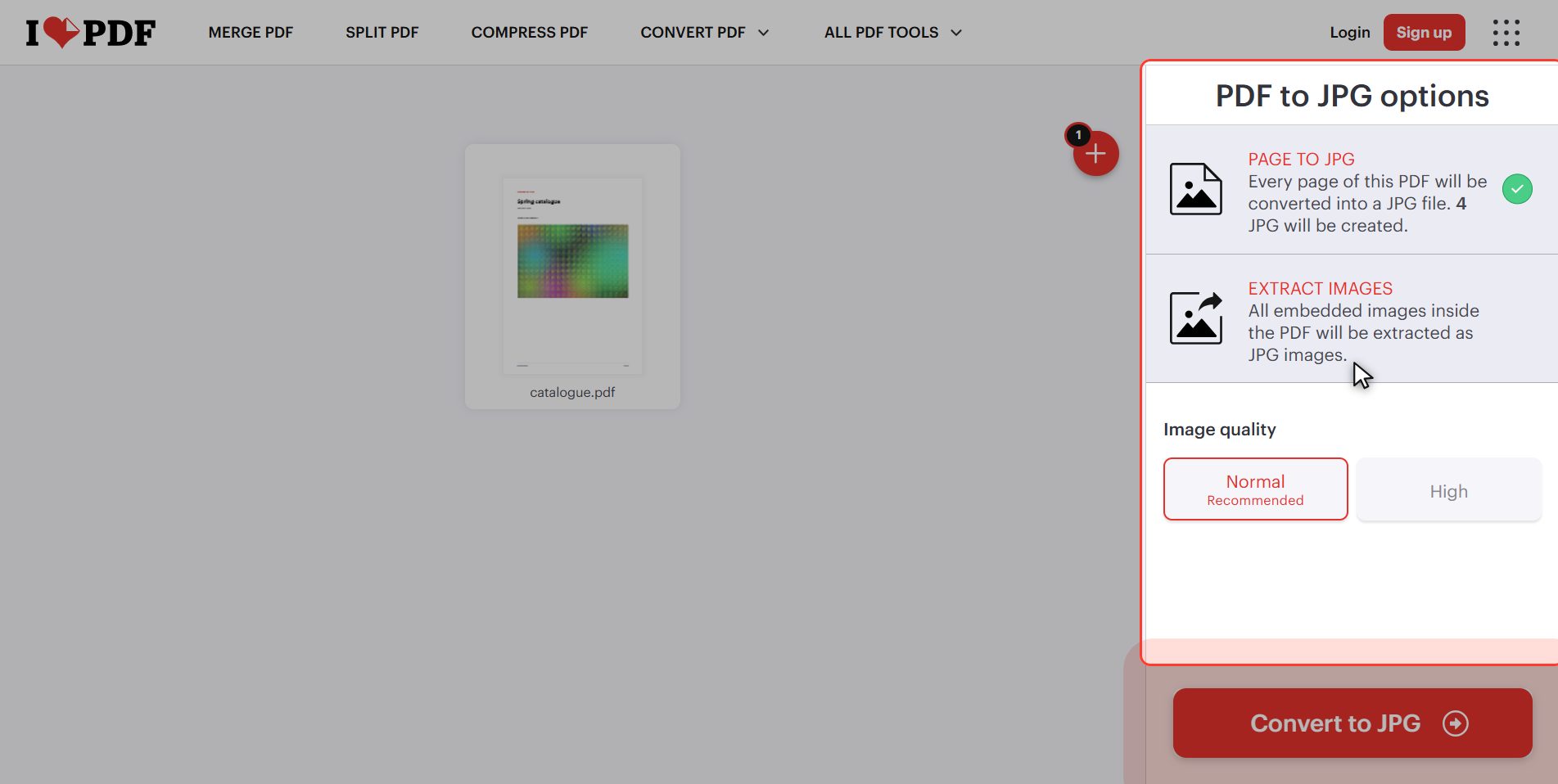
The panel appears on the right, and it has two tabs worth telling apart, because they do different things:
- PAGE TO JPG — the one you want almost always. It takes a photograph of each whole page, with its text, its layout and its pictures, exactly as it looks.
- EXTRACT IMAGES — pulls out only the photographs embedded inside the PDF, loose, without the text or the page around them.
When is the second one useful? If what you want out of a catalogue are the product photos and not screenshots of the pages. A genuinely useful function, but not the one for this tutorial: here we stay on *Page to JPG*.
And underneath, the only thing to decide: the image quality.
The advice is not to touch it. It comes at the balance that works for almost everything: it reads well on screen and on a phone, and the files do not become enormous.
- Maximum → the images weigh a lot more, and the difference only shows if you are going to print them large.
- Lower → the text starts looking dirty around the edges.
Click "Convert to JPG"
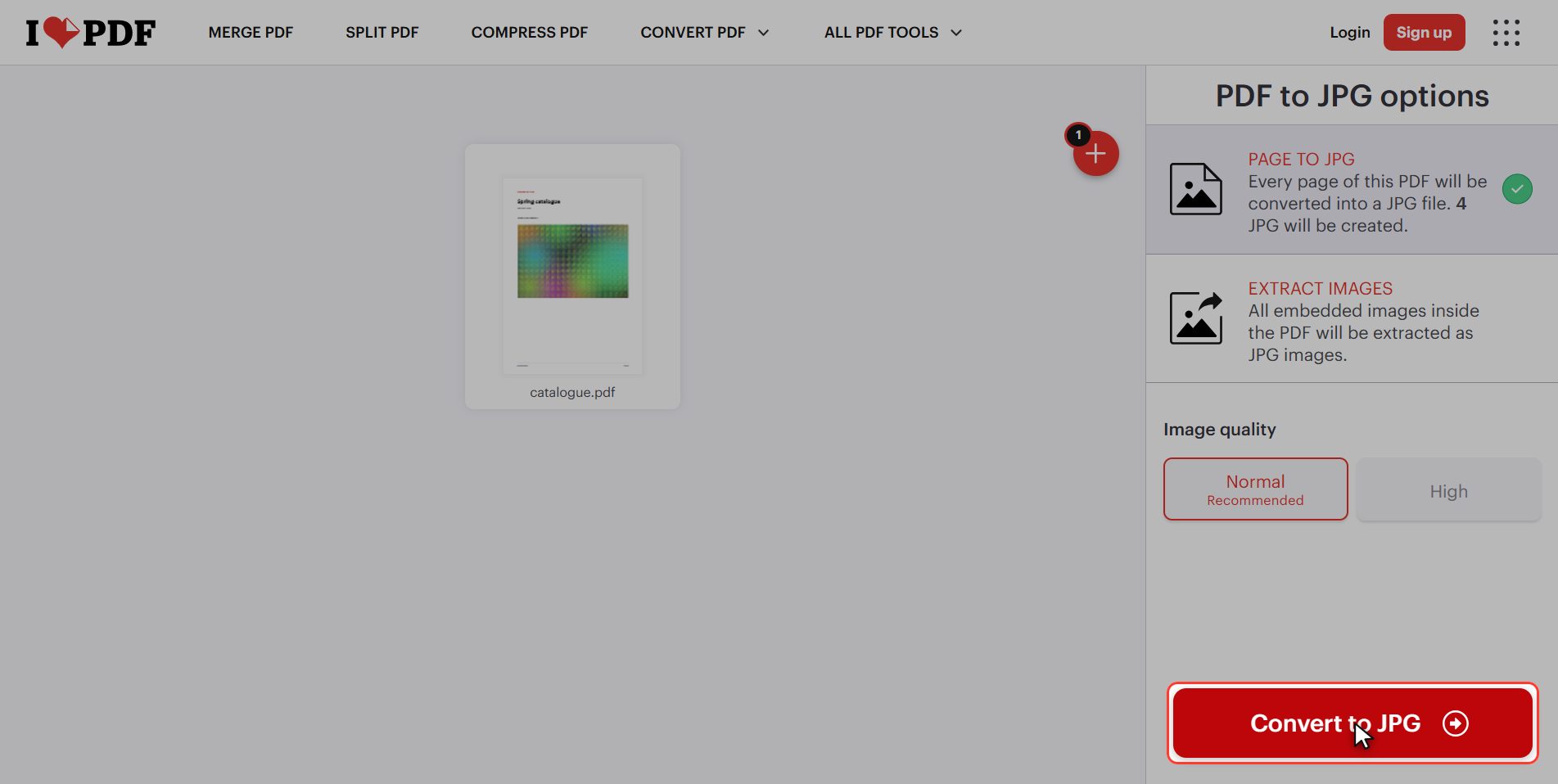
Click the red button at the bottom right: Convert to JPG. It takes a few seconds, and what it is doing is taking a photograph of each page.
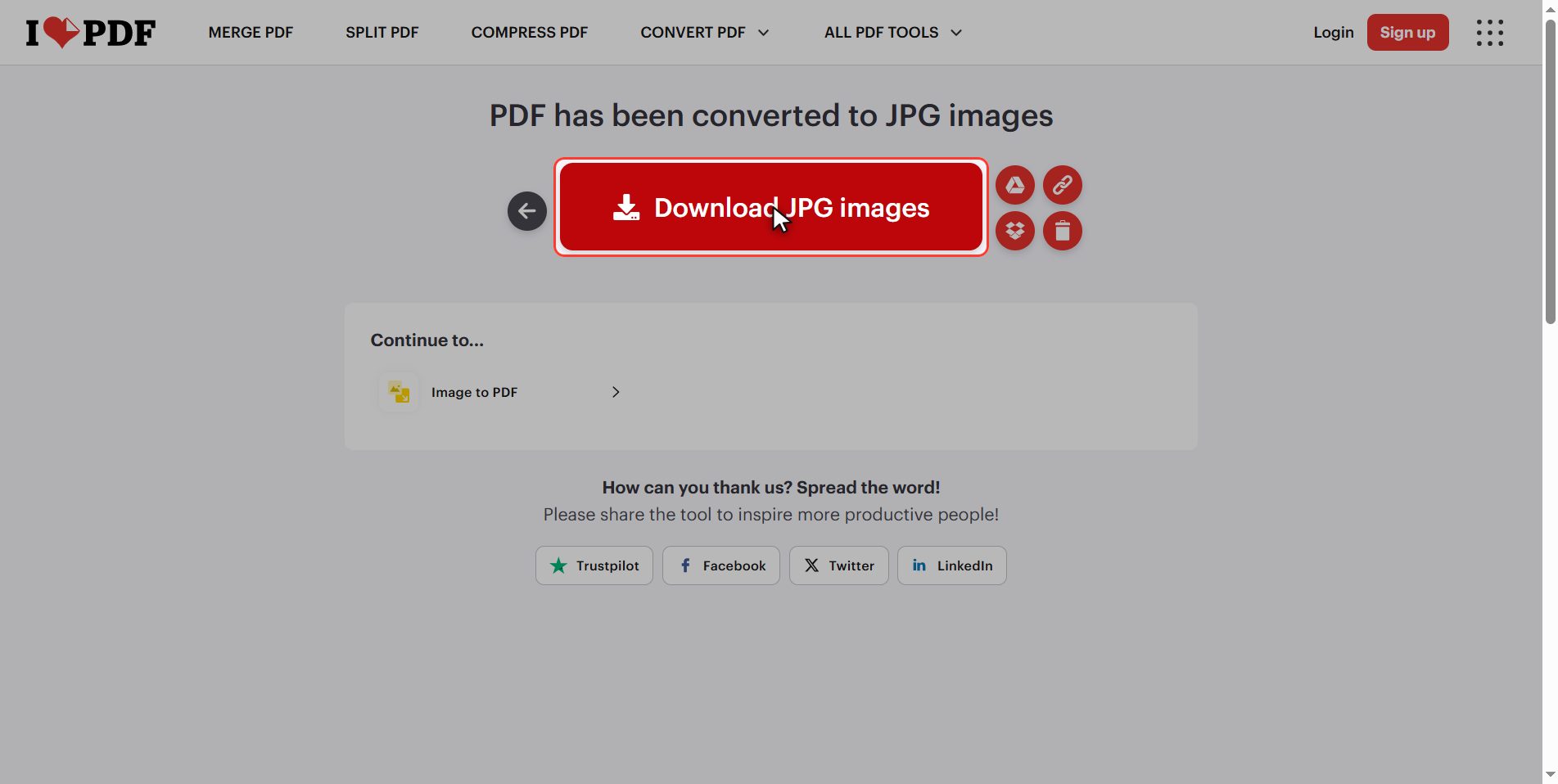
Download the ZIP
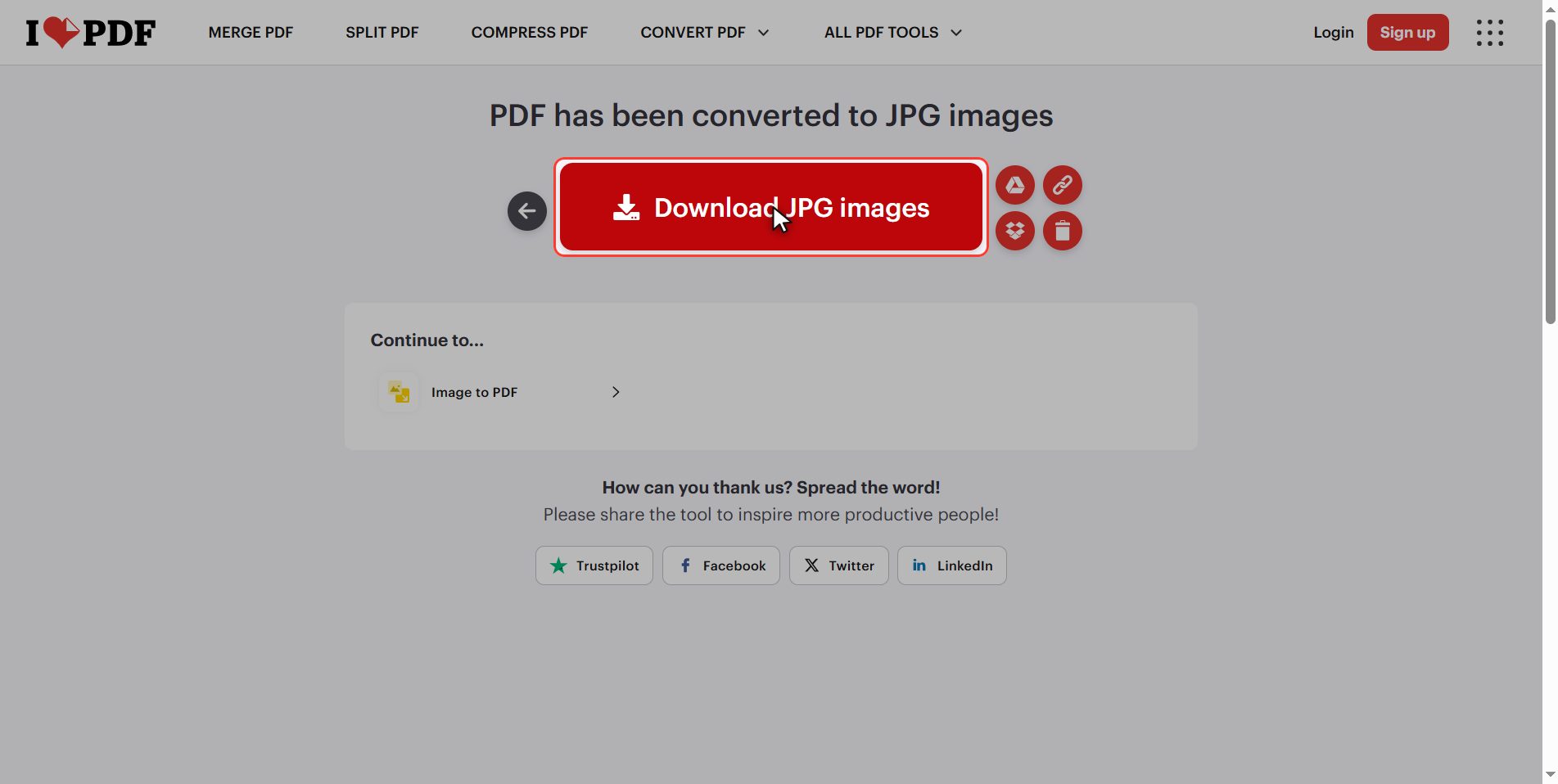
Look at what you download, because it surprises a lot of people: four files do not come down, one single file does.
It is a zip: a compressed folder with the images inside. Normal when the result is several files.
It opens with a double click, and the JPGs inside are numbered in page order. If double clicking does not open it, right click and look for extract or decompress.
What you lose by converting
This is the important part, and the one almost nobody tells you.
A JPG of a page is not the page: it is a photograph of the page. The text has stopped being text.
Which means:
- You cannot find it with the search box
- You cannot select or copy it
- A screen reader cannot read it out for a blind person
- It cannot be translated, because to the computer it is now a drawing
The rule:
- Convert to images when you want it to be SEEN: Instagram, a chat, a slide, a poster.
- Do not convert a document you will have to read, search or fill in. You are breaking it.
And watch out for the return journey: the JPG to PDF tool does give you a PDF, yes, but it does not give you back the text. What is lost here is not recovered. Always keep the original.
What happens to your files
This applies to all of these tools.
Your document is uploaded to an iLovePDF server so it can be converted. It is processed there and deleted by itself after a few hours.
For a catalogue, a leaflet or some lecture notes, no problem. If it is an invoice, a contract or something with personal data, think twice.
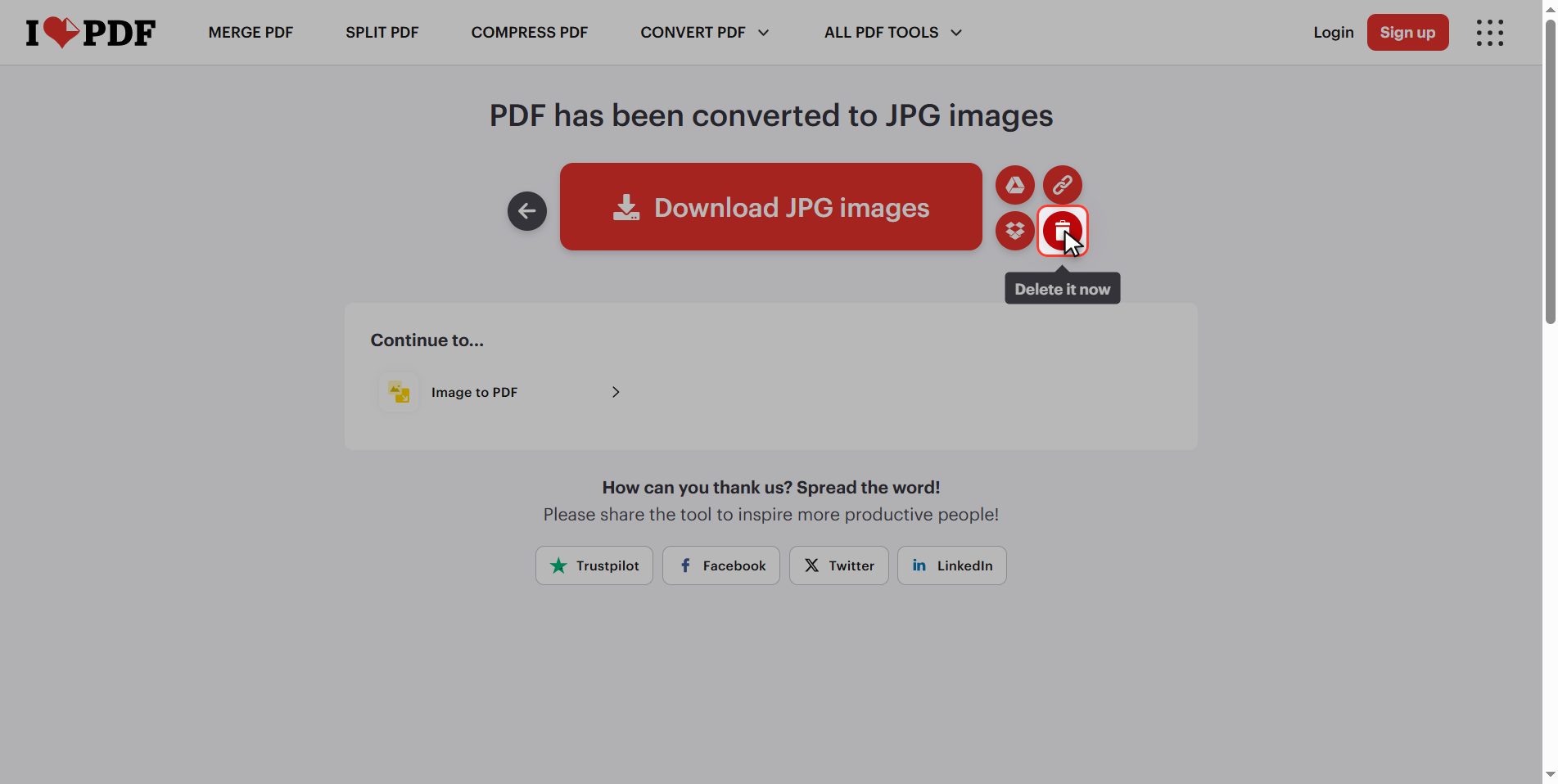
And if you upload it anyway, hit the bin icon when you are done.
And that is it: a PDF turned into images in under a minute and for free.
Take away the part that matters, which is not the clicks: when you convert, text turns into drawing. Do it so it can be seen, not so it can be read.
Common questions
Why does it download a zip and not the images?
Because the result is several files and the site puts them in a compressed folder so you only download one thing. It opens with a double click, and on both Windows and Mac you can look inside without decompressing anything. If you want the images loose in a folder, right click the zip and look for "Extract all" or "Decompress". If your PDF has a single page, then yes, the JPG comes down directly.
What is the "Extract images" tab for?
It does something different from what this tutorial does. Instead of photographing each page, it pulls out the photographs that are embedded inside the PDF, loose and without the text or the layout around them. It is what you want if what interests you in a catalogue are the product photos themselves. If your PDF has no embedded images, or is a scan, it will bring back little or nothing, because there is nothing inside to pull out.
Can I get just one page instead of all of them?
This tool converts the whole document. If you only want one page, the short route is to pull it out first with Split PDF, which lets you choose the range, and convert that one page PDF afterwards. The even shorter route, if it really is just one: convert everything and delete the images you do not want from the zip.
Can I turn it back into a PDF afterwards and get the text back?
You get a PDF back, but not the text. The JPG to PDF tool puts the images inside a PDF, and what ends up in there are photographs of pages: nothing can be searched or copied. To recover text from an image you need OCR, which is a different tool and a different thing: it guesses the letters by looking at the picture, and it makes mistakes. That is why it is worth always keeping the original PDF.
Which quality should I choose?
The one it comes with. It is set for what almost everybody does with this: looking at the images on a screen. Turn it up only if you are going to print large, and bear in mind the files will weigh considerably more. Turning it down is almost never worth it: if the problem is the weight, it is better to convert at normal quality and compress the images afterwards, which looks better.
Do the images come out in page order?
Yes, and they come numbered. Inside the zip you will find the files with the page number in the name, so the order holds even if your computer sorts them alphabetically. That is useful if you are going to upload them as an Instagram carousel: they go up in that order and the sequence of the document is kept.