How to convert a PDF to PowerPoint
Written and checked by the Tutorio Lab editors · Reviewed on · Who we are and how we are funded
In 30 seconds: go to ilovepdf.com, pick PDF to PowerPoint, upload your file and hit the red button. There is nothing to configure. You get a .pptx with one slide per page. Free, no sign-up.
Someone sent you a presentation as a PDF and you need it in PowerPoint: to change one number, to reuse three slides, or because whoever sent it no longer has the original.
It converts in a minute, free, with nothing to install.
But the point of this tutorial is not how you convert it: it is what you are going to get. Because what comes out is not exactly a presentation, and you want to know that beforehand and not in the middle of your meeting.
Go to iLovePDF
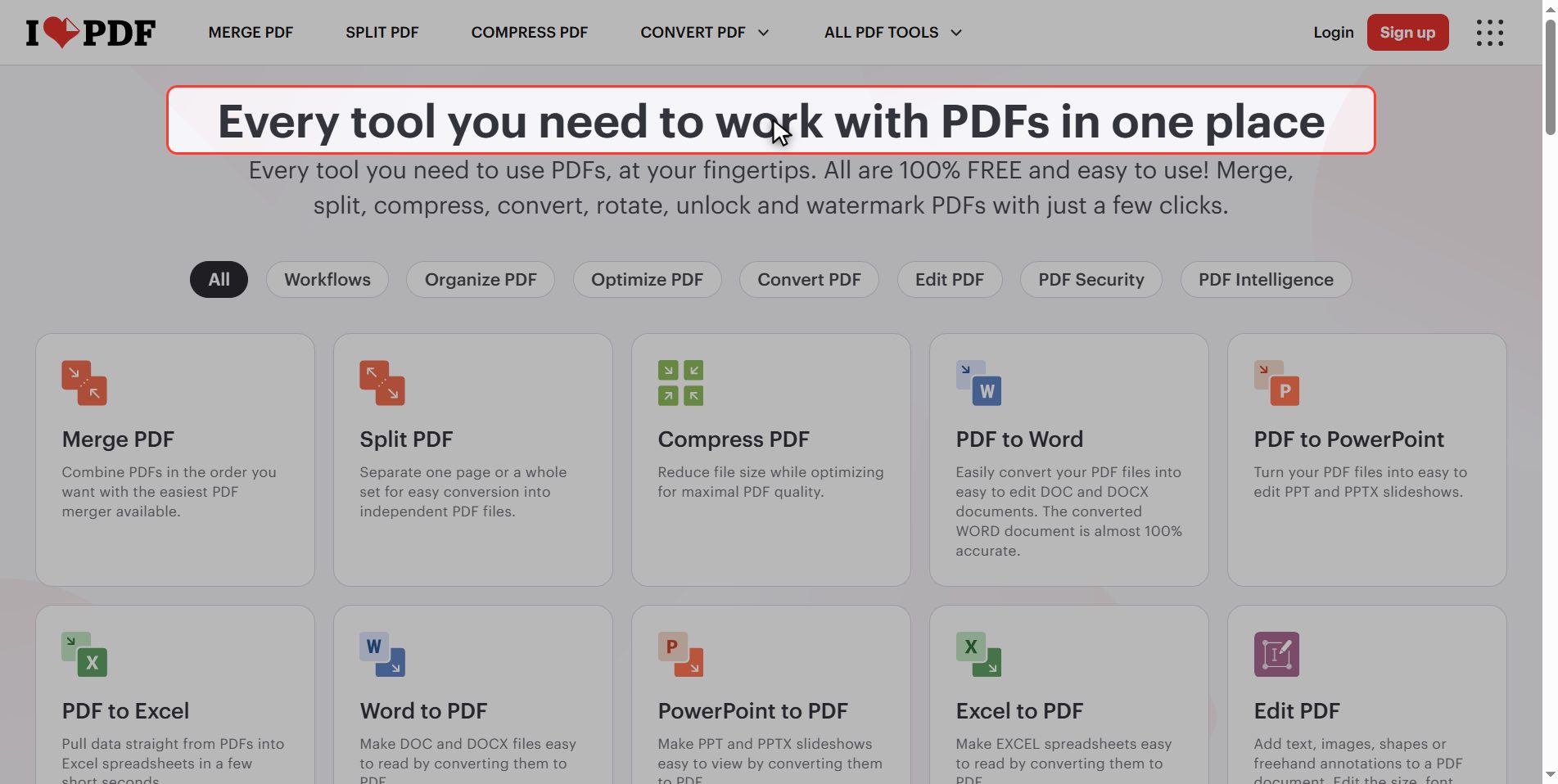
Go to ilovepdf.com. If the site comes up in another language, you change it at the top right.
In the grid of tools, look for PDF to PowerPoint.
Watch out for the two that sit near it, because people mix them up:
- PDF to Word — for text documents, not for slides.
- PowerPoint to PDF — the way back.
Upload your PDF
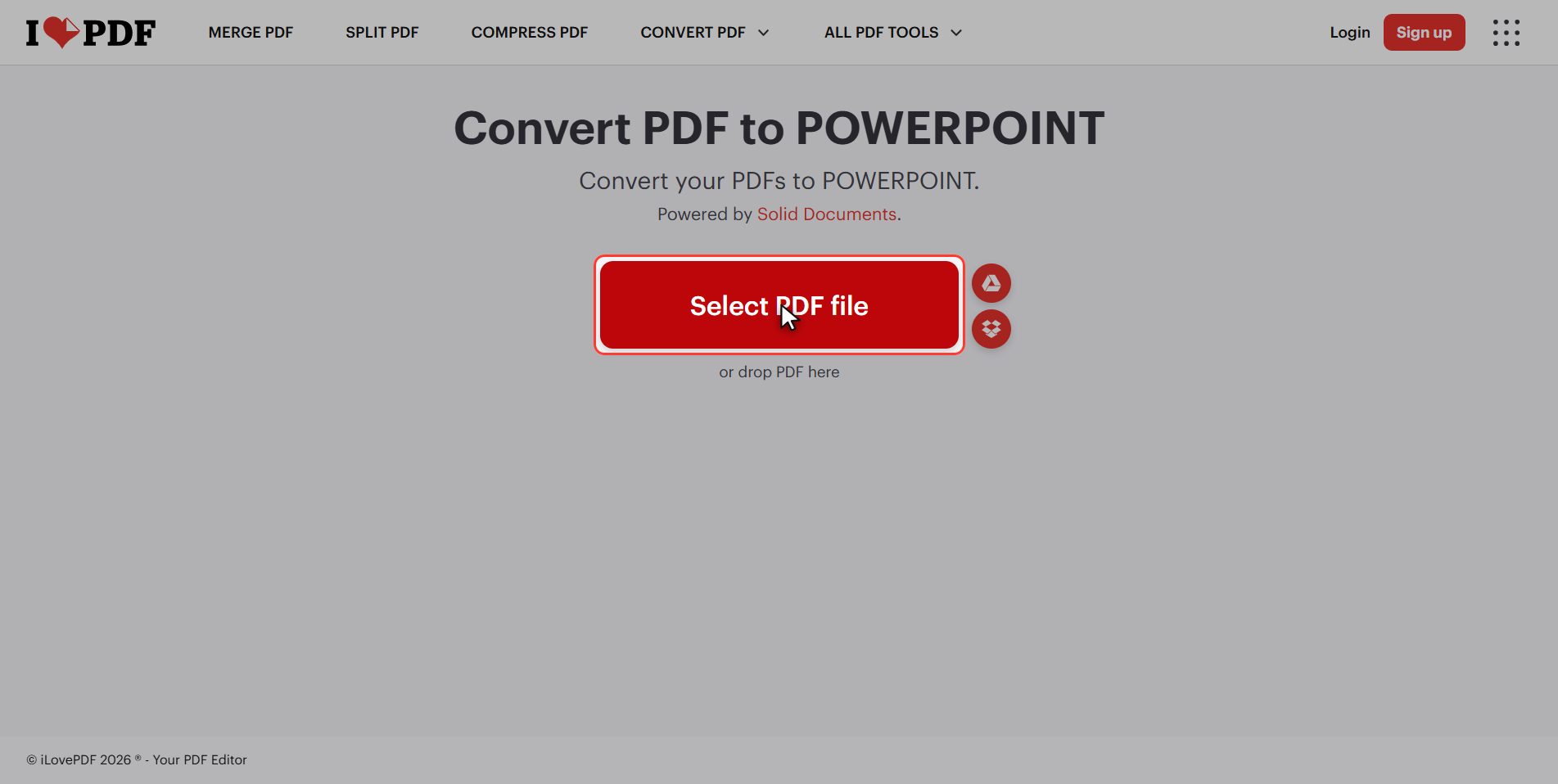
Click the red Select PDF file button and pick your file.
It is singular: one presentation at a time.
The rule is literal: one page of the PDF, one slide. It does not group, it does not split, it does not interpret. It counts pages.
Click "Convert to PPTX"
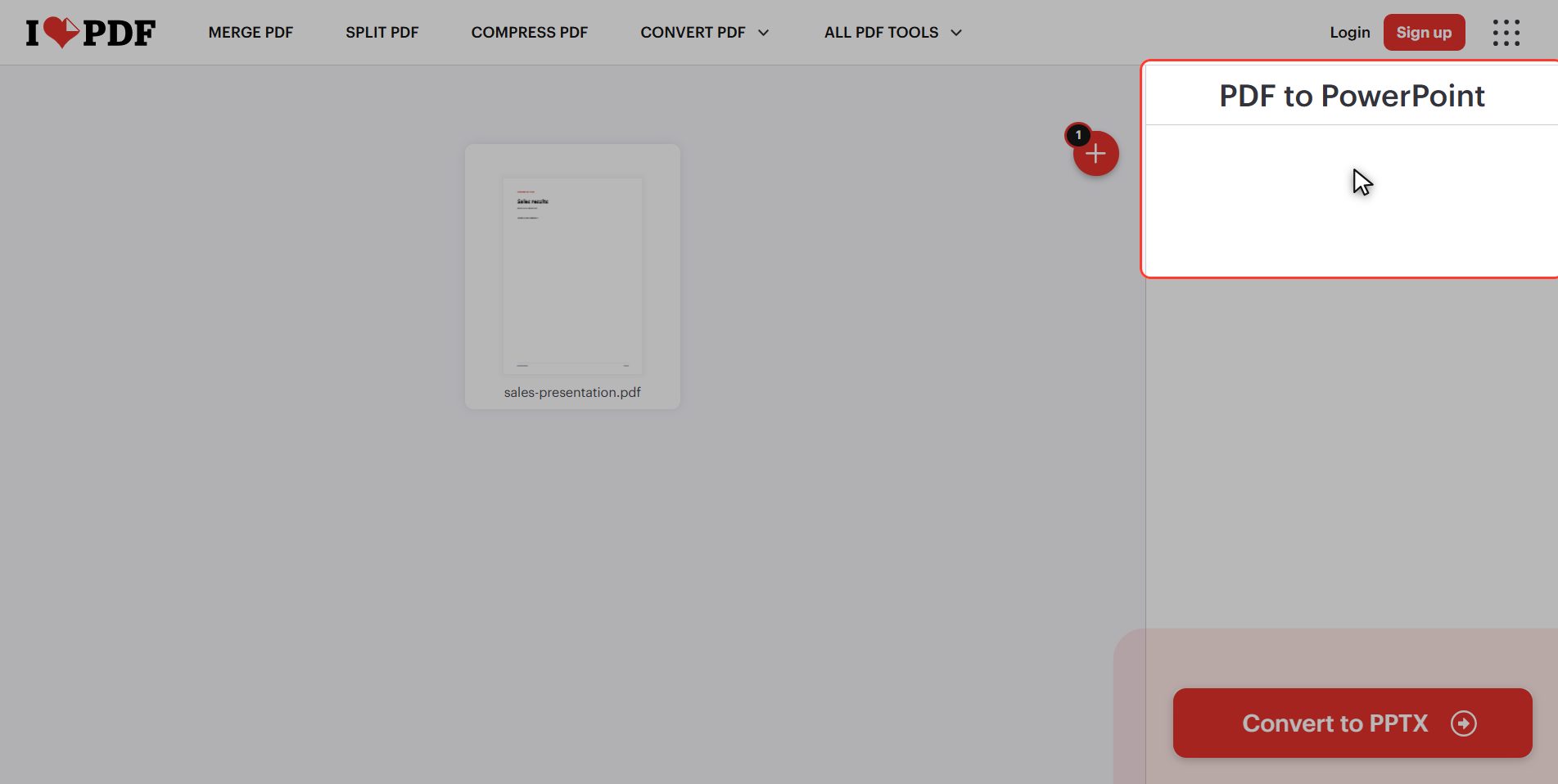
Notice something that tells you a lot: there is nothing to choose.
The panel on the right comes up empty, just the name of the file. Other tools on this same site do have options — PDF to Word even lets you pick whether to use text recognition. Not here.
Go straight for the red button at the bottom right: Convert to PPTX.
Download the PowerPoint
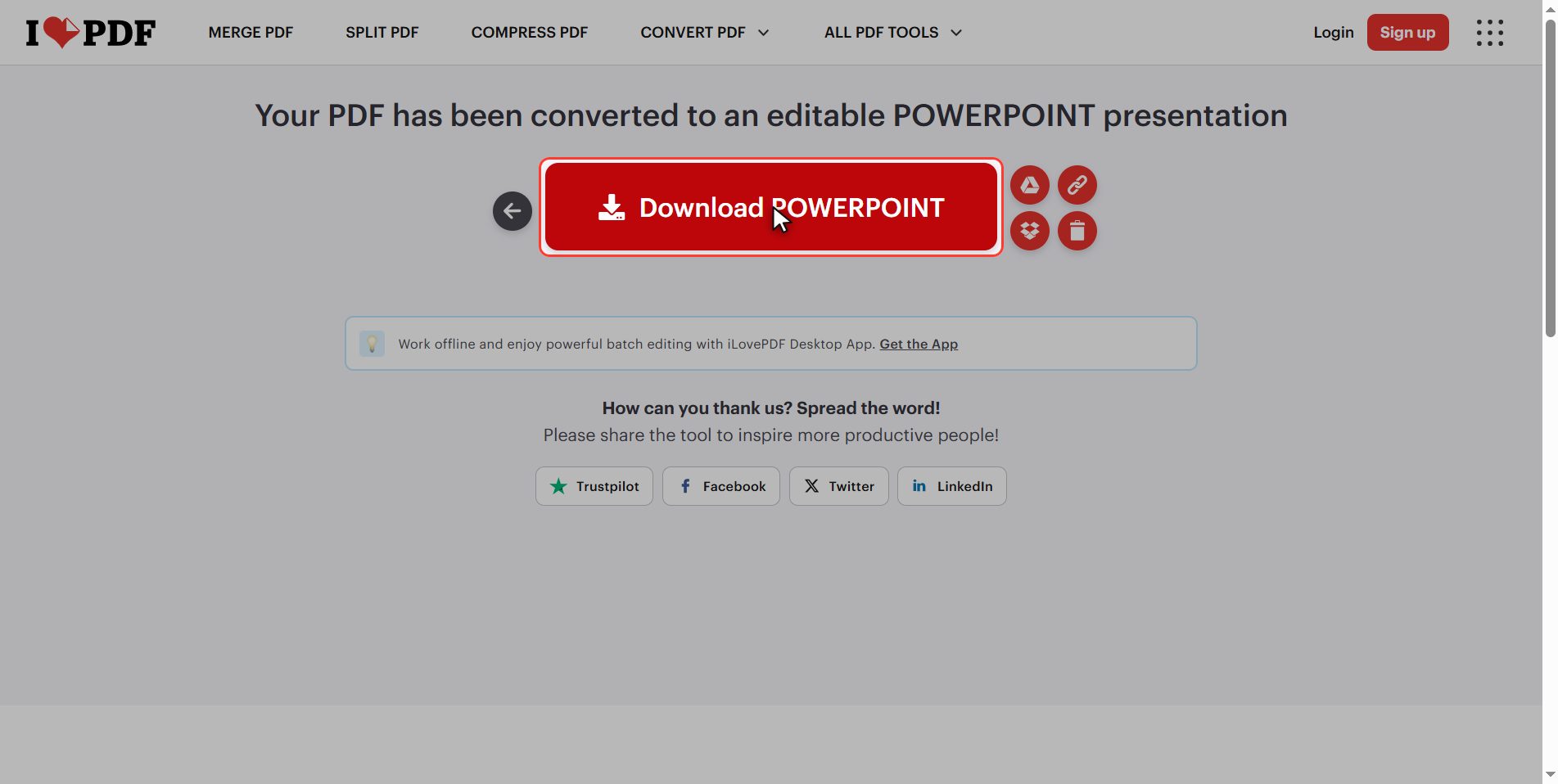
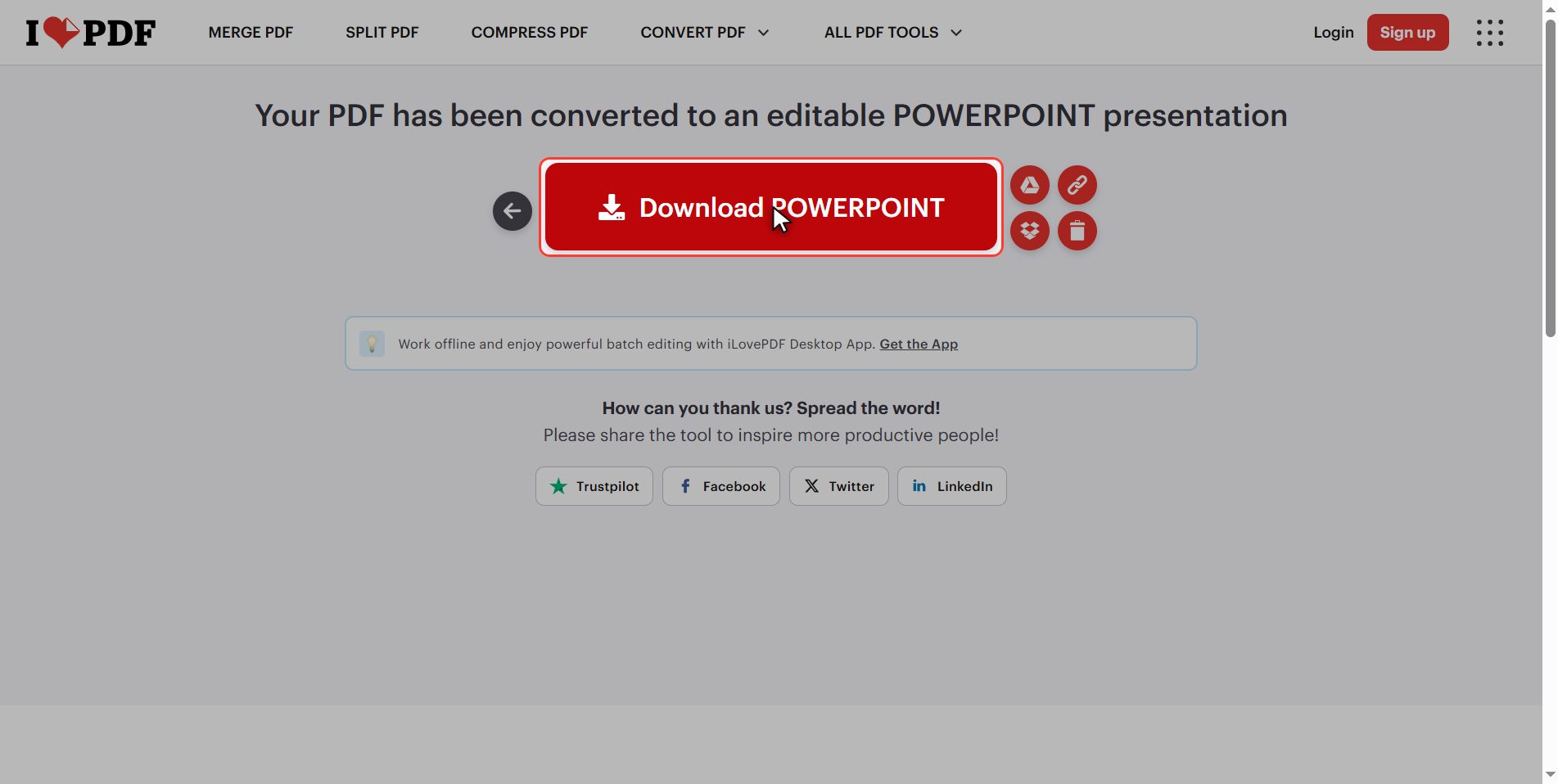
Download the file and your .pptx is in your downloads folder.
And if you do not have PowerPoint, it opens just the same with:
- Google Slides — by uploading it to Google Drive
- LibreOffice Impress — which is free
You do not have to buy anything to see it.
What you actually get
And now the important part: what you have actually received.
A PDF has no slides. It has pages, and a page is a sheet with things drawn on top of it. What the tool does is look at each page, pull out whatever it finds, and drop it onto a blank slide.
That has three consequences you will notice the moment you open it:
1. There is no title and no body text, there are loose text boxes placed one by one so they land where they were. It looks like the original, but inside it is not organised. 2. Changing the theme or the design rearranges nothing, and the outline view will come up empty, because there are no real titles to show. 3. If the PDF was a scan or came from an image, there was no text to pull out: what you get is a photograph of the page pasted onto the slide. Looks fine, cannot be edited.
The rule:
- Did the PDF come out of a PowerPoint? → you will be able to work with what you get.
- Is the PDF a scan? → it cannot be edited, no matter what the `.pptx` extension says.
And in both cases: if you can get hold of the original file, ask for it. It will always beat any conversion.
What happens to your files
This applies to all of these tools.
Your presentation is uploaded to an iLovePDF server so it can be converted. It is processed there and deleted by itself after a few hours.
For a presentation for class or ordinary work, no problem. If it carries client data, numbers that are not public, or anything confidential, think twice.
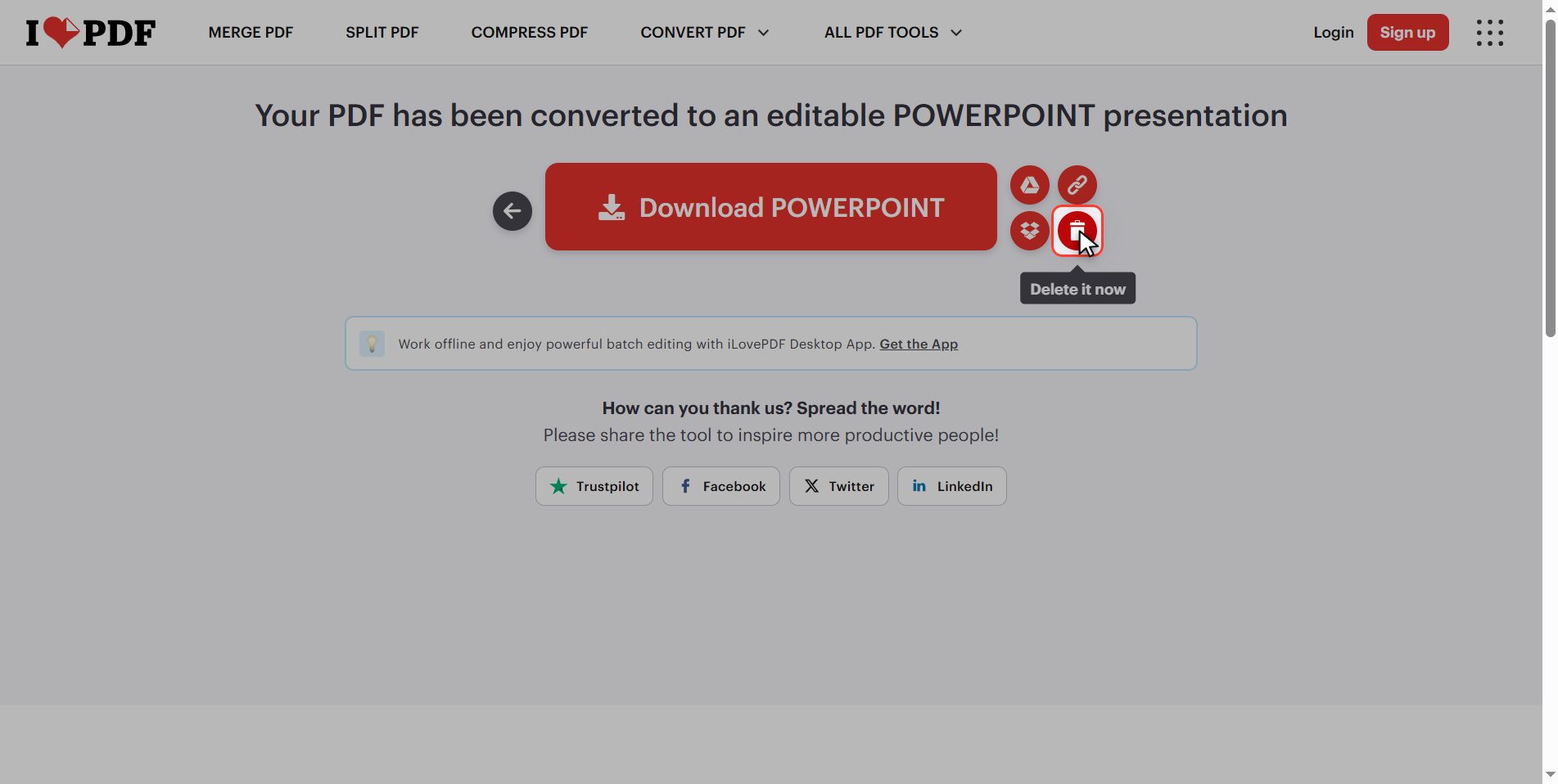
And if you upload it anyway, hit the bin icon when you are done.
And that is it: a PDF turned into PowerPoint in under a minute, for free.
Take away the part that matters: what you get looks like the original on the outside but is not organised on the inside, and if the PDF was a scan, you will not be able to edit anything.
Common questions
I converted the PDF and I cannot edit the text. Why?
Almost certainly your PDF was a scan or an image. In that case there was no text inside the file, only a photograph of the page, and the photograph is what the tool can put on the slide. The extension says pptx, but the content is a picture. To get text out of a scan you need OCR, which is a different tool and which also makes reading mistakes, so you have to check it by hand.
Why is my outline view empty?
Because PowerPoint's outline shows the titles and text that sit in the template's placeholders, and here there are none: everything is an ordinary text box placed by hand by the conversion. To the eye it looks the same, but PowerPoint has no idea which piece is the title. If you need the outline, you have to rebuild the slides on a real layout and paste the text in.
Can I convert only some of the pages?
This tool converts the whole document. If you only want three pages, the way to do it is to pull them out first with Split PDF, which lets you choose the range, and convert that short PDF afterwards. It is one extra step but it saves you deleting slides by hand and the file ends up far smaller.
I do not have PowerPoint. How do I open the file?
With Google Slides, by uploading it to Google Drive and opening it from there, or with LibreOffice Impress, which is free and installs on Windows, Mac and Linux. Both open a pptx without trouble. If you only want to look at it and not edit it, almost any document viewer on your phone will open it too.
Why do the fonts look different?
Because a PDF carries the lettering inside the file and a presentation does not: the presentation says "use this font" and the program goes looking for it on your computer. If you do not have it installed, PowerPoint substitutes the closest match, and that is where the text shifts and the line breaks change. It is the same reason a Word document looks different on someone else's machine.
What if I want the opposite, my PowerPoint as a PDF?
That direction is much better and loses nothing: PowerPoint to PDF is on the same site. And it has an advantage few people remember: a PDF looks the same on any machine, with the fonts embedded, so it is what you want to send once the presentation is finished and you do not want anyone touching it or the layout shifting.