
How to rotate a PDF so it stays rotated
Written and checked by the Tutorio Lab editors · Reviewed on · Who we are and how we are funded
In 30 seconds: go to ilovepdf.com, pick Rotate PDF, upload your document, click RIGHT or LEFT until the preview looks right and hit the red button. It rotates the whole document; if you only have one page sideways, use Organize PDF. Free, no sign-up.
You have a PDF that is sideways: a scan that came out on its side, some photos of documents, an old fax.
And you may have tried already: you open it, rotate it in the reader, close it… and when you open it again it is sideways once more.
That drives everybody mad and it has a very simple explanation. Understanding it is what makes you stop fighting with this.
Go to iLovePDF
Why it goes back to being sideways: when you rotate a PDF in Acrobat, in Preview on the Mac or in Chrome, you are not rotating the document. You are rotating the window, like tilting your head to read a sign.
The file stays the same and the moment you close it, it forgets. To make it stay rotated you have to change the file, and that is what this tool does.
Go to ilovepdf.com and look for Rotate PDF. Notice Organize PDF while you are there: you will need it at the end.
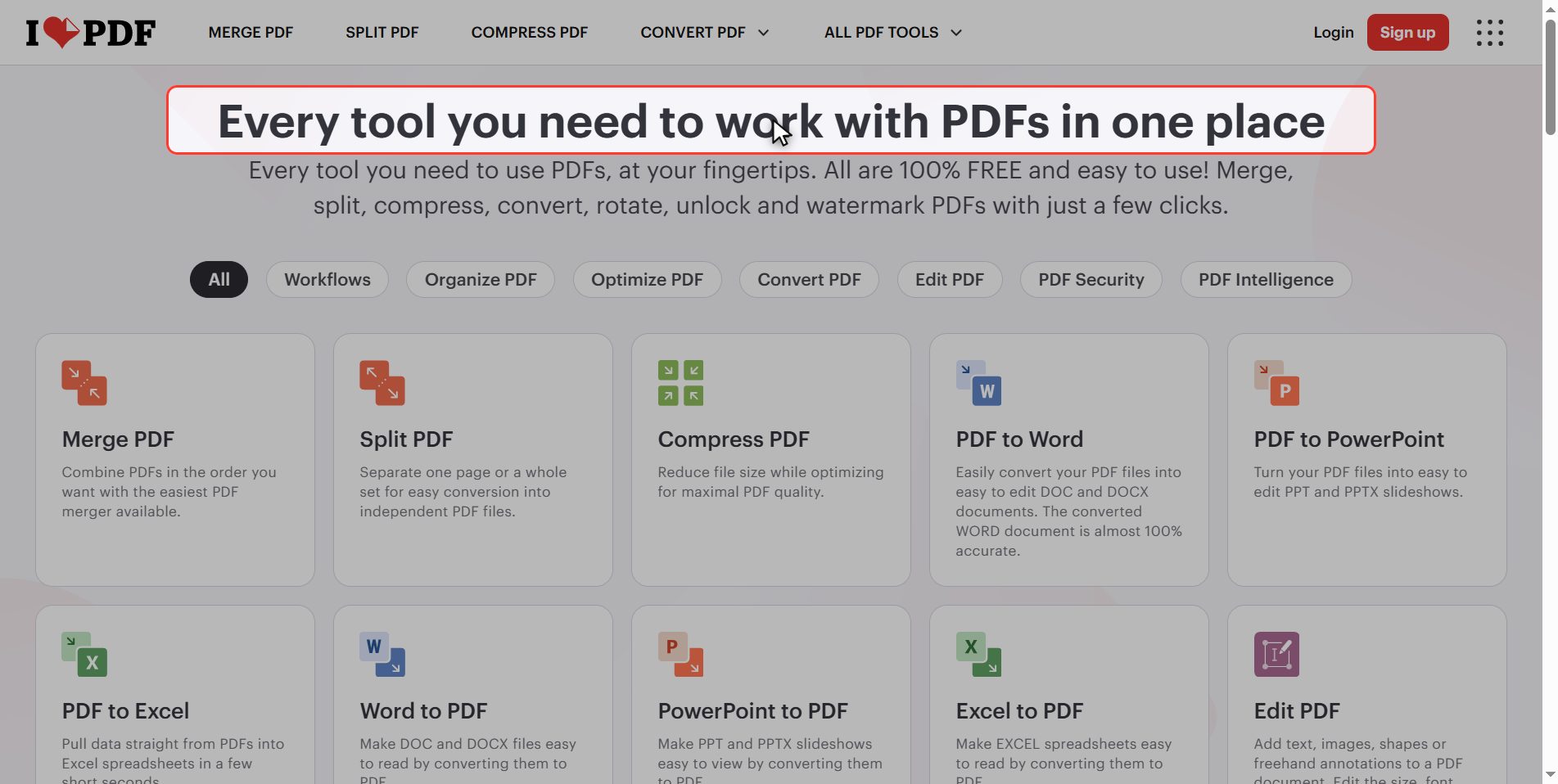
Upload your PDF
Click the red Select PDF files button and pick your document.
It is plural: you can upload several at once and rotate them all.
And notice an important detail: one card appears with the name of the file, not the pages separately. Remember it, because at the end it explains a limitation worth knowing about.
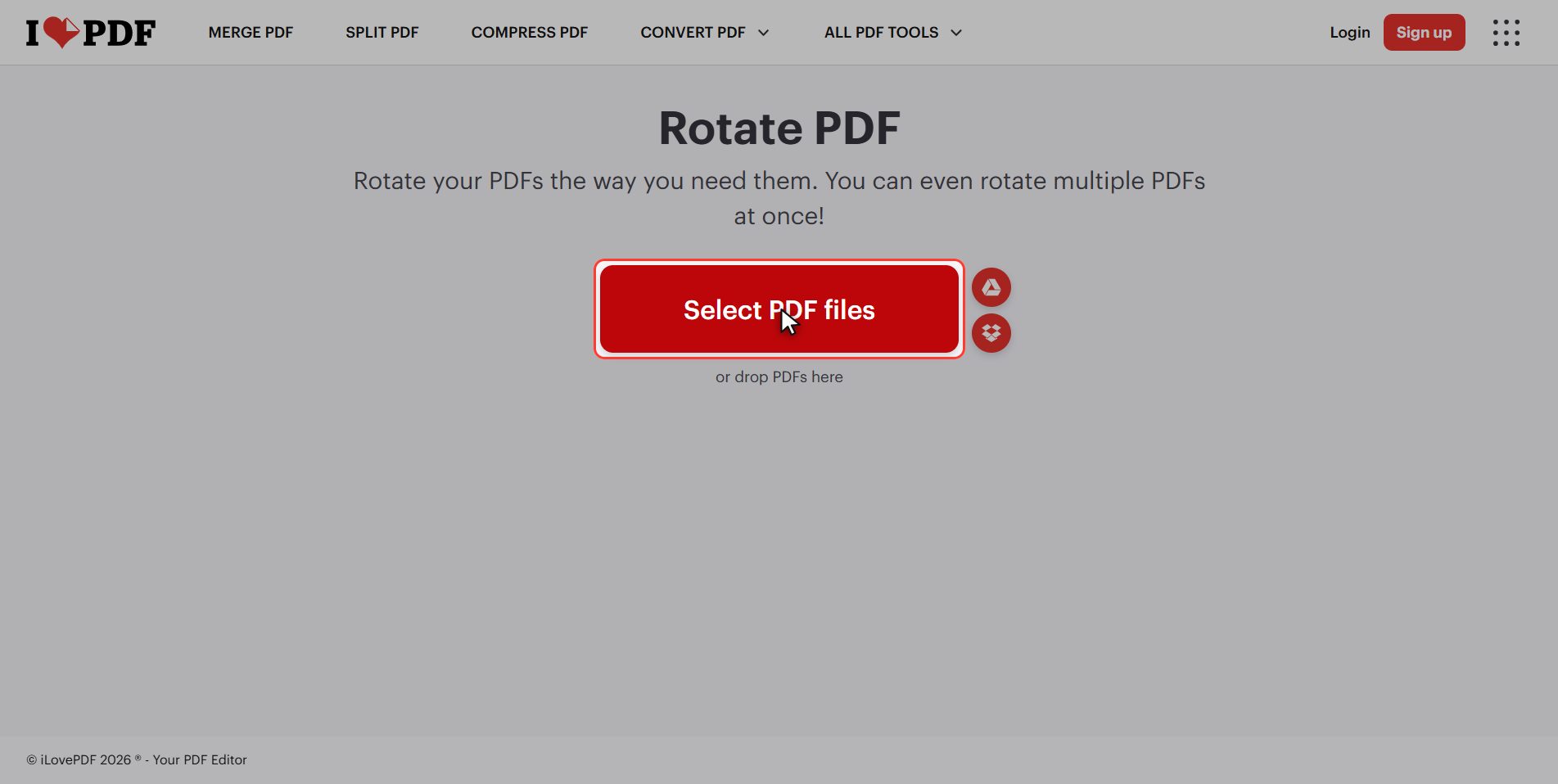
Rotate it with RIGHT
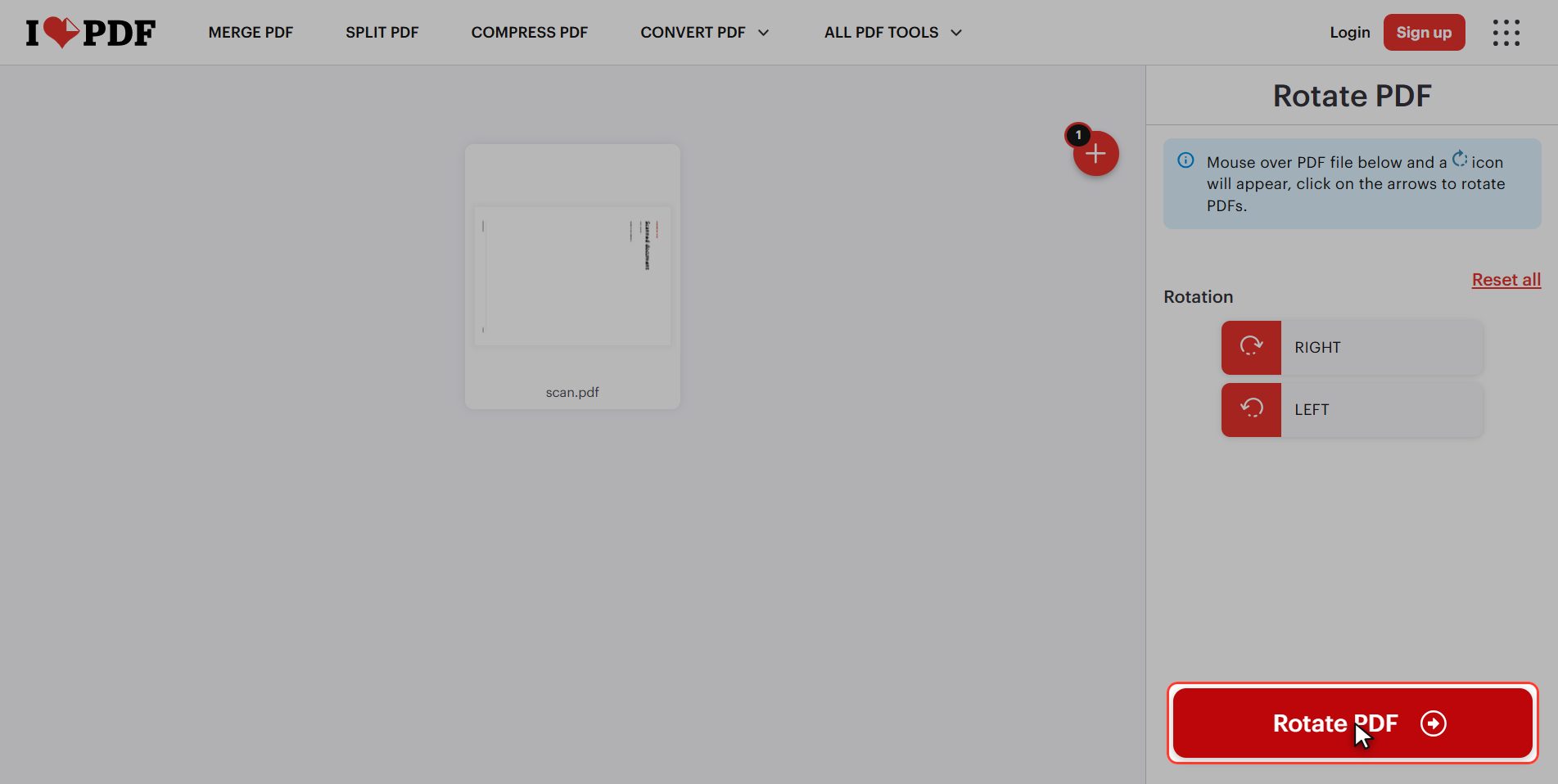
In the panel on the right there are two big buttons: RIGHT and LEFT.
Each click turns 90 degrees, so if the document is upside down, two clicks on the same button.
Look at the file card: it turns on screen. That is not decoration, it is the preview: what you see there is exactly what you will download.
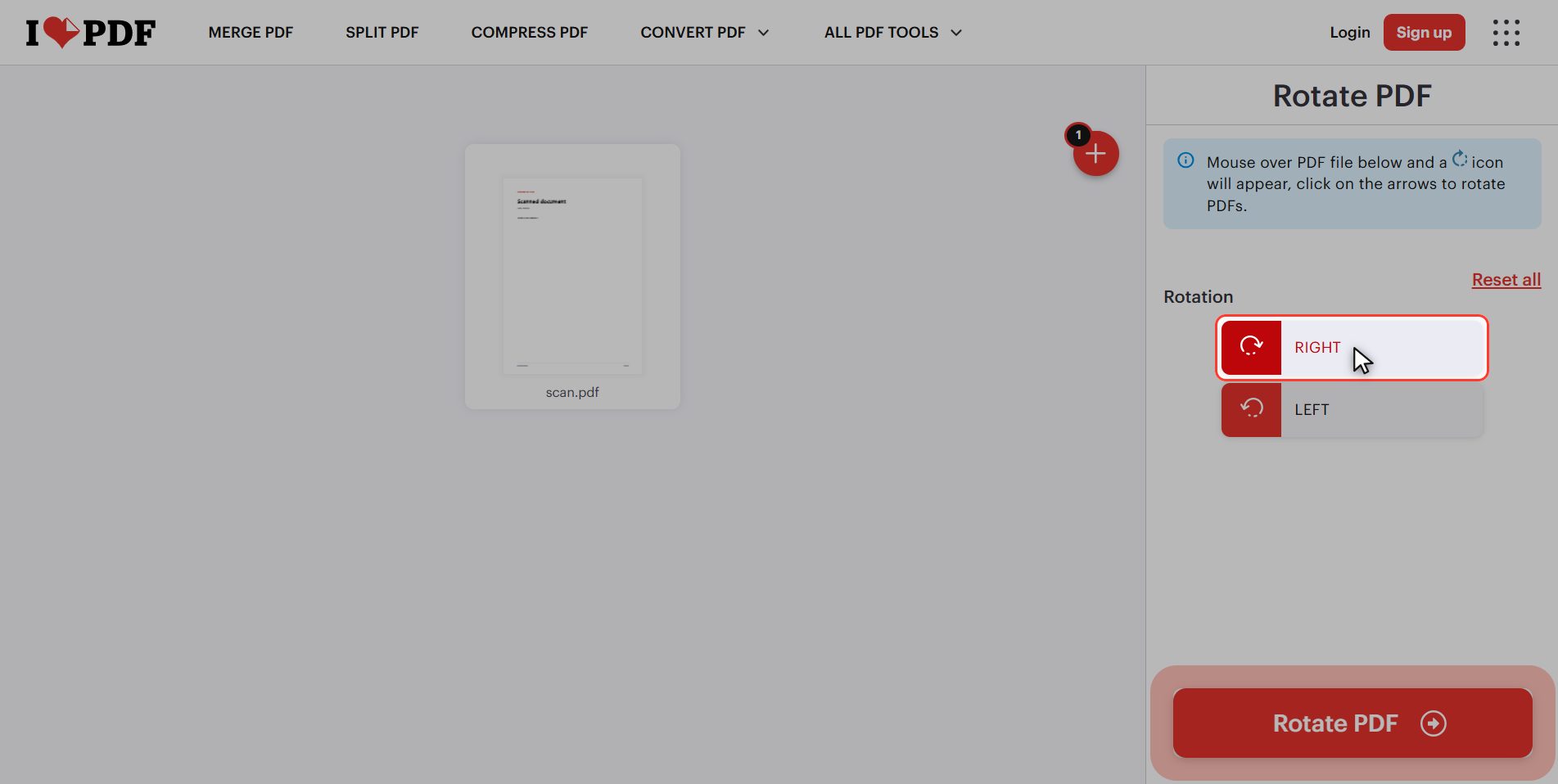
Ninety degrees per click, and the shortcut
There is a second route a lot of people never see, and the panel itself says so at the top: hover the mouse over the file and a rotate icon appears on the card.
It is the same thing, but placed on the document. It is the comfortable one when you have uploaded several files and want to rotate only one.
And in case you overshoot, the panel has Reset all, which puts everything back the way it was. It works as long as you have not processed.
Click "Rotate PDF"
When the preview looks how you want it, click the red button at the bottom right: Rotate PDF.
Download it
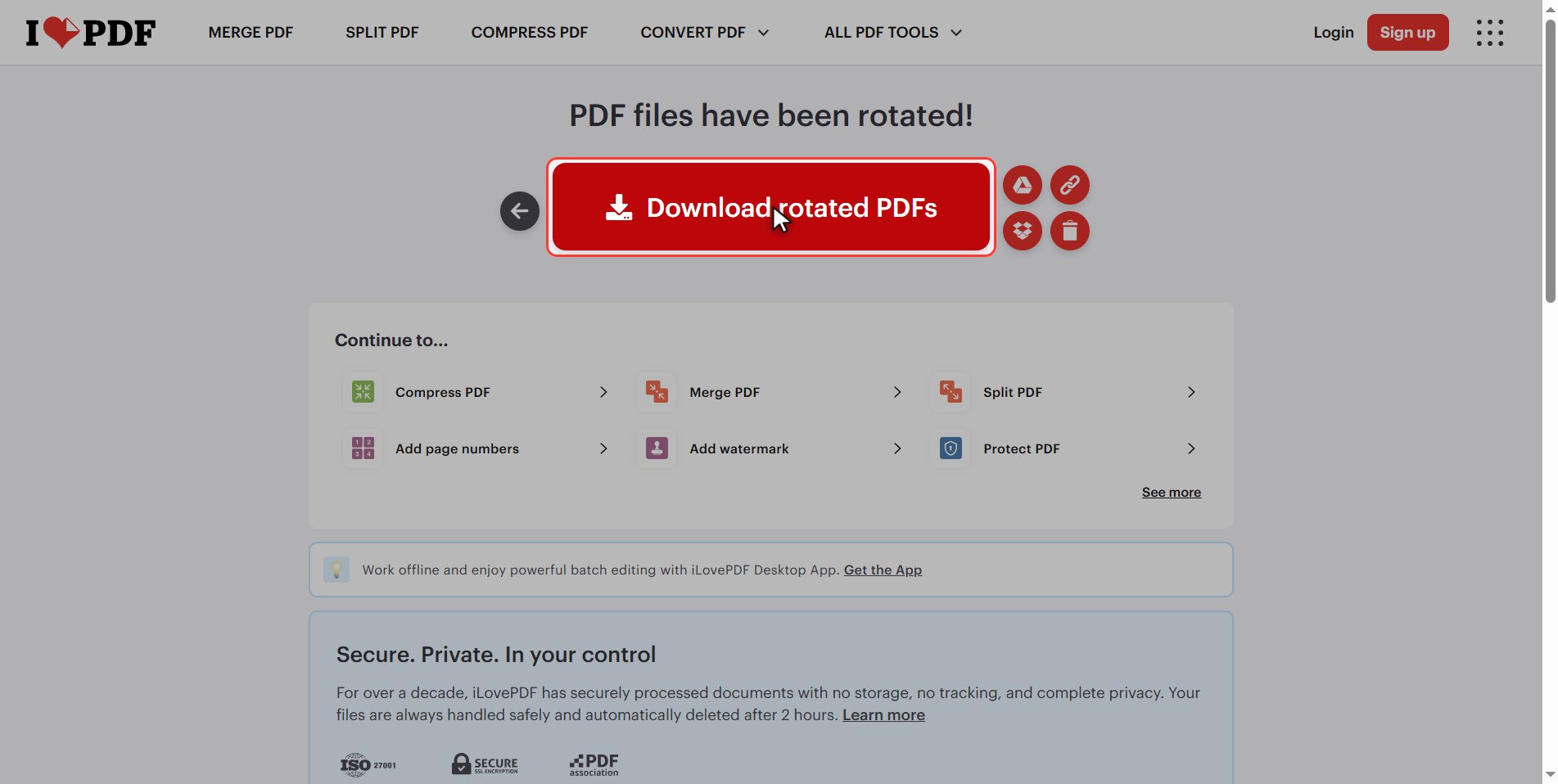
Download the file and your rotated PDF is saved in your downloads folder. If you uploaded several, they arrive together in a zip.
Check it: now it stays
And now do this, because it is the moment everything clicks: open it, look at it, close it and open it again.
Still rotated. That is the difference between rotating the view and rotating the file.
And a bonus almost nobody mentions: because the file is genuinely right now, it also:
- prints correctly
- looks right on the phone of whoever you send it to
- looks right in the email preview
Rotating the window fixed none of those three things.
If only one page is sideways
The limitation, and the reason I asked you to remember that detail.
One single card appeared with the file and not the pages separately. That means this tool rotates the whole document: every page, the same turn.
And the most common case of all is precisely the other one: a twenty page scan where only ONE came out sideways. If you use this tool, you fix that one and tilt the nineteen that were fine.
For that there is Organize PDF: that one does show the pages one by one as thumbnails, and you can rotate only the wrong one. Same site and also free.
The rule:
- Whole document sideways → Rotate PDF (what we just did)
- One or two pages sideways among many → Organize PDF
What happens to your files
This applies to all of these tools.
Your document is uploaded to an iLovePDF server so it can be rotated. It is processed there and deleted by itself after a few hours.
For a scan of some notes or a leaflet, no problem. If it is an invoice, a contract or something with personal data, think twice.
And if you upload it anyway, hit the bin icon when you are done.
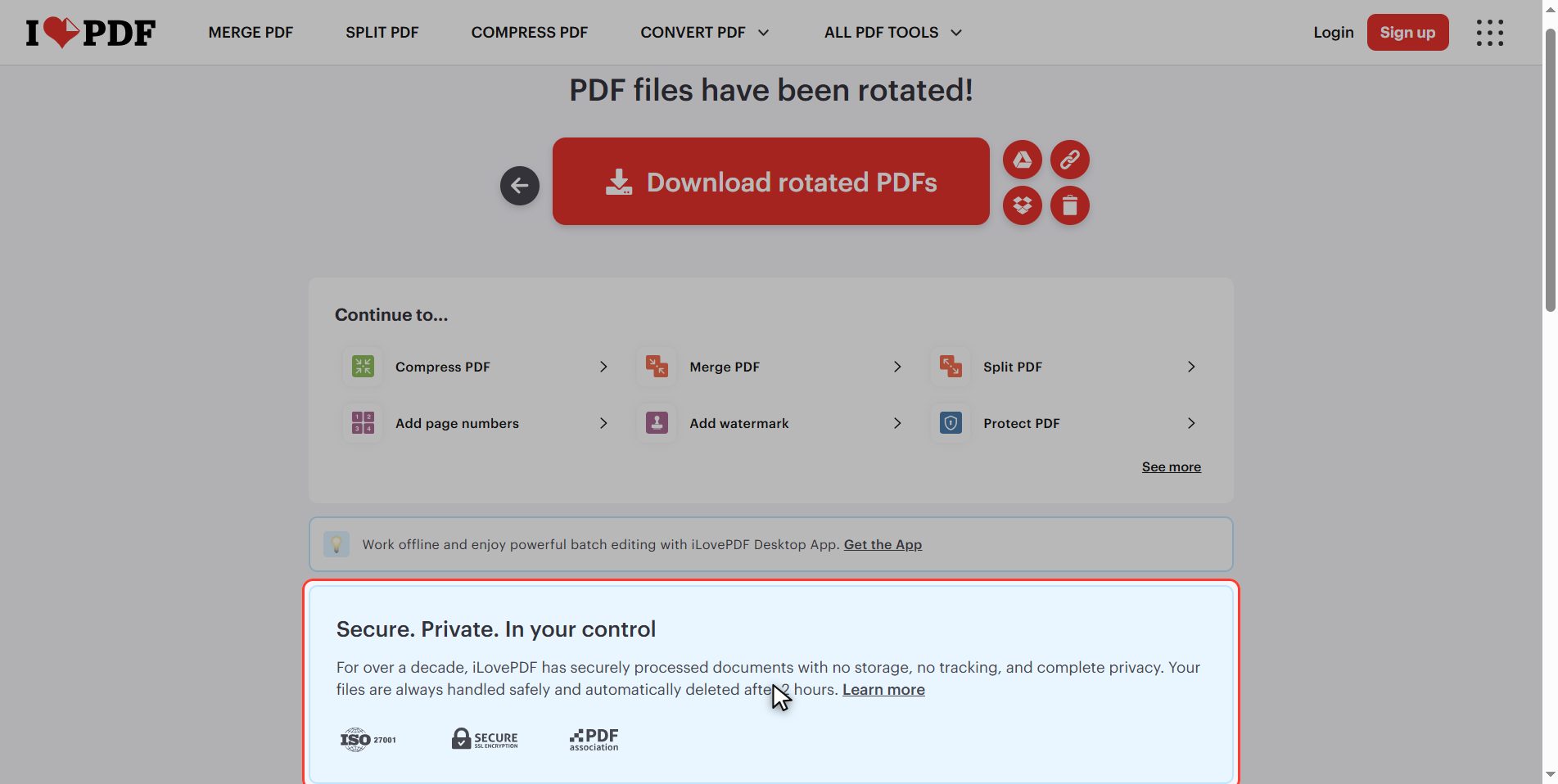
And that is it: a PDF genuinely rotated in under a minute and for free.
Take away the two things: rotating in the reader does not change the file, and if only one page is sideways, the tool is Organize PDF and not this one.
Common questions
Why does rotating the PDF in my reader not save?
Because the reader rotates the view, not the file. It is like tilting your head to read a sign: you see it straight, but the sign is still sideways. Some programs, like the paid Acrobat, let you rotate and then save, and then it does stay; but ordinary viewers only change how you see it at that moment. This tool changes the file, and that is why the rotation survives closing it.
Only one page is sideways and the rest are fine. What do I do?
Do not use this tool, because it rotates the whole document and would tilt the ones that are fine. Use Organize PDF, which shows every page as a thumbnail and lets you rotate each one separately. Same site, also free, and for that case it is the right one. It is the most common mistake with this.
My document is upside down, not sideways. How do I fix it?
Two clicks on the same button. Each click turns ninety degrees, so two make a hundred and eighty, which is what upside down needs. And it does not matter whether you use RIGHT or LEFT: twice on either ends up in the same place. Always look at the preview before processing.
Can I rotate several PDFs at once?
Yes, the button is plural and it takes several documents. With the panel buttons you rotate them all together, which works when they are all sideways the same way. And if each one is sideways differently, hover over each card and use the rotate icon that appears on it, which acts on that file alone.
Does rotating a PDF lose quality?
No. Rotating does not reprocess the content: what changes is an instruction in the file saying which orientation each page should be drawn in. The text is still text and the images still have the same pixels. It is one of the most harmless things you can do to a PDF.
I rotated too far and I have already processed it. How do I fix it?
Upload the file you just downloaded and rotate it the rest of the way. The Reset all button in the panel only works before processing, to undo the clicks of that session. And since rotating loses no quality, running it through the tool twice does the document no harm at all.